


 Shopify
 Stripe
 Slack
 Notion
 Google Workspace
 Confluence

How Do You Send a Custom CSAT Survey in Zendesk Messaging? (2026)


You can send a custom CSAT survey inside a Zendesk messaging conversation by posting it through the Sunshine Conversations API, which needs Suite Professional or above. On Suite Growth and above, the native messaging survey now lets you edit the question, the rating scale and negative-rating follow-ups, which may be all you need.
Key takeaways
- A custom CSAT survey in Zendesk messaging is sent as a business message through the Sunshine Conversations API, which requires Zendesk Suite Professional, Enterprise or Enterprise Plus.
- Zendesk's native messaging CSAT is customizable on Suite Growth and above, with an editable question, a 1-2, 1-3 or 1-5 scale, and follow-ups after negative ratings.
- Agents still cannot launch Zendesk's native CSAT survey manually, and it cannot carry a third-party survey such as Qualtrics, which is when the API route is worth building.
- Postback buttons keep a custom CSAT survey inside the chat: each button carries a payload that Zendesk delivers to your webhook when the customer clicks it.
- Teams sending their own survey should deactivate native messaging CSAT first, or customers receive two surveys for the same solved ticket.
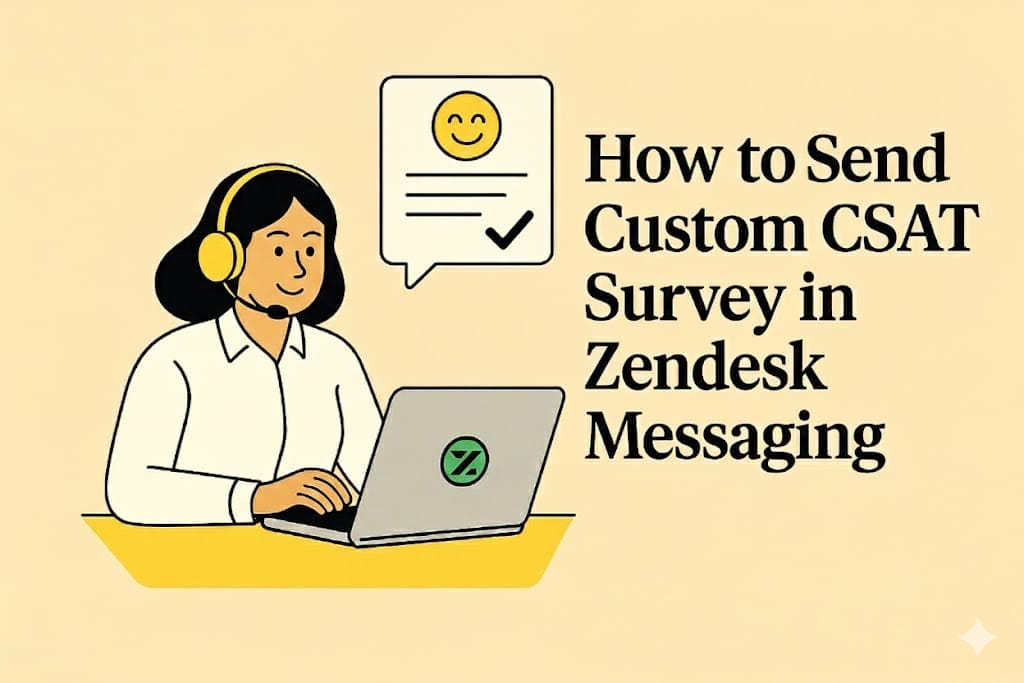
To send a custom CSAT survey inside a Zendesk messaging conversation, post it yourself through the Sunshine Conversations API: POST https://{subdomain}.zendesk.com/sc/v2/apps/{appId}/conversations/{conversationId}/messages, authenticated with a Key ID and Secret Key from a conversations integration (Zendesk Suite Professional or above). Before you build that, check whether you need it at all. Zendesk's native messaging CSAT is now customizable on Suite Growth and above: you can edit the question headline, pick a 1-2, 1-3 or 1-5 scale, and add follow-up questions for negative ratings (Zendesk, checked 24 September 2026).
| Approach | Plan | What you control | What you can't do |
|---|---|---|---|
| Native messaging CSAT | Suite Growth, Professional, Enterprise, Enterprise Plus | Question headline, 1-2/1-3/1-5 scale, numerical/emoji/text labels, one open-ended and one dropdown follow-up for negative ratings | Agents can't launch it manually; no third-party survey tool; fires on Solved |
| Sunshine Conversations API message | Suite Professional and above (conversations integrations) | Timing, wording, link or in-chat postback buttons, any survey platform | Needs a server, webhook handling and developer time |
| Email survey after the conversation | Any | Any survey tool | Leaves the chat, so response rates drop |
The rest of this page covers the API route: when it's worth it, the five build steps, and how to wire in a tool like Qualtrics.
How does Zendesk's native CSAT behave in messaging?
When you enable CSAT for Zendesk web, mobile and social messaging, the survey is presented in the messaging interface immediately after the ticket is set to Solved. Email works differently: the "Request customer satisfaction rating" automation sends the survey 24 hours after the ticket is solved, and the customer has 28 days to respond.
Older write-ups (including an earlier version of this one) describe the messaging survey as a fixed Good/Bad rating with question text you can't change. That's out of date. On Suite Growth and above, admins can customize the CSAT question, the rating scale and the rating labels, and show follow-up questions to customers who give a negative rating. The native survey still has hard limits:
- Agents cannot manually launch a CSAT survey. It's sent when a ticket is marked Solved, or when you alter the default trigger.
- You can't swap in Qualtrics or another survey platform's questions.
- Follow-ups are limited to one open-ended question and one dropdown, and only after a negative rating.
- The survey is tied to a solved ticket, so a conversation that never becomes a ticket never gets one.
"Does anybody know if this is possible? If so, what would be the best way? So far, we only managed to send emails after conversation is closed, but it's impacting our response rate." - Common Zendesk admin concern
If your problem is only the wording or the scale, change the native survey and stop here. The API route earns its setup cost when you need a third-party platform, more than two follow-up questions, or control over when the survey appears.
How do you send a custom survey with the Sunshine Conversations API?
The Sunshine Conversations API lets you post messages into a messaging conversation as the business. That's the whole trick: your survey is just a message with a link or buttons, sent at the moment you choose.
What You'll Need
Before starting, ensure you have:
- Zendesk Suite Professional, Enterprise or Enterprise Plus (required to create conversations integrations)
- Admin access to your Zendesk account
- A Sunshine Conversations API key (Key ID and Secret Key)
- A server that can receive webhooks and call APIs
- Your third-party survey platform set up, if you're using one like Qualtrics
Step 1: Get the Conversation ID Using Ticket Audits API
First, retrieve the conversation ID associated with the ticket. The Ticket Audits API lists every update to a ticket, and those audits include the Sunshine Conversations details.
Call the List Audits for a Ticket endpoint:
GET /api/v2/tickets/{ticket_id}/audits
This endpoint returns all updates to the ticket, including conversation-related events.
Source: Zendesk Ticket Audits API Reference
Step 2: Authenticate with Sunshine Conversations API
To send messages through Sunshine Conversations, you authenticate with an API key created on the Conversations integrations page in Admin Center.
To create your API key:
- In Admin Center, click Apps and integrations in the sidebar
- Select Integrations > Conversations integrations
- Create a new integration and generate an API key
- Save your Key ID and Secret Key securely
You'll use these credentials as Basic Auth when calling the API.
Source: Creating Conversations Integrations in Admin Center
Step 3: Create a Webhook to Trigger Your Survey
Webhooks let your server react to messages and other events in real time. You need one that tells you when to send the survey.
To create your webhook:
- In Admin Center, go to Apps and integrations > Integrations > Conversations integrations
- Click Create integration
- Enter a unique name for your integration
- In the Webhook section, configure:
- Webhook endpoint URL: your server URL that will receive the events
- Webhook subscriptions: the events you want to be notified about (for example, conversation messages or postbacks)
When a subscribed event occurs, Zendesk sends the event data to your URL.
Source: Creating Conversations Integrations in Admin Center
Step 4: Send Your Custom Survey Message
With the conversation ID and credentials in hand, send the survey through the Messages API, using the app ID and conversation ID from the webhook payload.
The base URL is https://{subdomain}.zendesk.com/sc/v2 and the endpoint is:
POST https://{subdomain}.zendesk.com/sc/v2/apps/{appId}/conversations/{conversationId}/messages
Here's an example using the Sunshine Conversations client for Node.js:
const SunshineConversationsApi = require("sunshine-conversations-client");
const defaultClient = SunshineConversationsApi.ApiClient.instance;

defaultClient.basePath = "https://{subdomain}.zendesk.com/sc";
const basicAuth = defaultClient.authentications["basicAuth"];
basicAuth.username = "{your_key_id}";
basicAuth.password = "{your_secret_key}";

const apiInstance = new SunshineConversationsApi.MessagesApi();

async function sendSurvey(appId, conversationId) {
  const messagePost = new SunshineConversationsApi.MessagePost();
  messagePost.setAuthor({ type: "business" });
  messagePost.setContent({
    type: "text",
    text: "How satisfied were you with your support experience?",
    actions: [
      {
        type: "link",
        text: "Take Survey",
        uri: "https://your-survey-url.com?ticketId={{ticket.id}}"
      }
    ]
  });

  const response = await apiInstance.postMessage(
    appId,
    conversationId,
    messagePost
  );

  return response;
}
Source: Sunshine Conversations API Quickstart
Step 5: Use Postback Buttons for In-Chat Surveys
To keep the whole survey inside the chat, use postback buttons instead of a link.
Each postback button carries a payload. When the customer clicks it, Zendesk fires the webhooks listening for postbacks, and the payload of the clicked button is included in the webhook body.
Here's how to send a message with postback buttons:
const data = new SunshineConversationsApi.MessagePost();
data.author = { type: 'business' };
data.content = {
  type: 'text',
  text: 'How was your support experience?',
  actions: [
    {
      type: 'postback',
      text: 'Good',
      payload: 'CSAT_GOOD'
    },
    {
      type: 'postback',
      text: 'Bad',
      payload: 'CSAT_BAD'
    }
  ]
};

apiInstance.postMessage(appId, conversationId, data)
  .then(response => console.log('Survey sent'))
  .catch(error => console.error('Error:', error));
To receive the clicks, subscribe your conversations integration to postback events and store each payload against the ticket.
Source: Advanced Integration - Postback Buttons
How do you send a Qualtrics survey in Zendesk messaging?
Qualtrics has an out-of-the-box Zendesk integration that runs workflows on Zendesk events, such as a ticket being marked Solved. It doesn't post into the messaging conversation by itself, so you combine it with the API steps above:
- Set up the Zendesk-Qualtrics integration in your Qualtrics account
- Create a workflow that triggers on ticket status changes
- Use the Sunshine Conversations API to send a message with a link to your Qualtrics survey
- Pass ticket data to the survey URL as query parameters
Example survey link with ticket data:
https://your-qualtrics-survey.com?ticketId={{ticket.id}}&requesterId={{ticket.requester.id}}&agentId={{ticket.assignee.id}}
Source: Qualtrics Zendesk Integration
What limits should you plan for?
API Rate Limits
Zendesk's APIs are rate limited. If you send surveys at high messaging volume, queue the calls and retry on 429 responses rather than dropping surveys.
Conversation Context
Native CSAT depends on a solved ticket. If some of your conversations end without one, decide whether your custom flow should survey them too, and key your logic on a conversation event instead of a ticket status.
Authentication Scope
The Sunshine Conversations API has three authorization scopes: integration, app and account. The integration scope is enough for working with users, conversations and messages.
Two surveys at once
If you leave the native messaging CSAT switched on, customers will get Zendesk's survey and yours. Deactivate the messaging channel on the Customer satisfaction page, or change the default trigger, before you go live.
User Experience
Keep surveys short and mobile-friendly, since many customers use messaging on their phones.
How do you test the survey before rollout?
Before sending the custom survey to every customer, test it end to end:
- Create a test ticket through a messaging channel
- Verify the webhook triggers correctly when the ticket is solved
- Confirm the survey message appears in the conversation
- Click the buttons or links and check they behave as expected
- Verify that survey responses are captured against the right ticket
"This is very valuable! Are you a user or part of Zendesk Team?" - Community feedback on custom CSAT solutions
Why isn't the custom survey working?
Webhook Not Firing
If your webhook isn't triggering, check:
- The webhook URL is reachable from Zendesk's servers
- You've subscribed to the correct events
- The integration is properly authenticated
Message Not Appearing
If messages aren't showing in the conversation:
- Verify you're using the correct conversation ID
- Check that your API credentials have the right scope
- Ensure the conversation is still active
Survey Link Not Working
If survey links aren't working:
- Test the URL on its own
- Verify query parameters are properly formatted
- Check that the survey platform accepts incoming data
What makes a messaging CSAT survey get answered?
- Time it right: send the survey right after resolution while the experience is fresh, but not mid-conversation
- Keep it short: limit surveys to 1-3 questions to protect completion rates
- Design for phones: messaging is often used on mobile
- Follow up on negative feedback: route low ratings into a workflow that gets a human's attention
- Track response rates: compare in-chat response rates against your old email survey to confirm the change paid off
Is the custom approach supported by Zendesk?
Sending a survey as a Sunshine Conversations message isn't a documented CSAT feature. Zendesk documents the building blocks (conversations integrations, the Messages API, postback buttons), and admins have assembled them into this pattern. Zendesk won't count these responses in its native CSAT reporting, so you'll report on them from your survey platform. Check the latest Zendesk API documentation before you build, since the messaging APIs change more often than the ticketing ones.