
Pre-Built Agent Templates
Browse pre-built agent configurations for common workflows like ticket triage, customer replies, and escalation handling.
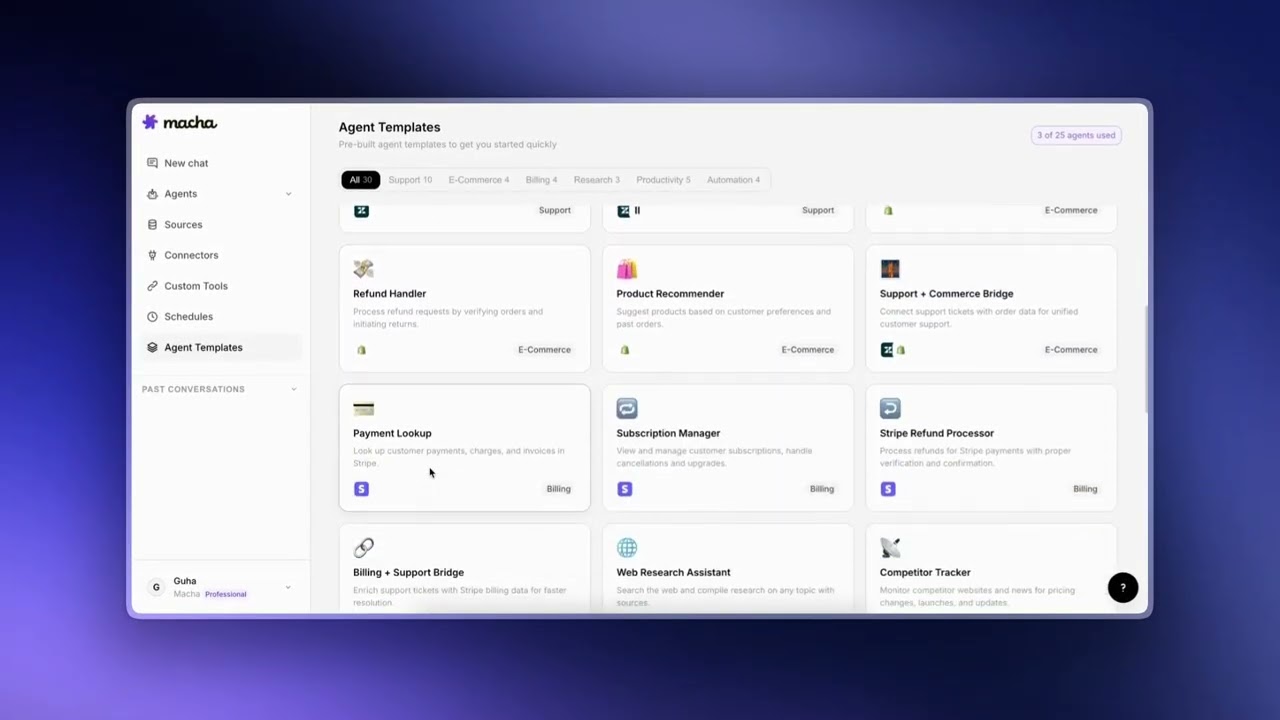
Create AI Agents from Templates
What Are Templates
Agent templates are pre-built configurations that let you create a fully functional agent in one click. Each template comes with a name, description, detailed instructions, a recommended set of connectors, and pre-selected tools — all designed for a specific workflow.
Templates are the fastest way to get started with Macha. Instead of writing instructions from scratch and figuring out which tools to assign, you pick a template that matches your use case and it handles the setup for you.
Available Template Categories
Macha offers templates across a range of common workflows. Here are some of the categories you will find:
Customer Support
Available across all four supported helpdesks (Zendesk, Freshdesk, Gorgias, Front). Each template uses the connector-specific tools — e.g. the Gorgias triage template reaches for macros, the Front triage template reaches for inboxes — so the agent feels native to whichever platform you've connected.
- Ticket / Conversation Triage — Reads incoming tickets (or conversations, on Front), categorizes them by type and urgency, and assigns priority, tags, and routing. Variants:
- Zendesk Triage — uses ticket fields, tags, and groups for routing.
- Freshdesk / Gorgias Triage — mirrors the Zendesk pattern with helpdesk-native field names.
- Front Conversation Triage — uses Front's inboxes, tags, and teammate assignment instead of a priority field (Front doesn't have one natively).
- Customer Reply Assistant — Drafts helpful responses to customer inquiries using ticket context, message history, and knowledge sources. Variants per helpdesk; the Gorgias version is wired to search macros so the agent can adapt canned responses, and the Front version posts an internal comment with contact + inbox context before drafting the reply.
- Escalation Handler — Identifies tickets that need human attention, adds internal notes (or comments, on Front) with context, and routes to the appropriate team.
- Conversation + Docs Context — Cross-connector template that pairs any helpdesk with Confluence. When a ticket / conversation comes in, the agent searches Confluence for relevant docs and posts an internal note with links. Available as Zendesk + Confluence, Freshdesk + Confluence, Gorgias + Confluence, and Front + Confluence.
E-Commerce
- Order Lookup — Helps customers check order status, shipping details, and delivery timelines using Shopify or Stripe data.
- Refund Assistant — Walks through the refund process, checks order eligibility, and initiates refunds with human confirmation.
Internal Operations
- Knowledge Base Assistant — Answers internal questions using uploaded documents and connected data sources.
- Data Lookup — Searches across Airtable, Google Sheets, or other connected data to answer team queries.
Tip
The templates shown to you are filtered based on which connectors your organization has set up. If you connect a new integration, new templates may become available.
Creating from a Template
To create an agent from a template:
- Navigate to the Templates page from the sidebar.
- Browse the available templates. Each card shows the template name, a brief description, and the connectors it requires.
- Click on a template to see its full details — including the instructions it will use and the tools it will enable.
- Click "Use Template" to create the agent. Macha will set up the agent with the template's configuration and take you to the agent editor.
The agent is created immediately and is ready to use. You can start chatting with it right away, or customize it first.
Customizing After Creation
A template is just a starting point. Once the agent is created, it is a fully independent agent that you can modify however you like. Nothing is locked to the template.
Common Customizations
- Edit instructions — Tailor the agent's behavior to your company's specific processes, tone, and policies. The template gives you a solid base, but you will likely want to add details specific to your team.
- Change the model — Templates come with a default model selection, but you can switch to a different one based on your needs. For example, swap to a faster model for high-volume use or a more capable model for complex reasoning.
- Add or remove connectors — Templates pre-select connectors, but you can add more (like giving a support agent access to Shopify in addition to Zendesk) or remove ones you do not need.
- Adjust tool access — Fine-tune which specific tools the agent can use. You might want to disable write operations until you are confident in the agent's behavior.
- Add data sources — Connect knowledge bases, uploaded documents, or live data from Google Docs and Notion to give the agent more context.
- Set up triggers — Configure the agent to run automatically in response to events. See Triggers for details.
Tip
If you are new to Macha, start with a template and iterate from there. It is much easier to refine a working agent than to build one from scratch.
© 2026 AGZ Technologies Private Limited