
Adding Knowledge and Data Sources
Give your agents knowledge by uploading documents, crawling websites, or connecting live data from Google Docs, Notion, and Confluence.
What Are Knowledge Sources (Explained in 50 Seconds)
What Are Data Sources
Data sources give your agents access to knowledge — documents, files, websites, and live data from connected services. While connectors let agents take actions in external tools, data sources let agents reference information to provide better, more accurate responses.
For example, you might upload your company's return policy as a PDF, connect a Google Doc with your product FAQ, or index your website's help pages. When a customer asks a question, the agent can look up the answer in these sources rather than relying solely on its training data.
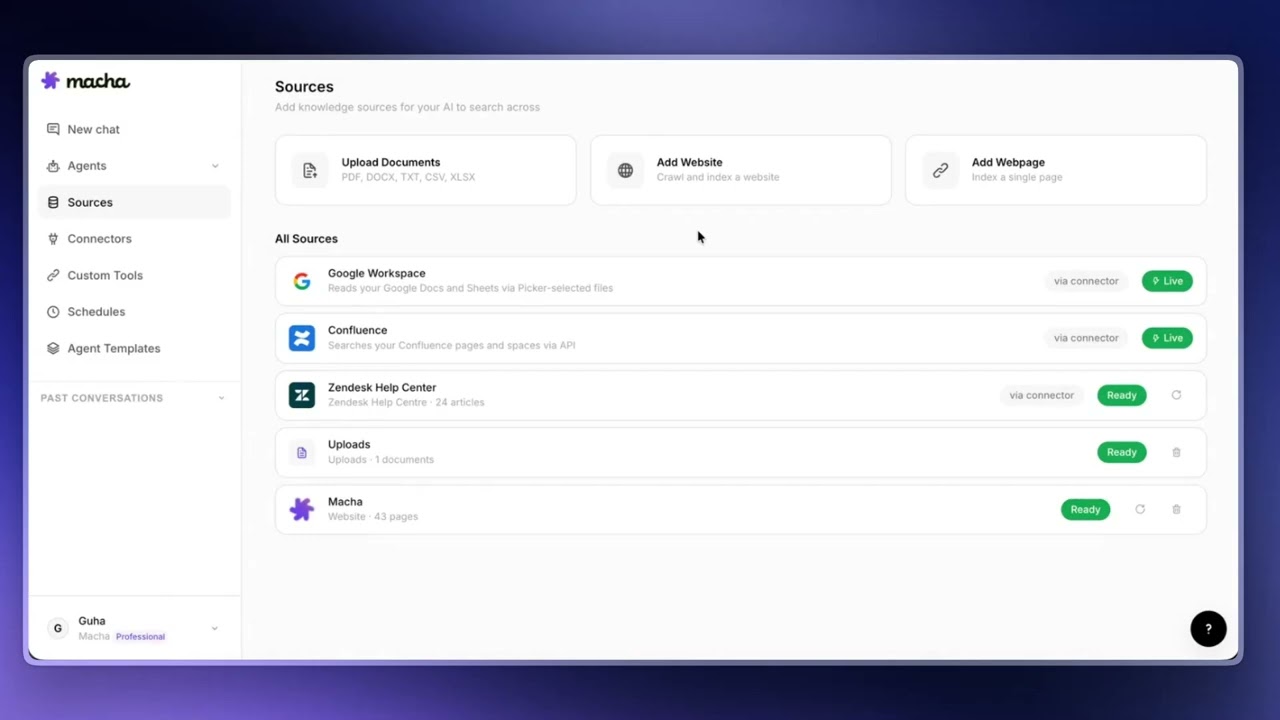
On the Sources page, the top of the screen has three add options — Upload documents (PDFs, Word docs, spreadsheets, CSVs), Add a website (crawl and index an entire site), and Add a web page (a single URL). Below that is your source list with everything you've connected so far.
Source Status: Live vs Ready
Each source displays a status badge so you know what kind of data it is:
- Live — The source pulls content in real time directly from a connected app (e.g., Google Workspace, Confluence, Notion). The agent always reads the current version.
- Ready — The source has been indexed and is good to go (e.g., uploaded files, Zendesk Help Center, indexed websites). The agent searches the indexed content.
Knowledge Source vs Tool — Which One Should Your Agent Use?
Knowledge Source vs Tool — Which Should Your Agent Use?
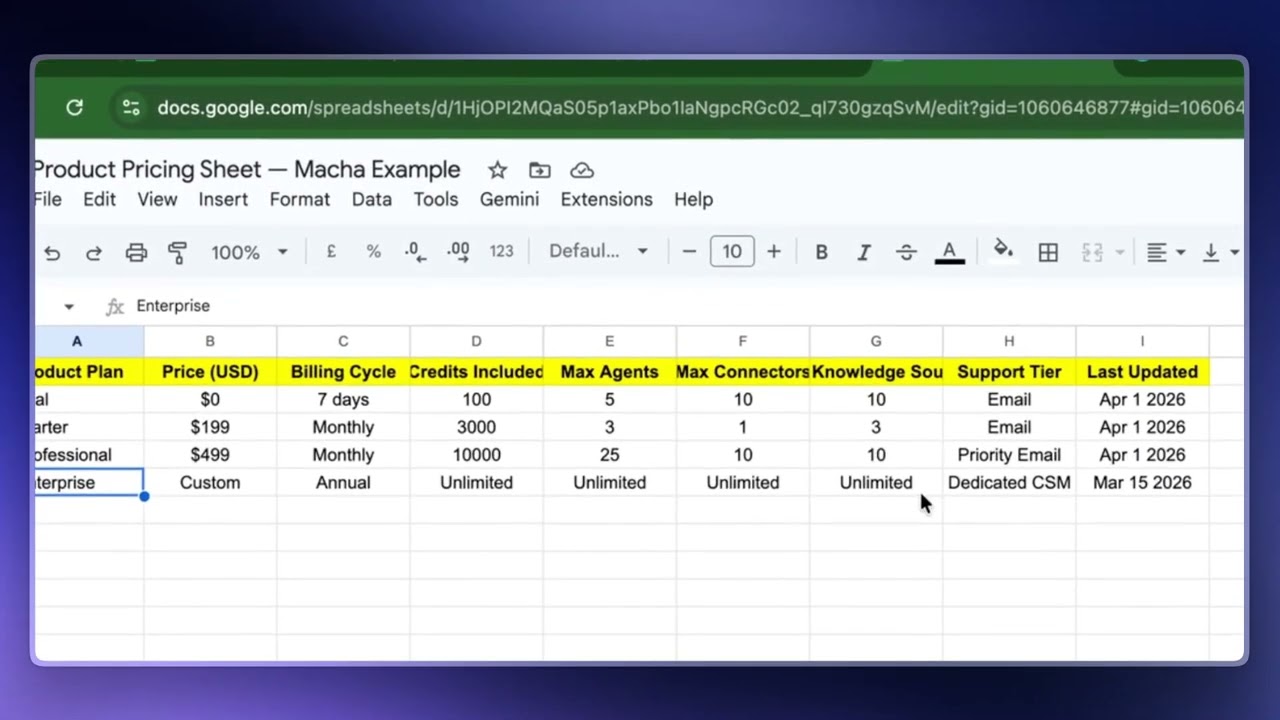
One of the most important decisions when setting up an agent is choosing the right kind of source. It comes down to one question: is your content static or does it change?
- Static content (rarely changes) — policy documents, FAQs, product manuals, your Zendesk Help Center articles. Add these as a static source — upload the file directly or connect your website. Macha indexes it once and your agent searches through it.
- Dynamic content (updates regularly) — pricing sheets, escalation matrices, on-call rosters, anything that changes weekly. Add a live connector source like Google Workspace, Notion, or Confluence. Macha automatically attaches the right read tool (e.g.,
google_read_doc,google_read_sheet), and the agent reads the live version every time — not a snapshot from last week.
Both approaches are data sources. The difference is whether the agent gets a frozen-in-time copy or a live read. Pick based on how often the underlying content changes.
File Uploads
How to Upload Documents to Your Knowledge Base
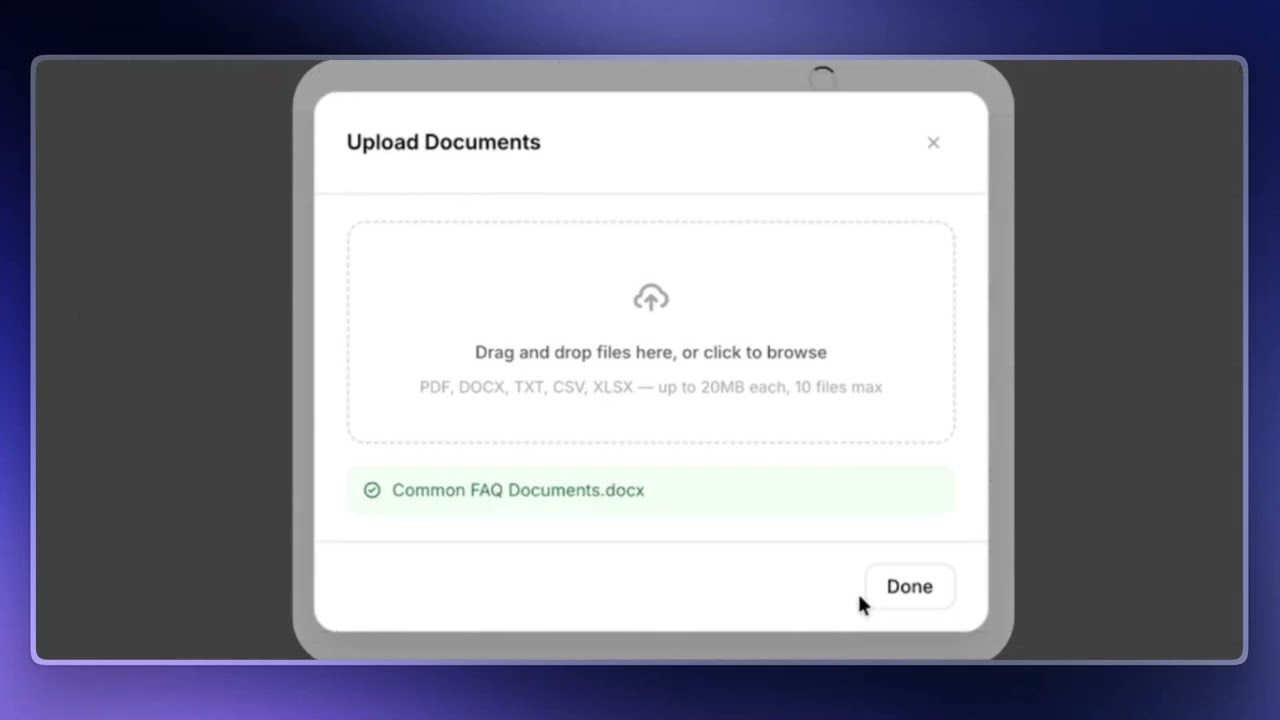
If you have static content you want your agent to reference — internal documents, policy files, support guides — upload them directly into Macha. Limits: up to 10 files at a time, each up to 20 MB.
Once uploaded, Macha starts indexing immediately. It reads the content, breaks it into chunks, and makes it searchable. Depending on the file size, indexing usually takes anywhere from a few seconds to a couple of minutes. When it's finished, the source appears under your upload list and the agent can start searching it.
Tip
If you update an original document, Macha won't auto-refresh — you need to delete the old version and re-upload. For content that changes frequently, use a live connector source (Google Workspace, Notion, Confluence) instead of a static upload.
Supported Formats
- PDF — Product manuals, policy documents, contracts, reports.
- CSV — Customer lists, product catalogs, pricing tables.
- XLSX — Spreadsheets with structured data.
- DOCX — Word documents with procedures, guides, or reference material.
- TXT — Plain text files.
How Files Are Processed
Macha processes uploaded files differently depending on their size and type:
Small Spreadsheets (2,000 rows or fewer)
CSV and XLSX files with 2,000 rows or fewer are injected directly into the agent's context. This means the entire file content is available to the agent at all times — no searching required. The agent can reference any row or column immediately. This is the fastest and most reliable way for an agent to work with structured data.
Large Files
Files that exceed the injection threshold — large spreadsheets (more than 2,000 rows), PDFs, DOCX files, and other documents — are processed differently. Macha chunks the content into smaller segments and creates embeddings (vector representations) for semantic search. The agent then searches this knowledge base using the search_knowledge tool and retrieves specific document sections with the get_document tool.
For spreadsheets, chunking is row-aware: each chunk contains approximately 75 rows with the header row preserved, so the agent always knows what each column represents.
Tip
If your spreadsheet has fewer than 2,000 rows, it will be injected directly and the agent will always have full access to the data. For larger datasets, consider splitting the file into smaller, focused spreadsheets if possible.
Website Sources
How to Index a Website or Webpage for Your Agent
For website content, Macha gives you two options — pick based on how much of the site you need:
Add Website (Crawl Everything)
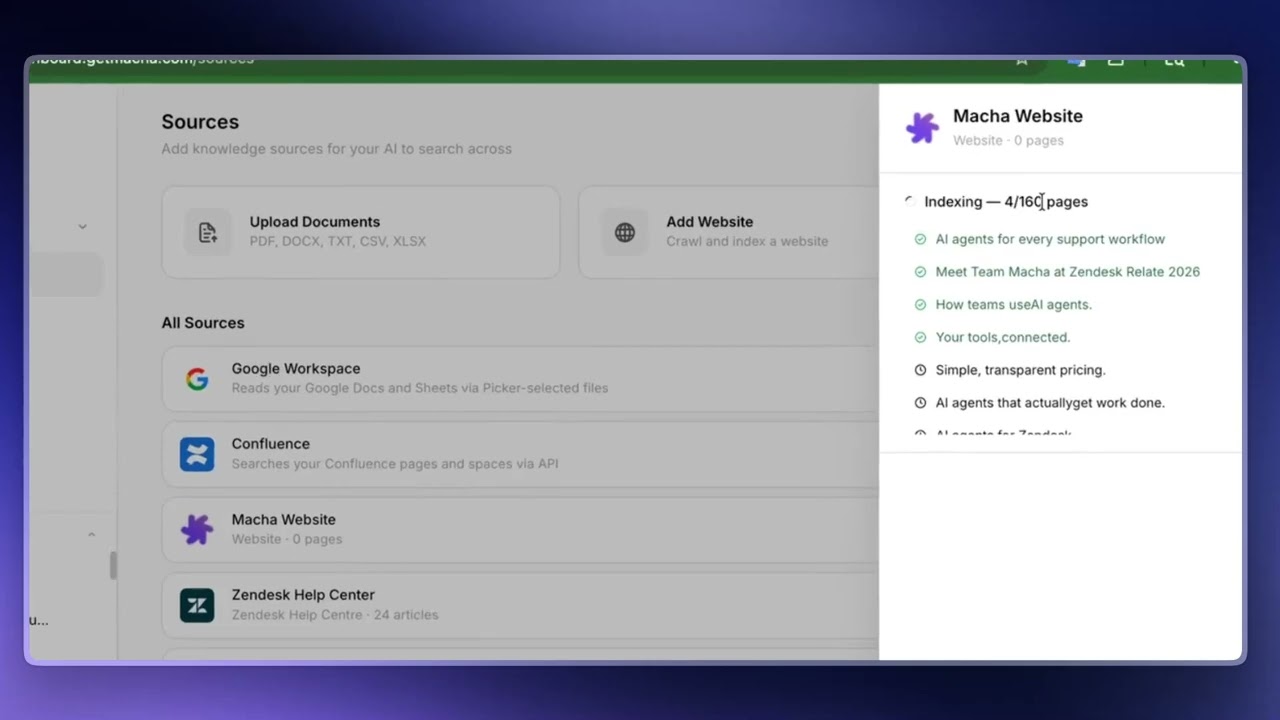
Add Website crawls the entire site. Macha follows links it finds, discovers every page, and indexes all of them. Use this when you want your agent to access an entire documentation site, an entire knowledge base, or all the pages on your website.
There's a system limit of 200 pages — Macha will only add the first 200 pages it finds. As Macha discovers pages, you'll see them listed in real time. Depending on the site, indexing usually completes in a few minutes. When done, the source shows a Ready status.
Add Web Page (Single URL)
Add Web Page is for when you just need one specific page — a single blog post, a specific FAQ, one product page. No crawling. It just adds that one URL, indexed and ready.
Tip
Macha doesn't monitor your website for changes automatically. If you update content on the site, hit the Resync button on the source to pull the latest version. A resync also cleans out pages that have been removed.
Website sources are processed the same way as large files — the content is chunked, embedded, and made available through the search_knowledge and get_document tools.
Connector Sources
In addition to static file uploads, you can connect live data from Google Docs, Notion and Confluence. These sources stay up to date because the agent reads the content directly from the service every time it needs it, rather than working from a static copy.
Google Docs
When you add Google Docs as a data source, the agent reads documents live using the google_read_doc tool. Every time the agent references a document, it fetches the current version — so if someone updates the Google Doc, the agent immediately sees the changes.
Notion Pages
Notion works the same way. The agent reads pages live using the notion_get_page tool, always getting the most current content.
Auto-Linking Tools and Connectors
When you add a connector-based source (Google or Notion) to an agent's data sources, Macha automatically adds the required read tools and connector instance to the agent. You do not need to manually assign the Google or Notion connector — it happens for you.
For Google sources, Macha auto-adds: google_read_doc, google_read_sheet, and google_list_drive_files.
For Notion sources, Macha auto-adds: notion_search and notion_get_page.
These auto-added tools are locked — you cannot remove them while the data source is linked. If you want to remove the tools, remove the data source first.
Tip
Connector sources are ideal for documents that change frequently. Instead of re-uploading files every time they are updated, let the agent read the live version from Google Docs or Notion.
Scope Filtering
When you add a data source to an agent, you can control which documents the agent has access to. Each source row shows an inline toggle with two options:
- All documents — The agent can access every document in the source. As new documents are added to the source, the agent automatically gains access to them.
- Selected — The agent can only access the specific documents you choose. Clicking "Selected" automatically expands the document picker so you can choose which ones to include.
Scope filtering works across all source types — file uploads, websites, Google Docs, and Notion pages.
How Agents Access Knowledge

Adding Knowledge Sources — Full Walkthrough
Understanding how your agent reads data sources helps you configure them effectively. There are three modes of access:
Injected Documents
Small CSV and XLSX files (2,000 rows or fewer) are injected directly into the agent's system prompt. The agent always has this data available — no tool calls needed. This is the fastest and most reliable access mode, but it uses context window space.
Searchable Documents
Large files, PDFs, DOCX files, and website content are stored as searchable knowledge. When the agent needs information from these sources, it:
- Calls the
search_knowledgetool with a query to find relevant document chunks. - Reviews the search results to identify the most relevant sections.
- Calls the
get_documenttool to retrieve the full content of specific chunks.
This two-step process lets agents work with very large knowledge bases efficiently — they only load the parts they need.
Live Connector Documents
Google Docs and Notion pages are read live using their respective tools (google_read_doc or notion_get_page). The agent calls the tool with the document ID and gets back the current content. This ensures the agent always works with the latest version of the document.
Tip
You can mix all three types in a single agent. For example, inject a small product pricing spreadsheet, add a large policy PDF as searchable knowledge, and connect a live Google Doc with your latest FAQ — all on the same agent.
© 2026 AGZ Technologies Private Limited