
Building Custom API Tools
Connect any HTTP API as a tool for your agents. Build tools manually or let the AI Tool Builder configure them from a conversation.
How to Add Custom API Tools
What are custom tools?
Custom tools let you give your agents the ability to call any HTTP API endpoint. If your agent needs to look up data in an internal system, create a record in a CRM, or call a third-party API that Macha doesn't have a built-in connector for, you can define a custom tool for it.
Each custom tool is an organization-level resource. You create it once, then assign it to any agents that need it. When an agent uses a custom tool, it makes an HTTP request to the endpoint you configured, passes the right parameters, and gets back the response.
Creating a tool manually
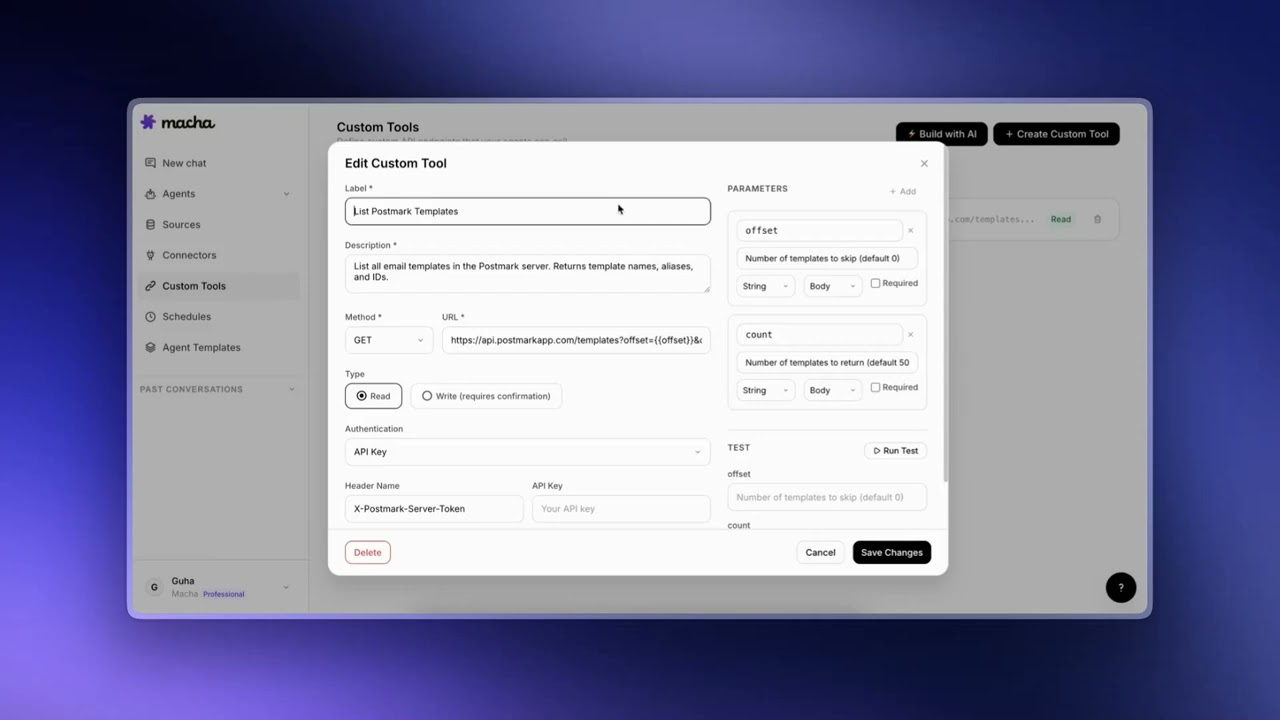
To create a custom tool, go to the Custom Tools page and click New tool. You'll configure the following:
Basic information
- Label: A human-readable name for the tool (e.g., "List Postmark Templates"). This should include the service name and resource to be clear about what it does.
- Description: Tell the AI what this tool does and when to use it. A good description helps the agent decide when to call the tool.
- Type: Choose Read for tools that only fetch data, or Write for tools that create, update, or delete data. Write tools require user confirmation before execution in chat.
Request configuration
- Method: GET, POST, PUT, PATCH, or DELETE
- URL: The endpoint URL. Use
{{param}}placeholders for dynamic values (e.g.,https://api.example.com/users/{{userId}})
Authentication
Choose how the tool authenticates with the API:
- None: No authentication required
- API Key: Sends a key in a custom header (e.g.,
X-API-Key: your-key) - Bearer Token: Sends a token in the Authorization header (
Authorization: Bearer your-token) - Basic Auth: Sends a username and password as HTTP Basic Authentication
Credentials are encrypted at rest and never exposed to the AI model.
Parameters
Define the parameters the AI should provide when calling the tool. Each parameter has:
- Name: The parameter identifier (used in URL and body placeholders)
- Type: String, number, boolean, etc.
- Description: Helps the AI understand what value to provide
- Required: Whether the parameter must be provided
Body template
For POST, PUT, and PATCH requests, you can define a JSON body template with {{param}} placeholders that get replaced with the AI's parameter values:
{
  "name": "{{customerName}}",
  "email": "{{customerEmail}}",
  "priority": "{{priority}}"
}
Response mapping
Use dot-path notation to extract specific data from the API response. For example, if the API returns:
{
  "data": {
    "results": [...]
  }
}
Setting the response mapping to data.results means the agent only sees the results array, keeping things clean and focused.
Tool groups
Organize related tools under a group with a shared name, emoji, and color. For example, you might group all your Postmark tools under a "Postmark" group with a mail emoji.
Tool groups also appear as custom connectors on the Connectors page, giving your team a visual overview of all connected services — both built-in and custom.
You can upload a custom square icon for any tool group by clicking the group icon on the Custom Tools page.
Testing tools
Before assigning a tool to an agent, test it to make sure it works. Open the tool's edit modal and use the Test button. Enter sample values for each parameter, run the test, and verify the response. This helps catch authentication issues, incorrect URLs, or malformed body templates before they affect your agents.
Build Custom Tools with the AI Tool Builder
AI Tool Builder
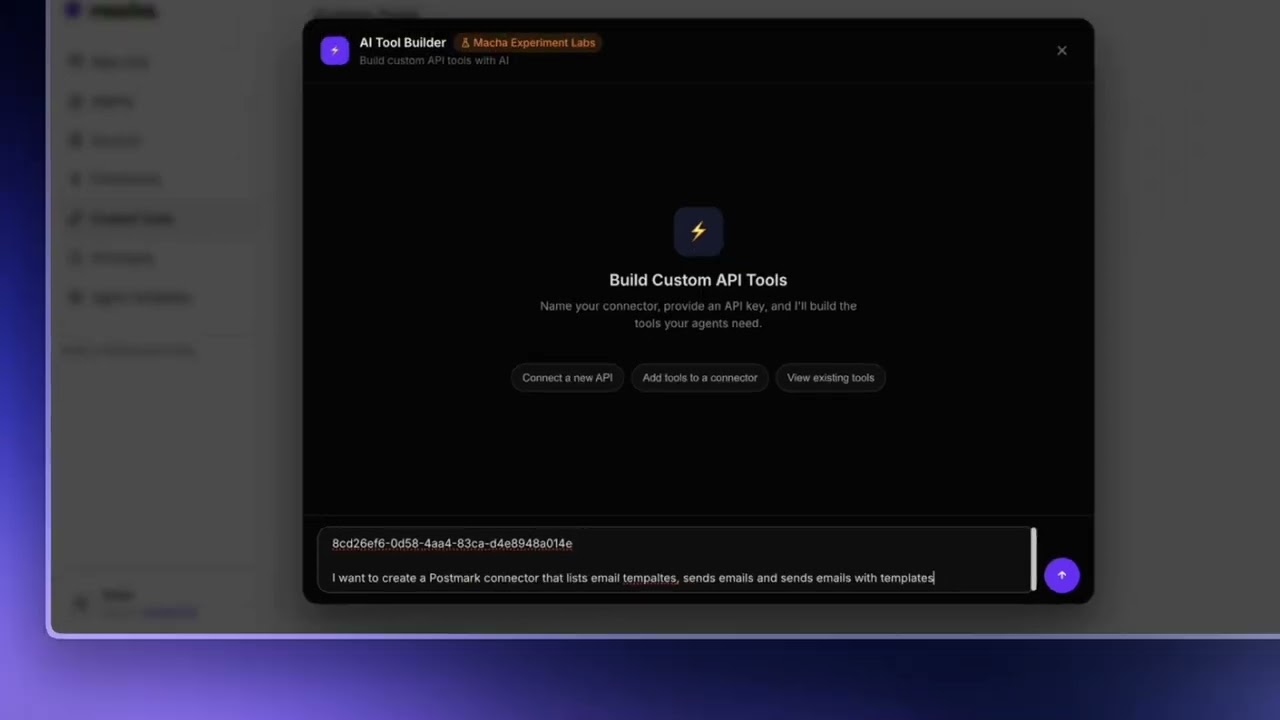
If you'd rather not configure tools manually, the AI Tool Builder can do it for you. This feature is currently available in Macha Experiment Labs.
How it works
- Click Build with AI on the Custom Tools page (available in both the header and the empty state)
- Describe the API you want to connect to and paste your credentials
- The AI discovers available endpoints and tests your credentials
- It proposes a set of tools with proper authentication, parameters, and descriptions
- Review and confirm — the tools are created and grouped automatically
The Tool Builder uses a conversational interface, so you can ask it to adjust tools, add more endpoints, or change groupings as you go.
Tip
The AI Tool Builder works best when you provide the API documentation URL or paste in a few example endpoints. The more context you give it, the better the tools it creates.
Assigning tools to agents
Once a tool is created, assign it to agents via the agent's Tools tab. Custom tools appear alongside built-in connector tools. An agent can only use tools that have been explicitly assigned to it.
Plan availability
Custom tools are included on every plan, with no slot limits. Create as many tools as you need and assign them to as many agents as you like.
© 2026 AGZ Technologies Private Limited