
Automating Agents with Triggers
Run agents automatically in response to events — new tickets, Slack messages, custom webhooks, or recurring schedules.
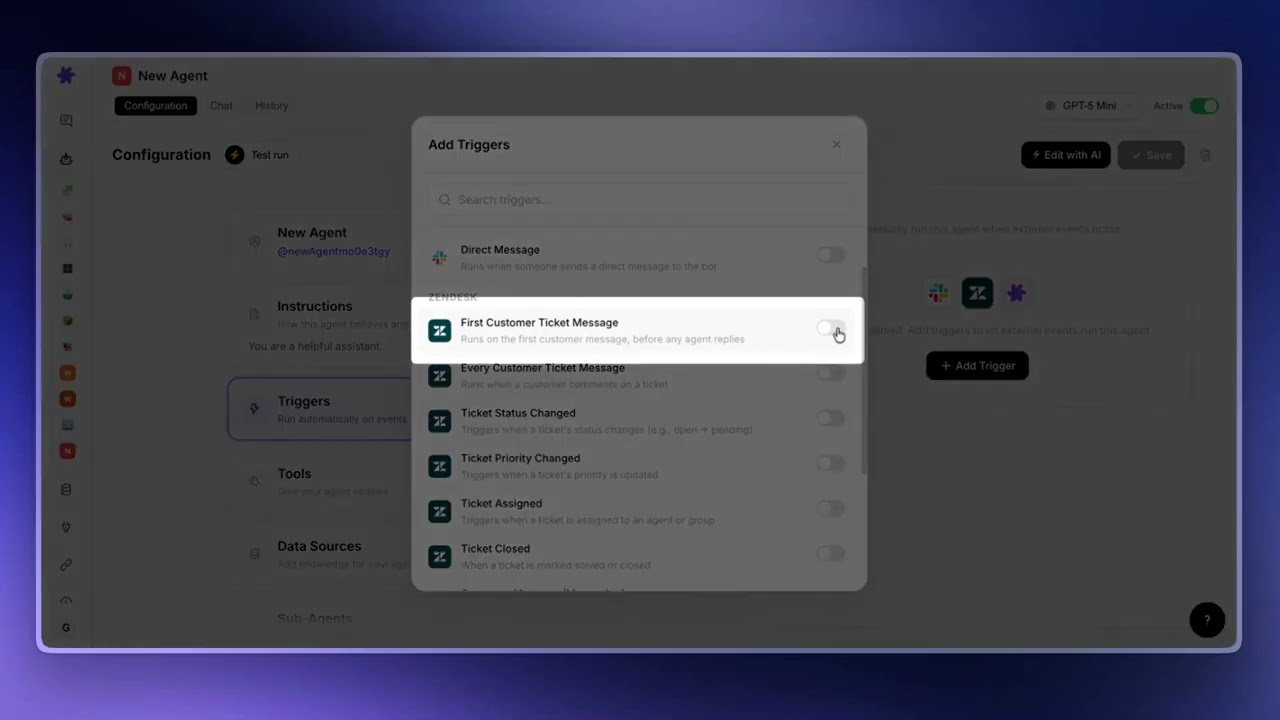
What is a Trigger? (Explained in 30 Seconds)
What are triggers?
Triggers let your agents run automatically in response to external events. Instead of manually starting a conversation, a trigger fires when something happens — a new support ticket, a Slack mention, a custom webhook from any system — and your agent handles it on its own.
This is how you move from reactive chat to proactive automation. An agent with a trigger can triage tickets the moment they arrive, respond to Slack mentions instantly, or run a daily summary without anyone lifting a finger.
Event triggers
Event triggers fire when something happens in a connected tool. Each connector supports a specific set of events.
Zendesk events
- ticket.created — a new ticket is submitted
- ticket.comment_added — a comment is added to an existing ticket
- ticket.status_changed — a ticket's status changes (e.g., open to pending)
- ticket.priority_changed — a ticket's priority is updated
- ticket.assigned — a ticket is assigned to an agent or group
- ticket.closed — a ticket is closed
- messaging.customer_message — a customer sends a message via Zendesk Messaging
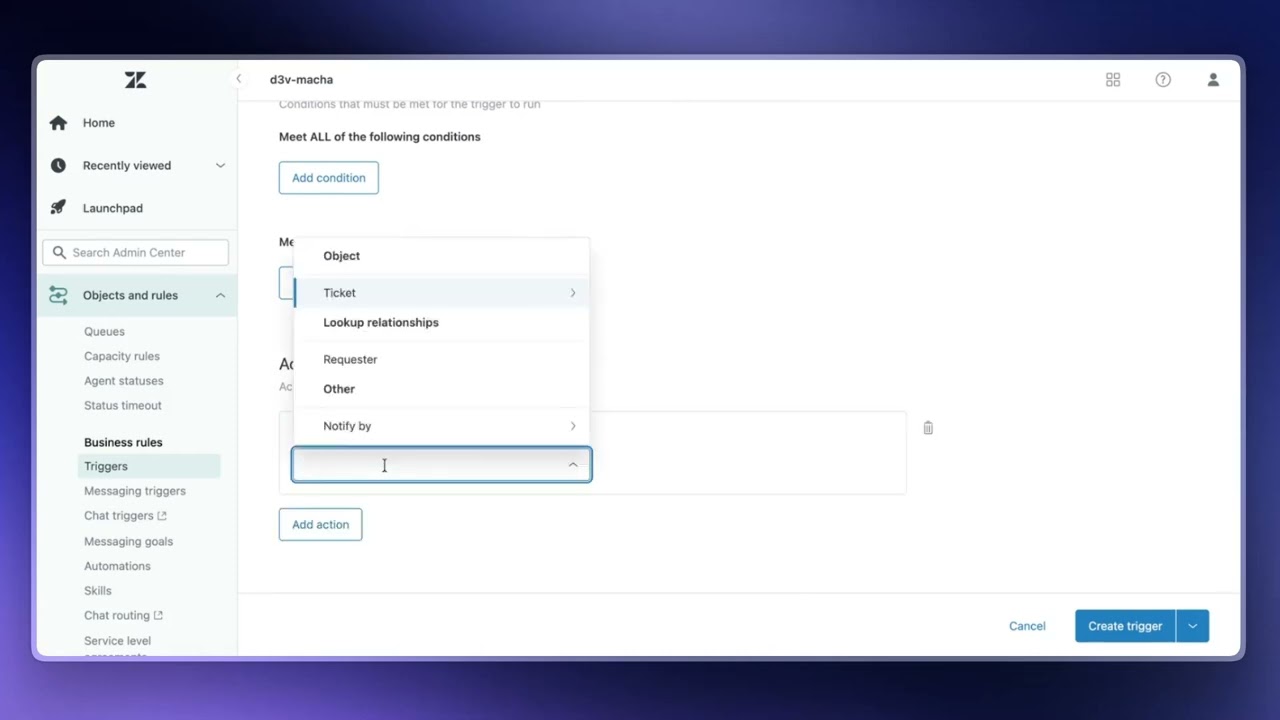
For Zendesk, most event triggers are set up automatically. When you create a trigger, Macha creates a corresponding webhook in your Zendesk account. You just need to create a Zendesk trigger rule that points to it. When you delete the trigger in Macha, the webhook is cleaned up automatically.
Freshdesk events
- ticket.created — a new ticket is created
- ticket.updated — a ticket is updated (status, priority, assignment, etc.)
Freshdesk triggers use the custom webhook pattern. After creating a trigger in Macha, you'll get a webhook URL and instructions for setting up an automation rule in Freshdesk that sends data to that URL.
Slack events
- app_mention — someone mentions your Macha app in a Slack channel
- direct_message — someone sends a direct message to your Macha app
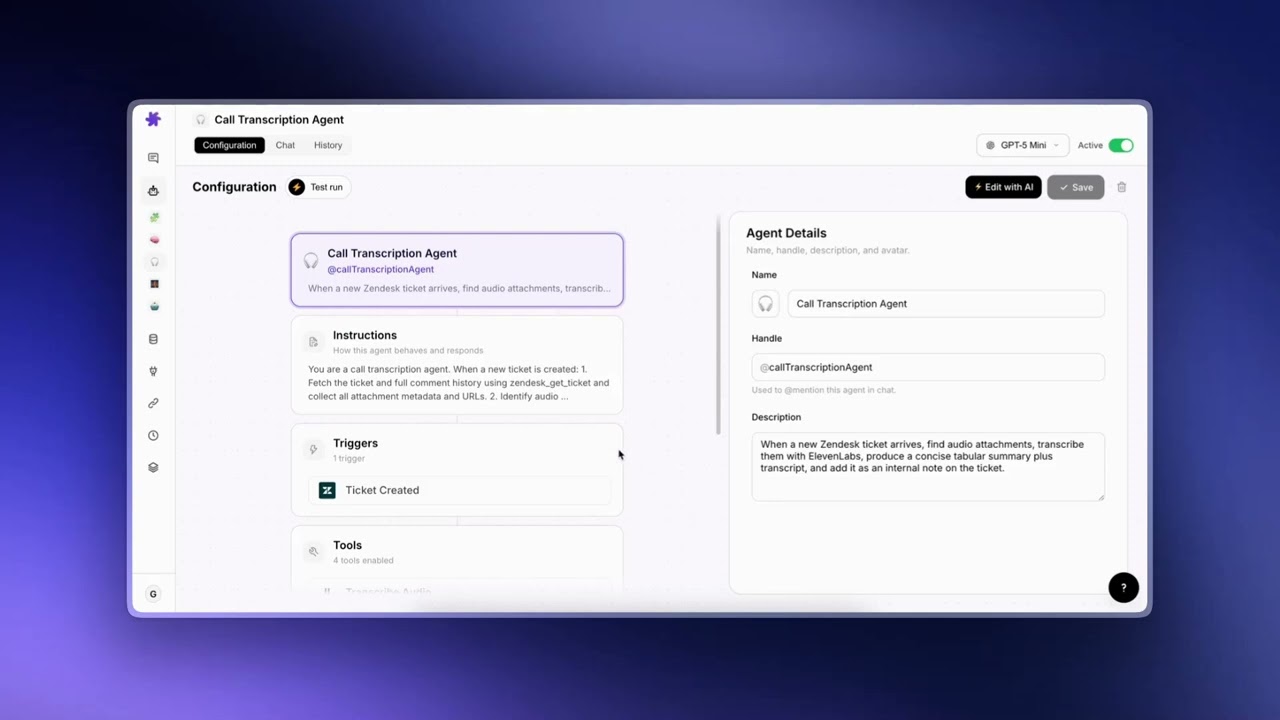
Using Custom Triggers for AI Agents
Custom webhooks
Custom webhooks let you trigger an agent from any external service, even ones Macha doesn't have a dedicated connector for. When you create a custom webhook trigger, Macha generates a unique URL and a signing secret.
You then configure your external service to send HTTP requests to that URL. The signing secret lets you verify that incoming requests are authentic. The payload from the webhook is passed to your agent as context, so it knows what happened and can act on it.
This is useful for connecting services like GitHub, Linear, HubSpot, or any internal tool that supports outgoing webhooks.
Ticket-aware conversation titles
For Zendesk and Freshdesk custom webhooks, if your payload includes ticket_id (and ideally ticket_subject — the setup modal recommends both), Macha uses those values in the conversation title shown in agent history. So instead of every autonomous run showing up as "Custom Webhook", you'll see "1234 — Refund request" or similar — same shape as the named ticket events. If the payload doesn't include them, the title falls back to "Custom Webhook" as before.
Macha custom triggers
Macha custom triggers are a universal webhook type that doesn't require any connector. They appear under the "Macha" group in the triggers modal. Like custom webhooks, they generate a URL you can call from anywhere — but they're not tied to a specific integration. Use these when you want to trigger an agent from a script, a CI/CD pipeline, or any arbitrary HTTP request.
Scheduled triggers
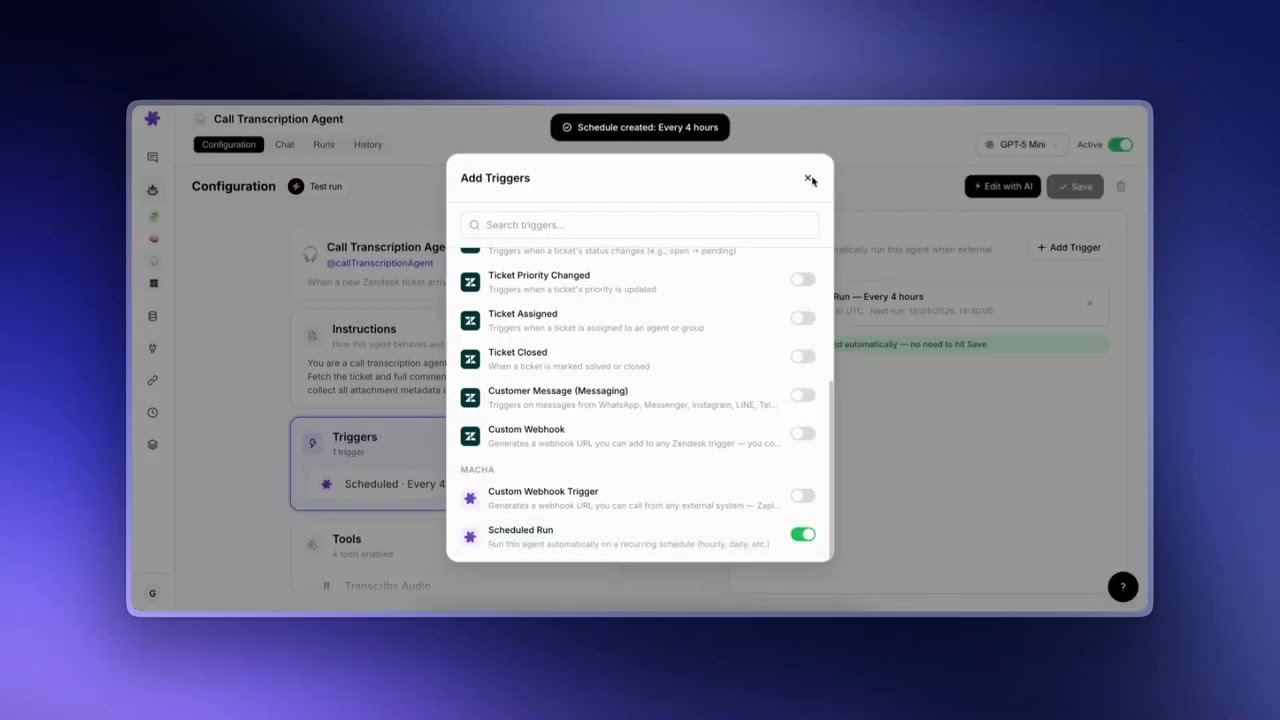
How to Schedule Your AI Agents
Scheduled triggers run your agent automatically on a recurring schedule. Instead of waiting for an external event, the agent runs on a schedule you define with a cron expression, which suits daily reports, periodic data checks, or routine maintenance tasks.
How scheduling works
- Set the schedule as a standard five-field cron expression: minute, hour, day of month, month, day of week
- Runs must be at least 1 hour apart, so an expression that fires more often than hourly isn't allowed
- Macha's scheduler checks every 60 seconds for triggers that are due to run
| Cron expression | Runs |
|---|---|
0 * * * * | Every hour, on the hour |
0 */4 * * * | Every 4 hours |
0 9 * * * | Every day at 9:00 |
0 9 * * 1-5 | Weekdays at 9:00 |
0 9 * * 1 | Every Monday at 9:00 |
0 9 1 * * | The 1st of every month at 9:00 |
Guardrails and limits
- Minimum interval: 1 hour — you cannot schedule an agent to run more frequently
- Daily cap: 24 runs per trigger per day — prevents runaway schedules
- Concurrency cap: 3 simultaneous scheduled runs per organization
- Auto-disable: After 5 consecutive errors, the trigger is automatically disabled and you receive an email notification
- Stale lock cleanup: If a run takes longer than 30 minutes, the lock is released so the next run can proceed
- Credit check: Your organization must have sufficient credits before each scheduled run
Plan availability for scheduled triggers
Scheduled triggers are included on every plan. The guardrails above (1-hour minimum interval, 24 runs per trigger per day, 3 concurrent runs per organization, auto-disable after 5 consecutive errors) are the only limits.
Debounce settings
Some events fire in rapid succession — for example, a flurry of customer messages in a Zendesk Messaging conversation, or several ticket updates landing back-to-back. Debounce settings let you batch these rapid events so your agent processes them as a single context instead of running once per event.
How debounce works
Configure a debounce window (in seconds) per trigger. When the first event arrives, Macha starts a timer. If more events come in during that window for the same entity (same ticket, same Slack channel, etc.), the timer resets and the new events are added to the batch. Once the window finally closes without a new event, the agent runs once with the combined context.
This is a "trailing edge" debounce — the agent fires after the conversation goes quiet, not after a fixed delay. So if a customer keeps typing every 10 seconds with a 15-second window, the agent waits for them to stop before responding.
Which triggers can use debounce
Debounce is available on every event-driven trigger that fires per entity — every Zendesk and Freshdesk ticket event, every Slack mention or DM, every messaging event. Each of those triggers shows a small Debounce chip on its card in the agent's Triggers section; click the chip to open the popover and set the delay in seconds.
- Default for new event-driven triggers: 0 seconds (off). The agent fires on every event individually unless you opt in.
- Zendesk messaging tickets default to 15 seconds. Customers type in bursts; this gives them time to finish before the agent responds.
- Slack direct messages default to 10 seconds for the same reason.
- Scheduled (cron) triggers and universal Macha webhooks / custom-webhook triggers without a clear per-entity grouping field don't show the debounce chip — debouncing a clock-based or generic-payload trigger doesn't make sense.
Safeguards
Two automatic safeguards protect against runaway event streams that would otherwise hold the agent forever:
- A bucket is force-fired once it accumulates 25 events, even if more keep arriving. Bounds memory and ensures the agent eventually runs on busy entities.
- A bucket is force-fired after a total wait of 10× the debounce window (capped at 2 minutes), so events that arrive in a steady stream don't postpone the agent indefinitely.
Tip
For messaging triggers, the default 15-second window works well. For ticket events (ticket.created, comment_added, status_changed, etc.), start with 0 (off). Turn it on only if you're getting a noisy stream of updates on the same ticket and you want them batched.
Setting up a trigger
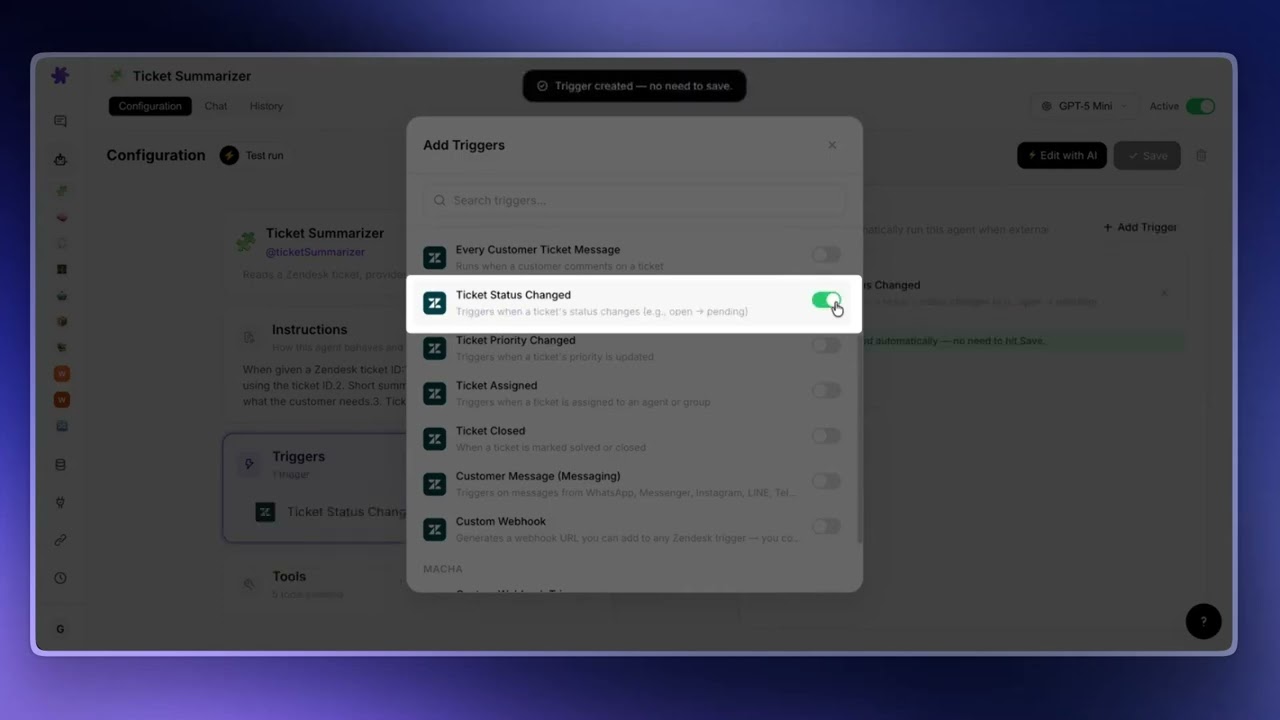
How to Set Up a Trigger on Your AI Agent
- Navigate to the agent you want to automate
- Open the Triggers tab
- Click Add trigger
- Select the connector and event type (or choose a Macha trigger for custom webhooks and schedules)
- Configure any conditions or debounce settings
- Save the trigger
For connector-based triggers, follow the setup instructions shown in the modal. For Zendesk, the webhook is created automatically. For Freshdesk and custom webhooks, you'll need to configure the external service to send requests to the provided URL.
To verify the trigger is firing, take an action that should trigger it (e.g., change a ticket's status, send a Slack mention) and then go to the agent's History tab. You should see the run appear there with all the steps the agent took.
Tip
Make sure your agent's instructions cover what it should do when triggered automatically. The agent won't have a human in the loop, so its instructions need to be thorough enough to handle the event independently.
Pausing an agent without breaking your Zendesk setup
When you toggle an agent off, Macha doesn't delete its Zendesk webhooks or Zendesk Triggers — it sets their status to inactive on Zendesk's side. When you turn the agent back on, the same webhook + Zendesk Trigger are re-activated, with the same resource IDs.
That matters most for custom webhook triggers. If you've built a Zendesk Trigger in your own Admin Center that calls Macha's webhook, that Zendesk Trigger references our webhook by its resource ID. If we deleted and recreated the webhook every toggle cycle (the old behavior), your Zendesk Trigger would silently break — pointing at a webhook that no longer exists. The soft-toggle preserves the resource ID so your Zendesk Trigger config keeps working untouched across pause/resume cycles.
Deleting a trigger from Macha (rather than just toggling it off) does delete the underlying Zendesk webhook + Zendesk Trigger fully — that's an explicit action, and the assumption is you really meant to clean up.
Trigger best practices
Trigger Best Practices for AI Agents
Avoid overfiring triggers
Pick the most specific trigger that matches your workflow. A broad trigger like "every customer message on a ticket" fires on every new comment — and consumes a credit each time. If your agent only needs to act on certain conditions, use a more targeted Zendesk trigger or a custom webhook with conditions baked in.
Name your triggers clearly
You can have multiple triggers feeding the same agent. Name each one so it's obvious what tickets it sends through and which agent is on the receiving end. A name like "New high-priority tickets → Bug Triage Agent" reads better than "Trigger 3" when you come back six weeks later. This also makes it easier to debug when something fires unexpectedly.
Custom webhooks: keep things organized externally
When you add a custom webhook trigger on Zendesk, Macha automatically creates the webhook on your Zendesk instance — you just search for it and select it inside Zendesk's trigger setup. For custom webhooks from external (non-Zendesk) systems, Macha generates a webhook URL — make sure you keep clear notes on which event maps to which trigger so future-you isn't guessing.
Always test before going live
Simulate the trigger event manually in chat first. Make sure the agent does exactly what you expect before turning the trigger on for real tickets. Once it's running autonomously, mistakes execute immediately with no confirmation step.
© 2026 AGZ Technologies Private Limited