





 Shopify
 Stripe
 Slack
Slack Notion
 Google Workspace
 Confluence

How Do You Connect Freshdesk to Macha and Automate Ticket Responses?


Freshdesk's native automations route tickets well but cannot read a message, work out what it means and write the answer. A Macha agent connected by API key does that inside Freshdesk, and you can have it running on new tickets in one sitting.
Key takeaways
- Connecting Freshdesk to Macha requires only a Freshdesk API key and the yourcompany.freshdesk.com domain pasted into Macha's Connectors screen, with no app to install inside Freshdesk.
- The Freshdesk connector shipped on March 15, 2026 with 15 tools and three triggers: Ticket Created, Ticket Updated and Custom Webhook.
- Freshdesk's Freddy AI Agent gives each account 500 sessions as a one-time allowance, then charges $49 per 100 sessions.
- Macha pricing starts at $299 a month for 750 tickets, about $0.40 each, billed once per ticket regardless of how many steps the agent takes, with setup by the Macha team and a dedicated success manager included.
- Macha recommends running a Freshdesk agent internal-note-only for the first 10 to 20 real tickets before enabling public replies to customers.

To connect Freshdesk to Macha and automate ticket responses, paste a Freshdesk API key and your yourcompany.freshdesk.com domain into Macha's Connectors screen, build an agent with the Freshdesk tools it needs, then add the Ticket Created trigger so it runs on every new ticket. The Freshdesk connector shipped on March 15, 2026 with 15 tools and three triggers (Ticket Created, Ticket Updated and Custom Webhook), and there is no app to install inside Freshdesk.
| Step | Where | What you do |
|---|---|---|
| 1. Connect | Macha → Connectors → Freshdesk | Paste the API key and your Freshdesk domain |
| 2. Build | Macha → Agents | Set instructions, model, enabled tools and knowledge |
| 3. Trigger | Agent → Triggers | Add Ticket Created, or a Custom Webhook called from a Freshdesk automation rule |
| 4. Go live | Agent → Test run | Test, run internal-note-only on the first 10–20 tickets, then enable public replies |
Macha is an AI agent layer that sits on top of the help desk you already run, Freshdesk in this case, not a replacement for it. Freshdesk's native automations are rule-and-condition machines: great at routing, unable to read a message, work out what it means and write an answer. A Macha agent reads the ticket, searches your knowledge base, drafts a resolution, updates status and tags, and escalates the ones a human should see. Your team keeps working in Freshdesk.
What can a Macha agent automate in Freshdesk, and what stays human?
With the Freshdesk connector, a Macha agent can:
- Read tickets in full:
Get Ticketpulls the conversation, tags, and custom fields;Read Attachmentextracts text from PDF, DOCX, XLSX, CSV, and TXT files attached to the ticket. - Find the answer:
Search Articlesqueries your Freshdesk knowledge base; you can also attach Macha knowledge sources (Notion, Confluence, Google Docs, uploaded files). - Respond and resolve:
Add Public Replyposts a customer-facing answer,Add Internal Noteleaves a private note for agents, andUpdate Status/Update Priority/Update Tags/Update Fieldschange the ticket. - Route:
Assign Ticket,List AgentsandList Groupssend the ticket to the right team. - Look things up:
Search Tickets,Search ContactsandGet Ticket Fieldsround out the 15 tools.
What should stay human: refunds beyond your policy, angry-VIP escalations, anything legal or security-sensitive, and edge cases your knowledge base doesn't cover. The right pattern is to auto-resolve the repetitive questions, triage the rest and hand humans a cleaner queue. The rollout steps below build in safety rails for exactly that.
What auto-responses does Freshdesk already send on its own?
For the simplest acknowledgements you may not need anything more than Freshdesk's native tools, and they set the baseline Macha builds on.
1. The new-ticket auto-acknowledgement. Out of the box, Freshdesk emails the requester an automatic acknowledgement the moment a ticket is created. You customize that canned template under Admin → Workflows → Email Notifications → Requester Notifications → "New Ticket Created": edit the subject and body, drop in placeholders like the ticket ID, and save (Freshdesk docs). It's a static, every-ticket "we got your message": no intelligence, but instant.
2. The after-hours auto-reply. To tell customers who write outside business hours when to expect a response, create a Ticket Creation automation rule under Admin → Workflows → Automations: set the condition to Created → During → Non-Business Hours (against your configured Business Hours) and the action to Send email to requester with your out-of-office canned text (Freshdesk docs). One caveat: a Ticket Creation rule fires on new tickets only, so it does not auto-respond to customer replies received after hours, which is a common gap teams hit.
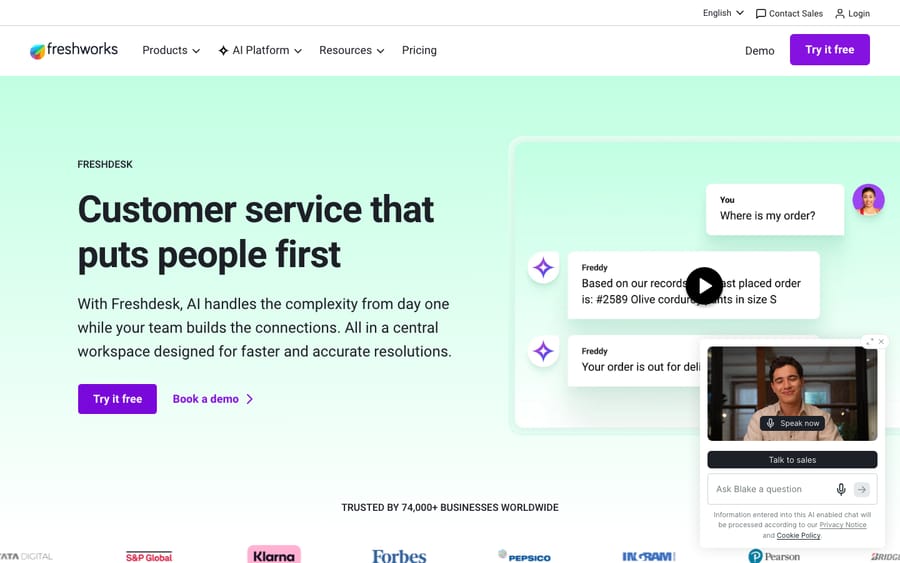
These canned auto-responses are perfect for acknowledgements and expectation-setting. What they can't do is answer the question: they send the same fixed text to everyone, no matter what was asked. That's the line Macha crosses: the agent reads the actual ticket, finds the answer and resolves it. Use both together: Freshdesk's acknowledgement greets every requester; Macha's agent handles the ones it can resolve.
How do you connect Freshdesk to Macha?
In Macha, open Connectors and find Freshdesk in the list. You'll see it offers 15 tools and a Connect button.
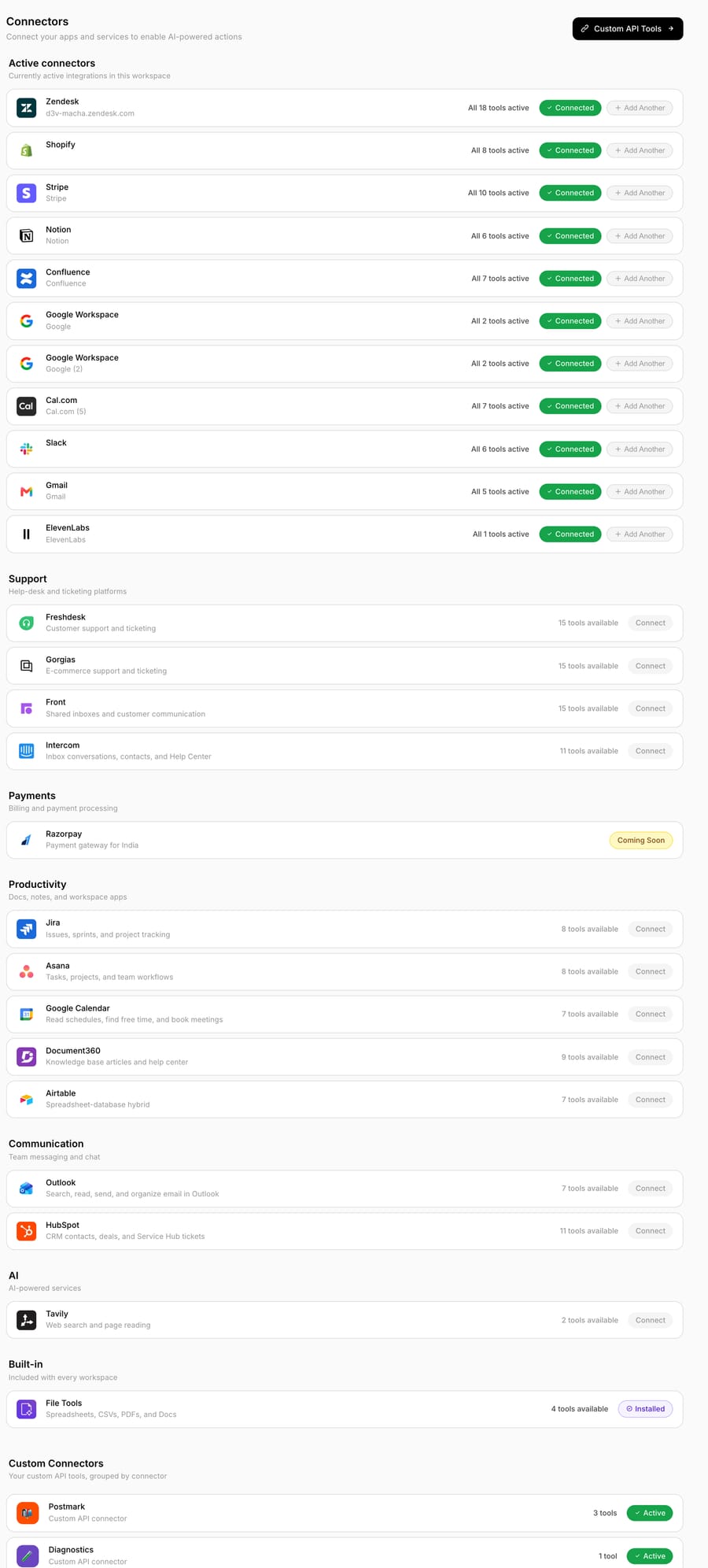
Freshdesk authenticates with an API key. In Freshdesk, click your profile picture, choose Profile Settings, then View API key and complete the captcha; the key only appears for a verified agent (Freshdesk docs). Paste it into Macha along with your Freshdesk domain (the yourcompany.freshdesk.com part). That's the whole handshake: no app to install in Freshdesk, no marketplace approval. Resetting the key later disconnects every app that uses it, Macha included.
A couple of setup notes:
- Use a dedicated Freshdesk agent account for the API key (e.g. "Macha Bot") rather than a personal login. Replies and notes will show as coming from that account, and you keep a clean audit trail.
- Macha supports multiple instances of the same connector (shipped March 8, 2026), so if you run separate Freshdesk portals for two brands, connect both: tool names get auto-suffixed so the agent knows which portal it's acting on.
How do you build the Freshdesk agent?
A connector by itself does nothing; the agent decides what to do with it. In Macha, create a new agent (or start from a template like Ticket Triage or an auto-resolve template) and configure four things: a model, instructions, the tools it's allowed to use, and any knowledge sources. If you'd rather not do this yourself, you don't have to: on the trial and every plan, the Macha team analyzes your past tickets, builds the knowledge base and the agent, and runs it in safe mode, with drafts as private notes, until the drafts are right. The price includes that setup and a dedicated success manager who handles your changes afterwards: new categories, instruction changes, new tools.
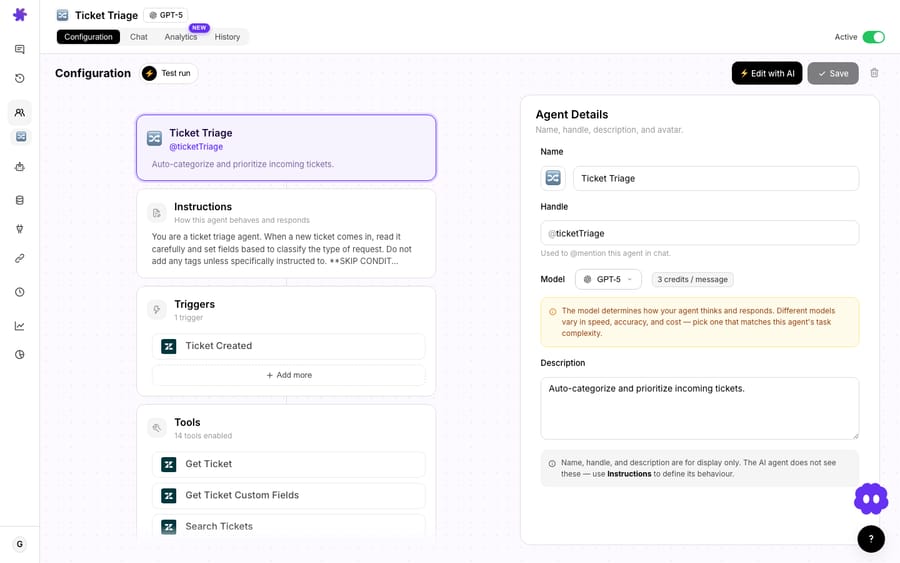
A few things worth getting right here:
- Instructions are the policy. This is where you write the rules: tone, what to auto-resolve vs. escalate, when to add a tag, what never to promise. Be specific: "If the customer asks about a refund older than 30 days, do not promise anything; add an internal note and assign to the Billing group" beats a vague "be helpful."
- Model = capability. Macha bills per ticket (one conversation, charged once however many steps the agent takes inside it), so the model you pick doesn't change what you pay. Choose on the job instead: a light model is plenty for triage, a stronger one earns its place on full resolutions. You set this per agent.
- Tools are permissions. Only enable the Freshdesk tools this agent needs. A triage agent might get
Get Ticket,Update Priority,Update Tags, andAssign Ticketbut notAdd Public Reply, so it cannot message a customer. Least privilege keeps a misbehaving agent harmless. - Knowledge is what makes replies correct. Point the agent at your Freshdesk solution articles via
Search Articles, and/or attach Macha knowledge sources so it answers from current docs instead of guessing.
This is the real difference from native Freshdesk rules: a rule matches keywords; a Macha agent reasons over the full message and the live knowledge base, then takes a sequence of actions. It can also reach beyond Freshdesk (check an order in Shopify, look up a charge in Stripe, or post to Slack) in the same run, because Macha connects those tools too.
How do you make the agent run on every new Freshdesk ticket?
There are two clean ways to run the agent automatically when a ticket comes in.
Option A: native Freshdesk triggers (Ticket Created / Ticket Updated)
The Freshdesk connector exposes two event triggers directly in Macha: Ticket Created and Ticket Updated. Add one to your agent and Macha listens for that event on your connected portal, with no Freshdesk-side configuration. This is the fastest path: pick "Ticket Created," and the agent runs on every new ticket. Ticket Updated fires whenever a field changes (status, assignee, priority, tags), which is useful for follow-up automations like "when a customer replies, re-evaluate."
Option B: a custom webhook from a Freshdesk automation rule
For precise control over which tickets fire the agent, use Macha's Custom Webhook Trigger. In the agent's Triggers panel, add it and Macha generates a unique webhook URL with a signing secret.
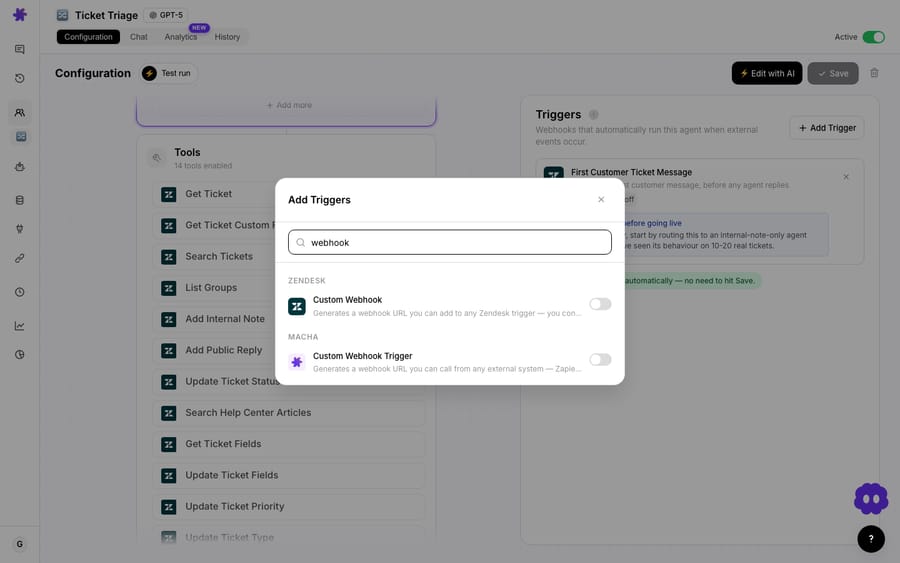
Then, on the Freshdesk side, you call that URL from an automation rule. In Freshdesk this lives under Admin → Workflows → Automations, which holds three rule types (per Freshdesk's docs):
- Dispatcher: runs on the Ticket Creation tab (new tickets).
- Observer: runs on the Ticket Updates tab (any change to an existing ticket).
- Supervisor: runs on Time Triggers (time-based sweeps).
Create a new Ticket Creation rule, set your conditions (e.g. Source is Email and Group is Support), and under Actions choose Trigger Webhook. Paste Macha's URL, set the method to POST, and include the ticket payload. Freshdesk distinguishes Trigger Webhook (fire-and-forget, used when no response is needed) from Trigger API (used when the rule needs the response back). For handing a ticket off to Macha, Trigger Webhook is the right one (Freshdesk webhook docs).
Why bother with Option B if Option A is one click? Precision and batching. A Freshdesk rule lets you fire only the tickets you trust to automation (specific groups, channels, or products) and leave the rest untouched. Either option can use debounce: since June 2026 every event-driven trigger, Freshdesk ticket events included, has a Debounce chip where you set a delay in seconds (off by default). If a customer sends three rapid messages, debounce batches them so the agent answers once, with full context.
How do you take the agent live safely?
The single biggest mistake is flipping an agent to "reply to customers" on day one. Don't. Roll out in stages:
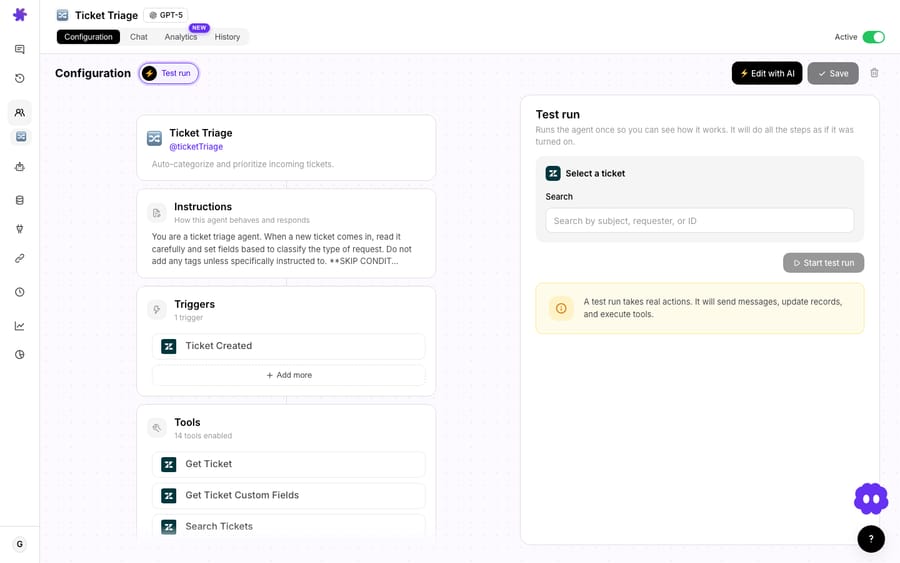
- Test run first. Every agent has a Test run button: feed it real ticket text and watch which tools it calls and what it would reply. Since June 2026 you can also ask Sidekick to test the agent; it drafts scenarios from the agent's instructions, creates a real Freshdesk ticket and runs the agent on it.
- Start internal-note-only. Disable
Add Public Replyand enableAdd Internal Note. For the first 10–20 real tickets, the agent drafts its answer as a private note your human agents can copy, edit, or reject. You get the speed-up with zero customer-facing risk, and you see exactly how it behaves. - Promote gradually. Once the notes are consistently good, enable public replies, but scope the Freshdesk rule to one low-risk category first (say, "How do I…" knowledge questions), then widen.
- Cap exposure. Use the Freshdesk rule conditions as a throttle, keep an escalation path in the agent's instructions ("if confidence is low, assign to a human and stop"), and review the agent's History tab daily for the first week.
Freshworks gives its own Email AI Agent the same kind of controls, trigger rules and daily response limits, for the same reason: earn trust on real tickets before you widen the gate.
What does an auto-resolved Freshdesk ticket look like?
Here's a "how do I export my data" ticket end to end, using the Freshdesk auto-resolve pattern Macha ships as a use case:
- Trigger: a customer emails: "How do I export my data? I need a CSV of my account history." Freshdesk creates the ticket; the rule fires Macha's webhook.
- Read: the agent calls
Get Ticketand reads the message. - Find:
Search Articlesreturns "How to Export Your Data", 97% match. - Reply: the agent posts a public reply with the four steps, grounded in that article.
- Resolve:
Update Status → Resolved,Update Tags → kb-auto-resolved.
No human touched it, and the next time someone asks, the analytics show it as deflected. The triage variant has the same shape: read → classify topic and urgency → set priority and tags → assign to the right group → leave an internal note explaining the classification.
How does Macha compare with Freshdesk's native automation and Freddy AI?
Freshdesk does have native AI. Freshworks' Freddy Email AI Agent auto-replies to repetitive tickets using your solution articles, supports multilingual responses, and has trigger rules and daily response limits (Freshdesk docs). It's session-priced: each account gets 500 Freddy AI Agent sessions as a one-time allowance, then pays $49 per 100 sessions, and an Email AI Agent session is a 72-hour window from the customer's first email (Freshdesk pricing). Freshdesk plans run $19, $55 and $89 per agent a month billed annually (Growth, Pro, Enterprise).
Macha isn't trying to replace any of that. It's a different layer:
| Freshdesk native rules | Freddy AI Agent | Macha on Freshdesk | |
|---|---|---|---|
| Understands intent | No (conditions only) | Yes | Yes |
| Answers from your KB | Via canned macros | Yes (solution articles) | Yes (Freshdesk articles + Notion/Confluence/Docs) |
| Takes multi-step actions | Limited | Limited | Yes: chains tools, updates fields, assigns |
| Acts across other systems | No | No | Yes: Shopify, Stripe, Slack, etc. |
| You build/customize the logic | Rules UI | Configured | Full agent instructions + tool control |
| Setup | You build the rules in Freshdesk's rules UI | Self-serve: you build it in Freshdesk's no-code builder | Done for you by the Macha team, with a dedicated success manager, included |
| Pricing model | Included | Per session ($49 per 100 after 500) | Per ticket (from $299/mo for 750), setup and a dedicated success manager included |
Use native rules for routing you already trust. Use Macha when you want an agent that reasons, resolves, and reaches into your commerce and knowledge stack, without leaving Freshdesk as your system of record.
What can go wrong when you automate Freshdesk replies?
- API key = full access. The Freshdesk API key acts with that agent's full permissions. Use a dedicated bot account, restrict the agent's enabled tools, and rotate the key if it leaks.
- Garbage knowledge, garbage replies. If your Freshdesk solution articles are stale, the agent will confidently repeat stale answers. Fix the knowledge base first, or attach a fresher Macha knowledge source.
- Loops. If an
Add Public Replyor status change re-triggers an "on update" rule, you can create a loop. ScopeTicket Updated/Observer rules carefully and exclude changes made by the bot account. - Cost scales with ticket volume. Every ticket the agent handles counts once against your monthly allowance, however many steps it takes. Plans run $299 a month for 750 tickets up to $3,999 for 10,000, with no overages: agents pause when the month's tickets run out. Size the tier to real ticket volume, not to the number of agents you build. See the pricing page for current plans.
- Not everything should be automated. Keep refunds, security, and VIP escalations on a human path by design, not by accident.
FAQ
Do I need to install a Freshdesk Marketplace app? No. Macha connects to Freshdesk with an API key; there's nothing to install inside Freshdesk. You can optionally call Macha from a Freshdesk automation rule's webhook action, but the connection itself is just the API key and your domain.
Can the agent reply to customers, or only leave notes? Both. Add Public Reply posts a customer-facing message; Add Internal Note leaves a private note for agents. We recommend starting note-only and enabling public replies once you've validated behavior on real tickets.
What's the difference between the Ticket Created trigger and a custom webhook? The built-in Ticket Created trigger fires on every new ticket with no Freshdesk-side setup. A custom webhook fired from a Freshdesk automation rule lets you choose exactly which tickets run the agent (by group, channel or condition). Both can use debounce for rapid-fire messages.
How much does this cost? Macha bills per ticket (one conversation, charged once however many messages, lookups and drafts it takes), not per resolution. Pricing starts at $299 a month for 750 tickets, about $0.40 each, and the model an agent runs on doesn't change that. The price includes setup by the Macha team and a dedicated success manager who handles your changes afterwards, so you can follow the steps above yourself or have the team do them. Start with a free trial ($50 of usage, no credit card, no time limit) and see the pricing page.
Does it work with multiple Freshdesk portals? Yes. Connect each portal as a separate instance; Macha disambiguates the tools so an agent knows which portal it's acting on.
How long does the Freshdesk setup take?
Connecting takes minutes: paste an API key, build an agent, add a trigger. The rollout takes longer and deserves the time: test runs, internal-note-only on the first 10–20 tickets, then widen. Start a free trial ($50 of usage, no credit card required), read the Freshdesk integration page for the full tool list, or browse the docs for the trigger setup. Macha also runs on Zendesk, Freshdesk, Gorgias, Front, HubSpot or Intercom, so if you run a second desk the same agents work there; see the blog for the Zendesk walkthrough.
Written by Abbas (Customer Support & AI, Macha) · Reviewed by Ankeet Guha (Co-founder & CTO) · Published 2026-06-24 · Last updated 2026-09-24.






