





 Shopify
 Stripe
 Slack
Slack Notion
 Google Workspace
 Confluence

How Do You Set Up Tags and Auto-Tagging in Front? (2026)


Front tags are created under the gear icon's Tags settings and applied automatically by rules built under Rules and macros, with a Then action that adds the tag. Which tagging controls you get depends on plan: required tagging starts at Professional and company tags need Enterprise.
Key takeaways
- Front tags are created under the gear icon's company, workspace or personal Tags settings, and auto-tagging uses a rule whose Then action is Add specific tag(s).
- Front's Starter plan allows up to 10 rules, Professional up to 20 rules, and Enterprise unlimited rules, which caps how many auto-tag rules a team can build.
- Front's required tagging, built from the Require tag template, needs the Professional plan or above and is not enforced on the mobile app.
- Front company tags are admin-only, apply across all workspaces, and require the Enterprise plan, while private and shared tags are available on every plan.
- Front's classic AI Tagging is no longer available to new users; it needed 10 approved example messages per tag and allowed a maximum of 50 tags per rule.

To set up tags in Front, click the gear icon, open company, workspace or personal settings, select Tags and click Create tag; to auto-tag, build a rule under Settings → Rules and macros whose Then action is Add specific tag(s). Plan matters: Front's Starter plan allows up to 10 rules, Professional up to 20, and Enterprise unlimited, while required tagging needs Professional or above and company tags need Enterprise (front.com/pricing and Front's help center, checked 24 September 2026).
| Tagging feature | Starter ($25/seat/mo annual) | Professional ($65/seat/mo annual) | Enterprise ($105/seat/mo, annual only) |
|---|---|---|---|
| Private and shared tags | Yes | Yes | Yes |
| Auto-tag rules | Up to 10 rules | Up to 20 rules | Unlimited |
| Required tagging | No | Yes | Yes |
| Company tags | No | No | Yes |
| Topics (AI classification) | Included | Included | Included |
| Autopilot | Add-on | Add-on | Add-on |
Billed monthly, Starter is $35 a seat and Professional $85 a seat; Enterprise is sold on annual terms only. Starter caps at 10 seats and Professional at 50.
How should you design a Front tag taxonomy?
Before you create a single tag, decide what you actually want to measure. Tags are cheap to make and expensive to clean up, so a little structure now saves a mess later. A good taxonomy usually has a handful of top-level categories with children nested underneath. Front supports nesting a tag under a parent (up to 5,000 child tags under one parent), which keeps the list navigable and lets you roll child tags up into a parent for reporting.
A simple, durable structure for a support or ops team looks like this:
| Parent tag | Child tags | What it answers |
|---|---|---|
Topic | Billing, Shipping, Bug, How-to | What is this conversation about? |
Priority | Urgent, VIP | How fast must we act? |
Outcome | Refunded, Escalation, Churn-risk | What happened? |
Source | Newsletter, Partner, Inbound-sales | Where did it come from? |
Keep the vocabulary small and mutually exclusive within a category. Two tags that mean almost the same thing ("refund" and "refunded") will fragment your analytics and make auto-tag rules ambiguous. Agree on the list with the team, then lock it down.
How do you create a tag in Front?
Front has a dedicated Tag manager, and where you create a tag decides who can use it. Per Front's Understanding tags documentation, you manage tags by clicking the gear icon, navigating to company, workspace, or personal settings depending on the scope you want, and selecting Tags from the left menu. (You can also create one on the fly from a conversation's tag menu with Create new tag.) Then:
- Click Create tag to open the form.
- Give the tag a Name (required) and an optional Description so teammates know when to use it.
- Under Style, pick a color or an emoji so the tag is scannable in the conversation list.
- Use Nest tag under to place it beneath a parent (for example, nest
BillingunderTopic). - Set the access toggles: whether the tag shows in the conversation list and whether it's available for any inbox.
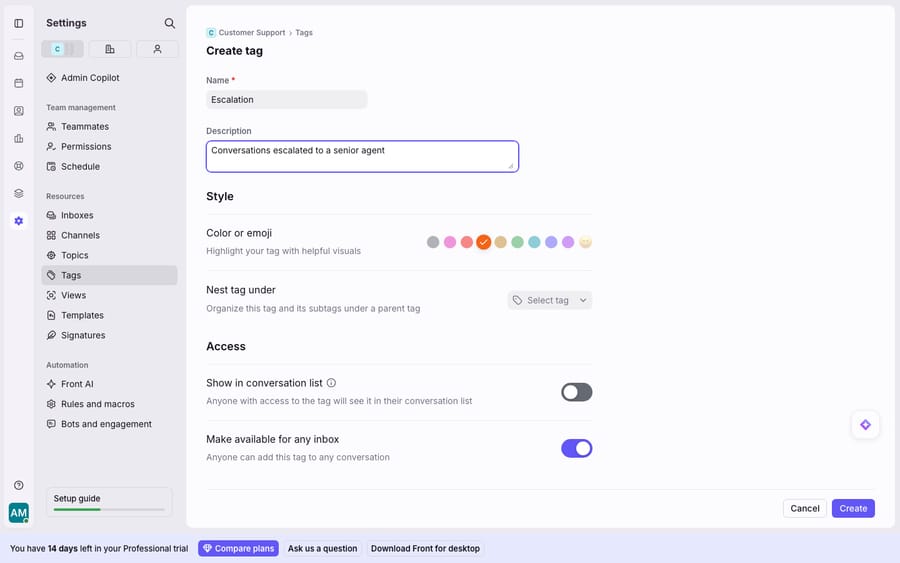
The scope you chose in the gear menu determines the tag type. Private tags live under Personal settings; each teammate has their own set, and they show with a lock icon, which makes them useful for personal triage. Shared tags live under Workspace settings, are managed by company admins or users with workspace permissions, and are available to everyone in the workspace. These are the tags your whole team reports on. Company tags are managed by company admins only, apply across all workspaces, and require the Enterprise plan. For the fuller conceptual picture, see Front tags explained.
How do you auto-tag conversations with Front rules?
Applying tags by hand doesn't scale; rules do. Front's automation engine can add or remove tags automatically the moment a conversation matches a pattern. The mechanics are the standard When / If / Then model documented in Front's guide to rule triggers, conditions, and actions; tagging is just a Then action. Build one under Settings → Rules and macros:
- Click Create rule and name it clearly, e.g. Tag billing questions.
- Set the When trigger, typically an inbound message is received.
- Add an If condition. For keyword tagging: subject or body contains "invoice" OR "refund" OR "charge". For sender-based tagging: the from address is from
@bigcustomer.comor is from a known VIP contact. - In the Then block, choose the action Add specific tag(s) and pick the tag (say,
BillingorVIP). You can also Remove specific tag(s) to clear a stale label. - Optionally chain another action (move the conversation to the Billing inbox, or assign it) so the tag and the routing happen in one pass.
Two common recipes worth building on day one: keyword auto-tag (subject contains a product name → tag Topic/Bug) and sender auto-tag (from a strategic domain → tag Priority/VIP). Because tags can themselves be a rule condition, one rule adding a tag can trigger a different rule that routes on it, a clean two-step pattern covered in Front rules explained. Watch the rule count on Starter: with a 10-rule cap, spend rules on the tags you actually report on.
Can Front force teammates to tag every conversation?
A tag taxonomy is only as good as its coverage. If half your conversations go untagged, your reports lie. Front's required tagging closes that gap. Per Front's Required tagging guide, an admin goes to Settings → Rules and macros, clicks Create rule, picks the Require tag template from the rule library, names the target inboxes, and curates the set of tags teammates must choose from. After that, Front blocks archiving or moving a conversation until it's tagged, showing a red asterisk indicator and a pop-up if someone tries to skip it.
Two caveats to plan around: required tagging is available on the Professional plan or above, and it is not enforced on the mobile app. It also doesn't apply to a brand-new conversation you start and send with Send & archive; if you use the plain Send button, the rule applies when you archive it later. So it's a strong control on desktop, not an absolute guarantee everywhere.
How do you report on Front tags?
The payoff for a disciplined taxonomy is analytics. Because every well-tagged conversation carries structured metadata, you can build tag-based views (filter the inbox to everything tagged Escalation this week) and run reports that count volume, resolution time, and reply time by tag. Front's own docs frame required tagging as the way to "run analytics on your tags and gain actionable insight to improve your operations and product." That's how a team answers questions like how many billing conversations did we get this month? or are VIP tickets resolved faster than the rest? Plan tier matters here too: Front's pricing page lists basic analytics on Starter, advanced analytics on Professional and custom reports on Enterprise. The mechanics of building those charts are in Front analytics explained.
Where does keyword auto-tagging fall short, and what replaces AI Tagging?
Rule-based auto-tagging is deterministic and reliable, which is its strength. But it matches on keywords, not meaning. A rule that tags on subject contains "refund" will miss "I was double-charged and want my money back," and it will mis-tag a message that mentions "refund policy" only in passing. Keyword tagging can't read intent, so a busy inbox always ends up with a residue of mis-tagged and untagged conversations that someone has to fix by hand.
Front's answer to that was AI Tagging, which used message content to categorize conversations after you trained it by approving examples. Per Front's AI Tagging documentation, the feature is legacy and "no longer available to new users." Where it existed, you built a rule from a Tag with AI prompt template, trained each tag by approving 10 example messages, and were capped at a maximum of 50 tags per rule and one AI Tagging rule per shared inbox, on email channels only. Front now points new customers to Topics (included on every plan) and Branch by Autopilot workflows instead; Autopilot is an add-on on every plan, Enterprise included (as of October 2026). On a newer Front account, classic AI Tagging isn't on the menu, which leaves a gap between deterministic keyword rules and intent-based handling of the conversation itself.
That gap is where an AI agent layer fits: not replacing your tags or rules, but doing the reasoning-heavy part they structurally can't. The broader category of AI agents for customer service exists for the work a keyword match can't do. Macha is one such layer: it runs on top of the Front you already use through the live Macha–Front connector. It does not replace Front, your shared inboxes, your tags, or your rules. You keep your taxonomy and your auto-tag rules doing the fast, deterministic labeling. Then Macha's agent reads the conversation, works from intent rather than keywords (so "I was double-charged" is understood as a billing issue even without the word "refund"), and drafts or sends a grounded answer, pulling a real order or account status through a custom tool that turns your REST API into something the agent can call. The mechanics of wiring it up are in connecting Front to Macha to route conversations to AI. Macha bills per ticket, from $299 a month for up to 750 tickets: one conversation is charged once however many messages it takes, never per resolution, so the bill never hangs on an outcome definition you don't control.
The clean division of labor: let Front tags and rules be the deterministic librarian that labels and files the work, and layer an agent on top for the part a keyword can't do, which is understanding the conversation and answering it well. For how tags fit the wider system, see Front tags explained and the Front shared inbox model.
FAQ
Where do I create and manage tags in Front? Click the gear icon, go to company, workspace, or personal settings depending on the scope you want, and select Tags from the left menu, then Create tag. The scope you pick decides the tag type: personal settings make a private tag, workspace settings make a shared tag, and company tags (admin-only) require the Enterprise plan.
How do I auto-tag conversations in Front? Build a rule under Settings → Rules and macros. Set a When trigger (usually an inbound message is received), add an If condition on a keyword or sender, and in the Then block choose Add specific tag(s). The tag is applied automatically to every matching conversation. Starter allows up to 10 rules and Professional up to 20.
What's the difference between private, shared, and company tags? Private tags are per-teammate and show a lock icon. Shared tags are managed by admins or users with workspace permissions and are available across the workspace; these are the ones you report on as a team. Company tags apply across all workspaces, are admin-only, and are an Enterprise-plan feature.
Can Front force teammates to tag every conversation? Yes, with required tagging. An admin creates a rule from the Require tag template, and Front then blocks archiving or moving a conversation until it's tagged. It's available on the Professional plan or above, but it isn't enforced on the mobile app or on new conversations sent with Send & archive.
Is Front's AI Tagging still available? Front's classic AI Tagging is a legacy feature and is no longer available to new users; Front recommends Topics and Branch by Autopilot workflows instead. For intent-based handling on a current account, an AI agent layer like Macha connects to Front and reads conversations by meaning rather than keywords, without replacing your tags or rules.
Ready to turn "tagged" into "actually answered"? Start a free trial of Macha and connect it to your Front in minutes.






