Intercom
 Shopify
 Stripe
 Slack
Slack Notion
 Google Workspace
 Confluence

How Do Front Rules Work? When/If/Then, Scopes and Limits (2026)


Front rules watch every conversation in your shared inboxes and route, tag, assign or reply when a message matches a trigger and conditions you set. The scope a rule lives in, its order in the list and the stop processing switch decide what actually runs, and a rule can never trigger itself.
Key takeaways
- Every Front rule is built from a trigger called When, one or more conditions called If, and one or more actions called Then, such as assign, tag or reply with a template.
- Front caps workspace rules at 10 on the Starter plan and 20 on Professional, while Enterprise allows unlimited workspace and company rules and individual rules never count.
- Front company rules always run before individual and workspace rules, and they are available only on the Enterprise plan or with the Autopilot add-on.
- Checking Stop processing other rules makes Front ignore later matching rules, except delayed rules built on Unreplied after, Unassigned after or Time since triggered conditions.
- A Front rule cannot trigger itself because the rule engine is sequential, and for the same reason company rules cannot be triggered by workspace rules.

Front rules are When / If / Then automations: a trigger (such as an inbound message), one or more conditions (such as the sender's domain), and one or more actions (such as assign, tag or reply with a template). Each rule lives in one of three scopes, individual, workspace or company, and company rules always run first. Front caps workspace rules at 10 on Starter and 20 on Professional; Enterprise is unlimited and adds company rules.
| Front plan (billed annually) | Workspace rules | Company rules | Notable rule features |
|---|---|---|---|
| Starter, $25 a seat a month | 10 | No | Core triggers, conditions and actions |
| Professional, $65 a seat a month | 20 | No (unless Autopilot add-on) | Adds load balancing and webhook actions |
| Enterprise, $105 a seat a month | Unlimited | Yes | Adds dynamic variables and Autopilot replies |
How does the When / If / Then model work?
Every Front rule, however elaborate, is the same three-part sentence. Per Front's guide to rule triggers, conditions, and actions, a rule is built from a trigger (When), one or more conditions (If), and one or more actions (Then).
The trigger is the event that wakes the rule up. Common ones are an inbound message is received, a conversation is assigned, a tag is added, a comment is posted, a ticket status changes, or a conversation is archived or reopened. Nothing happens until a trigger fires. (The old conversation-stages trigger is legacy: Front stopped offering it for new rules in October 2024.)
The condition is the test the conversation has to pass. This is where you narrow things down: message contains "invoice", the from field is a specific domain, the conversation is in a chosen inbox, a particular tag is present, or it's outside business hours. Conditions can be chained with AND/OR logic, so you can require several things at once or accept any of a set.
The action is what Front does when the trigger fires and the conditions pass: add a tag, assign to a teammate (round robin, or load balancing on Professional and above), move to another inbox, reply with a template, create a draft, archive, or send to Slack or a webhook (webhooks need Professional and above). You can stack multiple actions in one rule.
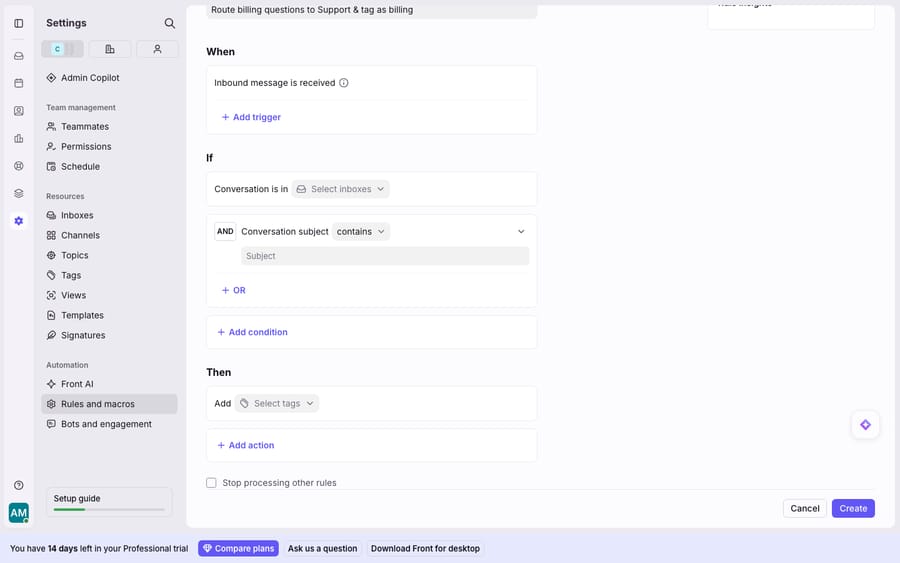
That linear shape, one trigger, some conditions, some actions, covers the large majority of automations a support, sales or ops team needs, and it's the foundation under everything else in Front's rule engine.
What's the difference between company, workspace and individual rules?
The same rule can live in one of three scopes, and the scope decides who it affects and who can edit it. Front documents all three in Understanding rules.
Individual rules apply only to your personal inbox. You create them under Personal settings → Rules, and nobody else sees them. These are productivity tweaks, like auto-tagging your own newsletters or snoozing certain senders, and they don't count against your plan's rule limits.
Workspace rules (often called shared rules) apply to your team's shared inboxes. Workspace or company admins create them under Workspace settings → Rules and macros. They're the workhorse: the routing, tagging and assignment logic the whole team depends on. Because they touch shared work, only admins can change them.
Company rules apply across all individual and/or shared inboxes at once and can only be created by company admins, under the Company settings tab. They centralize logic you'd otherwise duplicate everywhere, such as a company-wide tagging or compliance rule you don't want to maintain in twenty places. Front makes company rules available on the Enterprise plan or with the Autopilot add-on.
| Individual rules | Workspace (shared) rules | Company rules | |
|---|---|---|---|
| Applies to | Your personal inbox | A team's shared inboxes | All inboxes company-wide |
| Who can create | You | Workspace/company admins | Company admins only |
| Where | Personal settings → Rules | Workspace settings → Rules and macros | Company settings → Rules |
| Counts toward limits | No (exempt) | Yes: 10 Starter, 20 Professional, unlimited Enterprise | Enterprise or Autopilot add-on |
| Priority | Runs after company rules | Runs after company rules | Highest: always first |
Which Front rule runs first, and what does "stop processing other rules" do?
When several rules could act on the same conversation, order decides who goes first, and one switch decides whether anyone else gets a turn.
Company rules always win the priority contest. Front is explicit: company rules "will always have priority over individual or workspace rules" and behave as if they were ordered before all other rules. They run first, every time, regardless of list position.
Within a scope, you set the order yourself. In the rule list, admins type a rule's desired position or use the arrows to move it up and down. Rules are evaluated top to bottom, so the more specific, higher-stakes rules generally belong near the top.
Order matters most because of one checkbox: Stop processing other rules. Front's wording: "When this option is checked, subsequent rules will be ignored even if they would apply to the conversation." It's how you say "this case is handled, don't let anything else touch it." Because company rules run first, a company rule with stop processing enabled can quietly block every downstream workspace and individual rule. It's a useful lever, and an easy way to end up wondering why a rule you built isn't working.
There's one deliberate exception. Delayed rules, those built on time-based conditions like Unreplied after, Unassigned after or Time since triggered, are scheduled by time, so Front doesn't treat them as rules that can be stopped.
Why can't a Front rule trigger itself?
This is the behavior that confuses almost everyone at least once. You build a rule whose action would satisfy its own trigger (say, a rule triggered by tag added whose action is to add another tag) and you expect a cascade. It doesn't happen.
Front's documentation puts it plainly: "Due to the sequential nature of Front's rule engine, a rule cannot trigger itself." That prevents the obvious infinite loop, where a rule fires, its action re-fires the same rule, forever. The same principle is why company rules cannot be triggered by workspace rules: company rules execute first in the pass, so a later workspace rule's actions can't loop back and re-run them.
The practical upshot: if you need a chain, where rule A's action should cause rule B to run, those have to be different rules, ordered so B evaluates after A in the same pass, and A must not have stop processing enabled. If an automation mysteriously isn't cascading, self-trigger prevention is very often the reason.
What can't Front rules do, and where does an AI agent fit?
Front's rule engine is deterministic, and that's its virtue. It does exactly what you tell it, in a predictable order, every time. For routing, tagging, assignment and templated auto-replies, that's what you want.
But notice the ceiling. Rules match on patterns, not meaning. A condition like message contains "refund" is a keyword match; it doesn't understand that "I was double-charged and want my money back" is also a refund. It can route a billing question to the billing inbox, but it can't read the question, check the customer's invoice, and write the answer. A template reply is the same fixed text for everyone who trips the trigger.
There's plan friction too. Workspace rules are capped by plan: 10 on Starter and 20 on Professional, with Enterprise unlimited. Load balancing and webhooks need Professional; dynamic variables and company rules need Enterprise or an add-on. On a smaller plan, a busy team can hit the rule ceiling faster than expected. Front's pricing tiers lay out what unlocks where.
This is the seam where an AI agent layer fits, not to replace the rule engine but to do the reasoning it structurally can't. That's the work AI agents for customer service exist for. Macha is one such layer: it runs on top of the Front you already use through the live Macha–Front connector, and it doesn't replace Front, your shared inboxes or your rules. Your rules keep getting the right conversation to the right place with the right tags. Then Macha's agent reads that conversation, works out intent rather than keywords, and drafts or sends a grounded reply, pulling a real order or account status through a custom tool that turns your REST API into something the agent can call. A rule tags a message "billing" in milliseconds; the agent then resolves the billing question. Connecting Front to Macha to route conversations to AI walks through the mechanics.
Pricing is where the two approaches differ most. Front's own Autopilot add-on starts at $0.05 a conversation. Macha bills per ticket, one conversation charged once however many messages it takes, starting at $299 a month for 750 tickets, never per resolution, so the bill never hangs on an outcome definition you don't control.
The clean division of labor: Front rules are the deterministic dispatcher, and an agent on top reads the conversation and answers it. For how rules and tags work together, see Front tags explained and the wider Front shared inbox model.
FAQ
Where do I create rules in Front? It depends on scope. Individual rules live under Personal settings → Rules, workspace (shared) rules under Workspace settings → Rules and macros, and company rules under the Company settings → Rules tab (company admins only, Enterprise or the Autopilot add-on). Each rule is a When (trigger) → If (condition) → Then (action) sentence.
What's the difference between company, workspace, and individual rules? Individual rules affect only your personal inbox and are exempt from plan limits. Workspace rules affect a team's shared inboxes and are admin-created. Company rules apply across all inboxes, can only be made by company admins, and need Enterprise or the Autopilot add-on. Company rules always execute first.
How many rules can I create on each Front plan? Front caps workspace rules at 10 on Starter and 20 on Professional. Enterprise allows unlimited workspace and company rules. Individual rules don't count toward the cap.
What does "stop processing other rules" do? When enabled on a rule, Front runs that rule's actions and then ignores any later rules that would have matched the same conversation. Delayed, time-based rules (Unreplied after, Unassigned after, Time since triggered) are the exception, because they're scheduled by time.
Why won't my Front rule trigger another rule? Front's rule engine is sequential and a rule cannot trigger itself, which prevents infinite loops. For the same reason, company rules can't be triggered by workspace rules. To chain automations, use separate rules ordered so the second evaluates after the first, and make sure the first doesn't have "stop processing other rules" enabled.
Can I add AI to Front rules without replacing Front? Yes. An AI agent layer like Macha connects to Front as a live connector and runs on top of your existing inboxes and rules. Your rules keep routing and tagging; the agent reads the routed conversation, works out intent, and drafts or sends a grounded reply.
To turn "routed and tagged" into "answered", start a free trial of Macha ($50 of usage, no credit card) and connect it to your Front.
Add AI agents to your Front
Macha reads the conversation, drafts the reply and takes the action, inside the Front you already run.