Intercom
 Shopify
 Stripe
 Slack
Slack Notion
 Google Workspace
 Confluence

How Do Freshdesk Ticket Fields and Forms Work? Custom Fields, Dynamic Sections and Plans (2026)


Freshdesk ticket fields decide what a customer is asked on the portal, what an agent sees on the ticket, and what your automations, SLAs and reports can work with later. Custom fields start on the Growth plan, while dynamic sections and multiple forms need Pro, and an AI agent layer can fill the fields in from the message itself.
Key takeaways
- Freshdesk ticket fields combine 11 default fields, such as Requester, Type, Status and Priority, with custom fields that admins add under Admin, Workflows, Ticket Fields.
- Freshdesk custom fields come in eight types, including dropdown, checkbox, number, decimal, date and a dependent field with a 3-level hierarchy, and require the Growth plan or above.
- Each Freshdesk field has separate agent settings, required when submitting or when closing the ticket, and customer settings for whether they can view, edit or must fill it.
- Freshdesk dynamic sections reveal extra fields only when a dropdown such as Type, Status or Group is set to a chosen value, and they start on the Pro plan.
- Freshdesk allows multiple ticket forms from the Pro plan onwards, with up to 50 ticket forms per account, while Growth accounts work with a single form.

Freshdesk ticket fields are the properties on every ticket: 11 default fields such as Requester, Type, Status and Priority, plus custom fields in eight types that you add under Admin → Workflows → Ticket Fields on the Growth plan and above. Dynamic sections and multiple ticket forms need the Pro or Enterprise plan (Freshdesk ticket fields documentation, checked September 24, 2026).
| Feature | What it does | Freshdesk plan |
|---|---|---|
| Default fields (11) | Requester, Subject, Type, Source, Status, Priority, Group, Agent, Product, Description, Company. Can't be deleted | All plans |
| Custom fields (8 types) | Your own order numbers, product lines, reason codes | Growth and above |
| Dependent field | One dropdown with a 3-level hierarchy | Growth and above |
| Dynamic sections | Extra fields that appear for one dropdown value | Pro and above |
| Multiple ticket forms | Different forms per request type, up to 50 per account | Pro and above |
What are ticket fields in Freshdesk?
A ticket field is a single property attached to every ticket: Priority, Status, or a custom "Order number" box you added yourself. Together, the fields define two things at once: the agent form your team fills in inside the workspace, and the customer form on your support portal (the "Submit a ticket" page). They're two views of the same set of fields, which is why a change in one place ripples into the other.
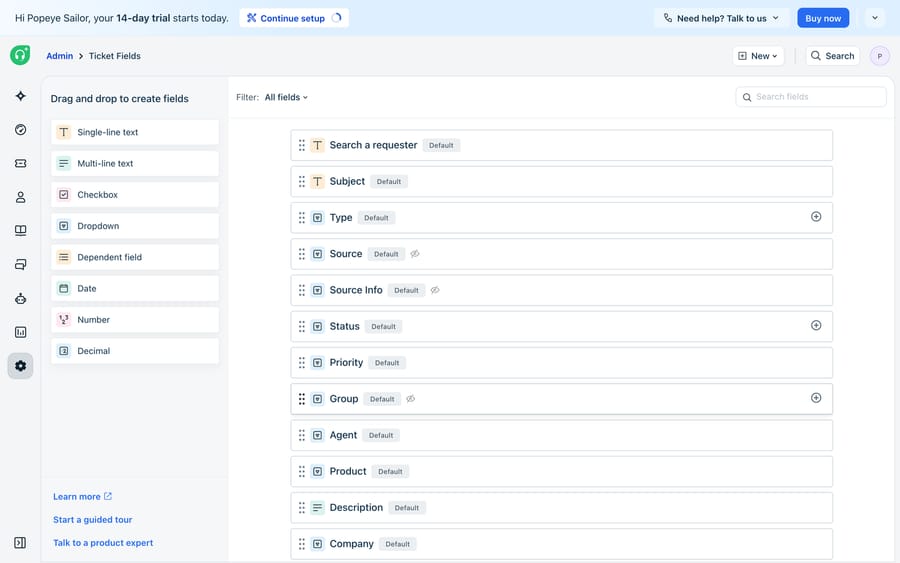
Freshdesk ships default fields that you can't delete: Requester, Subject, Type, Source, Status, Priority, Group, Agent, Product, Company and the Description body. A few carry special behavior. Source records the channel the ticket came in on (email, portal, chat, phone, API) so your rules and reports can key off it. Status and Priority drive SLA timers and escalations. Type is a dropdown you'll almost certainly customize with your own categories, and it's the field most teams lean on for routing.
On top of the defaults, you add custom fields: the account IDs, order numbers, product lines, subscription tiers and reason codes that make a ticket meaningful for your business. Custom fields start on the Growth plan. They're where ticketing stops being a generic inbox and starts reflecting how your team actually works.
Which custom field types can you add in Freshdesk?
You build the form in Admin → Workflows → Ticket Fields, dragging field types from a palette onto the form and configuring each one. Per Freshdesk's ticket fields documentation, the eight types are:
- Single-line text: short free text like an order number or account ID.
- Multi-line text: longer descriptions or notes.
- Dropdown: a fixed list of choices (product, region, reason). The workhorse for routing and reporting because the values are clean and consistent.
- Checkbox: a single yes/no toggle, e.g. "VIP customer" or "Consent to contact."
- Number and Decimal: quantities, amounts, counts.
- Date: a calendar picker, e.g. purchase date or requested-by date.
- Dependent field: a cascading dropdown with a 3-level hierarchy (Category → Subcategory → Item), where each choice narrows the next.
The rule that saves the most cleanup: prefer dropdowns over free text wherever you'll want to filter, route or report. "Billing," "billing" and "Bill" are three different strings to an automation but one intent to a human. A dropdown removes that ambiguity before it ever reaches a rule.
How do required, view and edit settings work on a Freshdesk field?
Each field carries a set of independent switches, split between agents and customers, and they're the part new admins most often get wrong. For every field you decide:
- For agents, required when submitting the ticket: an agent can't create or update the ticket without a value.
- For agents, required when closing the ticket: an agent-side gate that forces the field to be filled before the ticket can be resolved or closed. This is how you guarantee a "Root cause" or "Resolution code" is always captured for reporting, without pestering the customer for it up front.
- For customers, can view: whether the field shows on the portal form at all. Internal reason codes usually stay agent-only.
- For customers, can edit: whether the requester can supply or change the value.
- For customers, required when submitting: the customer can't submit without filling it in. Use sparingly; every required field is friction that pushes people toward email instead.
The split between required for customers and required for agents is the one to internalize: you keep the customer form short and friendly, while still guaranteeing your team captures the structured data your analytics need before closing.
What are dynamic sections, and which plan has them?
A flat form that asks everyone everything is a bad form. Dynamic sections fix that by revealing extra fields only when they're relevant. You attach a section to specific values of a dropdown: the default Type, Status or Group fields, or any custom dropdown. Pick "Refund" and a refund-amount and order-date section appears; pick "Bug" and a severity and steps-to-reproduce section shows instead. The customer only sees the questions that apply to their situation, and you still collect structured data behind the scenes.
Dynamic sections are available from the Pro plan onwards, and so are multiple ticket forms (up to 50 per account). On Growth you get custom fields and dependent fields but one form and no sections. This is distinct from the dependent field above. Sections show or hide whole groups of fields based on a choice; dependent fields narrow one choice into the next. Freshworks reshuffles this area periodically, so confirm the labels in your own account. For the broader picture of what these fields feed into, see our Freshdesk features overview.
Where do native Freshdesk fields stop, and where does an AI layer take over?
Ticket fields are excellent at storing structure and mediocre at creating it. Freshdesk can't force a customer to describe their problem well; it can only give them boxes. In practice, plenty of tickets still arrive with the dropdowns skipped, the wrong Type selected, or the whole story crammed into the Description while the "Order number" field sits empty. Someone, usually an agent, then reads the message and back-fills the fields by hand. That's the tax native fields quietly impose.
This is where Macha comes in. Macha is an AI agent layer that runs on top of Freshdesk as a native connector, not a replacement for it. Because it reads and writes real tickets through the Freshdesk API, a Macha agent can read the customer's message the moment it lands, infer the Type, set the Priority, and populate custom fields like order number or product line from the text itself, then reply or hand a fully structured ticket to an agent. The form still exists; your team just stops being the one who fills it in.

The pieces that make this checkable rather than a black box: Custom Tools expose any HTTP API as an action, so an agent can look up an order in your commerce system and write the real value into a Freshdesk field instead of guessing. Sources ground its answers in your help center so replies match documented policy. Simulations replay past tickets against the agent before it touches a live queue, so you see how it would have classified and answered them, and Studies analyze its performance against its instructions once it's running. If you're weighing whether to assemble this yourself, our guide on building an AI agent from scratch versus using a platform walks the trade-offs, and AI agents for customer service covers the category. For the Freshdesk-specific setup, see how to automate Freshdesk with AI.
FAQ
What's the difference between default and custom fields in Freshdesk? Default fields (Requester, Subject, Type, Source, Status, Priority, Group, Agent, Product, Company, Description) ship with every Freshdesk account and can't be deleted. Custom fields are ones you add yourself in Admin → Workflows → Ticket Fields, such as order numbers, product lines and reason codes, to capture data specific to your business. Custom fields need the Growth plan or above.
What is a dependent field versus a dynamic section? A dependent field is a single cascading dropdown with a 3-level hierarchy (Category → Subcategory → Item), where each choice narrows the next. A dynamic section reveals a whole group of extra fields based on a dropdown value, for example showing refund fields only when Type is set to "Refund." One narrows a choice; the other shows or hides groups of fields. Dynamic sections need the Pro plan.
Can I make a field required for agents but not for customers? Yes. Freshdesk splits each field's settings between agents and customers. You can hide a field from the customer portal form (or leave it optional there) while marking it "required when closing the ticket" on the agent side, so you keep the customer form short but still guarantee agents capture the data before closing.
Which Freshdesk plan do I need for multiple ticket forms? Pro or Enterprise. Freshdesk's documentation says multiple forms are available from the Pro plan onwards, with up to 50 ticket forms per account. Growth accounts work with a single form.
Can Macha fill in Freshdesk ticket fields automatically? Yes. Macha runs as an AI agent layer on top of Freshdesk. It reads the incoming message, infers Type and Priority, and can populate custom fields, using Custom Tools to pull real values from your own systems, then reply or hand a structured ticket to an agent. You can replay past tickets against it with Simulations before going live; see pricing for plan details.
Add AI agents to your Freshdesk
Macha reads the ticket, drafts the reply and takes the action, inside the Freshdesk you already run.