Intercom
 Shopify
 Stripe
 Slack
Slack Notion
 Google Workspace
 Confluence

How do tags work in Front, and how should you use them?


A Front tag is a label that tracks a topic, triggers rules, feeds analytics and, when private, files a conversation like a folder. The scope you pick, the rules you tag with and one filing gotcha decide whether your tags stay trustworthy.
Key takeaways
- Front tags do four jobs: they track topics across inboxes, trigger rules that sort messages, feed analytics on trends, and act as private folders for filing conversations.
- Front tags have three scopes: private tags only the creator sees, shared tags visible to the whole workspace, and company tags across all workspaces on the Enterprise plan.
- Front allows up to 5,000 tags nested under a single parent tag, but only 500 tags can display in the sidebar at once.
- Front's older AI Tagging is legacy and closed to new users; Topics now tags shared-inbox conversations by contact reason and can trigger rules.
- Dragging a conversation from the Inbox into a private tag in Front removes the Inbox tag and adds the private tag, because private-tag filing is a move.

A Front tag is a label on a conversation that does four jobs at once: it tracks a topic across inboxes, triggers rules that sort messages, feeds the analytics on trends, and, as a private tag, works as a personal folder. Tags come in three scopes (private, shared and company), rules can apply them automatically, and Front's AI Topics feature now tags conversations by contact reason on the Starter, Professional and Enterprise plans.
| Tag type | Who sees it | Who manages it | Best used for |
|---|---|---|---|
| Private (lock icon) | Only you, even on shared conversations | Each teammate | Personal filing; dragging in is a move |
| Shared | Everyone in the workspace | Company admins or users with workspace permissions | Routing rules and analytics |
| Company | Everyone across all workspaces | Company admins only | Company-wide vocabulary (Enterprise plan) |
What does a tag actually do in Front?
Front's own documentation is blunt about the job a tag does, and it's worth internalising because it explains every design decision that follows. Per Front's Understanding tags help article, a tag lets you track certain topics in your inboxes, set up rules to sort messages automatically, report on trends in analytics, and use as private folders to file your messages into.
That's four distinct jobs from one primitive. The same billing tag can surface every payment question across three shared inboxes, trigger a rule that routes those conversations to the finance team, appear as a row in your analytics with volume and response-time metrics, and, if it's private, act as a personal folder only you can see. Because Front is a shared-inbox platform rather than a ticketing system, tags do a lot of the categorisation work that "ticket fields" or "ticket types" would do elsewhere, but they stay lightweight and stackable: a single conversation can carry as many tags as it needs.
What's the difference between shared, private and company tags?
The most important thing to get right is a tag's scope, because scope decides who sees it and who can manage it. Front has three levels.
- Private tags are personal to each teammate. They show with a lock icon in your tag list, and your teammates cannot see them even when you apply one to a shared conversation. These are your personal folders.
- Shared tags are available to everyone in your workspace and are visible on any conversation a teammate has access to. These are the tags your reporting and routing should be built on. They're managed by company admins or teammates with workspace permissions.
- Company tags are available across all workspaces in your company and are managed by company admins only. Per Front's docs, company tags need the Enterprise plan.
There's a subtlety for anyone connecting email accounts: the scope often gets decided for you at connection time. As Front notes, if you connect an account as a personal channel the tags will be private, and if you connect it as a shared channel the tags will be shared with your team. So the "why can't my colleague see this tag?" question usually traces back to how the channel was connected, not to the tag itself.
How do you create and apply a tag in Front?
There are three entry points, all documented in Front's Understanding tags guide.
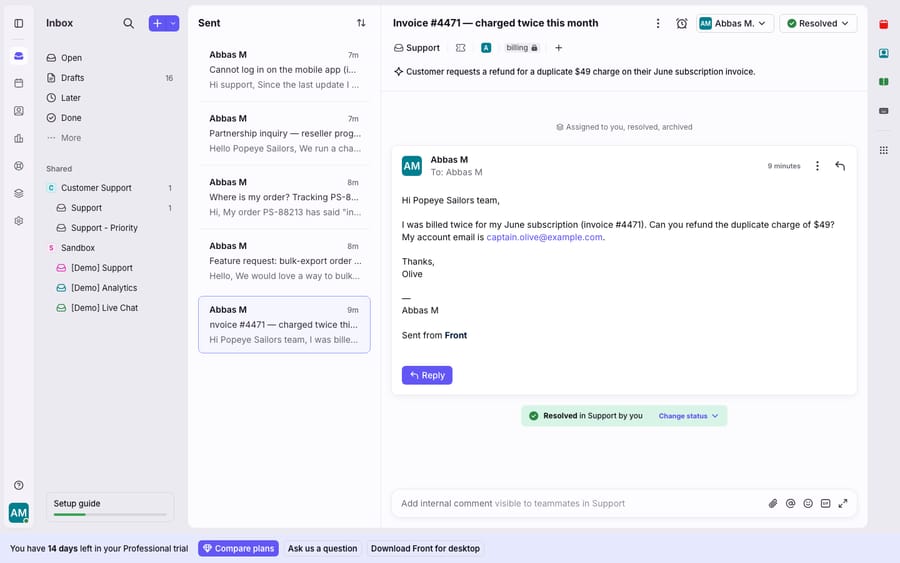
- From a conversation. Open the conversation, click the (+) plus icon at the top, choose the tag option, and either pick an existing tag or select Create new tag. The tag is applied immediately.
- From Settings. Go to Settings → Tags, click Create tag, and name it. This is the place to manage the full library: rename, nest, delete and set scope.
- From the sidebar. Click the plus icon in the Pinned section and choose Create new private tag for a quick personal folder.
Front supports nested tags, so you can group related labels under a parent (a Billing parent with Refunds, Invoices and Chargebacks beneath it). The limits are generous: up to 5,000 tags can be nested under a single parent, and you can display up to 500 tags in your sidebar. In practice you want far fewer. A tight, curated set beats a sprawling one every time.
How do you auto-tag conversations with rules?
Applying tags by hand is fine for a handful of conversations, but it doesn't scale and it doesn't stay consistent. The fix is to let rules do the tagging. Rules are Front's automation engine, a linear WHEN → IF → THEN flow, and adding a tag is one of the most common THEN actions. We go deep on the mechanics in Front rules explained, but the tagging pattern is simple.
Under Settings → Rules and macros → Create rule, a classic auto-tag rule looks like:
- WHEN an inbound message is received
- IF the conversation is in the Support inbox AND the subject or body contains "refund", "invoice", or "charge"
- THEN add the tag
billing
Now every payment question tags itself the moment it lands, so your routing and your reporting both get consistent data without anyone remembering to click. You can stack conditions with AND/OR logic, match on sender domain, channel or account, and combine tagging with other actions like assigning a team or moving the conversation. The keyword approach is also where auto-tagging starts to show its limits, covered below.
How do tags drive routing and analytics?
Once tags are applied consistently, two things get much easier.
Routing. Because a rule can both read tags (IF conversation has tag X) and set them, tags become a routing signal. A common two-step pattern: one rule tags inbound conversations by topic, and a second rule routes anything tagged billing to the finance shared inbox and anything tagged urgent to a priority queue. That separation keeps your logic readable: tagging rules describe what a conversation is about, routing rules describe where it should go. If you're still setting up the underlying inboxes, our guide to the Front shared inbox covers how those queues are structured.
Analytics. Tags are the backbone of topic-level reporting. Front's Tags report breaks down volume and performance per tag over a selected period, so you can answer questions like "is billing volume growing?" or "which topic has the slowest first-reply time?" Depth depends on plan: Front's pricing page lists basic analytics on Starter and advanced analytics from Professional up, with custom reports on Enterprise. If you're on Starter, use tags for organisation and rules now and layer deeper reporting on later.
Why did my Inbox tag disappear when I filed a conversation?
This is the behaviour that surprises almost everyone, and it's not a bug; it's how private-tag filing is designed. Per Front's Using tags to label and file conversations guide, when you drag a conversation from your Inbox into a private tag, Front removes the Inbox tag and adds the private tag. Tags are automatically added or removed as you drag a conversation between tags.
The upside is that private tags work exactly like folders: filing a thread into Follow-up pulls it out of your main Inbox view, and dragging it back re-adds the Inbox tag. The trap is assuming a drag adds a tag without removing another. It can do both. If you rely on the Inbox tag to mean "still needs attention", filing a conversation away will quietly clear that signal. The clean mental model: private tags are moves, shared tags are labels. Dragging into a private tag is a filing action that swaps tags; applying a shared tag from the (+) menu is additive and leaves everything else in place.
Where does Front's tagging fall short, and where does an AI layer fit?
Front's tagging system is well built for what it is: fast to apply, cheap to stack, scriptable through rules, and wired straight into analytics. For a lot of teams it's all the categorisation they need. But it helps to know where it runs out of road.
Rules tag on keywords, not meaning. A rule that watches for "refund" will miss "I want my money back" and will mis-tag "no refunds on this one, but here's a discount." Keyword matching is brittle in exactly the way natural language is messy.
Front's AI tagging now means Topics. The older AI Tagging feature (up to 50 tags per rule, trained by approving 10 messages per tag) is marked legacy and is no longer available to new users. Its replacement is Topics: Front AI reads your conversations, groups them into contact reasons, applies tags automatically, and exposes a Topic is detected rule trigger for routing. Topics works on shared inboxes only, creates English-language Topics, needs at least 5 conversations before tagging starts for a new Topic, and Front recommends 1,000+ conversations a month for good results. It's a real upgrade over keyword rules, but it classifies the conversation; it doesn't answer it.
Required tagging is plan-gated. If you want to force teammates to tag before archiving, which keeps your analytics honest, Front's Required tagging is available on the Professional plan or above. Even then it's not retroactive, doesn't apply to conversations archived from the mobile app, and can't intervene on the "Send & archive" button for new outbound messages. Know that before you build a reporting strategy on the assumption that every conversation is tagged.
This is the seam where an AI agent layer fits, and it's worth understanding the broader category of AI agents for customer service before you reach for one. Macha is one such layer, and it runs on top of the Front you already use through a live native connector, without replacing Front or its tagging. Once connected to Front, a Macha agent reads the full conversation and classifies by intent rather than keyword, so billing gets applied to "I want my money back" and withheld from "no refunds this time." Because it's an agent and not just a classifier, the same pass that tags the conversation can draft or send a grounded reply, look up an order or invoice through a custom tool that turns a REST API into something the agent can call, and route based on what it understood. It bills per ticket, one conversation charged once however many messages it takes, starting at $299 a month for up to 750 tickets; the pricing page breaks that down.
The clean division of labour: keep Front's tags as the shared vocabulary your routing and analytics are built on, and layer an agent on top for the part keyword rules can't do, which is reading a message the way a human would and tagging (and answering) accordingly.
FAQ
How do I create a tag in Front? Three ways. From a conversation, click the (+) plus icon at the top, choose the tag option, and select Create new tag. From Settings → Tags, click Create tag, which is also where you manage, rename, nest and set the scope of every tag. Or use the plus icon in the sidebar's Pinned section to create a private tag.
What's the difference between a private tag and a shared tag? A private tag is personal: it shows with a lock icon and your teammates can't see it, even on a shared conversation, so it works like a private folder. A shared tag is visible to everyone in your workspace on any conversation they can access, which is why routing and analytics should be built on shared tags.
Why did my Inbox tag disappear when I filed a conversation? That's expected. When you drag a conversation from your Inbox into a private tag, Front removes the Inbox tag and adds the private tag, because private-tag filing is a move, not an add. Drag it back to the Inbox to re-add the Inbox tag.
Can Front tag conversations automatically? Yes, in two ways. You can build a rule (Settings → Rules and macros) that adds a tag when a message matches conditions like a keyword or sender, and Front's AI Topics feature tags shared-inbox conversations by contact reason automatically. The older AI Tagging feature is legacy and closed to new users.
Can I add AI tagging without replacing Front? Yes. An AI agent layer like Macha connects to Front as a native connector and runs on top of your existing inbox, without replacing Front or its tags. It classifies conversations by intent rather than keyword, applies the right tag, and can draft or send the reply too, while Front stays the system of record for your inboxes and analytics.
Ready to tag by meaning instead of keywords, and answer while you're at it? Start a free trial of Macha and connect it to your Front inbox in minutes.
Add AI agents to your Front
Macha reads the conversation, drafts the reply and takes the action, inside the Front you already run.