





 Shopify
 Stripe
 Slack
Slack Notion
 Google Workspace
 Confluence

How Do You Create Views in Gorgias? Shared and Private (2026)


You create a Gorgias View from the Inbox sidebar by clicking the plus icon next to Shared or Private views and stacking filters that combine with AND logic. Shared Views are for team queues and only Admins and Lead Agents can build them; Private Views are for your own workflow.
Key takeaways
- To create a Gorgias View, hover over Shared views or Private views in the Inbox sidebar, click the plus icon, choose Create view, add filters and save.
- Gorgias Admins and Lead Agents can create up to 500 Shared Views per helpdesk, and each user can create up to 20 Private Views.
- Gorgias View filters have three parts, an attribute, an operator and a value, and multiple filters combine with AND logic so each one narrows the list.
- Only Admins and Leads can reorder Shared Views in Gorgias, and the new order changes the sidebar for everyone on the team.
- Gorgias Views filter on ticket metadata such as Status, Channel, Tag and Priority, so an urgent ticket that nobody tagged will not surface in a triage View.

To create a View in Gorgias, open the Inbox, hover over Shared views or Private views in the sidebar, click the plus icon, choose Create view, then add filters (attribute, operator, value) and click Create View. Admins and Lead Agents can create up to 500 Shared Views per helpdesk, and every user can create up to 20 Private Views.
| Shared View | Private View | |
|---|---|---|
| Who sees it | Everyone's sidebar | Only your sidebar |
| Who can create it | Admins and Lead Agents | Any user |
| Limit | Up to 500 per helpdesk | Up to 20 per user |
| Who can reorder it | Admins and Leads (order changes for everyone) | You |
| Typical use | Team queues: Unassigned email, Returns, VIP customers | Personal lists: my open tickets due today |
What is a View in Gorgias?
A View is a dynamic list of tickets defined by one or more filters. It isn't a folder you drag tickets into. It's a live query that re-runs every time you look at it, so a ticket appears the moment it matches the conditions and drops out the moment it doesn't. You describe the kind of work you care about once, and Gorgias keeps the list current.
There are two flavors, and the difference is who sees them. A Shared View appears in everyone's sidebar and organizes the whole team's work: "Unassigned email," "Returns," "VIP customers." A Private View appears only in your sidebar and serves your own workflow: "My open tickets due today," "Waiting on a warehouse reply." For the conceptual tour of how Views and Sections fit together, see Gorgias Views explained; this guide is the hands-on build.
Step 1: How do you open the View editor?
Per Gorgias' Manage Views and Sections documentation, you create a View straight from the sidebar.
- Open the main dropdown menu and select Inbox (the Tickets area).
- In the sidebar, hover over the Shared views heading (for a team queue) or Private views heading (for a personal one).
- Click the plus icon that appears, then select Create view.
- Give the View a name an agent understands at a glance ("Urgent email triage," not "View 3") and pick an emoji if you want a visual marker in the sidebar.
One permission note: only Admins and Lead Agents can create Shared Views, while any user can create Private Views. If you don't see the plus icon next to Shared views, that's why, and you'll need an admin to build the team-wide queue.
Step 2: How do you add a filter to a View?
A View is only as useful as the filter behind it. Gorgias' Create filters for Gorgias Views and Advanced Search documentation defines every filter in three parts: the attribute (the field you're matching, like Status or Channel), the operator (how it's compared: is, is not, is one of), and the value (what it's compared against: Open, Email, Urgent).
- Click Add Filter.
- Pick an attribute, for example Channel.
- Choose an operator. The operators change to fit the attribute: Channel offers is / is not / is one of, Tags offer contains all of / contains one of / does not contain any of, and Assignee offers is / is empty / is not empty.
- Pick a value, for example Email.
That single condition already gives you a working View: every email ticket, updating live.
Step 3: How do you combine conditions into a triage queue?
Gorgias joins multiple filters with AND logic, so each one you add narrows the list. The documentation's own example is Status is Open AND Channel is Email AND Priority is not Low, which returns the open, normal-to-urgent email tickets a triage lead wants to see first.
To build a triage queue of your own, add filters one at a time:
- Start broad: Channel is Email.
- Add Status is Open so closed tickets stop cluttering the lane.
- Add a priority or tag condition, such as Priority is not Low or Tag contains one of: urgent, escalation, to float the tickets that can't wait.
- Watch the live preview update as you go. Gorgias shows the matching tickets right there, so you can confirm the filter behaves before you save.
- Click Create View.
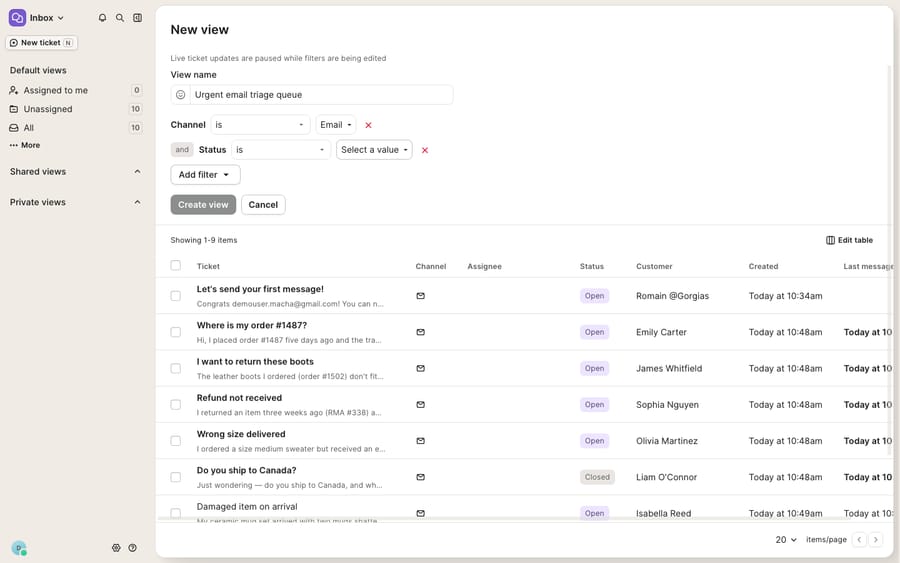
The preview is worth slowing down for. It's how you catch a filter that's too tight (empty list) or too loose (everything's in it) before an agent relies on the queue.
Step 4: How do you order the sidebar so the urgent lane is on top?
A View nobody scrolls to is a View nobody works. You can rearrange Views by dragging and dropping them in the sidebar, so put the queue that matters most, the urgent triage lane or the unassigned pile, at the top. The catch: Shared Views can only be reordered by Admins and Leads, and because that order is visible to everyone, your change reshuffles the sidebar for the whole team. Private Views you can order however you like.
If you run a lot of Views, group related ones into Sections (an ecommerce team might have a "Post-purchase" section holding Returns, Refunds and WISMO). Shared Sections, like Shared Views, are admin-and-lead territory.
What does a set of ecommerce triage Views look like?
Here's how a mid-sized store might turn its workflow into Views. Copy the shape rather than the exact filters: one lane per job, ordered by urgency.
| View | Type | Filters (AND) | Who works it |
|---|---|---|---|
| Urgent email triage | Shared | Channel is Email · Status is Open · Priority is not Low | Triage lead |
| Returns & refunds | Shared | Tag contains one of: return, refund · Status is Open | Post-purchase team |
| WISMO (where is my order) | Shared | Tag contains one of: wismo, shipping · Status is Open | Fulfillment agents |
| My open, due today | Private | Assignee is me · Status is Open | Each agent |
| Subscriptions | Shared | Tag contains one of: subscription, skip, swap · Status is Open | Retention team |
Notice the recurring ingredients: Status is Open on almost every lane, a Tag condition to route by topic, and a Channel or Assignee condition to scope by lane or person. Get your tagging discipline right and half your Views build themselves, because the tags are the routing logic.
What can't Gorgias Views do?
Views are fast, update live and are simple to reason about. But a View is a sorter. It organizes tickets into lanes; it doesn't work them. A triage View can surface the ten urgent emails in perfect order and still can't read one, understand the customer's problem or draft the reply that clears it. Every ticket in every View still lands on a human who does the reading and writing.
A View also can't reason about content the way it reasons about metadata. It filters on Status, Channel, Tag, Assignee and Priority, the fields Gorgias already knows. If a ticket is an urgent chargeback threat but nothing tagged it, no View will float it, because the urgency lives in the words. Gorgias Rules help here, since they can auto-tag on keywords so your Views have something to filter on, but Rules match patterns, not meaning.
That's where an AI agent layer fits, and it's worth being clear about the build-versus-buy tradeoff before you reach for one. The broader category of AI agents for customer service exists to do the reading a filter can't. Macha is one such layer: it runs on top of the Gorgias you already use as a native connector, and it doesn't touch your Views, Rules or macros. Macha reads and writes the same tickets your Views organize: understanding a WISMO ticket by intent rather than a tag, looking up the real order status through a custom tool that turns your Shopify or shipping API into something the agent can call, and drafting or posting a grounded reply so the urgent lane clears instead of growing.
The pricing models reward different things. Gorgias includes its AI Agent on every plan and adds an outcome-based fee each time the AI Agent resolves a ticket without a human, so the vendor earns more the more tickets it closes. Macha bills per ticket, one conversation charged once however many messages it takes, from $299 a month for up to 750 tickets (see pricing). Keep Gorgias Views as the source of truth for how the queue is organized, and add an agent for the part a filter can't do: answering the tickets it sorts.
FAQ
How do I create a View in Gorgias? Open the Inbox, hover over the Shared views or Private views heading in the sidebar, click the plus icon and choose Create view. Name it, add one or more filters (attribute + operator + value), check the live preview, then click Create View.
What's the difference between Shared and Private Views? A Shared View appears in everyone's sidebar and organizes the whole team's work; only Admins and Lead Agents can create them. A Private View appears only in your own sidebar; any user can create one.
How many Views can I have? Gorgias' documentation says admins and leads can create up to 500 Shared Views, and each user can create up to 20 Private Views.
Can I combine multiple filter conditions? Yes. Multiple filters combine with AND logic, so each condition narrows the list. Channel is Email AND Status is Open AND Priority is not Low returns only the open, higher-priority email tickets.
Can I add AI to Gorgias Views without replacing Gorgias? Yes. An AI agent layer like Macha connects to Gorgias as a native connector and runs on top of your existing help desk, Views, Rules and macros without replacing any of them. It helps work the tickets your Views organize by drafting or sending grounded replies and reasoning by intent, while Gorgias stays the system of record for how the queue is sorted.
Want your agents to clear the triage lane instead of watching it fill? Start a free trial of Macha and connect it to your Gorgias in minutes.






