





 Shopify
 Stripe
 Slack
Slack Notion
 Google Workspace
 Confluence

How Do You Set Up SLA Rules in Front? (2026 Step-by-Step Guide)


Front runs SLAs as a Set reply time goal rule that counts down on every conversation in scope and fires tags, assignments or alerts the moment the goal is missed. You need workspace admin rights and the Professional plan or above to build one.
Key takeaways
- Front SLAs are built from the Set reply time goal rule template under Workspace settings, Rules and macros, and need workspace admin rights plus the Professional plan or above.
- A breached Front reply time goal applies a 🔥SLA Breach tag by default, and Front advises against swapping in a custom tag because its SLA analytics count that exact tag.
- Front's Professional plan costs $65 a seat billed annually ($85 monthly) and caps at 50 seats, so a 51st agent moves the workspace to Enterprise at $105 a seat, billed annually.
- An optional at-risk warning in Front applies a separate ⚠️ SLA Warning tag before a reply time goal is missed, giving the team time to reply before the breach.
- Front's reply time goal can run within business hours or regardless of business hours, so a message arriving at 6pm Friday need not breach by Monday morning.

To set up an SLA in Front, go to Workspace settings → Rules and macros → Create rule, pick the Set reply time goal template, enter a goal such as 1 h, choose whether it counts within business hours, and add breach actions. You need workspace admin rights and the Professional plan ($65 a seat billed monthly, up to 50 seats) or Enterprise.
| Setting | Where / what |
|---|---|
| Location | Workspace settings → Rules and macros → Create rule |
| Template | Set reply time goal |
| Who can create it | Workspace admins |
| Plans | Professional ($65/seat billed annually, $85 monthly, 50-seat cap) and Enterprise ($105/seat, annual only); not Starter |
| Clock options | Within business hours, or regardless of business hours |
| Breach tag | 🔥SLA Breach (created automatically) |
| At-risk tag | ⚠️ SLA Warning (optional) |
What is an SLA rule in Front?
In Front, an SLA lives inside the rules engine as a special rule template called Set reply time goal. It is the same When / If / Then machinery behind every other Front automation, tuned for one job: measuring how long a customer waits for a reply and reacting when the wait runs too long. If you've built a routing or tagging rule before, this will feel familiar. The difference is the countdown.
The template does three things. It defines a reply time goal — the duration after which a conversation is considered overdue. It optionally pauses that clock outside your business hours. And it lets you attach actions that fire when the goal is at risk or already breached: tagging the conversation, assigning it, pinging a channel, or handing it to someone senior. Front's own guide to SLA rules frames the whole thing as a "safety net" — the automation that catches the message a busy team would otherwise let slip.
One prerequisite before you start: you need workspace admin permissions to create reply-time-goal rules, and the feature sits on Front's Professional plan or above. On a Starter workspace you won't see the template.
How do you build a first-reply SLA in Front, step by step?
Here's the full path from an empty workspace to a live reply-time goal. The example is a support inbox that promises a first response within one hour during working hours — a common, defensible target.
- Open workspace rules. Click the gear icon, go to Workspace settings → Rules and macros, then Create rule. Per Front's Time goal rules documentation, this is the only place reply-time goals are created, and it requires workspace admin rights.
- Choose the "Set reply time goal" template. From the rule library, pick Set reply time goal rather than starting from a blank rule. This wires up the countdown logic and the breach conditions for you.
- Set the reply time goal. In the Reply time goal field, enter the duration after which a conversation is overdue — for our example,
1 h. Front supports minutes and hours, so a fast-lane VIP inbox might use15 mwhile a low-priority ops queue uses8 h. - Decide how the clock runs. Use the dropdown to choose within business hours or regardless of business hours. "Within business hours" pauses the timer overnight and on weekends so a message that lands at 6pm Friday isn't marked breached by Monday morning; "regardless of business hours" runs a continuous 24/7 clock, which suits an on-call or global inbox.
- Scope the rule with conditions. In the If section, narrow the rule to the inboxes and cases it should govern — for instance, conversation is in the Support inbox, or tag is present: VIP. Without a condition, the goal applies to every conversation in scope, which is often exactly what you want for a single support inbox.
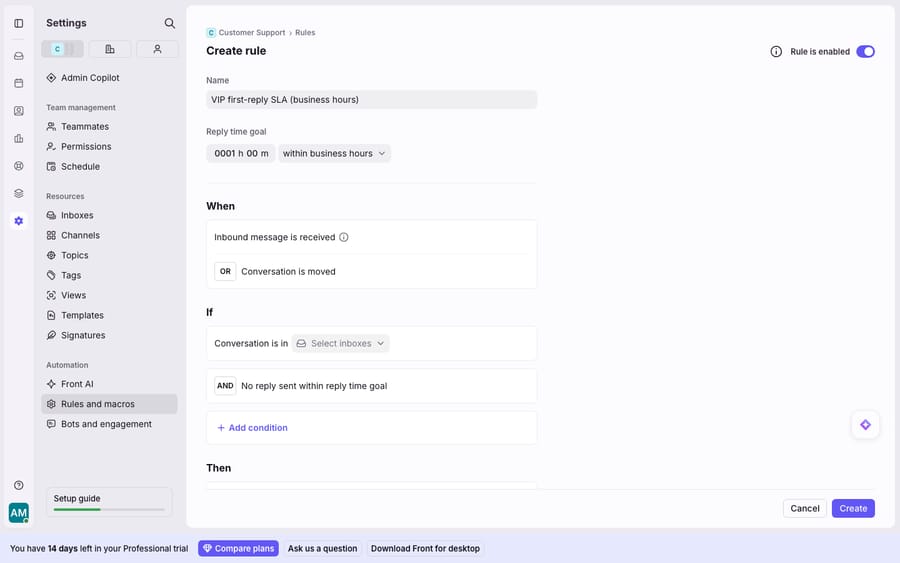
- Define the breach action. In the Then section, set what happens when the goal is missed. The default breach action automatically applies a 🔥SLA Breach tag; Front recommends not swapping in a custom tag here, because its analytics key off this exact tag and a different one will skew your reporting. Layer on more actions as needed — reassign the conversation, post to a Slack channel, or notify a lead.
- (Optional) Add an at-risk warning. Enable Warn when goal is at risk to catch conversations before they breach. This creates a ⚠️ SLA Warning tag at an earlier threshold, giving the team a window to reply while the clock is still ticking rather than a post-mortem after it's blown.
- Save and confirm business hours. Save the rule, then double-check your workspace business hours under Workspace settings — because, as Front notes, changing business hours affects the whole workspace and your analytics, not just this one rule.
That's a working SLA. From here every inbound message in scope starts a one-hour countdown, and any that go unanswered get flagged, tagged, and escalated automatically.
What happens when a Front SLA is breached?
The heart of an SLA rule is the breach condition: "No reply sent within reply time goal." It's a time-based test, so it doesn't fire the instant a message arrives — it fires when the countdown expires without an outbound reply. That's why SLA rules behave a little differently from ordinary Front rules: they're delayed rules, scheduled to evaluate later rather than in the immediate pass. (This is also why they bypass the "stop processing other rules" switch, a nuance we cover in Front rules explained.)
Escalation is just the set of actions you stack in the Then block. A practical breach chain for a support inbox might read:
WHEN  reply time goal is overdue
IF    conversation is in Support inbox AND is unassigned
THEN  add tag 🔥SLA Breach
      assign to Support Lead
      send notification to #escalations (Slack)
Because the 🔥SLA Breach and ⚠️ SLA Warning tags are the same tags Front's SLA report and analytics count against, tagging isn't just cosmetic — it's what makes breaches measurable. Front's breach and at-risk metrics roll straight up from these tags into the pre-built SLA report, so a clean tag setup today is what gives you a trustworthy breach rate next month.
Where does Front's native SLA stop?
Front's reply-time goals are genuinely good at what they do. They are deterministic, business-hours-aware, and wired straight into analytics — for measuring and enforcing response-time promises, that's exactly the tool you want, and none of what follows is a knock on the native feature. But it's fair to name the edges.
The plan and seat gates are real. Reply-time-goal rules require Professional or above — you won't find them on Starter. And Front's Professional plan caps at 50 seats. Per Front's pricing page (checked 24 September 2026), Professional is $65 a seat billed annually or $85 billed monthly, and hiring agent #51 pushes your whole workspace onto Enterprise at $105 a seat, sold on annual billing only. Starter, at $25 a seat and capped at 10 seats, has no reply-time goals at all. The pricing page lists custom reports on Enterprise, while Professional gets advanced analytics. So the richest SLA reporting is an Enterprise capability: the rule itself is Professional, the deep analysis sits higher up. (Other third-party breakdowns, such as Vendr, track negotiated prices.)
And the deeper gap is what an SLA fundamentally is: a timer, not an answer. A reply-time goal measures whether someone replied in time. It cannot read the message, understand what the customer is asking, check their order or account, and actually respond. When the goal breaches, Front's honest best move is to escalate to a human — the SLA is a safety net for a reply that still has to be written by a person. On a busy queue, that means the timer is forever racing the team's capacity, and the tag fires precisely because nobody got to the message in time.
This is the seam an AI agent layer fills — not by replacing the SLA, but by attacking the cause of most breaches. The broader category of AI agents for customer service exists for exactly the reasoning a timer can't do. Macha is one such layer: it runs on top of the Front you already use through the live Macha–Front connector — it does not replace Front, your shared inboxes, your rules, or your SLA. You keep your reply-time goals doing what they do best: measuring and enforcing the promise. Then Macha's agent reads each inbound conversation the moment it arrives, understands intent, and drafts or sends a grounded reply — pulling a real order or account status through a custom tool that turns your REST API into something the agent can call. The practical effect: fewer conversations ever reach the breach threshold, because more of them are answered in the first minutes rather than waiting on a human's queue. If you want the mechanics, connecting Front to Macha to route conversations to AI walks through it, and Macha bills per ticket — one conversation, charged once however many messages it takes — never per resolution, so the bill tracks the volume you handle rather than an outcome definition you don't control.
The clean division of labour: let Front's SLA be the deterministic safety net that guarantees nothing slips, and layer an agent on top so far fewer things need catching. For the concepts behind reply-time goals — at-risk vs. overdue, business hours, breach math — see Front SLA explained, and for the tags that make it all measurable, Front tags explained.
FAQ
Where do I set up an SLA in Front? Go to the gear icon → Workspace settings → Rules and macros → Create rule, then choose the Set reply time goal template. You need workspace admin permissions, and the feature is available on Front's Professional plan or above.
What is a reply time goal in Front? It's the duration after which an unanswered conversation is considered overdue — for example, one hour for a first reply. You enter it in the Reply time goal field and choose whether it counts "within business hours" or "regardless of business hours."
What happens when a Front SLA is breached? The rule's Then actions fire. By default it applies a 🔥SLA Breach tag (Front recommends keeping this exact tag so analytics stay accurate), and you can add actions like reassigning the conversation, notifying a Slack channel, or escalating to a lead. An optional at-risk warning adds a ⚠️ SLA Warning tag before the goal is missed.
Do I need a paid plan for SLA rules in Front? Yes. Reply-time-goal rules require the Professional plan or above. Note that Professional caps at 50 seats; beyond that your workspace moves to Enterprise, where Front lists custom reports.
Can I add AI to my Front SLA without replacing Front? Yes. An AI agent layer like Macha connects to Front as a live connector and runs on top of your existing inboxes, rules, and reply-time goals — it doesn't replace them. Your SLA keeps measuring and enforcing; the agent reads inbound conversations, understands intent, and drafts or sends a grounded reply so fewer messages ever hit the breach threshold.
Ready to answer more conversations before the clock runs out? Start a free trial of Macha and connect it to your Front in minutes.






