





 Shopify
 Stripe
 Slack
Slack Notion
 Google Workspace
 Confluence

How Do You Set Up Rules in Gorgias? Steps and Real Examples (2026)


Gorgias rules watch your tickets and act on them for you: WHEN something happens, IF conditions are true, THEN tag, route or close the ticket. Below are the builder steps, three worked rules for WISMO, returns and noise, and where the native feature stops.
Key takeaways
- Gorgias rules are built under Workflows, then Rules, in a WHEN, IF, THEN editor that offers six triggers, from Ticket created to Satisfaction survey responded.
- A Gorgias helpdesk can hold up to 70 rules, rules are included on all Helpdesk plans, and only the account owner, admins and leads can create or manage them.
- Gorgias runs rules by trigger type first and then top to bottom on the Rules page, so a broad catch-all placed above a returns-routing rule will intercept its tickets.
- AND and OR conditions cannot share one IF statement in a Gorgias rule, so mixed logic needs a nested IF inside the THEN block or two rules linked by a tag.
- Gorgias AI Agent is billed per resolved conversation, while Macha bills per ticket starting at $299 a month for up to 750 tickets and runs on top of existing Gorgias rules.

To set up a rule in Gorgias, open the menu in the top-left corner of your helpdesk, go to Workflows → Tools → Rules, click Create rule, and build it in the WHEN / IF / THEN editor: pick one of six triggers, add conditions, and stack the actions you want. You can run up to 70 rules per helpdesk, and rules are included on every Helpdesk plan (Gorgias docs, checked 24 September 2026).
| Question | Answer |
|---|---|
| Where are rules? | Top-left menu → Workflows → Tools → Rules |
| Who can build them? | Account owner, admins and leads |
| How many? | Up to 70 per helpdesk |
| Which plans? | All Helpdesk plans |
| Triggers | 6 (ticket created, new message, ticket updated, assigned, snooze ends, survey responded) |
| Run order | By trigger type first, then top to bottom on the Rules page |
What does a Gorgias rule actually control?
A rule is Gorgias' if-this-then-that engine for tickets. Per Gorgias' Rules 101 documentation, every rule has three parts. The WHEN is the trigger, the event that fires the rule. The IF is an optional condition (or several) that narrows down which tickets qualify. The THEN is the action Gorgias performs when the trigger fires and the conditions pass.
The six triggers are: Ticket created, New message in ticket, Ticket updated, Ticket assigned to user, Ticket snooze delay ends, and Satisfaction survey responded. Conditions are built from a field (ticket channel, subject, tags, customer data and more), an operator (is, contains, starts with) and a value. One gotcha: AND and OR conditions can't be mixed inside the same IF statement. If you need A AND (B OR C), Gorgias' docs say to nest a second IF inside the THEN block. Actions cover tagging, assignment, status, priority, applying a macro and replying to the customer. For the conceptual tour before you build, Gorgias rules explained covers the model in full; the steps below are the hands-on version.
How do you open the Rules builder?
Gorgias moved rules under Workflows. According to its Create rules guide:
- Click the dropdown menu in the top-left corner of your helpdesk.
- Select Workflows, then under Tools select Rules.
- Click Create rule, then Create Custom Rule (or pick a template to start from a common workflow).
- You'll land in the WHEN / IF / THEN builder, where you choose a trigger, add conditions and stack actions. Save with Create rule.
Three access facts up front: only the account owner, admins and leads can create or manage rules; you can have up to 70 rules per helpdesk; and active rules apply across all your stores and channels. Rules are on all Helpdesk plans, with no add-on required for anything in this guide. Most templates can be edited, but the Auto-close spam template is a managed automation you can't modify or duplicate.
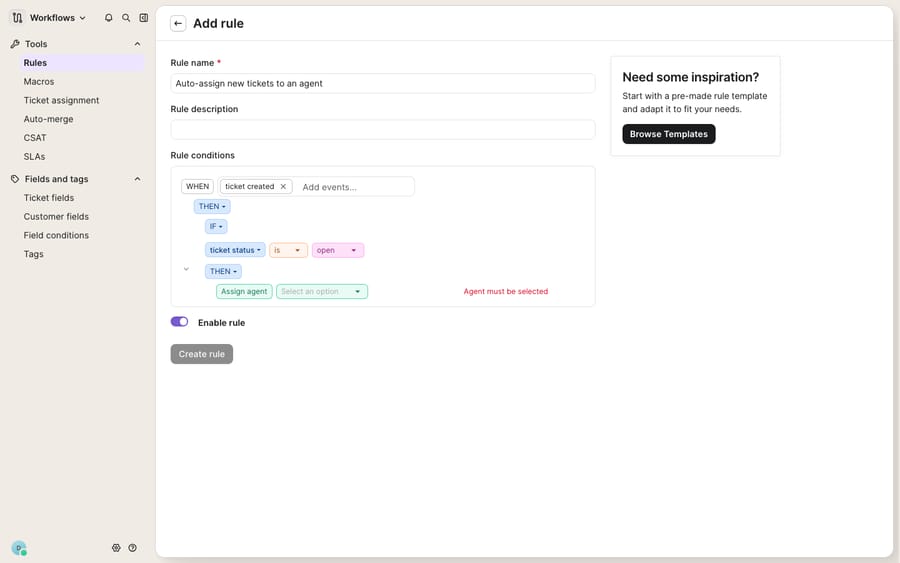
The screenshot shows a rule mid-build, the skeleton every pattern below shares. Here are three ways to fill it in.
How do you auto-tag WISMO tickets?
Auto-tagging is the best first rule for most ecommerce teams, because views, reporting and routing all depend on tags. The goal: every "where is my order" ticket gets a wismo tag the second it arrives.
- WHEN: choose Ticket created.
- IF: set Subject → contains → where is my order. Switch the group to OR and add track, tracking and shipping status to catch the common phrasings.
- THEN: choose Add tags and type
wismo(Gorgias creates the tag if it doesn't exist). - Name the rule "Auto-tag WISMO", save, and check it's toggled on.
Every matching ticket is now labelled before an agent opens it. Auto-tag adds tags without clearing existing ones, so you can stack several tagging rules safely. If tags are new to you, Gorgias tags explained covers naming conventions so your library doesn't sprawl into 200 near-duplicates.
How do you auto-assign returns to the right team?
Auto-assignment routes a ticket to the person or team that owns it. Say your returns team handles every return and exchange request, and you want those tickets on their plate automatically.
- WHEN: choose Ticket created.
- IF: set Tags → is →
returns(assuming an earlier auto-tag rule applies it), or match on Subject contains "return" / "exchange" / "refund". - THEN: choose Assign team → Returns. To spread work within that team, add Distribute to teams, which uses Gorgias' round-robin logic to hand the ticket to the next available agent.
- Save and enable.
The screenshot above shows this family of action, THEN Assign agent, mid-selection. One caution: order matters. Gorgias runs rules by trigger type first (Ticket created, then New message, then Ticket updated, and so on), and rules with the same trigger run top to bottom as listed on the Rules page. You reorder them by dragging the six-dot handle. A broad "assign everything to General Support" rule near the top will swallow tickets that should have hit your returns rule below it, so put the specific rule higher.
How do you auto-close order-confirmation noise?
Auto-close silences tickets that need no reply: order-confirmation auto-replies, out-of-office bounces, "thanks!" one-liners. Left alone they inflate your queue and skew your metrics.
- WHEN: choose Ticket created.
- IF: set Subject → contains → order confirmation (add OR branches for "out of office", "automatic reply", "delivery notification").
- THEN: choose Set status → Closed. Add the tag
auto-closedfirst so you can audit what the rule caught. - Save and enable, then watch it for a few days before trusting it.
Auto-close rewards a careful exclusion list: you never want to close a real customer whose subject line happens to contain a trigger word. Keep the condition tight, tag before you close, and review the closed tickets weekly at first. For plain spam, Gorgias' managed Auto-close spam template already exists, so don't rebuild it.
Which trigger, condition and action fit each pattern?
The three rules above are variations on one skeleton. Here's how the pieces map, so you can compose your own:
| Pattern | WHEN (trigger) | IF (condition) | THEN (action) |
|---|---|---|---|
| Auto-tag WISMO | Ticket created | Subject contains "where is my order" | Add tags → wismo |
| Auto-assign returns | Ticket created | Tags is returns | Assign team → Returns (+ Distribute) |
| Auto-close noise | Ticket created | Subject contains "order confirmation" | Set status → Closed |
| Escalate VIP | New message in ticket | Customer data is VIP | Set priority → Urgent + Assign agent |
| Snooze follow-up | Ticket snooze delay ends | Status is open | Reply to customer (macro) |
The exact values matter less than the shape. Pick a trigger that names the moment, a condition that names the ticket, and an action that names the outcome. Nearly every ecommerce automation you'll want fits that grammar.
What can't Gorgias rules do, and where does an AI agent fit?
Gorgias rules are good at what they do: deterministic, fast and transparent. A rule fires the same way every time, and you can trace exactly why a ticket got tagged, routed or closed. But a rule matches on keywords and fields, not meaning. A subscription customer who writes "I want to pause my next box" won't trip a rule looking for "cancel", even though the intent is close. And a rule can route and label a ticket, but it can't read the customer's problem and write the answer. Your auto-tag rule flags a WISMO; a person still has to look up the order and reply.
Rules also don't reason across conditions the way a person would. Because AND and OR can't share one IF, nuanced routing turns into nested IFs and stacked rules that get brittle fast. Gorgias' own answer is AI Agent, which its pricing page says is available on every plan and billed only when it resolves a conversation. That's a per-resolution model: the vendor earns more as AI Agent closes more conversations, and your cost moves with volume.
This is the seam where an AI agent layer fits, and it's worth understanding the build-versus-buy tradeoff before reaching for one. The category of AI agents for customer service exists to do the reasoning-heavy work a keyword rule can't. Macha is one such layer: it runs on top of the Gorgias you already use as a native connector and doesn't replace your helpdesk or its rules. You keep every rule you built above. Macha reads and writes the same tickets, drafting or posting grounded replies to the WISMO and returns tickets your rules just tagged, reading intent instead of matching keywords, and looking up live order or subscription status through a custom tool that turns your store's API into something the agent can call. The Macha Gorgias integration walks through the connection.
The billing contrast with Gorgias' AI Agent: Macha bills per ticket, not per resolution. One conversation is charged once however many messages it takes, starting at $299 a month for up to 750 tickets, with setup and monitoring by the Macha team included. The pricing page has the tiers. The division of labor: Gorgias rules stay the deterministic backbone that tags, routes and closes; an agent on top does the part a rule can't, which is answering.
FAQ
Where do I set up rules in Gorgias? Open the dropdown menu in the top-left of your helpdesk, select Workflows, then Rules under Tools, and click Create rule → Create Custom Rule. You build it in the WHEN / IF / THEN editor. Only the account owner, admins and leads can create or edit rules.
What's the difference between a trigger, a condition, and an action? The trigger (WHEN) is the event that fires the rule, like Ticket created. The condition (IF) narrows which tickets qualify, using a field, an operator and a value. The action (THEN) is what Gorgias does: tag, assign, close, set priority, apply a macro and more.
How many rules can I have, and are they on every plan? You can create up to 70 rules per helpdesk, and rules are on all Helpdesk plans. AI Agent, which adds AI replies on top, is also offered on every plan and billed per resolved conversation.
Can two rules conflict? Yes. Gorgias runs rules by trigger type first, then top to bottom within each trigger, so ordering matters. Put specific rules above broad catch-alls, and use tags to sequence multi-step automations (tag first, then route on the tag).
Can I mix AND and OR conditions in one rule? Not in the same IF statement. For logic like A AND (B OR C), Gorgias' docs say to nest another IF statement inside the THEN block, or split the logic across two rules linked by a tag.
Can I add AI to Gorgias rules without replacing Gorgias? Yes. An AI agent layer like Macha connects to Gorgias as a native connector and runs on top of your helpdesk and its rules. It answers the tickets your rules tag and route by drafting or sending grounded replies, while Gorgias stays the system of record. Macha bills per ticket, one conversation charged once, not per resolution.
Ready to let your agents answer the tickets your rules just sorted? Start a free trial of Macha ($50 of usage, no credit card) and connect it to your Gorgias.






