Intercom
 Shopify
 Stripe
 Slack
Slack Notion
 Google Workspace
 Confluence

What Are Gorgias Macros? How They Work + 15 Ecommerce Macro Templates (2026)


A Gorgias macro is a saved reply that also carries tags and actions, so one click can send the message, tag the ticket and, with Shopify connected, refund or edit the order. Macros are on every Helpdesk plan, and the 15 templates here use variable paths copied from Gorgias's own reference.
Key takeaways
- A Gorgias macro bundles a response message, ticket tags and actions such as a Shopify partial refund, so one click can send the reply and change the ticket at once.
- Gorgias macros are available on every Helpdesk plan, but only the account owner, admins and leads can create them, while any agent can apply one.
- When a Gorgias macro variable has no data, Gorgias replaces it with a blank space instead of an error, which is how replies like 'Hi , your order is on its way!' get sent.
- Gorgias offers 6 Shopify macro actions, including cancel last order, duplicate last order and partially refund last order, and every action fires only when the reply is sent.
- Gorgias lets agents send one of the top three AI-recommended macros with cmd (or ctrl) plus 1, 2 or 3, without touching the mouse.

A Gorgias macro is a saved reply that also carries tags and actions, so one click sends the message, tags the ticket, sets its status and, with Shopify connected, can cancel, duplicate, readdress or partially refund the last order. Macros are available on every Helpdesk plan, live under Workflows › Tools › Macros, and only the account owner, admins and leads can create them, though any agent can apply one.
| Part of a macro | What it does | Requirement |
|---|---|---|
| Response text | The reply, personalized with variables | All Helpdesk plans |
| Tags | Applied on send; feed reporting and Rules | All Helpdesk plans |
| Default actions (16) | Status, assignment, priority, snooze, internal note, HTTP hook and more | All Helpdesk plans |
| Shopify actions (6) | Cancel, duplicate, edit shipping address, refund shipping, partial refund | Connected Shopify store |
| Recharge actions (4) | Cancel or activate last subscription, refund last charge or order | Connected Recharge account |
The half of this that most teams get wrong is the variables. Gorgias's real variable paths are long and integration-specific — {{ticket.customer.integrations.shopify.orders[0].line_items[0].name}}, not {{order.item}} — and when a path is wrong or the data is missing, Gorgias silently replaces it with a blank space rather than throwing an error. That is how "Hi , your order is on its way!" gets sent. The 15 templates below use paths copied from Gorgias's own reference.
New to the platform? What is Gorgias has the bigger picture. (And yes: this is Gorgias the ecommerce help desk, not the Greek dialogue.)
What does a Gorgias macro bundle?
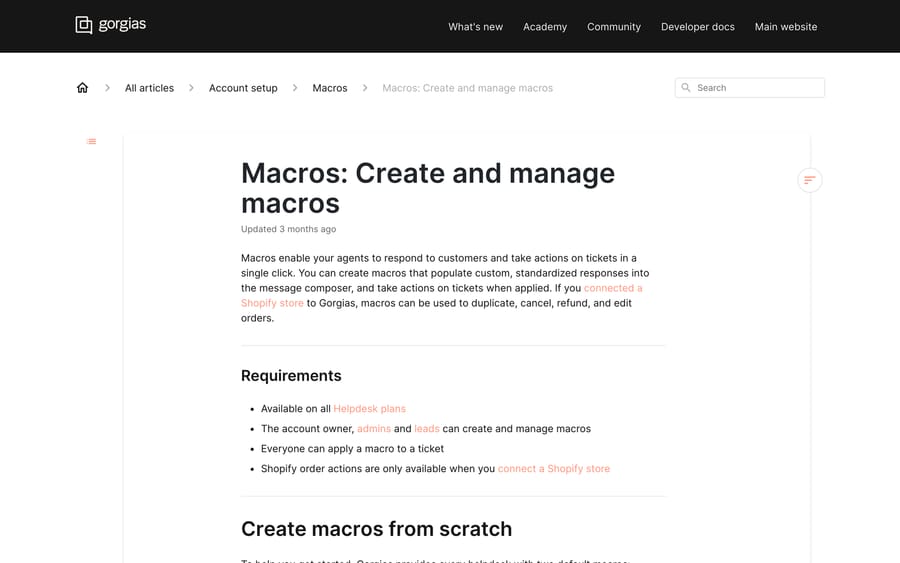
Three layers, in one object:
- Response text — the message, with variables for personalization.
- Tags — applied to the ticket when the macro is sent, which feeds reporting and downstream Rules.
- Actions — operations on the ticket and on your store.
Other help desks call the first layer a canned response or saved reply. The second and third are what make Gorgias macros worth building properly: Gorgias's own description is that macros "enable your agents to respond to customers and take actions on tickets in a single click."
Requirements, verbatim from Gorgias's docs: available on all Helpdesk plans; the account owner, admins and leads can create and manage macros; everyone can apply one; Shopify order actions need a connected Shopify store.
Every new helpdesk ships with two default macros — Generic: How can I help? and Generic: Sign off — and connecting a Shopify store generates a few more that already include Shopify actions and variables. Open those before you build your own; they are the fastest way to see correct variable syntax in context.
How do you create and manage a Gorgias macro?
- From your helpdesk, click the dropdown menu in the top-left corner.
- Select Workflows.
- Find Tools, then select Macros.
- Click Create macro in the top right.
- Enter a Macro name — agents search by this, so be specific.
- Write the reply in Response text.
- Optionally add tags under Add tags to ticket.
- Optionally add actions below the reply field.
- Click Create macro.
To copy an existing one, hover its row and click the Duplicate icon. To retire one, hover the row and choose Archive (recoverable, moved to the Archived tab) or Delete (permanent). Gorgias's own warning is worth heeding: deleted macros cannot be recovered, so export before you delete. The macro list sorts by creation date, oldest first; click a column header to change that.
Two settings that change how macros feel day to day live under your own profile (Settings › You › Your profile, under Macro display): AI Macro prediction, which pre-selects a macro based on the ticket content, and AI Macro suggestions, which shows suggested macros in the ticket. If your agents complain that Gorgias keeps putting the wrong reply in the composer, that is the first toggle, not a bug.
You can also assign a language to a macro; the macro list then filters automatically to the ticket's language. Leave the field empty on macros that are language-neutral, such as one that only applies tags, so they always show. And you can filter macros by the tags they apply, which is the practical way to audit a library that has grown past about fifty.
Which Gorgias macro variables should you use, and how do they fail?
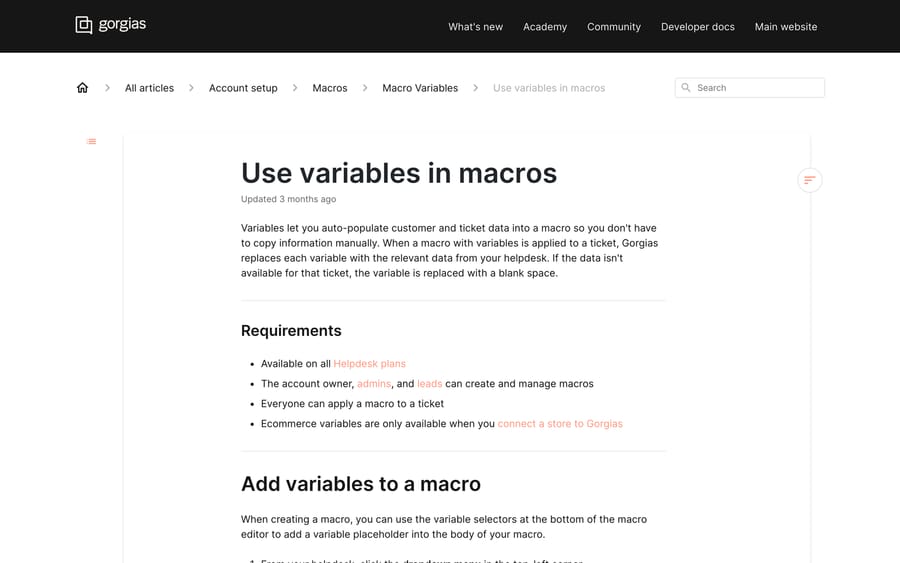
Use the variable dropdown at the bottom of the macro editor — it is labelled by source (Ticket customer, Current agent, Shopify, BigCommerce, Magento 2). Anything not in the dropdown can be typed by hand between double curly braces.
The ones you will use most:
| Variable | What it returns |
|---|---|
{{ticket.customer.firstname}} | Customer first name from the sidebar |
{{ticket.customer.email}} | Customer email from the sidebar |
{{ticket.id}} | Ticket ID |
{{current_user.firstname}} | The agent sending the reply |
{{ticket.customer.integrations.shopify.orders[0].id}} | Most recent order ID |
{{ticket.customer.integrations.shopify.orders[0].line_items[0].name}} | First product in the most recent order |
{{ticket.customer.integrations.shopify.orders[0].total_price}} | Order total |
{{ticket.customer.integrations.shopify.customer.default_address.address1}} | Shipping address line 1 |
{{ticket.customer.integrations.shopify.orders[0].payment_details.credit_card_number}} | Last 4 digits of the card |
Five things about these that the dropdown will not tell you:
Indexing is zero-based and chronological. orders[0] is the most recent order, orders[1] the one before it; the same applies to line_items.
Dates need a filter. Gorgias uses moment.js syntax through datetime_format, so {{ticket.customer.integrations.shopify.orders[0].refunds[0].processed_at|datetime_format("L")}} gives 03/22/2018 and …|datetime_format("MMM Do YY") gives Mar 22nd 18.
Ticket URLs are built, not provided. Combine the static base with the ID: https://YOURDOMAIN.gorgias.com/app/ticket/{{ticket.id}}.
current_user changes meaning inside a Rule. When a macro is applied by a rule rather than by a person, every current_user variable defaults to the account owner. So an automated reply signed {{current_user.firstname}} goes out signed by whoever owns the account, not the agent who will pick the ticket up.
The platforms are not interchangeable. BigCommerce mixes two path shapes (some variables use ticket.customer.bigcommerce, others ticket.customer.integrations.bigcommerce), Magento 2 nests deeply, and WooCommerce variables cannot be picked from the dropdown at all — they must be typed, and each path needs your store's UUID in quotes, found by opening the sidebar settings on a ticket with a WooCommerce order and copying the uuid field from the Store section.
And the blank-space behaviour is the big one. Gorgias states it plainly: "If the data isn't available for that ticket, the variable is replaced with a blank space." Not an error, not a warning — a gap in the sentence you sent. Keep order variables out of any macro an agent might use on a pre-sale ticket, and test every new macro on a ticket with no order attached before you release it. When it does go wrong, Gorgias macro variables not working walks through the causes.
What actions can a Gorgias macro run?
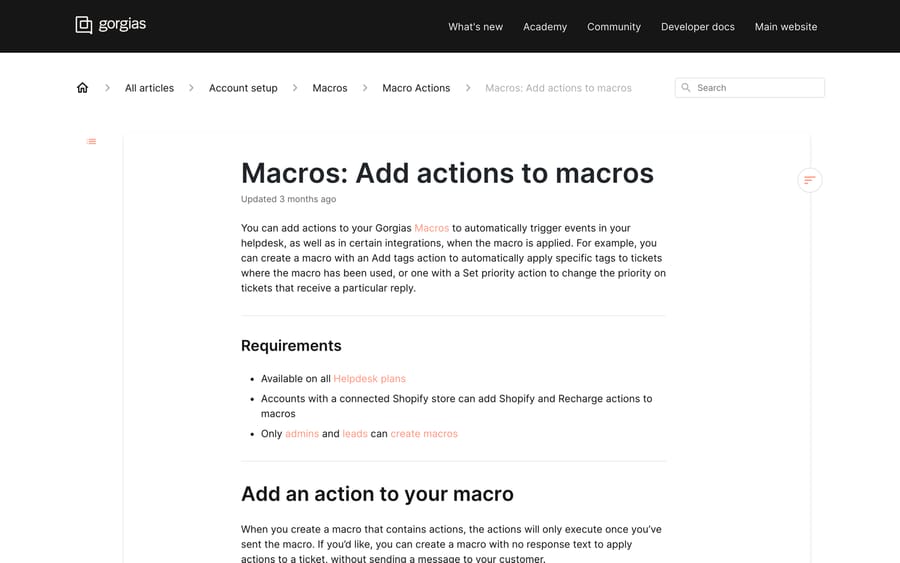
Default actions on every plan: forward email, add attachments, add tags, remove tags, set status, assign an agent, assign a team, set subject, snooze for, set priority, send internal note, exclude ticket from Auto-Merge, exclude ticket from CSAT, set ticket field, set customer field, and HTTP hook.
Shopify actions (connected store required): cancel last order, cancel order, duplicate last order, edit last order's shipping address, refund last order's shipping cost, partially refund last order.
Recharge actions: cancel last subscription, activate last subscription, refund last charge, refund last order. See integrating Recharge with Gorgias for the connection itself.
Four behaviours worth knowing before you build:
Actions fire on send, not on apply. Nothing happens until the reply goes. Before sending, the pending actions are listed under Actions performed on send beneath the composer, and you can remove or edit any of them with the X icon. That preview is the safety net for destructive actions, and it is why a refund macro is less dangerous than it sounds.
A macro with no text is a legitimate pattern. Leave the response empty and the macro becomes a one-click bundle of tags, status and assignment with nothing sent to the customer. This is the cleanest way to build internal triage shortcuts.
HTTP hook macros cannot be used in Rules. A macro containing an HTTP hook action will not appear as an option when you build a rule that applies a macro. If your automation plan depends on calling an external endpoint from a rule, that is the constraint to design around.
Multiple Shopify stores can break the actions. Gorgias warns that when several Shopify stores are integrated, some Shopify actions fail if a customer has profile data in more than one of them.
Everything a macro does lands in the ticket events, so a mis-fired refund is traceable. Our Gorgias tags guide covers keeping the tag half of this coherent.
Which 15 ecommerce macro templates should you build?
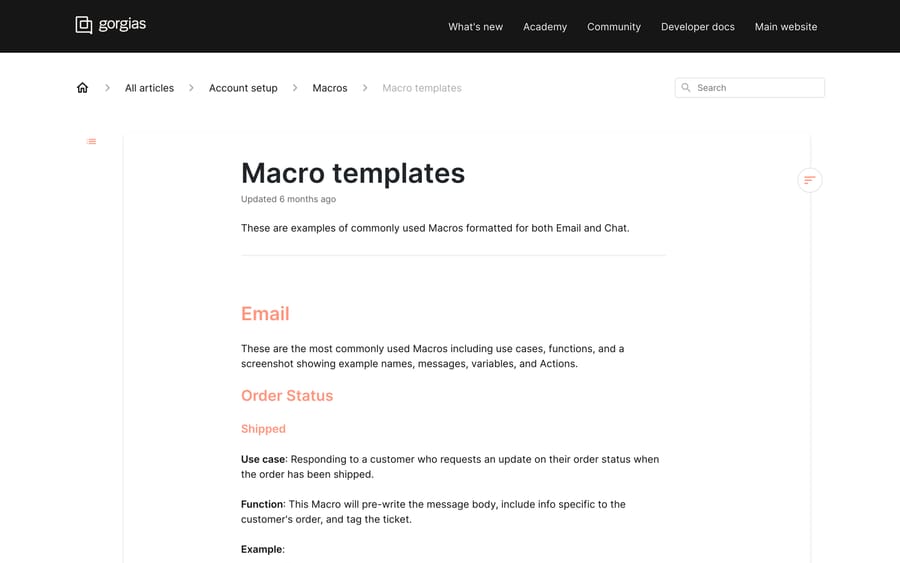
Gorgias publishes a macro template library of its own, organised by Order Status, Order change/cancel, Return/exchange and refund, and Other — but it illustrates each one with a screenshot rather than text you can copy. The 15 below are written against those same situations, with working variable paths and the actions each one needs. Rewrite the wording in your brand voice; keep the paths.
Naming convention used throughout: [Category] What it does, because agents search the macro list by name under pressure.
Order status
1. [WISMO] Shipped
Hi{{ticket.customer.firstname}}, good news — your order is on its way. You'll find the tracking details in the shipping confirmation we sent to{{ticket.customer.email}}. If it hasn't moved in 48 hours, reply here and I'll chase the carrier. —{{current_user.firstname}}
Actions: add tag wismo, set status to closed.
2. [WISMO] Not shipped, in window
Hi{{ticket.customer.firstname}}, your order is still in our processing window and hasn't shipped yet. Orders usually leave the warehouse within 2 business days, and you'll get a tracking email the moment it does. —{{current_user.firstname}}
Actions: add tag wismo, snooze for 2 days.
3. [WISMO] No order found
Hi{{ticket.customer.firstname}}, I can't find an order under{{ticket.customer.email}}. Could you send me the order number from your confirmation email, or the email address you checked out with? It's often a different one. —{{current_user.firstname}}
Actions: add tag no-order-found, set priority to low. Deliberately contains no order variables, because by definition there is no order.
4. [WISMO] Delivered, not received
Hi{{ticket.customer.firstname}}, the carrier has marked this as delivered to{{ticket.customer.integrations.shopify.customer.default_address.address1}}. Before we replace it, could you check with neighbours and around the property? Parcels marked delivered turn up within 48 hours more often than not. I'll check back in two days. —{{current_user.firstname}}
Actions: add tag delivered-not-received, snooze for 2 days.
5. [WISMO] Pre-order item
Hi{{ticket.customer.firstname}}, your order includes{{ticket.customer.integrations.shopify.orders[0].line_items[0].name}}, which is a pre-order. We ship the whole order together once that item lands. I'll email you as soon as it does. —{{current_user.firstname}}
Actions: add tag pre-order.
Order edits and cancellations
6. [ORDER EDIT] Already shipped, too late to change
Hi{{ticket.customer.firstname}}, your order has already left our warehouse, so I can't change it now. Once it arrives you can start a return and reorder — or refuse delivery and it comes straight back to us for a refund. Which would you prefer? —{{current_user.firstname}}
Actions: add tag order-edit-late.
7. [ORDER EDIT] Address changed
Hi{{ticket.customer.firstname}}, done — your order is now going to{{ticket.customer.integrations.shopify.customer.default_address.address1}},{{ticket.customer.integrations.shopify.customer.default_address.city}}{{ticket.customer.integrations.shopify.customer.default_address.zip}}. Have a quick look and tell me if anything's off. —{{current_user.firstname}}
Actions: Edit last order's shipping address, add tag address-change, set status to closed. Run the Shopify action first and let it refresh the sidebar, or the variables will echo the old address back at the customer.
8. [ORDER EDIT] Cancelled and refunded
Hi{{ticket.customer.firstname}}, your order is cancelled and{{ticket.customer.integrations.shopify.orders[0].total_price}}is on its way back to the card ending{{ticket.customer.integrations.shopify.orders[0].payment_details.credit_card_number}}. Banks usually take 3-5 business days to show it. —{{current_user.firstname}}
Actions: Cancel last order, add tag cancelled, set status to closed.
9. [ORDER EDIT] Note added to order
Hi{{ticket.customer.firstname}}, I've added your note to the order so the packing team sees it. No change to your delivery estimate. —{{current_user.firstname}}
Actions: add tag order-note, set status to closed.
Damages and returns
10. [DAMAGE] Need photos
Hi{{ticket.customer.firstname}}, sorry — that shouldn't have happened. Could you reply with a photo of the damage and one of the outer packaging? Once I have those I can send a replacement the same day. Your case reference is{{ticket.id}}. —{{current_user.firstname}}
Actions: add tag damaged, set priority to high, snooze for 3 days.
11. [DAMAGE] Replacement sent
Hi{{ticket.customer.firstname}}, a replacement{{ticket.customer.integrations.shopify.orders[0].line_items[0].name}}is on its way and you don't need to return the damaged one. You'll get tracking shortly. —{{current_user.firstname}}
Actions: Duplicate last order, add tag replacement-sent, snooze for 48 hours.
12. [RETURN] Portal link
Hi{{ticket.customer.firstname}}, you can start your return here: https://YOURSTORE.com/returns — you'll need the order number and the email address you used at checkout ({{ticket.customer.email}}). The portal prints your label. Refunds go out within 3 business days of the parcel reaching us. —{{current_user.firstname}}
Actions: add tag return-requested, set status to closed.
13. [REFUND] Full refund processed
Hi{{ticket.customer.firstname}}, your refund of{{ticket.customer.integrations.shopify.orders[0].total_price}}has been processed back to your original payment method. Most banks show it within 3-5 business days. —{{current_user.firstname}}
Actions: add tag refund-full, set status to closed. Note that Gorgias's Shopify macro actions cover partial refunds, cancellations, duplications, shipping refunds and address edits — a full refund on an uncancelled order is done in Shopify, so this macro confirms an action a human already took.
14. [REFUND] Partial refund processed
Hi{{ticket.customer.firstname}}, I've refunded part of your order back to your original payment method — that covers the item in question and leaves the rest of the order as it is. It should land in 3-5 business days. —{{current_user.firstname}}
Actions: Partially refund last order, add tag refund-partial.
Goodwill and internal
15. [INTERNAL] Escalate to warehouse No response text — an internal note only.
Order{{ticket.customer.integrations.shopify.orders[0].id}}for{{ticket.customer.firstname}}({{ticket.customer.email}}) can't be located. Customer contacted us on{{ticket.created_datetime}}. Ticket: https://YOURDOMAIN.gorgias.com/app/ticket/{{ticket.id}}
Actions: Send internal note, assign a team (or an agent, if you do not use teams), add tag warehouse-escalation, set priority to high.
Two more worth building once you have the basics: a shipping-cost refund goodwill macro using the Refund last order's shipping cost action, and an item restocked macro carrying a global discount code for customers who waited.
Chat versions are different macros. Gorgias keeps a separate chat set in its library for a reason — no greeting, no sign-off, short sentences. Do not reuse the email macros in Gorgias Chat; build shorter twins.
How do agents apply Gorgias macros fastest?
Gorgias puts the top three AI-recommended macros at the top of the list, with the rest alphabetical below them, and cmd (ctrl) + 1, 2 or 3 sends one of those three without touching the mouse. For a high-volume agent that is the difference between a thirty-second reply and a three-second one — which is also why macro hygiene matters: the recommender is only as good as the library it picks from.
To apply one manually, click the lightning bolt icon in the composer, search, pick the macro, review Actions performed on send, and send.
Can Gorgias Rules send macros automatically?
Macros are not only for humans. Gorgias Rules can apply one with an Apply Macro action, so the same saved reply that an agent clicks can also fire automatically when conditions match — a WISMO macro on a chat that matches the "where is my order" intent, for instance. Our Gorgias Rules guide covers the trigger and condition side, and quick responses vs rules covers where each fits.
Two constraints already mentioned that matter most here: macros containing an HTTP hook are unavailable to rules, and current_user variables resolve to the account owner when a rule sends the macro.
How are macros different from the Gorgias AI Agent?
Worth being precise about, because the two get conflated. A macro is deterministic: a person or a rule picks a specific saved reply and sends it. The Gorgias AI Agent is an LLM layer that reads the question, decides what the shopper wants, pulls live Shopify data and resolves the ticket without a human choosing a template.
They coexist. Good macros and help-centre articles are reference material that keeps the AI's answers consistent; the AI handles the messy tickets that do not map to any one template. The honest ceiling of a macro is that it speeds up typing — a human still decides which one to send and clicks send.
If you want the autonomous layer on top of Gorgias, Gorgias's own AI Agent is the native route. Macha is an AI agent layer that sits on top of the help desk you already run (Zendesk, Freshdesk, Gorgias, Front, HubSpot or Intercom) and resolves the repetitive tickets your macro library exists to speed up. It is priced on monthly ticket volume from $299 a month for 750 tickets, about $0.40 a ticket, with setup and monitoring by the Macha team included, and a trial of $50 of free usage with no credit card. It does not replace Gorgias, and it does not replace macros for the tickets an agent should still handle.
How should you maintain a Gorgias macro library?
Name for search, not for elegance. [RETURN] Portal link beats Returns process. Agents type two or three characters and expect the right macro.
Guard the variables. Order paths only in macros meant for tickets with an order attached; separate pre-sale macros with no order variables at all.
Bundle actions honestly. Pair each reply with the tag, status and assignment it actually needs. Reserve the destructive Shopify actions for macros whose names make the consequence obvious — the send-time preview protects you, but only if someone reads it.
Keep the tag taxonomy tight. Macro tags feed reporting and downstream rules, so a sprawling tag list degrades both.
Prune quarterly, and archive rather than delete. Duplicate and stale macros dilute the recommendation engine. Archiving is reversible; deletion is not, and Gorgias's advice is to export first.
Test on an edge case before release. A ticket with no order, a customer with two orders, and a chat conversation. Those three catch most of what goes wrong.
What goes wrong with Gorgias macros?
Blank variables. The number one macro embarrassment, and it fails silently. Covered above.
Stale sidebar data after a Shopify action. If the macro edits the order and then quotes it back, the variable may render the pre-edit value.
Rule-sent macros signed by the wrong person. current_user becomes the account owner inside a rule.
Macro sprawl. Without an owner, every agent builds their own near-duplicate and the library stops being searchable.
Assuming a macro resolves anything. It sends a reply. A human chose it.
How we researched this
Every path, action name, plan requirement and variable in this post was read off Gorgias's own Helpdesk Documentation on 21 September 2026 and the plan requirements and action lists re-checked on 24 September 2026, including the Macros, Macro Variables, Macro Actions, Macro templates, Macro preferences, Organize and search for Macros, and Keyboard shortcuts articles — the first three updated three months before we read them, the template library six. We do not have a Gorgias account, so none of the 15 templates was created or sent; the copy is ours, written against Gorgias's documented use cases, and every variable path is quoted from its reference rather than invented. This rewrite exists partly because the earlier version of this page used variable names that do not exist in Gorgias.
Frequently asked questions
What is a macro in Gorgias? A saved, reusable response that can also carry tags and actions. Applying one lets an agent send a personalized reply and, in the same click, tag the ticket, change its status, assign it, add an internal note, or trigger a Shopify or Recharge action such as a refund.
What's the difference between a Gorgias macro and a canned response? "Canned response", "saved reply" and "template" are generic terms for the same idea; Gorgias calls them Macros. The difference from a plain canned response is that a Gorgias macro can bundle actions and tags, not just text.
Which Gorgias plan do I need for macros? All of them. Gorgias's documentation lists macros, macro variables and macro actions as available on all Helpdesk plans. Shopify and Recharge actions need a connected store, and creating macros is limited to the account owner, admins and leads — everyone can apply one.
How do Gorgias macro variables work? They are placeholders in double curly braces that Gorgias fills with live ticket, customer or store data when the macro is applied. Ticket data uses paths like {{ticket.customer.firstname}}; Shopify data uses {{ticket.customer.integrations.shopify.orders[0]...}}, where orders[0] is the most recent order. If the data is missing, Gorgias inserts a blank space rather than an error.
Why is my Gorgias macro sending a blank name? Because the variable resolved to nothing. Either the path is wrong, or the ticket has no matching data — a pre-sale ticket has no order, so every order variable in that macro comes out empty. Test each macro on a ticket with no order before you release it.
Can a Gorgias macro issue a refund or change an order? Yes, with Shopify connected. The Shopify macro actions are cancel last order, cancel order, duplicate last order, edit last order's shipping address, refund last order's shipping cost, and partially refund last order. Recharge adds cancel and activate last subscription, refund last charge and refund last order. Actions only execute when you send, and you can preview and remove them first.
Can macros run automatically in Gorgias? Yes, through the Apply Macro action in a Rule. Two caveats: a macro containing an HTTP hook action cannot be used in rules, and when a rule sends the macro, every current_user variable defaults to the account owner rather than an agent.
Does Gorgias have macro templates I can copy? Gorgias publishes a macro template library in its documentation covering order status, order changes, returns and refunds, and it seeds every new helpdesk with two default macros plus Shopify-specific ones when you connect a store. The library illustrates each template with a screenshot, so the 15 copy-ready templates in this post fill that gap.
Are macros the same as the Gorgias AI Agent? No. A macro is a deterministic saved reply applied by a person or a rule. The AI Agent interprets the question and resolves the ticket autonomously. Macros speed up a human; an agent layer removes the human from the routine cases.
Sources:
- Macros: Create and manage macros — Gorgias Helpdesk Documentation
- Use variables in macros — Gorgias Helpdesk Documentation
- Macros: Add actions to macros — Gorgias Helpdesk Documentation
- Macro templates — Gorgias Helpdesk Documentation
- Macro preferences — Gorgias Helpdesk Documentation
- Organize and search for Macros — Gorgias Helpdesk Documentation
- Keyboard shortcuts — Gorgias Helpdesk Documentation
- Macros product page — Gorgias
Add AI agents to your Gorgias
Macha reads the ticket, drafts the reply and takes the action, inside the Gorgias you already run.