Intercom
 Shopify
 Stripe
 Slack
Slack Notion
 Google Workspace
 Confluence

Is Help Scout Down? How to Check Help Scout Status (2026)


To check whether Help Scout is down, go to status.helpscout.com and read the component that matches your problem, such as Web App, Beacon or Email Processing, not just the top banner. If every component is operational, the fault is most likely your network, browser or email forwarding.
Key takeaways
- The authoritative way to check whether Help Scout is down is status.helpscout.com, which is hosted outside Help Scout's infrastructure and stays reachable when the app is offline.
- Help Scout's status page reported 13 components on September 24, 2026, including Web App, Beacon, Docs Sites, Email Processing, two public APIs and four AI services.
- The Help Scout status legend has five states: Operational, Degraded Performance, Partial Outage, Major Outage and Maintenance, so a degraded component is not necessarily down.
- Help Scout's uptime documentation says the platform was online 99.99% of the time over the last 12 months.
- When status.helpscout.com shows every component operational, check your network, an incognito window, and your email forwarding and DNS before blaming Help Scout.

To check whether Help Scout is down, open status.helpscout.com and read the component that matches your symptom, because Help Scout reports status separately for 13 components (Web App, Beacon, Docs Sites, Email Processing, the APIs, the AI features and more), and one can be degraded while the rest run fine. The status page is hosted outside Help Scout's own infrastructure, so it stays reachable even when the app isn't. Don't start with Downdetector, a tweet or a colleague's hunch.
| What's broken for you | Component to check on status.helpscout.com |
|---|---|
| The inbox won't load, replies fail | Web App |
| The chat/help widget on your site is dead | Beacon |
| New emails aren't becoming conversations | Email Processing |
| Your help center is unreachable | Docs Sites |
| Integrations or automations are failing | Public APIs (Inbox API, Docs API) |
| Folder counts, reports or search look wrong | Mailbox counts, folders, reports, search results |
| AI drafts, answers or summaries aren't working | AI Services (AI Drafts, AI Answers, AI Summarize, AI Assist) |
How do I check if Help Scout is down in 30 seconds?
- Go to status.helpscout.com. It runs on separate infrastructure, so it stays reachable even when the Help Scout app itself is down.
- Read the overall banner at the top, then scroll to the individual components: Web App, Beacon, Docs Sites, Email Processing, the APIs and so on.
- Check for any active incidents and scheduled maintenance posted on the page.
- If it's all green there but broken for you, the problem is probably on your side. Jump to "Is it Help Scout, or is it you?" below.
The rest of this page is how to read the status page properly and what to do next.
How do I read the Help Scout status page properly?
Anyone can glance at the top banner. The useful move, and the one most "is Help Scout down" articles skip, is reading the right component, because Help Scout breaks its service into separate pieces and an incident is usually scoped to one of them.
Step 1: Go to the official Help Scout status page
The authoritative source is status.helpscout.com. Help Scout's uptime documentation says the status page "is hosted outside of Help Scout's infrastructure and will always be available even if the Help Scout app is not accessible." The same page says Help Scout has been online 99.99% of the time over the last 12 months, which is reassuring on a normal day and exactly why a real outage feels so jarring.
The page is an Atlassian Statuspage (its footer says "Powered by Atlassian Statuspage"), so the layout will feel familiar: an overall status banner, a list of components with colored indicators, an incident feed and a history of past incidents.
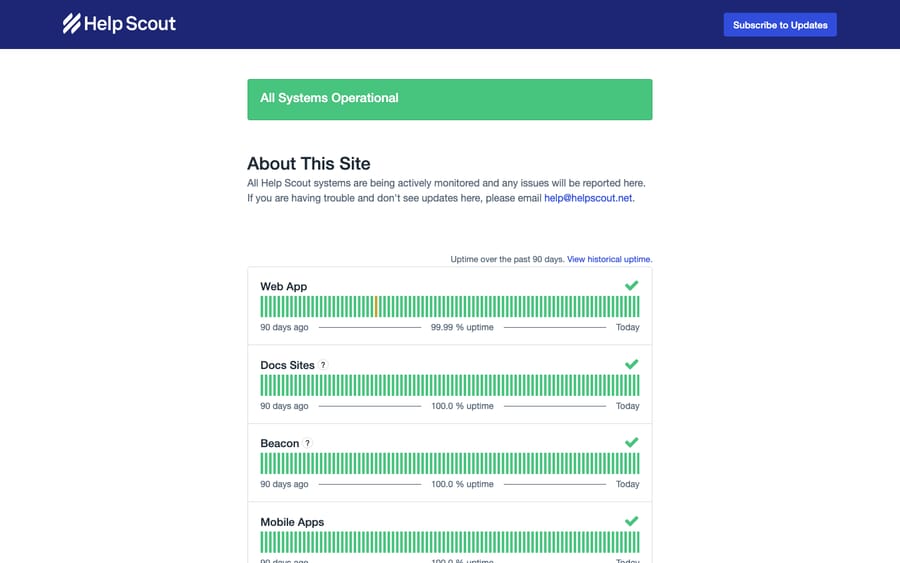
Step 2: Read the components, not just the banner
The big green "All Systems Operational" banner is a summary. The detail lives in the components below it. When we pulled the page's component list on September 24, 2026, Help Scout reported 13 components, two of them grouped:
- Web App: the main agent interface where you read and reply to conversations.
- Beacon: the embeddable chat, contact and help widget on your website or app.
- Docs Sites: your customer-facing knowledge base.
- Email Processing: the pipeline that turns inbound email into conversations in your inbox.
- Public APIs group: Inbox API and Docs API, the interfaces your integrations rely on.
- Mobile Apps, Marketing Site, and Mailbox counts, folders, reports, search results.
- AI Services group: AI Drafts, AI Answers, AI Summarize and AI Assist.
Help Scout adds and renames components over time, especially around AI, so treat the count as a snapshot. The granularity is the point: if Beacon is degraded but the Web App is operational, your widget is the problem, not your team's inbox, and you can tell customers exactly that. If Email Processing is down, that explains why new emails aren't turning into conversations even though the app loads fine.
Step 3: Read the legend
Help Scout's status page legend shows five states:
| State | What it means |
|---|---|
| Operational | The component is performing normally. |
| Degraded Performance | Working but slow or flaky; some requests may fail. |
| Partial Outage | Part of the component is unavailable, or it fails for some users. |
| Major Outage | The component is unavailable. |
| Maintenance | A planned maintenance window is in progress (expected, not a fault). |
The takeaway: "degraded" is not the same as "down." A degraded component is usually slow or intermittently failing, not offline, which changes both your diagnosis and what you tell customers.
Step 4: Check for scheduled maintenance
Not every disruption is an outage. Help Scout posts scheduled maintenance to the same status page ahead of time, and it shows as its own state. If features behave oddly at an oddly specific time, check whether a maintenance window is posted before you escalate.
Step 5: Subscribe so you're told next time
Rather than refreshing the page, subscribe. Click Subscribe on the status page and pick email, SMS or webhook. Help Scout also publishes RSS and Atom feeds of its incident history if you'd rather pipe incidents into a reader or a team channel. Now you hear about incidents from Help Scout before a customer tells you.
Is it Help Scout, or is it you?
Plenty of "is Help Scout down" panics turn out to be local. Before you tell customers Help Scout is broken, run this elimination ladder in order, fastest first.
- Check the status page first (above). If the component that matches your symptom is operational, lean toward a problem on your end.
- Isolate the component. Can you load the Web App but Beacon is dead on your site? Can your team reply, but inbound email isn't turning into conversations? Is only Docs down? Narrowing to one component tells you whether this is even a Help Scout-shaped problem.
- Test from another network and device. Open Help Scout on mobile data instead of office Wi-Fi. If it works on cellular but not on the corporate network, the issue is your network or firewall.
- Try an incognito window or a different browser. If incognito works, a browser extension, a corrupted cache or a stale session is the culprit. Clearing your cache or disabling extensions one at a time usually fixes it.
- For inbound email, check your forwarding and DNS. Help Scout receives a lot of mail by forwarding from your own mailbox or via a custom domain. If new emails aren't arriving as conversations but the app is otherwise fine, the fault may be in your forwarding rule, your MX/DNS records or your provider's spam filtering. One quiet channel with everything else operational usually points here.
- Corroborate with third-party trackers. Downdetector, IsDown and StatusGator aggregate user reports and mirror Help Scout's components. A spike there alongside a degraded or down component on the official page is strong confirmation. Treat them as corroboration only; they're crowd-sourced.
The pattern to internalize: everything broken plus a down component on the status page means Help Scout. One thing broken with everything operational means you (or your network, browser or email setup).
What should I do during a real Help Scout outage?
The status page confirms a component is degraded or down. Now manage it. The goal is to protect the customer experience, not to "fix" something you can't fix.
- Subscribe to updates first. Get on the incident's notifications so you're not refreshing a page. Help Scout posts progress on the incident itself.
- Set customer expectations early. Post a banner on your Docs site or website, set an away message on Beacon, and tell customers you're aware and waiting on your provider. A short, honest "we're having a temporary outage with our support system" beats silence.
- Don't thrash your settings. Toggling workflows, reinstalling Beacon or rewiring email forwarding during an outage usually creates a second mess to clean up once Help Scout recovers.
- Capture work out of band. If conversations aren't loading, log incoming issues somewhere temporary (a shared doc or spreadsheet) and reconcile once service returns. Mail usually arrives once Email Processing recovers, but a manual log is cheap insurance.
- Have a fallback channel. Know in advance where customers go if Help Scout is unreachable: a status page of your own, a social account or a plain email inbox.
- Wait for "resolved," then verify. When the incident is marked resolved, send a test email, check it becomes a conversation, load Beacon and post a reply before announcing the all-clear.
If Help Scout is genuinely broken for you but no incident is posted, Help Scout's uptime documentation says to reach out to its support team.
How do I prepare for the next Help Scout outage?
You can't prevent Help Scout outages, but you can make them boring instead of chaotic.
- Subscribe to status notifications so you hear it from Help Scout first.
- Bookmark the status page and make it the team's first reflex, ahead of guessing.
- Write a one-page outage runbook: who posts the customer banner, where you log conversations, which fallback channel you use, who owns the all-clear.
- Know your component map. Understand which parts of your support stack ride on which component (Beacon on your site, Docs for self-serve, Email Processing for inbound, the APIs for integrations) so an incident note tells you instantly what will and won't work.
- Map your dependencies. Anything that sits on top of Help Scout, including integrations, automations and AI features, depends on Help Scout being up.
Does an AI agent keep working when the help desk is down?
No. An AI agent that reads and resolves tickets does so through the help desk's platform, so if the help desk is down, the layer on top is down too. Help Scout's own AI features are listed as components on its status page for the same reason. An AI layer makes support faster on a normal day; it doesn't keep the help desk running when the platform is offline.
A note on fit: Macha is an AI agent layer that works on top of an existing help desk, and it connects to Zendesk, Freshdesk, Gorgias, Front, HubSpot or Intercom. Help Scout isn't on that list today, so if you're on Help Scout, the useful part of this page is the outage playbook above. (If you run one of those desks elsewhere in your stack, Macha on your help desk shows how the model works.) Where that kind of layer earns its keep is every other day: resolving repetitive tickets so your queue is smaller, which also means less backlog to dig out of once an outage clears. Macha is priced per ticket, from $299 a month for up to 750 tickets, and the trial is $50 of free usage with no credit card required.
Frequently asked questions
Is Help Scout down right now? Go to status.helpscout.com, read the overall banner, then scroll to the component that matches your symptom (Web App, Beacon, Docs Sites, Email Processing, the APIs). Operational means normal; Degraded Performance means slow or flaky; Partial or Major Outage means some or all of it is unavailable. The status page is hosted outside Help Scout's infrastructure, so it stays reachable if the app is offline.
What is the Help Scout status page URL? status.helpscout.com. It's an Atlassian Statuspage showing real-time component status, active incidents, scheduled maintenance and incident history.
Why does Help Scout work for other companies but not for us? Most likely a problem on your end. The status page doesn't split components by region, so if everything shows operational, the issue is probably local. Isolate the broken component, test from another network and device, try an incognito window, clear your cache or disable extensions, and for missing inbound email check your forwarding rules and DNS.
How do I get notified about Help Scout outages? Click Subscribe on status.helpscout.com and choose email, SMS or webhook. Help Scout also offers RSS and Atom feeds of its incident history.
What's the difference between "degraded" and "outage"? The legend has five states: Operational, Degraded Performance (slow or flaky but largely working), Partial Outage, Major Outage (unavailable) and Maintenance (a planned window). So "degraded" is not the same as "down."
The status page is all operational but Help Scout is broken for me. What now? That points to a local issue. Isolate the failing component, test from a different network and device, open Help Scout in an incognito window or another browser, clear your cache, and for inbound email check your forwarding and DNS. If everything still points to Help Scout and no incident is posted, contact Help Scout's support team, as its uptime documentation advises.
Can I trust Downdetector to tell me if Help Scout is down? Use it as corroboration, not as the answer. Downdetector, IsDown and StatusGator aggregate user reports, which helps spot a widespread problem fast, but they're crowd-sourced. Confirm against status.helpscout.com for the specific component you care about.
Where can I learn more about Help Scout itself?
For background on the platform, see what Help Scout is and a rundown of Help Scout's features. The short version of this page: go to status.helpscout.com, read the component that matches what's broken, subscribe to alerts, and if everything's green, work the elimination ladder before blaming Help Scout.
Status page components, legend states, subscription options, hosting and the 99.99% uptime figure checked against status.helpscout.com and Help Scout's uptime documentation on September 24, 2026. Help Scout changes components and labels periodically; confirm them in your own status view.
Resolve tickets automatically with AI agents
Macha's AI agents work on top of the help desk you already use — no code.