Intercom
 Shopify
 Stripe
 Slack
Slack Notion
 Google Workspace
 Confluence

How Does the Help Scout Knowledge Base (Docs) Work in 2026?


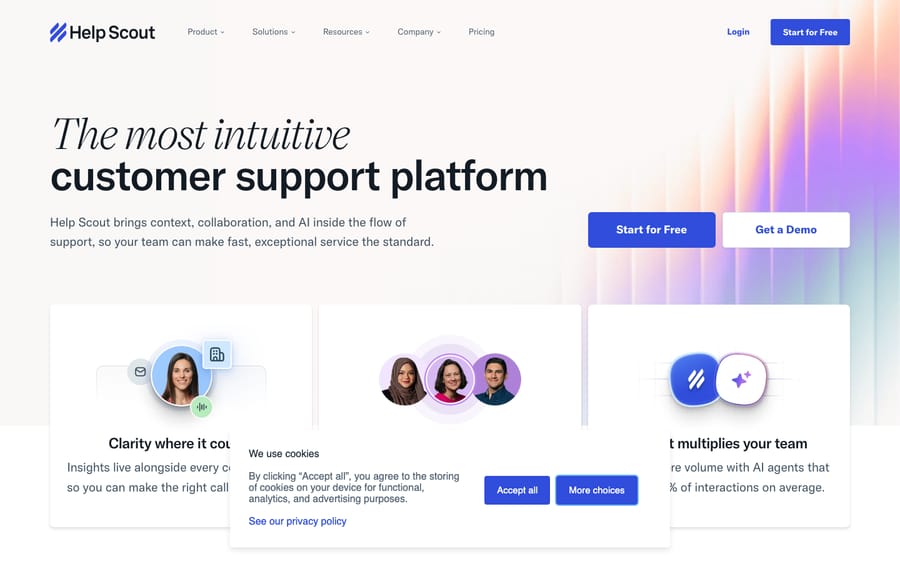
Help Scout's knowledge base is called Docs: a branded help center built from collections, categories and articles, included on every plan from Free (1 Docs site) to Pro (5 Docs sites). The same articles feed the Beacon widget and AI Answers, so every question a Docs article answers is a conversation that never reaches your inbox.
Key takeaways
- Help Scout's knowledge base, called Docs, organizes content in three levels, collections holding categories holding articles, and the same content powers the Beacon widget and AI Answers.
- Help Scout includes Docs on every plan: the Free plan gets 1 Docs site, Standard 2, Plus 3 and Pro 5, with Pro listed at $75 per user a month.
- Additional Help Scout Docs sites cost $20 a month billed annually, or $24 a month on monthly billing, beyond the number a plan includes.
- Help Scout's AI Answers, powered by OpenAI, reads Docs articles to answer inside Beacon and costs $0.75 per resolution after a 3-month free trial.
- The Help Scout Docs report lists failed searches, the terms customers searched without finding an article, which tells a team exactly which articles or Keywords to add next.

Help Scout's knowledge base is called Docs, and it's included on every plan: the Free plan gets 1 Docs site, Standard 2, Plus 3 and Pro 5, with extra sites at $20 a month billed annually (Help Scout pricing, checked 24 September 2026). Content sits in three levels (collections, categories, articles), renders into a branded public Docs site, and feeds both the Beacon widget and AI Answers, Help Scout's AI agent at $0.75 per resolution. (New to the product itself? Start with what is Help Scout.)
| Question | Answer (checked 24 September 2026) |
|---|---|
| What is it called? | Docs |
| Structure | Collections, then categories, then articles; each collection public or private |
| Which plans include it? | All, including Free (1 Docs site) |
| Docs sites per plan | Free 1, Standard 2, Plus 3, Pro 5 |
| Extra Docs sites | $20 a month billed annually, $24 monthly |
| AI on top | AI Answers, $0.75 per resolution after a 3-month free trial |
| Main report | Docs report: article views, failed searches, unique sessions |
What is Help Scout Docs?
A quick terminology note, because Help Scout's naming is refreshingly literal. The knowledge base product is called Docs. It's one of the three pillars of the platform alongside the shared Inbox and the Beacon widget. When people say "Help Scout help center," "Help Scout self service," or "Help Scout knowledge base," they all mean Docs (Help Scout docs).
Docs is strictly self-help: only Help Scout users on your account with the right permissions can create and manage content — customers read and search, but never publish. There are no limits on how many articles you can create or how many images you can upload.
How is a Help Scout knowledge base structured?
Help Scout organizes knowledge in a three-tier hierarchy (Help Scout docs):
- Collections — the top level, usually one per product, department, or broad subject. Help Scout's own Docs site, for example, splits into collections for Inbox, Beacon, Docs, Getting Started, and Account Management. Collection links appear in the Docs site's top navigation and on the home page.
- Categories — the middle layer that groups articles by topic within a collection. Everything about automation and efficiency, say, might live in a Productivity category inside the Inbox collection.
- Articles — the actual content: each one focused on answering a single question or solving one specific issue.
So a customer journey reads top-down: Collection → Category → Article. It's a flatter, simpler model than some competitors (Freshdesk and Zendesk both go deeper), which is on-brand for Help Scout — fewer knobs, less chance to build a maze.
One of the most useful settings sits at the collection level: public vs. private (Help Scout docs). Public collections (and everything inside them) are visible to anyone who hits your Docs site or Beacon. Private collections are viewable only by authenticated Help Scout users on your team — so the same account can hold your public help center and an internal knowledge base of SOPs, escalation playbooks, and internal-only fixes that customers never see.
What can you customize on the Docs site?
The Docs site is the public support website your knowledge base renders into — a branded help center where customers search and browse articles, and only reach out if self-service didn't solve it (Help Scout docs). A few things worth knowing:
- Custom domain. Out of the box your Docs site lives on a Help Scout subdomain, but you can point it at a custom domain like support.yourdomain.com so it feels like a native part of your site.
- Branding. You get built-in customization for logo, colors, and layout, and for teams that want pixel control, you can go further with custom CSS and JavaScript.
- One template. Worth being honest about: Help Scout ships a single Docs design/template. It's clean and it works, but if you want dramatically different layouts you'll be doing it through CSS — and reviewers do flag the limited template choice as a downside (more on that below).
How do you draft and publish a Docs article?
Help Scout's article lifecycle is deliberately simple — there's no multi-stage Draft → In Review → Approved chain here. You create an article inside a collection, add a title and a URL slug, write in the rich-text editor, hit Preview to see exactly how it'll look, and click Publish when it's ready (Help Scout docs).
There are two states:
- Unpublished — visible only to your team inside Help Scout, never to customers.
- Published — live on the Docs site.
You can Unpublish an article to pull it from the public site while keeping its revision history, or delete it permanently. That's it. If your organization needs a formal review-and-approve gate before anything goes live, Help Scout doesn't enforce one in software — you'll run review as a manual process, keeping work-in-progress articles unpublished until a teammate signs off.
Can Docs articles rank in Google?
Because the Docs site is a public website, articles can rank in Google — and Help Scout leans into this with a reputation for clean, SEO-friendly markup. The per-article levers are leaner than some competitors', so set expectations accordingly:
- URL slug — you compose the article's slug (hyphens between words, no spaces) when you create it. Write it in the customer's words.
- Keywords — a dedicated field where you add synonyms, common misspellings, and natural-language phrasings so the right article surfaces even when customers don't use your exact wording (Help Scout docs).
Note what's not here: Help Scout's docs don't surface a separate per-article meta-title and meta-description field the way Freshdesk does — the article title does the heavy lifting, so write titles the way customers actually phrase the problem ("Why is my order stuck on processing?" beats "Order status definitions"). The Keywords field is doing double duty for both on-site search and discoverability, which makes it the single most underused lever in Help Scout Docs. Fill it in on every article.
How does Beacon surface Docs articles?
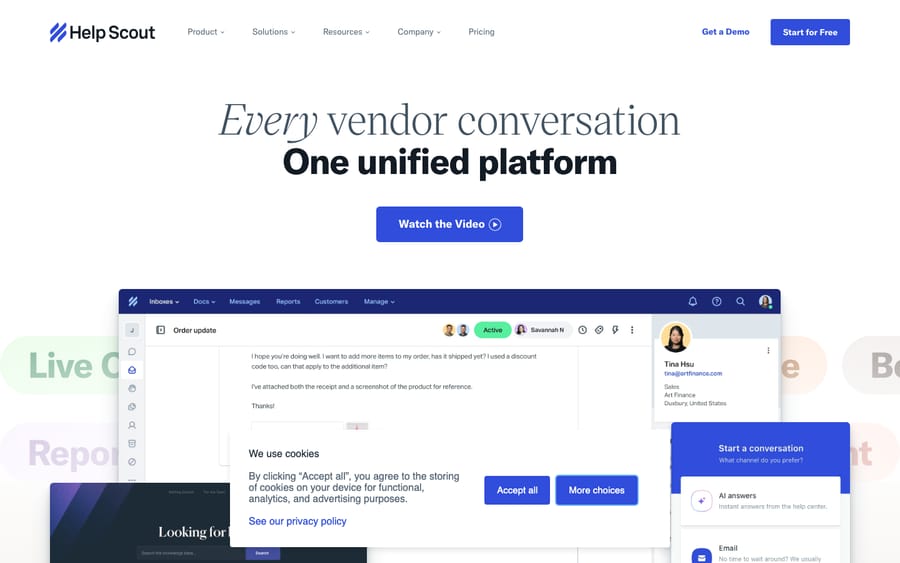
This is where Help Scout's tight integration shines. Beacon is the embeddable help widget you drop on your site or in your app, and it can pull from Docs in two ways (Help Scout docs):
- Suggest — display a curated list of specific articles inside the Beacon, tailored to where the user is.
- Proactive, contextual suggestions — Beacon can automatically offer relevant articles based on the page a visitor is on. Someone sitting on your pricing page can be shown billing and plan articles before they ever type a question.
So the same Docs content that ranks in Google also meets customers in-product at the exact moment they're stuck — without an agent lifting a finger.
How does Docs power AI Answers?
Help Scout's AI deflection feature, AI Answers, runs on your knowledge base. It's powered by OpenAI and reads through your Docs articles (plus any other public sources or documents you connect) to generate instant, conversational answers right inside the Beacon widget (Help Scout docs).
The honest version: AI Answers is only as good as the Docs behind it. If a question is well covered by a clear, current article, AI Answers can resolve it end-to-end in the widget. If your KB is thin, stale, or vague, the AI has nothing solid to draw on. This is the throughline of the whole post — clean structure, fresh articles, customer-worded titles, and a well-stocked Keywords field are exactly what makes AI deflection work. (We go deeper on the AI side in Help Scout AI explained.)
On pricing, AI Answers is a usage-based add-on: $0.75 per resolution, available across the Standard, Plus, and Pro plans, with a 3-month free trial period for new accounts so you can train it on your content first (Help Scout pricing; AI Answers). A "resolution" is counted only when a conversation is resolved by AI with no human help and no escalation — if the customer hits "I still need help" or asks for a person, you're not charged, and you're billed at most one resolution per conversation (AI Resolutions pricing).
How do you know which articles are working?
Help Scout closes the loop with the Docs report, which tells you what customers search for, what they find, and what they don't (Help Scout docs). The metrics that matter:
- Article views — your most-read articles, so you know what's pulling weight.
- Failed searches — search terms that returned no matching article. This is gold: it's a free, customer-generated content roadmap.
- Unique sessions — visitor traffic to your Docs over a 24-hour window.
The workflow that compounds deflection: watch the failed-searches list, and when a term keeps coming up, either add it to the Keywords of an existing article or write a new article to fill the gap (How to fix failed searches). A knowledge base is a living asset, not a one-time setup — and Help Scout's failed-search report makes the "what to write next" question answer itself.
Which articles should you write first?
Most "how to build a knowledge base" advice stops at "start from your top contact reasons." Here's the part competitors leave out — the actual mapping. Below is a worked example for a typical SaaS/e-commerce support queue: take your top contact reasons (from inbox tags or the Docs report's failed searches), and translate each into the collection it belongs in, the first article to write, and the Keywords field to seed so search and AI Answers both catch real phrasings.
| Top ticket reason | Docs collection | First article to write (customer-worded title) | Keywords to seed (synonyms / misspellings / phrasings) |
|---|---|---|---|
| "Where's my order?" | Orders & Shipping | Why is my order still processing? | order stuck, not shipped, tracking, where is my package, didnt ship, delayed |
| Refund / return requests | Returns & Refunds | How do I return an item and get a refund? | refund, money back, send back, return label, exchange, cancel order |
| Login / password issues | Account & Access | I can't log in or reset my password | cant login, forgot password, reset, locked out, 2fa, verification code |
| Billing & invoices | Billing & Plans | How do I update my card or download an invoice? | change card, payment failed, invoice, receipt, billing, upgrade, downgrade |
| "How do I cancel?" | Billing & Plans | How to cancel or pause my subscription | cancel, unsubscribe, pause, stop billing, close account, end plan |
| Integration / setup help | Getting Started | Connecting [Product] to your existing tools | setup, integrate, connect, install, configure, api, sync |
Two things make this loop compound. First, the Keywords column is doing the heavy lifting — it's what lets a customer who types "didnt ship" land on an article titled "Why is my order still processing?", and it's the same signal AI Answers leans on. Second, you don't have to guess the rows: the Docs report's failed-search list hands them to you, ranked by how often customers searched a term and found nothing. Build the obvious rows first, then let failed searches populate the rest.
How many Docs sites does each Help Scout plan include?
If you run several products or brands, you can spin up multiple Docs sites from one Help Scout account — each with its own collections, articles, branding, and domain. Here's how that maps to plans (checked 24 September 2026, Help Scout pricing; prices are the list per-user rates shown there, and annual billing is discounted):
| Plan | Price (per user/mo) | Docs sites included |
|---|---|---|
| Free | $0 (up to 5 users) | 1 |
| Standard | $25 | 2 |
| Plus | $45 | 3 |
| Pro | $75 | 5 |
A couple of things to flag. First, a knowledge base is included on every Help Scout plan — including the Free plan, which ships with one Docs site — not gated to paid tiers. Second, additional Docs sites cost $20 a month billed annually, or $24 a month on monthly billing, beyond your plan's included allotment. Plan names and prices shift over time, so confirm the current packaging on Help Scout's pricing page before you buy — and for the full money picture, see our Help Scout features breakdown.
How do you set up a Help Scout knowledge base?
A workable first version is an afternoon's work, not a quarter's:
- Map your collections from real conversation data — pull your top 10–15 contact reasons and group them into a handful of broad topics (or products).
- Add categories under each collection for sub-topics, and decide public vs. private at the collection level (public help center vs. internal SOPs).
- Write your most common answers first. Start with the 20 articles that would deflect the most conversations, not an exhaustive manual.
- Optimize each article — a clear, customer-worded title, a clean slug, a filled-in Keywords field, and a screenshot or two.
- Preview, then publish. Keep work-in-progress articles unpublished and run a manual review pass before going live.
- Connect Docs to Beacon (and turn on AI Answers if you want AI deflection), and point your Docs site at a custom domain with your branding.
- Measure and iterate — check the Docs report monthly, fix high-count failed searches, and write new articles for unmet demand.
Best practices for a KB that actually deflects
- Shallow beats deep. Help Scout's flat structure is a feature — obvious collections, few clicks.
- Write for the searcher, not the org chart. Use the words customers type, not your internal product names.
- Treat Keywords as a first-class field. It feeds on-site search and helps AI Answers; an empty Keywords field is a missed deflection.
- One job per article. Focused articles rank better, answer cleaner, and are far easier for AI to use accurately.
- Keep it fresh. Stale screenshots and outdated steps erode trust fast — schedule reviews of your top-viewed articles.
- Use private collections for internal SOPs so your team's knowledge lives in the same system.
- Let the failed-search report drive your roadmap. It's the cheapest content research you'll ever get.
What do users say about Help Scout Docs?
Vendor docs tell you what the KB can do; review sites tell you how it feels to live in. Help Scout is well reviewed on both G2 and Capterra; we couldn't load either site's live score on 24 September 2026, so we don't quote one here.
Narrowed to Docs specifically, the same themes recur across both sites. The pull-quotes below are representative of the most-repeated review themes, attributed to reviewer role and platform — we paraphrase the recurring sentiment rather than reproduce a single verbatim review, because individual review URLs rotate and can't be permanently cited:
"The best part is how connected it all is — I can drop a Docs article straight into a reply, and Beacon surfaces the same articles to customers before they even email us. Setting up the knowledge base took an afternoon." — Small-business owner, G2 (Docs & self-service themes, representative)
"Clean, intuitive editor. New hires get comfortable with it fast, and being able to see which articles get read most makes it easy to know where to focus." — Customer support manager, Capterra (ease-of-use themes, representative)
"My one real gripe is the design — there's basically one knowledge base template, so anything beyond logo and colors means writing CSS. And as we've grown, the reporting feels thin; I want deeper analytics per article and per customer." — Mid-market ops lead, G2/Capterra (limitations themes, representative)
So the trade reviewers consistently describe: an unusually tight Docs ↔ Beacon ↔ inbox loop and a clean editor that's fast to learn, paid for with a single template (heavy customization means CSS) and reporting that's light for larger teams. For most small-to-mid teams that value simplicity, Docs is more than good enough; documentation-heavy or analytics-hungry orgs occasionally outgrow the single design and the lighter reports. (On the specifics in this guide: we re-checked plan gating, the $20 a site add-on, and AI Answers' $0.75 per resolution pricing against Help Scout's live pricing page and support docs on 24 September 2026. We don't hold a configured Help Scout admin login, so the in-product Docs editor isn't screenshotted here; feature and gating claims are sourced to Help Scout's own documentation.)
Does an AI agent layer replace a good knowledge base?
Here's an honest aside, because it's the natural next question. A self-service KB — and even a native tool like AI Answers reading from it — deflects the customers who search. But plenty of tickets still pile up in the middle: the customer who emails instead of searching, or whose question needs an answer stitched from a few articles plus their order history. That gap is what a dedicated AI agent layer is built to close.
Worth being upfront: Macha is an AI agent layer that runs on top of Zendesk, Freshdesk, Gorgias, Front, HubSpot or Intercom — it does not integrate with Help Scout. So this isn't a "switch to us" pitch. The reason it's relevant is the underlying principle, which holds on any platform: an AI agent layer is only as good as the knowledge base you connect it to. Garbage KB, garbage answers. Everything above — clean collections, fresh articles, customer-worded titles, Keywords filled in, gaps closed from failed-search data — is exactly what makes both Help Scout's native AI Answers and any AI layer on a supported help desk actually work. Get the knowledge base right first; the AI rides on top of it. (If you happen to run one of those and your ticket mix is mostly repetitive questions, there's $50 of free usage, no credit card required, to see how far a connected KB takes you.)
Frequently asked questions
What is the Help Scout knowledge base? It's Help Scout's self-service product, called Docs — a public, branded help center where customers search for answers instead of opening a conversation. Content is organized as collections → categories → articles, and the same content can power the Beacon widget and AI Answers.
What's the difference between Docs, Beacon, and the inbox in Help Scout? Docs is the knowledge base (your articles and the public Docs site). Beacon is the embeddable help widget that surfaces those articles (and can run AI Answers) on your site or app. The inbox is the shared mailbox where agents handle conversations. They're three connected parts of one platform.
Is the Help Scout knowledge base available on the free plan? Yes. Every Help Scout plan, including the Free plan, includes at least one Docs site (Free gets 1, Standard 2, Plus 3, Pro 5). Additional Docs sites cost $20 per site per month billed annually, or $24 monthly.
Can I have multiple Docs sites? Yes — useful for multiple products or brands, each with its own collections, branding, and domain. Your plan includes a set number of sites, and you can add more at $20 a site a month billed annually.
How does Help Scout's AI Answers use Docs? AI Answers is powered by OpenAI and reads from your Docs articles (and other public sources you link) to answer customer questions inside Beacon. It's a $0.75-per-resolution add-on on Standard/Plus/Pro, with a 3-month free trial, and you're only charged when the AI resolves a conversation with no human help and no escalation.
Can customers find Docs articles through Google? Yes — the Docs site is a public website with clean, SEO-friendly markup. The main per-article levers are a customer-worded URL slug and a Keywords field (synonyms, misspellings, natural-language phrasings) that improves both Google discoverability and on-site search.
How do I know which articles to write? Use the Docs report. Its failed searches list shows the exact terms customers searched for but couldn't find — write articles (or add Keywords) to close those gaps, and watch deflection climb.
Is Help Scout Docs enough for your team?
The Help Scout knowledge base (Docs) is a clean, well-integrated self-service engine: a simple collections → categories → articles structure, a branded customer Docs site with custom-domain and CSS control, a no-friction unpublish/publish workflow, deep ties into Beacon, and a failed-search report that practically writes your content roadmap for you. It's not the most customizable KB on the market — the single template and lighter reporting draw fair criticism — but for teams that prize simplicity, it's genuinely pleasant to run, and it's included on every plan, including Free. Whether you lean on native AI Answers or any AI layer on a supported help desk, the same truth holds: the quality of your knowledge base sets the ceiling on how much you can deflect. Build it well, keep it fresh, and let the failed-search report tell you what to write next.
Pricing and plan limits checked against Help Scout's pricing page and documentation on 24 September 2026. Help Scout revises packaging and plan gating periodically — confirm current details on helpscout.com before relying on them.
Resolve tickets automatically with AI agents
Macha's AI agents work on top of the help desk you already use — no code.