Intercom
 Shopify
 Stripe
 Slack
Slack Notion
 Google Workspace
 Confluence

How Do Freshdesk Business Hours Work? Timezones, Holidays and SLAs (2026)


An SLA report that shows a breach on a ticket your team answered on time usually comes down to business hours: the clock counted hours nobody worked, a group sat on the wrong timezone, or a holiday was missing. Here is how Freshdesk business hours, multiple timezones and holidays drive the SLA clock, and where they stop.
Key takeaways
- Freshdesk business hours are set under Admin → Team → Business hours and support up to five breaks per day, so lunch or shift gaps don't count toward SLA.
- Freshdesk is moving 1-day SLAs to 24 business hours in a phased 2026 release, so a ticket created Monday at 9 AM on a 12-hour day is due Tuesday at 9 PM.
- Freshdesk business hours are on the Growth, Pro and Enterprise plans, but multiple calendars for different regions or timezones require Pro at $55 per agent a month or above.
- A Freshdesk ticket inherits its SLA business hours from the group it is assigned to, and falls back to the account-level default if it has no group yet.
- Freshdesk creates every holiday added to a business-hours calendar as a recurring annual holiday and excludes it from SLA calculations.

Freshdesk business hours are a calendar of working days, hours, breaks (up to 5 a day) and holidays that tells the SLA clock when to run; set them under Admin → Team → Business hours, and attach one calendar per group so each region's tickets are timed on its own timezone. Business hours are on the Growth, Pro and Enterprise plans, but multiple business hours for different teams need Pro ($55 per agent a month, billed annually) or above.
| Question | Answer |
|---|---|
| Where to set it | Admin → Team → Business hours |
| Breaks per day | Up to 5 |
| Holidays | Added manually or imported by country; recur every year |
| Which calendar a ticket uses | Its group's; tickets with no group use the default |
| Business hours available on | Growth ($19), Pro ($55), Enterprise ($89) per agent a month, billed annually |
| Multiple business hours | Pro and Enterprise only |
| "1 day" SLA | Moving to 24 business hours, in a phased 2026 release |
What is the difference between business hours and calendar hours in Freshdesk?
The most important distinction in Freshdesk time tracking is business hours versus calendar hours, because it decides which clock your SLA runs on.
Business hours are your company's official working schedule. When an SLA is tied to business hours, the timer only ticks during those defined periods; nights, weekends and holidays are excluded. If your support desk works 9 AM to 5 PM Monday to Friday and a ticket arrives at 4:55 PM Friday, the SLA clock pauses at 5 PM and resumes at 9 AM Monday.
Calendar hours are round-the-clock, 24/7 timing. Every hour counts: weekends, holidays, 3 AM, all of it. Freshworks recommends calendar hours for urgent and high-priority tickets that need attention regardless of the day or time. A "respond within 1 hour" promise on a Sev-1 outage should almost never pause overnight.
The practical rule: use business hours for everyday priorities so your team isn't penalized for time it was never expected to be online, and use calendar hours for the small set of urgent tickets where the customer expects a 24/7 response.
Where do you configure business hours in Freshdesk?
Go to Admin → Team → Business hours, then click Add business hours (or Edit an existing set). Inside a business-hours calendar you set three things:
- Timezone. Each calendar carries its own timezone, so the schedule is read correctly for the team it serves.
- Working days and hours. Define the working window for each day of the week. Freshdesk supports up to five breaks per day within a calendar, so you can carve out lunch or shift gaps that shouldn't count toward SLA.
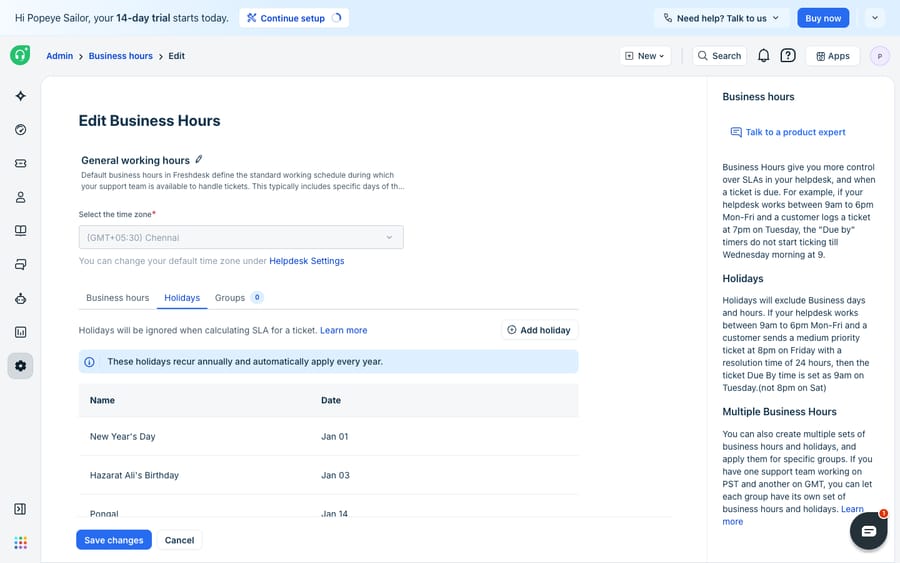
- Holidays. Add holidays manually or import a country's holiday list. Freshdesk creates every holiday as a recurring annual holiday, and holidays are excluded from SLA calculations just like non-working hours.
That holiday behavior is worth seeing, because it's where a lot of "phantom breach" surprises come from.
How do you set different business hours for teams in different timezones?
If your whole team sits in one city, a single business-hours calendar is all you need. Once you run support across regions (a London morning shift and an Austin afternoon shift, say, or three centers rotating a 24×7 desk), one global schedule stops making sense. A ticket routed to the Austin group shouldn't have its SLA measured against London's clock.
Freshdesk handles this with multiple business hours: you create a separate calendar for each region or team, each with its own timezone and holiday list, then attach each calendar to the right group. The setup is two steps, per Freshworks' guide to configuring multiple business hours:
- Create the calendars. In Admin → Team → Business hours, click New business hours for each region, setting the correct timezone and importing that country's holidays.
- Assign to groups. In Admin → Team → Groups, open a group, pick the matching calendar from the Business Hours dropdown, and save. From then on, every ticket assigned to that group has its SLA run against that group's schedule.
This keeps distributed teams from being unfairly penalized. Each region's SLAs run on that region's real working hours and real holidays, with no manual timezone math.
One gotcha: a ticket inherits its business hours from the group it's assigned to. If a ticket has no group yet, it falls back to the account-level default business hours. So the system only works if your routing lands tickets in the right group early. That is why business hours and Freshdesk automation rules are so tightly linked: your ticket-creation rules decide the group, and the group decides the SLA clock.
How do business hours drive the Freshdesk SLA clock?
Here's the part that trips up experienced admins, especially with Freshdesk's change to how it reads day-based SLAs.
Until now, "1 business day" has meant the total working hours in your schedule: with a 9 AM to 9 PM calendar, 1 business day equals 12 hours. Under the updated logic, Freshworks interprets "1 day" as 24 business hours, not 24 calendar hours and not a single working day. The SLA accumulates business hours until it reaches 24, which can span several calendar days. Freshworks says the update is scheduled for a phased release in 2026, so check which logic your account is on before you rewrite policies.
The doc's own example: if your business hours run 9 AM to 9 PM (12 hours a day) and a ticket is created Monday at 9 AM with a 1-day resolution SLA, it's due Tuesday at 9 PM, because 12 hours Monday plus 12 hours Tuesday equals the 24 business hours the SLA now requires. With a 9-to-5 (8-hour) day, the same "1 day" SLA takes three calendar days to accumulate its 24 business hours.
What this means when you write SLA policies:
- Hours-based SLAs are safest. An SLA in hours ("resolve in 8 business hours") is unambiguous and unaffected by the day-interpretation change.
- Your calendar shapes every deadline. Widen or narrow a group's working window and you silently move every SLA due date attached to it.
- Holidays and breaks pause the clock. A holiday you added, or a lunch break in the schedule, is time the SLA timer doesn't count.
- Priority can switch the clock entirely. Route urgent tickets to calendar-hour SLAs so an overnight outage doesn't get a free pass until morning.
Read SLA policies and business hours together; that is the only way to make your SLA reports trustworthy.
What can't Freshdesk business hours do?
Freshdesk's business-hours engine is precise, timezone-aware and holiday-aware, and it wires cleanly into SLAs and groups. For scheduling when the SLA clock runs, it's hard to fault.
But it's a scheduling tool, not a workload tool, and there are real edges:
- It's group-and-timezone logic, not demand-aware. Business hours know when your team is supposed to be online. They know nothing about whether the queue is 5 tickets or 500, or whether the one agent on the late shift is drowning.
- Plan gating is real. Business hours are available on Growth, Pro and Enterprise plans (and on Freshdesk Omni for signups after December 2025), but multiple business hours require Pro or above; the pricing page lists "global, multiple, group specific" business hours only on Pro and Enterprise. Teams on Growth get a single schedule.
- It doesn't do the work. Business hours decide the deadline; they don't help you hit it. When the London desk closes and the queue keeps filling overnight, the schedule pauses the clock, and nothing gets answered until someone clocks in.
That last point is where an AI agent layer earns its place: not by replacing any of this, but by covering the hours your humans can't.
Can an AI agent cover the hours outside your Freshdesk schedule?
Yes. Business hours are about when the clock runs; an AI agent is about who answers when nobody's at the desk. They are complementary. It's worth thinking through the build-versus-buy decision, which we cover in building an AI agent from scratch vs. using a platform. The broader category of AI agents for customer service exists to handle the after-hours and overflow work a static schedule can't.
Macha is one such layer: it runs on top of the Freshdesk you already use, as a native connector. It does not replace your help desk, and it changes nothing about your business hours, groups or SLAs. You connect Macha to Freshdesk with your subdomain and API key, and it reads and writes the same tickets your schedules govern: drafting or posting replies, adding notes, and resolving repetitive questions grounded in your help center, at 3 AM on a holiday as readily as at 2 PM on a Tuesday. (Macha's connector is for Freshdesk specifically, not Freshchat, Freshservice or Freshcaller.) Pricing is one plan by ticket volume, from $299 a month for up to 750 tickets.
The division of labour is clean. Keep Freshdesk's business hours defining working windows, honoring holidays and running SLA timers per group and timezone. Layer an agent on top to cover the off-hours gap: answering the common questions that arrive overnight, and looking up order or account status through a custom tool that turns any REST API into something the agent can call. Your SLA clock still governs the deadline; the agent makes sure the queue isn't cold when your team logs back in.
FAQ
What's the difference between business hours and calendar hours in Freshdesk? Business hours count SLA time only during your defined working schedule; nights, weekends and holidays are excluded. Calendar hours count around the clock, 24/7, including weekends and holidays. Freshworks recommends calendar hours for urgent tickets that need attention regardless of day or time, and business hours for everything else.
How do I set up different business hours for different timezones? Create a separate business-hours calendar for each region under Admin → Team → Business hours (each with its own timezone and holiday list), then assign each calendar to the matching group under Admin → Team → Groups. Every ticket assigned to that group then runs its SLA on that group's schedule. Multiple business hours require the Pro plan or above.
Do holidays affect Freshdesk SLA calculations? Yes. Holidays you add to a business-hours calendar (manually or by importing a country list) are excluded from SLA calculations, the same way non-working hours are. They recur every year, so a ticket that sits over a holiday won't have that time counted against its business-hours SLA.
Does "1 day" mean 24 hours in a Freshdesk SLA? Under Freshdesk's updated logic, rolling out in phases during 2026, a 1-day SLA is interpreted as 24 business hours, not 24 calendar hours and not one working day. Those 24 hours accumulate only during your defined business hours, so with an 8-hour working day a "1 day" SLA can take three calendar days to reach its deadline. Setting SLAs in explicit hours avoids the ambiguity.
Can I add AI coverage for after-hours tickets without replacing Freshdesk? Yes. An AI agent layer like Macha connects to Freshdesk as a native connector and runs on top of your existing help desk; it doesn't change your business hours, groups or SLAs. It reads and writes the same tickets, answering common questions grounded in your knowledge base outside working hours. You can review Macha's pricing and see the Freshdesk connector for details.
Ready to cover the hours your schedule can't? Start a free trial and connect Macha to your Freshdesk in minutes.
Add AI agents to your Freshdesk
Macha reads the ticket, drafts the reply and takes the action, inside the Freshdesk you already run.