Intercom
 Shopify
 Stripe
 Slack
Slack Notion
 Google Workspace
 Confluence

How Do Front Message Templates Work? Canned Answers, Variables and Sharing (2026)


Front message templates are saved replies you write once, insert with a slash, and personalize with variables such as the customer's first name. Templates and basic variables work on every Front plan; app-object variables need Enterprise or the Autopilot add-on, and the usage report needs Professional or above.
Key takeaways
- Front message templates are available on all Front plans, and Front says there are currently no hard limits on how many templates a workspace can create.
- Front lets teams nest message template folders up to 5 layers deep, which keeps a large shared library browsable by team and topic.
- Application-object variables and variables in automatic replies need Front's Enterprise plan or the Autopilot add-on, which Front prices from $0.05 per conversation.
- On the latest Professional plan or above, the Front message templates report shows messages sent, replies sent, customer reply rate and handle time for each template.
- Anyone with Front's Templates - Create and edit permission can see every shared template in workspace settings, even for inboxes they can't access.
Front message templates are saved replies, Front's name for canned answers, and they're available on every Front plan: you save a reply once, insert it by typing / in the composer, and personalize it with variables like {{recipient.first_name}}. Individual templates stay private to you, shared ones can be scoped to specific inboxes, and there's no hard limit on how many you create (per Front's help center, checked 24 September 2026).
What changes by plan is the extras, not the templates themselves:
| Feature | Plan needed |
|---|---|
| Individual and shared message templates, folders up to 5 layers deep | All plans |
| Recipient, teammate, conversation and custom-field variables, with fallbacks | All plans |
Application-object variables ({{app.object_name}}) and variables in auto-reply rules | Enterprise, or the Autopilot add-on (from $0.05 per conversation) |
| Message templates report (reply rate, handle time) | Latest Professional plan or above |
What is a message template in Front?
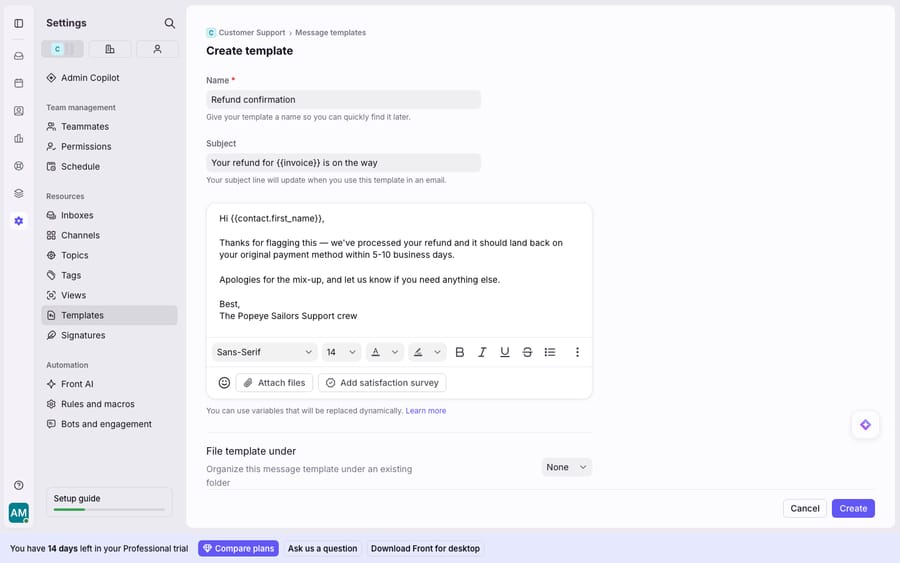
In other help desks these are canned responses or saved replies. In Front they're message templates, and each one holds a name, an optional subject line (which overrides the conversation's subject when you insert it), and a formatted body that can carry dynamic variables. You write it once and drop it into any reply in one action.
Because Front is a shared-inbox platform rather than a ticketing tool, templates are built for collaboration from the start. They sit alongside the other team primitives (shared tags, signatures, and rules) and can be scoped to one person or a whole team. If you're still getting your bearings on how the inbox itself is structured, what is Front covers the shared-inbox model that templates plug into.
How do you create a message template in Front?
Front gives you two ways in, and most teams use both.
From the composer (the fast path). When you've just written a reply you know you'll send again, click the message template icon in the composer toolbar and choose New from draft. Front opens a save box where you name the template, choose private or shared, pick a folder, and make last edits before clicking Create. This is how a good library usually grows: you promote your best real replies into reusable ones.
From Settings (the deliberate path). Click the gear icon, open your workspace or personal settings, select Templates, and you land on the Messages tab. Click Create and fill in the name, optional subject, the message text, a folder, and Make available for any inbox (shared inboxes only). Per Front's Understanding message templates and folders article, both admins and regular members can create templates, so this isn't an admin-only chore. Companies with multiple workspaces set up shared templates per workspace.
Front states there are currently no hard limits on the number of message templates, and you can nest folders up to 5 layers deep, which matters once a library grows past a couple of dozen entries.
What's the difference between personal and shared templates?
This is the distinction that trips people up. Front supports two visibilities:
- Individual templates are visible only to you. Good for drafts-in-progress, personal phrasings, or replies you're not ready to standardize.
- Shared templates are visible to teammates at the inbox level: the team's canonical answers to common questions. The "Make available for any inbox" setting restricts them to specific shared inboxes, so a Billing template needn't clutter the Sales inbox. Teammates need access to the inbox to use its templates.
One nuance from the docs: anyone holding the "Templates - Create and edit" permission can see every shared template in workspace settings, whatever the inbox restrictions. If that's a problem, Front suggests removing the permission with a custom permission set. You also can't convert a private template into a shared one; you copy the content and recreate it.
| Individual template | Shared (team) template | |
|---|---|---|
| Visible to | Only you | Teammates, scoped by inbox |
| Best for | Personal drafts, one-off phrasings | Canonical FAQ answers, on-brand replies |
| Who can create | Any member | Any member (admin or regular) |
| Inbox scoping | n/a | Restrict to specific inboxes, or any inbox |
| Shows in reports | No (private excluded) | Yes |
How do dynamic variables work in Front templates?
A canned answer that opens "Hi there" every time reads like a canned answer. Front's dynamic variables pull live values into the text. Type two open curly brackets {{ in the composer or template editor and a menu of variables appears.
The common ones, per Front's guide to using variables in message templates:
- Recipient:
{{recipient.first_name}},{{recipient.last_name}},{{recipient.email}} - Account / teammate:
{{account.name}},{{user.name}},{{user.email}} - Conversation:
{{conversation.id}},{{message.id}} - Custom fields:
{{recipient.custom.customer_id}},{{account.custom.account_manager}}
The detail that saves you from awkward blanks is the fallback syntax: {{recipient.first_name | 'there'}} renders the contact's first name when Front knows it and the word there when it doesn't. Give every name variable a fallback. An empty greeting is worse than a generic one.
The plan gate sits at the richer end. Application-object variables ({{app.object_name}}, one per template), which pull data from a third-party app, and using variables in automatic replies both need the Enterprise plan or the Autopilot add-on. Front's pricing page lists Autopilot from $0.05 per conversation and includes it in Enterprise. Basic recipient and account variables work on every plan. If you're planning variable-driven automation, check your tier against Front's pricing before you design around it.
How do you insert a template mid-reply?
Once a template exists, dropping it into a conversation takes a second. There are two motions:
- The composer icon. Click the message templates icon in the composer toolbar. You can search by keyword or scroll, hover to preview the full template, then click to insert and edit before sending.
- Quick insert. Type
/(or/template) in the composer, type the template's name, and press Enter. This is the keyboard path most power users live in.
Either way, variables resolve when you insert, so {{recipient.first_name}} becomes the actual customer's name in the reply you're about to send.
How do you keep a template library from going stale?
Templates rot quietly. A price changes, a policy updates, a product gets renamed, and a stale canned answer keeps confidently sending the old version. A few habits keep the library honest:
- Fold aggressively. Use Front's folders (up to 5 layers) to group by team and topic. A flat list of 60 templates is a list nobody browses.
- Name for search, not for you. Because insertion is search-driven (
/refund,/shipping-delay), name templates by the situation the agent is in, not internal jargon. - Prune with data. On the latest Professional plan or above, the message templates report shows messages sent, replies sent, customer reply rate, and handle time for each template, so you can retire the ones nobody uses. The report excludes auto-reply rules, deleted templates, private templates, and sequences, per Front's message templates report docs.
- Own shared templates. Assign a clear owner per folder so "who updates the refund wording?" always has an answer.
Where do Front templates stop, and what covers the rest?
Front's templates are good at the job they're built for: fast, consistent, personalized replies to the questions you already know how to answer. But a template is a static block of text. It can't decide which answer a conversation needs, it can't read a novel question and compose a fresh reply, and its variables only surface data Front already stores as a field. They can't reach into your order system, look up shipment #4471, and write that status into the sentence.
So the coverage curve flattens. Templates handle the top handful of repeat questions and then leave the long tail (the ambiguous, the multi-part, the "it's kind of two questions at once") for an agent to type out by hand. Choosing the right template is itself work, and picking the wrong one and half-editing it can be slower than writing from scratch.
That's the seam where an AI agent layer fits, and the broader category of AI agents for customer service exists to do the reasoning a canned answer can't. Macha is one such layer: it runs on top of the Front you already use through a native connector. It doesn't replace Front or its templates. Where a template is fixed text, a Macha agent reads the actual conversation, decides whether it can be answered, drafts or posts a grounded reply, and can fetch live order or account status through a custom tool that turns a REST API into something the agent can call and quote. Macha bills per ticket, one conversation charged once however many messages it takes, starting at $299/mo for up to 750 tickets; the pricing page has the tiers.
The clean division of labor: keep Front's message templates as the fast, human-owned answers to your most common questions, and put an agent on top for the long tail the template library was never going to cover.
FAQ
What are message templates in Front? They're Front's canned answers: saved replies you create once and reuse. A template has a name, an optional subject, and a formatted body that can carry dynamic variables, such as the recipient's name, that fill in when you insert it. They're available on all Front plans.
How do I insert a message template in a reply? Two ways: click the message templates icon in the composer toolbar to search and preview, or type / (or /template) in the composer, type the template's name, and press Enter.
What's the difference between personal and shared templates? Individual templates are visible only to you; shared templates are visible to teammates at the inbox level and can be restricted to specific inboxes. Both admins and regular members can create either type, but you can't convert one type into the other.
How do dynamic variables work? Type {{ in the composer to pick a variable such as {{recipient.first_name}} or {{account.name}}. Add a fallback with {{recipient.first_name | 'there'}} so an unknown value renders a sensible word instead of a blank. Application-object variables and variables in automatic replies need the Enterprise plan or the Autopilot add-on.
Is there a limit on how many templates I can create? No. Front says there are currently no hard limits on the number of message templates, and recommends folders (nestable up to 5 layers) once the library gets large.
Can I add AI to Front without replacing Front? Yes. An AI agent layer like Macha connects to Front as a native connector and runs on top of your existing inbox and templates. It handles the long-tail conversations no canned answer covers by reading each message and drafting a grounded reply, while your templates stay the fast answer to common questions.
Ready to cover the questions your templates can't? Start a free trial of Macha and connect it to your Front inbox in minutes.
Add AI agents to your Front
Macha reads the conversation, drafts the reply and takes the action, inside the Front you already run.