





 Shopify
 Stripe
 Slack
Slack Notion
 Google Workspace
 Confluence

Freshdesk Contacts and Companies Explained (2026): Fields, Imports and Company SLAs


In Freshdesk a contact is one person keyed by email address and a company is the organization that groups contacts, with Pro and Enterprise letting one contact belong to up to 20 companies. Custom fields need the Growth plan, and giving one company its own SLA takes a custom company field, a segment and a Pro plan.
Key takeaways
- In Freshdesk, a contact is a single person identified mainly by email address, while a company groups contacts, and on Pro or Enterprise one contact can belong to up to 20 companies.
- Creating custom contact or company fields in Freshdesk requires the Growth plan or above, with nine field types, including Encrypted text for contacts only and URL for companies only.
- Scoping a Freshdesk SLA to a company requires a custom company dropdown field, a company segment filtered on it, and a new SLA policy that references that segment.
- Importing contacts into Freshdesk requires a UTF-8 CSV with a Name plus an email or phone number, custom fields created beforehand, and at least 10 tickets in the account.
- Creating more than the single default SLA policy in Freshdesk requires the Pro plan, listed at $55 an agent a month billed annually.

In Freshdesk, a contact is one person, identified mainly by email address, and a company is the organization that groups contacts; on Growth a contact sits in one company, and from Pro a contact can belong to up to 20 companies. Custom contact and company fields need Growth or above, a company-specific SLA needs a custom company field plus a segment, and more than one SLA policy needs Pro. Here's the whole model on one screen, checked against Freshworks' documentation on 24 September 2026:
| Question | Answer | Plan |
|---|---|---|
| Unique key for a contact | Email address (up to 10 per contact) | All |
| Companies per contact | One; up to 20 on Pro and Enterprise | Pro for multiple |
| Auto-link contacts to a company | Add email domains to the company record | All |
| Custom contact and company fields | Nine field types, under Admin → Support Operations | Growth ($19 an agent a month, annual) and above |
| Company-level SLA | Custom company dropdown → company segment → SLA policy | Pro ($55) for multiple SLA policies |
| Bulk import | CSV with Name plus email or phone | All |
What's the difference between a contact and a company?
A contact is a single person — the requester on a ticket. Freshdesk identifies each contact primarily by email address, which is why email is the unique key for the record. A contact carries the usual profile fields (name, email, phone, title, time zone) plus whatever custom fields you add, and it accumulates a history of every ticket that person has ever raised.
A company is an organization that a group of contacts belongs to — think "Acme Inc" with a dozen employees who all submit tickets. Companies exist so you can manage customers at the account level instead of one person at a time: you can attach domains so new contacts auto-associate, keep notes and a health status, and — importantly — apply account-wide rules like a stricter SLA. When you open a company record you see its linked contacts, its info fields, the SLA policy governing its tickets, and a timeline of everything the account has ever raised.
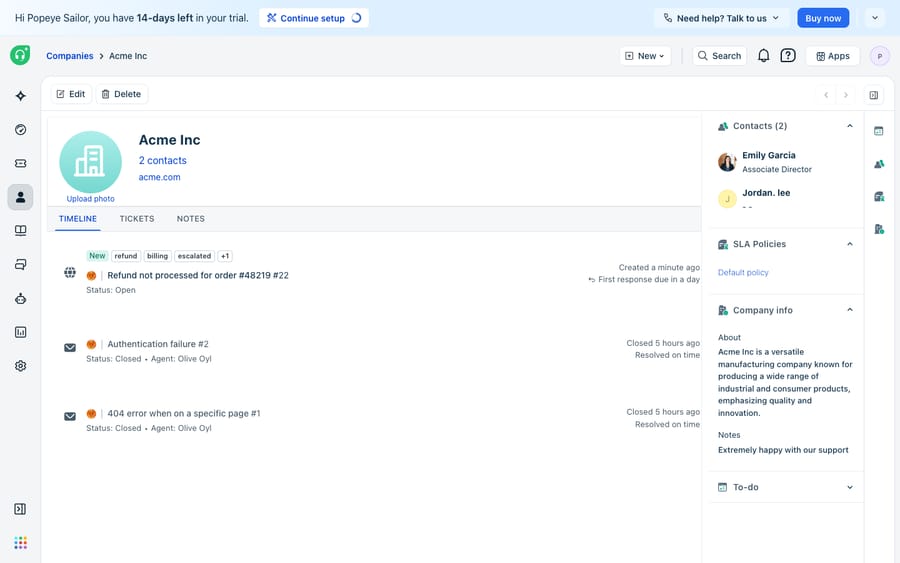
The default relationship is one-to-many: one company holds many contacts, and on Growth each contact belongs to one company. From Pro, Freshworks' Manage customer data article lets you associate one contact with several companies, up to 20, which is how resellers and account managers who raise tickets for multiple clients get modeled. A contact can also hold up to 10 email addresses. That company link is what lets Freshdesk answer "which account is this ticket for?" automatically, and everything below builds on it.
How do contacts get created and linked to a company?
Contacts land in Freshdesk three ways, and you rarely create them by hand:
- Automatically, from an incoming ticket. The first time someone emails your support address, Freshdesk creates a contact from their email. This is by far the most common path.
- Manually, under the Contacts tab, when you want to pre-load someone before they write in.
- By import, in bulk from a CSV — covered below.
Association to a company happens either by email domain (add acme.com to the Acme company record, and every new @acme.com contact attaches to it automatically) or by editing an individual contact and setting its company by hand. The domain-matching route is what makes companies mostly self-maintaining once the record exists — new employees at an existing customer slot into the right account without anyone touching them.
How do you add custom contact and company fields?
The default fields cover the basics, but the real value comes from custom fields that capture what your business cares about — an account tier, a renewal date, a Shopify customer ID, a region. Per Freshworks' Manage your Customer Data Schema documentation, custom fields live in two separate places:
- Contact fields: Admin → Support Operations → Contact Fields
- Company fields: Admin → Support Operations → Company Fields
Custom fields are gated: you need the Growth plan or above to create them. Once you're there, you build a field by dragging a field type onto the layout, and nine types are available: Single-line Text, Multi-line Text, Checkbox, Number, Dropdown, Phone number, Date, plus Encrypted text for contacts only and URL for companies only.
A couple of practical notes. Each field has a "Display to agent" toggle — turn it off and agents no longer see the field, though workflows, exports and the API can still read it. And the field type you choose matters more than it looks, because — as the next section shows — only certain types can be used to filter companies for an SLA.
How do you import existing customer data?
If you're moving from another tool or seeding accounts in bulk, Freshdesk imports contacts and companies from CSV. Per the Import and export customers documentation:
- Go to the Contacts tab and click Import (to import companies, use the Import button on the Companies page).
- Click Upload a File and select your CSV.
- Map the CSV columns to Freshdesk fields.
- Click Import and wait for it to finish.
Two requirements catch people out. First, your CSV must include a Name plus either an email address or a phone number — email is the unique identifier, so a row without one can't be de-duplicated. Second, and this is the big one: any custom fields in your CSV must already exist in Freshdesk before you import. Add them under Admin → Support Operations → Contact/Company Fields first, or those columns simply won't map. Build the schema, then pour the data in. Three smaller rules from the same article: dates must be YYYY-MM-DD, the file must be UTF-8, and the account needs at least 10 tickets before a contact import will succeed, which catches brand-new accounts seeding data before go-live.
How do you give one company its own SLA?
This is the part people expect to be a single toggle and it isn't. There's no "company SLA" field you flip on a company record. Instead, you scope an SLA policy to a company segment — and that's a specific, slightly roundabout recipe. Based on Freshworks' community guidance:
- Create a custom company dropdown field (e.g. "Account Tier" with values Enterprise / Standard / Trial) under Admin → Support Operations → Company Fields.
- Populate it — export your companies, fill in the tier column, and import them back.
- Build a segment on the Companies tab: click Add filters, filter by your custom field, and save the result as a segment.
- Reference that segment when you create a new SLA policy, so tickets from those companies get the tighter targets.
Note the catch that trips teams up: SLA filtering works on custom company fields of type dropdown, number, or checkbox — but not on Freshdesk's default built-in company fields. So even if there's a native "account tier" concept, the documented workaround is to duplicate that value into a custom dropdown you can actually filter on. It's a real limitation, and Freshworks has logged it as a feature request. (Remember, too, that creating multiple SLA policies at all requires Pro or above — the default policy is the only one you get on lower tiers.) If you want the full policy-building walkthrough, our companion guide on Freshdesk automations covers the surrounding workflow rules that read these same fields.
Where does the native model stop, and where does an AI layer fit?
The contacts-and-companies model is solid, deterministic infrastructure: it stores who your customers are, groups them by account, and lets rules read those attributes. That's genuinely valuable and worth keeping as your source of truth. But notice what the data model doesn't do.
It stores context; it doesn't use it. A contact's tier or a company's renewal date sits on the record until a human opens the sidebar, reads it, and decides what it means for this reply. The data doesn't draft the answer, doesn't decide the tone, and doesn't fetch anything live — if the question is "what's the status of Acme's order #4471?", the company record can't answer it, because that data lives in Shopify or your order system, not in Freshdesk. And the custom fields you so carefully built only shape a ticket if an automation rule or an agent explicitly acts on them; on their own they're just fields.
This is the seam where an AI agent layer fits, and it's worth being clear-eyed about it. The broader category of AI agents for customer service exists to do the reasoning the data model can't. Macha is one such layer: it runs on top of the Freshdesk you already use as a native connector — it does not replace your help desk, your contacts, or your companies. You connect Macha to Freshdesk with your subdomain and API key, and it reads the same contact and company records your team maintains: recognizing a contact's account tier and tailoring the response, checking a company's SLA context before it replies, and reaching past Freshdesk into your order or billing system through a custom tool that turns a REST API into something the agent can call — so "what's the status of order #4471?" gets an actual answer instead of a lookup. If you want to see how that connects end to end, our guide on how to automate Freshdesk with AI walks through the setup.
Two clarifications. Macha's connector is for Freshdesk specifically — not Freshchat, Freshservice, or Freshcaller. And Macha bills per ticket — one conversation, charged once however many steps it takes — not per resolution; the pricing page breaks down exactly what counts as a ticket. The clean division of labour: keep Freshdesk's contacts and companies as the system of record for who your customers are, and layer an agent on top for the part the records can't do — turning that stored context into a fast, grounded reply.
FAQ
What's the difference between a contact and a company in Freshdesk? A contact is an individual person (the requester on a ticket), identified primarily by email address. A company is an organization that groups many contacts together. On Growth each contact belongs to one company; on Pro and Enterprise a contact can belong to up to 20. Companies let you manage customers at the account level, including attaching domains, notes, and an SLA policy.
Where do I add custom contact or company fields? Contact fields live under Admin → Support Operations → Contact Fields, and company fields under Admin → Support Operations → Company Fields. Creating custom fields requires the Growth plan or above. Available types include text, checkbox, number, dropdown, phone, date, encrypted text (contacts only) and URL (companies only).
How do I set a different SLA for a specific company? There's no direct "company SLA" toggle. You create a custom company dropdown field (e.g. account tier), populate it, build a company segment by filtering on that field on the Companies tab, and then reference that segment in a new SLA policy. Note that multiple SLA policies require Pro or above, and SLA filtering only works on custom fields of type dropdown, number, or checkbox — not default company fields.
How do I import contacts and companies into Freshdesk? Use the Import button on the Contacts tab (or the Companies page for companies), upload a CSV, map the columns, and import. Your CSV needs a Name plus an email or phone number, the account needs at least 10 tickets, and any custom fields must already exist in Freshdesk before you import — add them under Admin → Support Operations first.
Can I add AI to my Freshdesk contacts and companies without replacing Freshdesk? Yes. An AI agent layer like Macha connects to Freshdesk as a native connector and reads the same contact and company records you already maintain — it doesn't replace them. It can recognize a contact's tier, check company context, and look up external data through a custom tool, while Freshdesk stays the system of record for who your customers are.
Ready to turn the customer data you already store into faster, grounded replies? Start a free trial of Macha and connect it to your Freshdesk in minutes.






