





 Shopify
 Stripe
 Slack
Slack Notion
 Google Workspace
 Confluence

What Are Freshdesk Scenario Automations and How Do You Run Them in Bulk?


A Freshdesk Scenario Automation is a saved macro an agent runs by hand, applying a named set of ticket actions to one ticket or to a batch selected in the list view. Unlike Dispatch'r, Observer and Supervisor rules, a Scenario never fires on its own, which makes it the tool for judgment calls and backlog cleanups.
Key takeaways
- A Freshdesk Scenario Automation is a manually triggered macro that bundles up to 18 action types, such as set priority, add a tag, assign a group or email the requester, into one click.
- Freshdesk Scenarios are built under Admin, Agent Productivity, Scenario Automations, and can run on a single ticket or in bulk on tickets selected from the list view.
- Freshdesk includes Scenario Automations on the Growth, Pro and Enterprise plans, priced at $19, $55 and $89 per agent a month billed annually.
- A Freshdesk Scenario containing the Set Reply as action prefills the reply editor instead of sending, and can only be run from the ticket details page, not in bulk.
- Macha adds an AI layer on top of Freshdesk from $299 a month for up to 750 tickets, charged once per conversation however many steps the agent takes.

A Freshdesk Scenario Automation is a saved macro that an agent runs with one click: you bundle actions such as set priority, add a tag, assign a group and email the requester, then apply them to one ticket or to many selected tickets from the list view. Scenarios live under Admin | Agent Productivity > Scenario Automations, offer 18 action types, and come with the Growth, Pro and Enterprise plans.
| Question | Answer (Freshdesk docs, checked 24 Sept 2026) |
|---|---|
| What triggers it? | An agent clicks it; it never fires on its own |
| Where do you build it? | Admin | Agent Productivity > Scenario Automations > New Scenario |
| How many action types? | 18, from set priority to mark as spam |
| Bulk use? | Yes, select tickets in the list view and click Scenarios |
| Which plans? | Growth ($19), Pro ($55) and Enterprise ($89) a month per agent, billed annually |
What is a Freshdesk Scenario, exactly?
A Scenario Automation is a manually triggered macro. You define a set of actions once (set the priority, add a tag, assign the ticket to a group, drop in a canned note, send an email to the requester) and Freshdesk saves that bundle under a name. From then on, an agent looking at a ticket can apply the whole bundle with a single click instead of performing five or six separate edits by hand.
The distinction that trips people up: this is not the same family as Dispatch'r, Observer, and Supervisor rules. Those rules run automatically the moment their conditions are met (a ticket is created, a field changes, a timer elapses) with no human in the loop. Freshdesk's pricing page now calls them ticket dispatch and automations, but the admin screens and docs still use the older names. A Scenario is the opposite. Nothing fires until an agent decides to run it. That makes Scenarios the right tool for judgment calls a rule can't safely make on its own: the ticket that looks like a refund but needs a human to confirm before it gets tagged, routed, and moved into a "Processing refund" status in one motion.
Freshworks describes them as a way to "perform a whole bunch of tasks with a single click, right from within a ticket." That phrase, right from within a ticket, is the whole point. The agent stays in context, reads the conversation, decides, and executes.
How do you create a Scenario in Freshdesk?
Building one is quick. In Freshdesk:
- Go to Admin | Agent Productivity > Scenario Automations, then click New Scenario.
- Name it and add a description: something an agent will recognize at a glance in a long list, like "Refund intake" or "Overdue: note + notify."
- Add your actions in order. Freshworks documents 18 action types you can stack, including set priority, type, and status; add a note, tag, or watcher; assign to an agent, group, or product; send an email to the group, agent, or requester; and delete a ticket or mark it as spam.
- Set visibility. You choose whether the Scenario is visible just to you, to all agents, or to others in your group, so a team can standardize its routines without cluttering everyone else's menu.
- Save. It now appears in the Scenarios list for every agent you granted access to.
One useful subtlety: there's a "Set Reply as" action that prefills the reply editor with drafted text rather than sending it, so the agent still gets the final say before anything goes out to the customer. The catch: Freshdesk only lets you run a Scenario containing "Set Reply as" from the ticket details page, not from the ticket list, so it cannot be part of a bulk run.
How do you run a Scenario on one ticket or in bulk?
There are two ways to execute, and the bulk path is where the real time savings hide.
On a single ticket: open the ticket, click More actions | Execute scenarios, pick the one you want, and apply it. Every action in the bundle runs in order, and you'll see the ticket update in place.
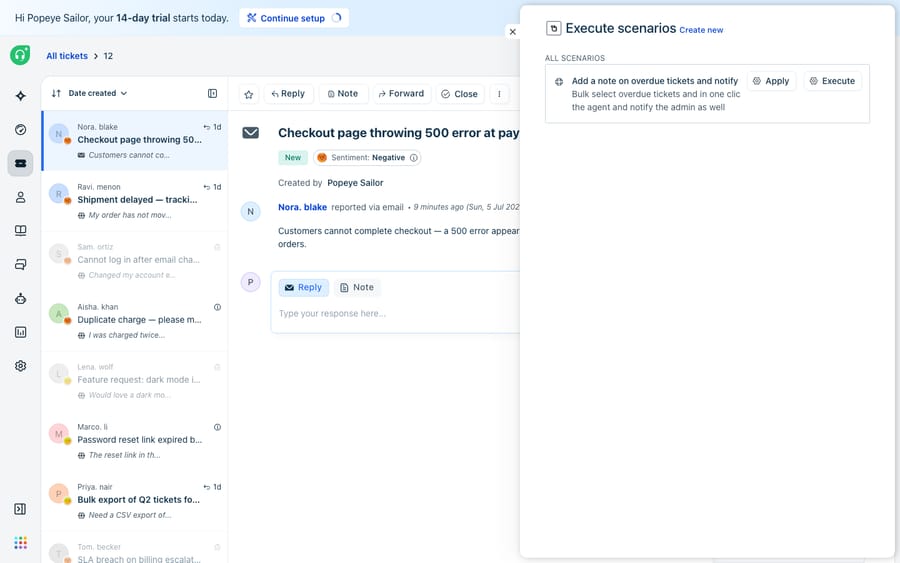
On many tickets at once: from the ticket list view, select every ticket you want to act on, click the Scenarios button, and choose the Scenario to run. Freshworks documents this bulk path directly: you can "execute a Scenario and update either a single ticket or multiple tickets." This is the one-click bulk action the feature is famous for: sweep a filtered view of forty stale tickets, hit one Scenario, and every one of them gets the same note, tag, and reassignment in a single motion.
A quick worked example. Say your team gets a wave of refund requests after a billing hiccup. Without a Scenario, each ticket means tagging it refund, assigning it to the Refunds group, and flipping the status to "Processing refund": three edits, times forty tickets. With a Scenario named "Refund intake," you filter the view, select all forty, click Scenarios, and it's done. Freshworks uses almost exactly this refund example in its own documentation, because it's the canonical case where a repetitive, multi-step routine collapses into one click.
Should you use a Scenario or a Dispatch'r rule?
They look similar on the surface, since both apply a set of actions to a ticket, but the trigger is completely different, and choosing wrong leads to either over-automation or endless manual clicking.
| Scenario Automation | Dispatch'r rule | |
|---|---|---|
| Trigger | An agent clicks it | Fires automatically at ticket creation |
| Human in the loop | Yes, always | No |
| Best for | Judgment calls, ad-hoc cleanup, bulk sweeps | Deterministic intake triage |
| Runs on existing tickets | Yes, any time, including in bulk | No, only on new tickets |
| Reads meaning | No, fixed action list | No, keyword and field conditions |
| Plan gating | Growth, Pro, Enterprise | Growth, Pro, Enterprise |
The rule of thumb: if the decision is safe to make with keyword-and-field logic and should happen every single time without exception, make it a Dispatch'r rule. If the decision needs a human to look first, or you're cleaning up a backlog that already exists, reach for a Scenario. For the full picture on the automatic rules, see our companion guide to Freshdesk automations.
What can't a Scenario do, and where does an AI layer help?
Scenarios are genuinely excellent at what they do, and no AI layer should replace them. They're instant, predictable, auditable, and they keep a human in control. If your workflow is "an agent reads a ticket, recognizes a familiar pattern, and applies a known set of edits," a Scenario is the correct, native, free-with-your-plan answer. Credit where it's due.
But a Scenario is a fixed list of actions with no understanding of the ticket it's applied to. It can't read "I was double-charged and I want my money back" and decide that it's a refund; a human still has to make that call and pick the right Scenario. It can drop a canned note, but it can't compose a reply grounded in your actual help center. It can't look up the order in your billing system to confirm the charge before acting. And it can't run itself on the right tickets by intent; you have to filter and select them by hand. Everything that requires language understanding, judgment, or a lookup in another system sits outside what a saved macro can express. Freshdesk's docs also don't publish a hard cap on how many tickets you can sweep at once, so very large bulk runs are worth testing on a small batch first.
This is the seam where an AI agent for customer service fits, and it's worth being clear-eyed about the build-versus-buy tradeoff before you invest. Macha is one such layer: it runs on top of the Freshdesk you already use as a native connector. It does not replace your help desk, and it is not a Freshdesk alternative. You connect it with your subdomain and API key, and it reads and writes the same tickets your Scenarios already touch: posting replies, adding notes, updating priority, status, and tags, assigning tickets. The difference is that an agent acts on the meaning of the conversation. It can read the double-charge complaint, recognize it as a refund, look up the charge through a custom tool that turns your billing API into something the agent can call, draft a grounded reply for approval, and set the ticket up correctly: the reasoning that turns "which Scenario should I pick?" into something the agent decides for itself. (Note: Macha's connector is for Freshdesk specifically, not Freshchat, Freshservice, or Freshcaller.) Because agents are non-deterministic, Macha runs a candidate agent across your real historical tickets and scores the outcomes before it ever touches a live queue, so you ship on evidence rather than hope.
The practical division of labour is clean. Keep Scenarios for the deliberate, human-in-the-loop routines they're built for. Layer an agent on top for the reading-and-judgment work no fixed macro can do: deflecting repetitive questions with answers grounded in your help center, triaging by intent, and drafting first replies your agents approve. You can review Macha's pricing (billed per ticket, one conversation charged once however many steps the agent takes, from $299 a month for up to 750 tickets, with setup and monitoring by the Macha team included) and see the Freshdesk connector for setup details.
FAQ
What is a Scenario Automation in Freshdesk? It's an agent-run macro: a saved, named, ordered list of ticket actions (set priority, add a tag, assign to a group, add a note, email the requester, and more) that an agent executes on a ticket, or on many tickets at once, with a single click. Unlike Dispatch'r, Observer, and Supervisor rules, a Scenario never fires on its own; an agent triggers it manually.
How do I run a Scenario on multiple tickets at once? From the ticket list view, select every ticket you want to act on, click the Scenarios button, and choose the Scenario. Every action in it runs on all the selected tickets in one motion. Per Freshworks' documentation, you can execute a Scenario on either a single ticket or multiple tickets.
Where do I create a Scenario in Freshdesk? Go to Admin | Agent Productivity > Scenario Automations, click New Scenario, give it a name and description, add your actions in order, and set who can see it (yourself, all agents, or your group).
Is Scenario Automation on a free Freshdesk plan? Freshdesk's pricing page no longer lists a Free plan; it shows Growth at $19, Pro at $55 and Enterprise at $89 per agent a month billed annually, plus a 14-day trial of Enterprise. Freshdesk's Scenario article lists Growth, Pro and Enterprise (and the legacy Blossom, Garden, Estate and Forest plans) as the plans that include Scenarios.
Can a Scenario with a "Set Reply as" action run in bulk? No. Freshdesk only lets you execute a Scenario that contains "Set Reply as" from the ticket details page, not from the ticket list page, so bulk runs are limited to Scenarios without that action.
Can I add AI to Freshdesk Scenarios without replacing Freshdesk? Yes. An AI agent layer like Macha connects to Freshdesk as a native connector and runs on top of your existing help desk; it isn't a replacement. It reads and writes the same tickets your Scenarios do, but acts on the meaning of a conversation (choosing the right action by intent, drafting grounded replies, looking things up through custom tools) rather than applying a fixed, pre-chosen list of edits.
Ready to put reasoning on top of your Freshdesk routines? Start a free trial and grade an agent against your own tickets before it goes live.






