





 Shopify
 Stripe
 Slack
Slack Notion
 Google Workspace
 Confluence

How Do Front Signatures Work? Personal, Shared and Dynamic Signatures


Front lets any teammate create a personal email signature, while only company admins or teammates with workspace permissions can create shared ones, and a personal signature wins when both apply. Variables fill in each sender's name and title at send time, and each channel can have its own default signature.
Key takeaways
- Front has personal signatures any teammate can create and shared signatures that only company admins or teammates with workspace permissions can create.
- A personal Front signature takes precedence over a shared one on the same channel, and Front says a company-wide signature teammates cannot change is not possible.
- Front sets a default signature per channel under Channels, then the Settings tab, then Default signature, which also changes the sender display name for that channel.
- Front signatures work only on email channels; chat, SMS, Instagram and other channels are not supported.
- Front user variables such as the sender's name stay blank in automatic replies sent by rules, because no teammate is tied to the reply.

Front has two kinds of email signature: personal signatures any teammate can create, and shared signatures that only company admins or teammates with workspace permissions can create. Both can use variables such as {{user.name}} that fill in the sender's details at send time, each channel can have its own default, and a personal signature beats a shared one on the same channel. Signatures only work on email channels.
| Question | Personal signature | Shared signature |
|---|---|---|
| Who can create it | Any teammate | Company admins or teammates with workspace permissions |
| Where it's set | Gear icon → Personal settings → Signatures | Gear icon → workspace settings → Signatures |
| Channels it can be default on | Individual channels | Shared channels |
| Precedence | Wins when visible on a shared channel | A default, not a lock |
| Channel types | Email only; chat, SMS, Instagram and other channels are not supported | |
What's the difference between personal and shared signatures in Front?
Front splits signatures into two settings areas, and knowing which one you're in explains most of the confusion. A personal signature is yours: you create it in your own settings and use it on the channels you can access. A shared (team) signature is created at the workspace level so a whole support or sales channel sends the same block, with the same disclaimer and brand formatting, without every teammate rebuilding it.
The rule to remember is precedence. Per Front's Create or edit shared signatures documentation, "only company admins or users with workspace permissions can create shared signatures," while any teammate can create personal ones. If your personal signature is visible on a shared channel, your personal signature takes precedence over the shared one. That lets an individual sign with their own name over a team default, but it also means a shared signature is a default, not a lock. Front answers the question directly: it's not possible to enforce a company-wide signature that teammates can't change.
What fields does the Front signature editor have?
Whether you're building a personal or shared signature, the editor exposes the same handful of fields. Per Front's Create or edit individual signatures guide, you'll set:
- Name: an internal label only. It never appears to the recipient; it's how you find the signature in your list. Name them by purpose ("Support EU," "Sales outbound") so you can tell them apart later.
- Sender info: the public display name recipients see in the email header (the "From" name). It's linked to the signature, which matters more than it looks, as you'll see with per-channel defaults below.
- Channel access: which channels are allowed to use this signature. This is how you scope a signature to one inbox instead of all of them.
- Signature body: the rich-text (or HTML) block itself: your closing, name, title, links, logo and any legal footer.
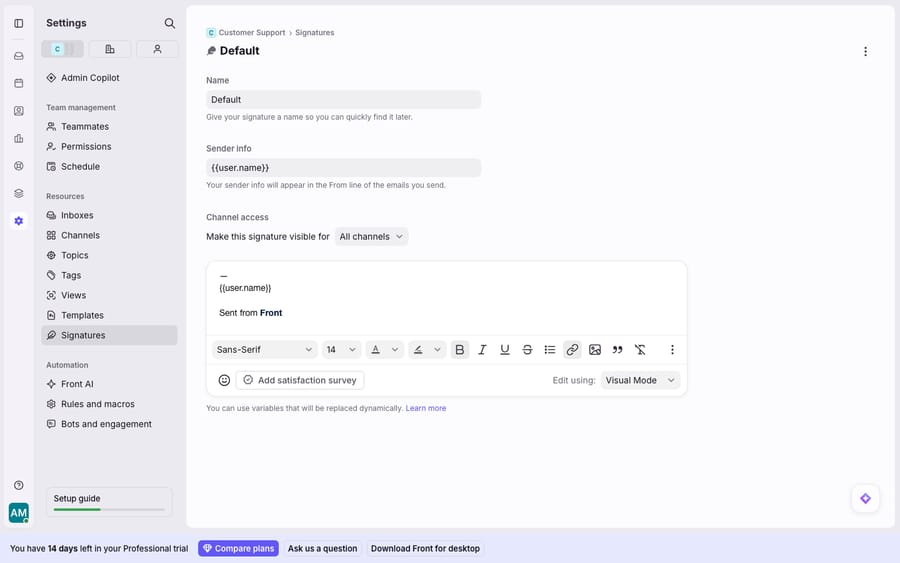
To reach these: click the gear icon, go to Personal settings for your own signatures or workspace settings for shared ones, select Signatures in the sidebar, and click Create signature.
Which variables make a Front signature dynamic?
Variables are what make a shared signature usable. Without them, a team signature would have to hard-code one person's name, which breaks the moment a second teammate replies. Front's variables resolve placeholder text against the sender or recipient at send time.
The ones you'll use in signatures come from the current-user object. Per Front's Using variables and application objects reference, the key ones are:
{{user.name}}: the sending teammate's full name{{user.first_name}}and{{user.last_name}}: the parts{{user.email}}: their email address{{user.custom.[field_name]}}: a custom teammate field, e.g.{{user.custom.job_title}}or a phone extension
So an admin can build one shared signature body, Best,\n{{user.name}}\n{{user.custom.title}} · Acme Support, and every teammate who sends from that channel gets their own name and title. You can also address the recipient with {{recipient.first_name}} and guard against blanks with Front's fallback syntax: {{recipient.first_name | 'there'}} renders "there" when no first name exists. Front's doc notes the fallback must sit inside single quotes.
One caveat to design around: user variables stay blank in automatic replies. Front's reference says that when message templates send automatic replies through rules, the user variables "will be blank because no user is actually tied to the reply." For an automated out-of-office or rule-driven send, don't rely on {{user.*}}; hard-code the team name instead.
How do you set a default signature for each channel in Front?
If you manage several email addresses in Front (support@, sales@, billing@), you rarely want the same signature and display name on all of them. Front lets you set a different default signature per channel in the channel's own settings. Per Front's How to set a default signature for a channel guide:
- Click the gear icon, then go to workspace settings (for a shared channel) or Personal settings (for an individual channel).
- Select Channels from the left menu and pick the channel.
- Open the Settings tab and find Default signature.
- Select the signature to use by default when sending from this channel, and click Save.
One rule applies: you can only pick personal signatures as the default on individual channels, and shared signatures on shared channels. Because Sender info is linked to the signature, this also sets a different display name per channel: replies from sales@ can go out as "Alex at Acme" while support@ replies go out as "Acme Support." If no default is chosen, Front falls back to a shared signature where one is available, and your personal signature still wins where it applies.
How do you write HTML signatures that render correctly?
Front signatures support an HTML mode, which is where teams add logos, buttons and brand fonts. A few habits keep them from rendering as a mess in the recipient's client:
- Use inline styles, not
<style>blocks or classes. Email clients (especially Outlook) routinely strip<head>and external CSS. Put styling on the element:<span style="color:#7C3AED">. - Lay out with tables, not flexbox or grid. For a logo-beside-text block, a simple
<table>is still the most portable layout in email. - Host images at a stable public URL. Reference logos as
<img src="https://...">rather than pasting them, so they don't bloat message size or vanish. - Keep variables intact in HTML mode.
{{user.name}}works inside HTML too; check the toggle didn't wrap your braces in stray tags. - Test by sending to yourself in Gmail, Outlook and Apple Mail. What looks right in Front's editor can shift in a real client.
What can't Front signatures do?
Front's signature system does its job well: consistent, per-channel, variable-driven closing blocks on a shared inbox. It still has edges.
It's email-only. Front's shared-signature doc says signatures are only for email channels; chat, SMS, Instagram and other channels are not supported. If your team works those channels, signatures don't follow.
You can't enforce a signature. A shared signature is a default, not a policy. A teammate can edit or remove it on a message, and their personal signature overrides it on a shared channel. For legal disclaimers that must appear, that's a gap Front doesn't close natively.
A signature is presentation, not content. This isn't a knock on Front: a signature makes the reply look right but does nothing to produce the reply. {{user.name}} resolves who's signing, but the paragraph above it, the actual answer to "where's my order?", is still human work, and on a busy shared inbox that's where the time goes.
That last gap is where an AI agent layer fits: not to replace Front, but to speed up the part signatures can't touch. AI agents for customer service do the drafting an inbox tool leaves to people. Macha is one such layer: it runs on top of the Front you already use through a native connector and does not replace Front, your shared inbox or your signatures. It reads and drafts against the same conversations, proposing grounded replies for a teammate to review and send, so the answer above your signature is ready sooner. It can look up order or account status through a custom tool that turns an internal API into something the agent can call, and you can choose which conversations it touches with the same rules you already use. Macha bills per ticket, one conversation charged once however many messages it takes, from $299 a month for up to 750 tickets; see the pricing page, and the Macha–Front integration page for how the connector works.
The split: let Front own the signature, the branded, per-channel block that makes every send look consistent, and add an agent for the reply itself.
FAQ
Where do I set up signatures in Front? Click the gear icon, go to Personal settings for your own signatures or workspace settings for shared ones, select Signatures, and click Create signature. Each signature has a Name (internal only), Sender info (the public display name), Channel access and a rich-text or HTML body.
What's the difference between a personal and a shared signature? A personal signature is yours; a shared (team) signature is created at the workspace level so a whole channel sends a consistent block. Only company admins or teammates with workspace permissions can create shared signatures, and a personal signature takes precedence over a shared one on the same channel.
How do dynamic signature variables work? Variables like {{user.name}}, {{user.first_name}} and {{user.custom.[field_name]}} resolve to the sending teammate's details at send time, so one shared signature renders correctly for everyone. You can also use {{recipient.first_name}} with a fallback like {{recipient.first_name | 'there'}}. User variables stay blank in automatic replies since no teammate is tied to them.
Can I use a different signature for each inbox? Yes. Go to settings, then Channels, pick the channel, open its Settings tab and choose a Default signature. Individual channels take personal signatures and shared channels take shared ones. Because Sender info is linked to the signature, this also sets a different display name per channel.
Do Front signatures work on chat or SMS? No. Front signatures apply only to email channels. Chat, SMS, Instagram and other channels don't use them.
Want the reply above your signature to be as polished as the signature itself? Start a free trial of Macha and connect it to your Front in minutes.






