





 Shopify
 Stripe
 Slack
Slack Notion
 Google Workspace
 Confluence

How Do Freshdesk Ticket Forms and Templates Work? (2026 Setup Guide)


Freshdesk ticket forms control what customers fill in on your portal, and ticket templates pre-fill the tickets your agents create, and both need the Pro plan or above. Here are the exact menu paths, how multiple forms show up to customers, and where each feature stops.
Key takeaways
- Freshdesk ticket forms face customers and ticket templates face agents, and both features need the Pro plan ($55 per agent a month billed annually) or Enterprise.
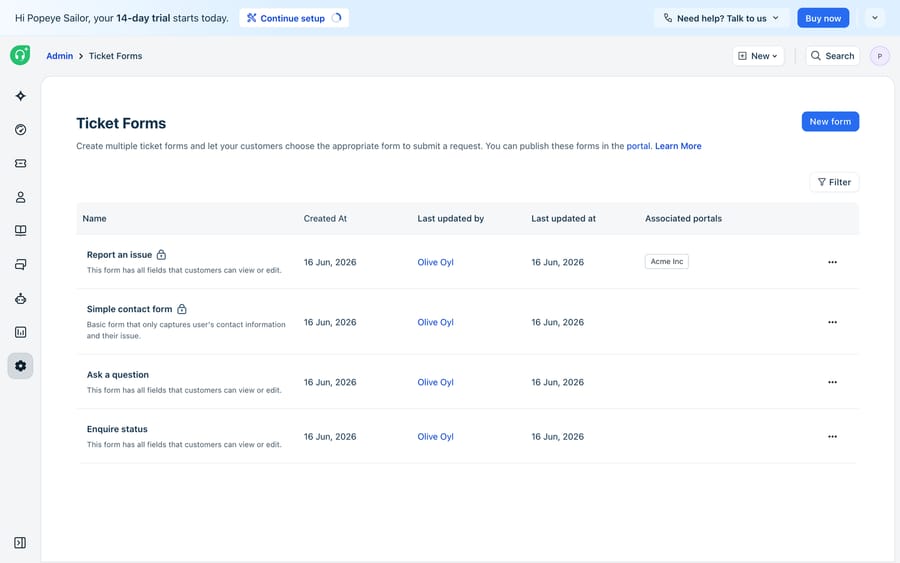
- A Freshdesk account can hold up to 50 ticket forms, created under Admin, Workflows, Ticket Forms, while Growth accounts keep only the default Report an issue form.
- When more than one ticket form is deployed to a Freshdesk portal, the forms appear as the first dropdown on the ticket submission page.
- Applying a Freshdesk ticket template overwrites every field value already on the ticket, so agents should apply the template first and fill in specifics second.
- Macha connects to Freshdesk with a subdomain and API key and triages tickets by intent, billed per ticket from $299 a month for 750 tickets.

Freshdesk ticket forms are customer-facing intake forms (up to 50 per account, with extra forms from the Pro plan at $55 per agent a month billed annually), while ticket templates are agent-facing presets under Admin → Agent Productivity → Ticket Templates that pre-fill a new ticket in two clicks. Growth accounts get the single default "Report an issue" form and no templates, so both features start at Pro.
| Feature | Who uses it | Where to set it up | Plans | Limit |
|---|---|---|---|---|
| Multiple ticket forms | Customers on the portal or widget | Admin → Workflows → Ticket Forms | Pro ($55) and Enterprise ($89) | 50 forms per account |
| Ticket templates | Agents creating tickets or outbound emails | Admin → Agent Productivity → Ticket Templates | Pro and Enterprise | Scoped to all agents or chosen groups |
| Default form only | Customers | Built in | Growth ($19) | 1 form, "Report an issue" |
Prices are per agent per month, billed annually, from the Freshdesk pricing page (checked 24 September 2026). Freshdesk no longer lists a free plan there; new accounts get a 14-day trial of Enterprise.
What's the difference between a ticket form and a ticket template?
The distinction that matters is direction. A ticket form faces outward, toward the person submitting a request through your customer portal or help widget. A ticket template faces inward, toward the agent creating a ticket inside Freshdesk. They solve different problems from opposite sides of the same ticket.
Forms are about intake quality. If everyone who contacts you sees the same "Report an issue" form, a refund request and a login bug arrive looking identical, and an agent has to chase the missing details. Multiple forms let you ask a billing question one set of fields and a bug report a different set, so the ticket lands complete.
Templates are about agent speed. When the same shape of ticket recurs (an onboarding request, a return, a known outage log), a template pre-fills the subject, description, and properties so an agent doesn't retype it. If you already lean on canned responses to speed up replies, templates are the equivalent for creating tickets.
How do you set up multiple ticket forms in Freshdesk?
Every Freshdesk account starts with one form, "Report an issue." Freshworks' Understand and Use Ticket Forms article says multiple forms are available from the Pro plan onwards and that an account can hold up to 50 ticket forms. Growth stays on the single default.
To build one:
- Go to Admin → Workflows → Ticket Forms and click New form.
- Give the form a name and description, then click Create.
- On the form builder, the left panel lists every ticket field with the "Can view" property enabled for customers. Drag and drop the fields you want into the form body. A billing form might pull in an "Order number" field; a bug form might pull in "Steps to reproduce."
- Reorder the fields, mark the required ones, then Save.
A form can only use customer-visible fields, so if a field you want isn't in the left panel, switch on its "Can view" (customer) property in your ticket-field settings first.
How do you link forms to your portal, and where does the dropdown appear?
A form that isn't published does nothing. Once you've built one, click Publish in the form editor and select which portals and feedback widgets it should appear on. You can also manage this from the portal side: go to Admin → Channels → Portals, click Edit on the portal, open the Manage sections tab, and add forms from the Add ticket form dropdown.
Here's the behavior that trips people up. When you deploy more than one form to a portal, Freshworks' docs say the forms appear as the first dropdown on the ticket submission page. A customer clicking "Contact support" first picks which kind of request they're raising, and only then sees the matching fields. Name your forms the way a customer thinks ("Report a bug," "Ask a billing question") rather than in internal jargon, because that dropdown label is the first decision you're asking them to make. Widgets work the same way: under Admin → Channels → Widgets, choose "Show form with ticket fields" and pick which forms to expose.
How do you set up ticket templates for repetitive requests?
Templates live in a different corner of Admin. Per Freshworks' Creating and using ticket templates article, go to Admin → Agent Productivity → Ticket Templates and click New Template. Like multiple forms, templates are a Pro and Enterprise capability; the pricing page's feature table ticks only those two plans.
Inside a template you can pre-fill:
- Subject and description, including an existing canned response inserted via the star icon in the description box, so wording you've already refined for replies can seed a new ticket.
- Ticket properties: default and custom fields (except requester and source), tags, and document attachments.
- Visibility: scope the template to all agents or only agents in particular groups, so a returns template doesn't clutter the list for your engineering team.
One behavior to flag: Freshworks' docs say that when a template is applied, all field values are overwritten by the template's values. A half-filled ticket loses what the agent typed, so apply the template first and fill in specifics second. The same article also asks you not to put email signatures in templates.
To use one, an agent clicks New Ticket (or New Email for outbound) and picks the template from the list on the right; the fields populate instantly. For multi-step workflows like employee onboarding or a returns process, parent and child templates go further: a parent ticket automatically spawns pre-defined child tickets, each already assigned to the right group.
Which one do you actually need?
Most teams need both, but for a given problem one is the right tool.
| If your problem is... | Reach for | Why |
|---|---|---|
| Customers submit vague tickets missing key details | Multiple ticket forms | Ask request-specific questions at intake, before the ticket reaches an agent |
| Different request types need different fields | Multiple ticket forms | A billing form and a bug form can show entirely different fields |
| Agents retype the same ticket after every call | Ticket templates | Pre-fill subject, description, and properties in two clicks |
| A recurring workflow spawns several linked tickets | Parent/child templates | One parent auto-creates pre-assigned child tickets |
| You want the reply, not the ticket, sped up | Canned responses | Templates create tickets; canned responses answer them |
Where do Freshdesk forms and templates stop working?
Both features are well built and worth using. But they are structured data entry. A ticket form makes a customer tell you which category their problem falls in and type the relevant details. It doesn't read the free-text description and work out the category itself, so a customer who picks the wrong form (or ignores the dropdown) still lands in the wrong place. And forms only work on channels that render them: a request arriving by plain email skips the form entirely and comes in as a generic ticket.
Templates have a matching ceiling. They pre-fill static content, the same subject and boilerplate every time. They can't pull the customer's actual order status into the ticket, can't tailor the wording to this customer, and can't decide which template a given ticket needs. An agent still reads the ticket, picks the template, and edits it into a real answer. The template saved the typing, not the thinking.
How does an AI agent layer fit on top of forms and templates?
This is the seam where an AI agent layer fits, and it's worth weighing the build-versus-buy tradeoff before adding one. The category of AI agents for customer service exists to do the reasoning a form or template can't: reading the free-text description, inferring intent, and producing a tailored reply. Macha is one such layer. It runs on top of the Freshdesk you already use as a native connector and does not replace your help desk, your forms, or your templates. You connect Macha to Freshdesk with your subdomain and API key, and it reads and writes the same tickets your forms create: triaging by intent (so a mis-selected form still gets routed correctly), and drafting grounded replies that look up live order or account status through a custom tool, which turns a REST API into something the agent can call. We cover the full workflow in how to automate Freshdesk with AI.
Macha's connector is for Freshdesk specifically, not Freshchat, Freshservice, or Freshcaller. Billing is per ticket: one conversation, charged once however many messages it takes, starting at $299 a month for 750 tickets, with setup and monitoring by the Macha team included. The pricing page has the full ladder.
The clean division of labor: let Freshdesk forms and templates handle structure, capturing the request cleanly and saving agents keystrokes, and put an agent on top for the reasoning that turns a structured ticket into an accurate, personalized answer.
FAQ
How many ticket forms can I create in Freshdesk? Up to 50 ticket forms per account. Creating more than the default "Report an issue" form requires the Pro plan or above; Growth accounts are limited to that one form.
Where do I create multiple ticket forms? Go to Admin → Workflows → Ticket Forms and click New form. You build the form by dragging customer-visible ticket fields from the left panel into the form body, then publish it to your portals and widgets.
How do multiple forms appear to customers on the portal? When more than one form is deployed to a portal, they show up as the first dropdown on the ticket submission page. The customer picks which kind of request they're raising, then sees the fields for that form.
What's the difference between a ticket form and a ticket template? A ticket form is customer-facing: it defines what someone fills in to submit a request on your portal. A ticket template is agent-facing: it pre-fills a new ticket's subject, description, and properties so agents don't retype recurring requests. Templates are set up under Admin → Agent Productivity → Ticket Templates.
Are ticket templates available on the Freshdesk Growth plan? No. Freshdesk's pricing page and its support article both list ticket templates on Pro and Enterprise only. Growth ($19 per agent a month, billed annually) doesn't include them.
Can I add AI without replacing Freshdesk's forms and templates? Yes. An AI agent layer like Macha connects to Freshdesk as a native connector and runs on top of your existing forms and templates. It reads the tickets your forms capture, triages them by intent, and drafts grounded replies, while Freshdesk stays the system of record.
Ready to turn a well-structured ticket into an actual answer? Start a free trial of Macha and connect it to your Freshdesk in minutes.






