





 Shopify
 Stripe
 Slack
Slack Notion
 Google Workspace
 Confluence

What Are Freshdesk Ticket Views? Default, Personal and Shared Views Explained


A Freshdesk ticket view is a saved filter on the Tickets tab, grouped into Default, Personal, Shared and Favourites folders. You build a custom view by filtering an existing one and clicking Save as, then choose Just me or All agents to set who sees it.
Key takeaways
- A Freshdesk ticket view is a saved filter on the Tickets tab, grouped into four folders: Default, Personal, Shared and Favourites, which holds up to five starred views.
- Freshdesk ships 11 default system views, including My Overdue Tickets, Open Tickets in My Groups and Urgent and High-Priority Tickets, which agents can re-filter but not delete.
- To build a custom Freshdesk view, open an existing view, narrow it with the filter panel, click Save as, and choose Just me or All agents for visibility.
- Freshdesk custom ticket views start at the Growth plan and are not available on Sprout or Free, according to Freshworks' own documentation.
- Freshdesk ticket lists offer three layouts: Card by default, Table with Contact and Subject fixed plus your own columns, and an email-style Inbox.

A Freshdesk ticket view is a saved filter on the Tickets tab, and Freshdesk sorts views into four folders: Default (11 built-in system views), Personal (visible to you), Shared (visible to all agents) and Favourites (up to five starred views). You create a custom view by opening an existing view, narrowing it with the filter panel and clicking Save as; custom views need the Growth plan or higher, per Freshworks' Understand the Ticket List View documentation.
| Attribute | Default views | Personal views | Shared views |
|---|---|---|---|
| Who creates them | Freshdesk (built in) | You | You (or an admin) |
| Who can see them | Everyone | Only you ("Just me") | All agents ("All agents") |
| Editable / deletable | No | Yes | Yes |
| Best for | Everyday baseline | Your own slices | Team-wide queues |
| Folder it appears in | Default | Personal | Shared |
Where do ticket views live in Freshdesk?
Every ticket view lives on the Tickets tab, grouped into folders in the view switcher at the top-left of the ticket list. The four folders:
- Default: the system views Freshdesk ships with, available to everyone.
- Personal: custom views you've built and kept to yourself.
- Shared: custom views someone has shared with all agents.
- Favourites: up to five views you've starred for one-click access.
That structure is the whole mental model. Freshdesk hands you a set of sensible defaults, you build your own on top, and you promote the useful ones to the whole team.
Which default views does Freshdesk include?
Before you build anything, know what's already there, because the defaults cover most of what a working agent needs day to day. Freshdesk's documentation lists 11 system views:
- New and my open tickets: the landing view most agents start on.
- My Open and Pending Tickets: your active workload.
- My Overdue Tickets: anything of yours past its SLA deadline.
- Open Tickets in My Groups: the shared pool your team pulls from.
- Urgent and High-Priority Tickets: the queue that shouldn't wait.
- All unresolved tickets: the manager's-eye view of open work.
- Tickets I raised, Tickets I'm mentioned in, Tickets I'm watching: your personal threads through the queue.
- Spam and Trash: the two you rarely open on purpose.
You can't delete these, but you can open one and re-filter it on the fly, which is exactly how you build a custom view.
How do I create a custom ticket view in Freshdesk?
This is the mechanism people most often get confused about. You don't start from a blank "new view" form. You start from an existing view, open the filter panel, narrow the list until it shows what you want, and save that as a new view. Per Freshworks' How do I create a custom ticket view guide, the flow is:
- Go to the Tickets tab and open any view (the default New and my open tickets is fine).
- Open the filter panel on the right and set your conditions.
- Watch the ticket list update live as you filter.
- Click Save as at the top of the page.
- Name the view, choose its visibility, and save.
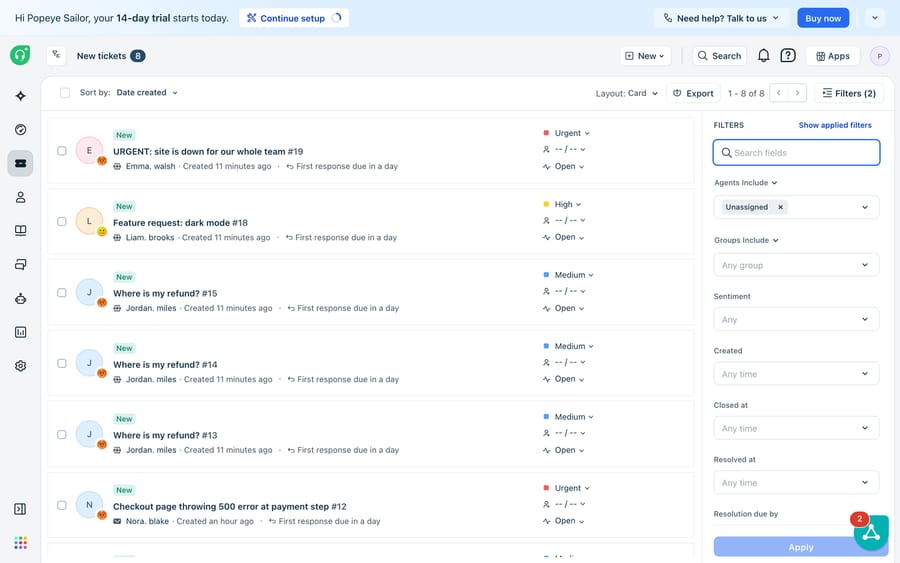
The filter panel is where the real work happens. You can slice on Agents and Groups (including Unassigned, which is how you build a triage queue), Priority, Source, Type and Status, on any custom ticket fields you've created, on contact and company attributes, on the channel the ticket arrived through (Email, Portal, WhatsApp, Facebook, Instagram, Web Chat), and on date filters for Created, Closed, Resolved and Resolution-due-by. Dropdown filters also have a NOT toggle, so you can exclude a value instead of matching it. On plans with Freddy AI, a sentiment indicator helps surface frustrated conversations. Layer a few of these and you get views like "unassigned WhatsApp tickets created today" or "high-priority tickets from VIP companies awaiting a reply."
Should a view be personal or shared?
When you hit Save as, Freshdesk asks who the view is for, and that single choice is the difference between a personal shortcut and a team-wide standard:
- Just me saves it as a Personal view that appears only in your Personal folder. Use this for the slices only you care about.
- All agents saves it as a Shared view that lands in everyone's Shared folder. Use this for queues the whole team should work the same way: the triage pool, the escalations lane, the VIP queue.
Be deliberate here for consistency's sake. If "unassigned tickets to be triaged" is a personal view only one agent has, triage depends on that one person showing up. Promote it to a shared view and triage becomes a place everyone can stand. There's a related idea in Freshdesk's shared ownership model, where tickets shared with you and tickets you've shared out surface through their own views.
Which Freshdesk plans include custom views?
Freshworks' documentation says custom ticket views are available from the Growth plan up. The custom-view guide lists them on the classic Blossom, Garden, Estate and Forest plans (not Sprout or Free), on Freshdesk Omni Growth, Pro and Enterprise, and on the Estate, Forest, Growth, Pro and Enterprise Omnichannel plans. Freshdesk's pricing page no longer lists a free plan; a Free program covers up to 2 agents for 6 months, and without custom views that team works from the defaults only.
How do I change a view's layout or act on its tickets?
A view isn't just which tickets; it's also how they're presented. You can switch the Layout between Card (the default, priority-forward look), Table (choose your own columns, with Contact and Subject fixed) and Inbox (an email-style reading experience). Admins decide which layouts agents can use. Table layout is where power users tend to live, because you add exactly the columns your workflow needs and scan dozens of tickets at a glance.
Alongside layout sits bulk update. Select tickets with the checkboxes and you can change Status, Priority or assignment across the whole filtered set, which pairs well with a tightly scoped view. Once a view is filtered down to the segment you care about, you can also export the ticket list for reporting or a spreadsheet audit. A well-built view plus a bulk update is often the fastest way to clear a backlog category in one pass.
What can't a Freshdesk view do?
Freshdesk's views are well designed: fast, flexible and free of the tag soup that plagues other help desks. But a view is a filter. It surfaces and sorts tickets; it does not work them. A view can put every unassigned WhatsApp ticket in front of you in priority order, but a human still has to open each one, read it, understand the intent and write the reply.
A view also can't reason about content. It filters on structured fields (status, priority, group, channel, dates), so a ticket only lands in your "billing" view if it's already been tagged or typed as billing. It can't read a free-text message that never mentions the word "billing" and route it on meaning alone. And because Favourites caps at five and view lists grow over time, big teams eventually accumulate dozens of overlapping views no one fully trusts. A filter is only as good as the discipline behind naming and pruning it.
This is the seam where an AI agent layer fits, and it's worth understanding the broader category of AI agents for customer service before reaching for one. Macha is one such layer: it runs on top of the Freshdesk you already use as a native connector, and it doesn't replace Freshdesk, its views or your queue. You connect Macha to Freshdesk with your subdomain and API key, and it reads and writes the same tickets your views already organize. Where a view can only surface the unassigned triage pool, Macha reads those tickets by intent and drafts or posts grounded replies; we walk through the mechanics in how to automate Freshdesk with AI. It can pull an order or account status through a custom tool that turns a REST API into something the agent can call, rather than leaving an agent to go look it up. And it works alongside your canned responses, grounding answers in real context instead of a static snippet.
The clean division of labor: keep Freshdesk's views as the source of truth for how work is organized and prioritized, and layer an agent on top for the part a filter can't do. To be precise, Macha's connector is for Freshdesk specifically, not Freshchat, Freshservice or Freshcaller. Macha bills per ticket, one conversation charged once however many messages it takes, never per resolution or deflection, starting at $299 a month for up to 750 tickets; the pricing page breaks that down.
FAQ
Where do I find ticket views in Freshdesk? On the Tickets tab. The view switcher at the top-left groups them into four folders: Default (system views), Personal (your own), Shared (team-wide) and Favourites (up to five starred views).
How do I create a custom ticket view? Open any view on the Tickets tab, use the filter panel to narrow the list, then click Save as at the top of the page, name it, and choose its visibility. You build from an existing filtered view rather than a blank form.
What's the difference between a personal and a shared view? When you save a view, Just me keeps it in your Personal folder (only you see it), while All agents puts it in the Shared folder so the whole team works from the same queue. Use shared views for triage pools, escalations and VIP queues.
Are custom views available on every Freshdesk plan? No. Custom views start at the Growth plan. They aren't on Sprout or Free, but they are on Growth, Pro and Enterprise (including Freshdesk Omni) and the classic Blossom, Garden, Estate and Forest plans. Confirm against your own plan.
Can I add AI on top of Freshdesk views without replacing Freshdesk? Yes. An AI agent layer like Macha connects to Freshdesk as a native connector and runs on top of your existing views and queue. It reads the tickets your views surface, drafts or sends grounded replies, and routes by intent, while Freshdesk stays the system of record for how work is organized.
Ready to let your agents clear the queue instead of just filtering it? Start a free trial of Macha ($50 of free usage, no credit card) and connect it to your Freshdesk.






