Intercom
 Shopify
 Stripe
 Slack
Slack Notion
 Google Workspace
 Confluence

Does Intercom Have a Shared Inbox? How the Inbox and Team Inboxes Work (2026)


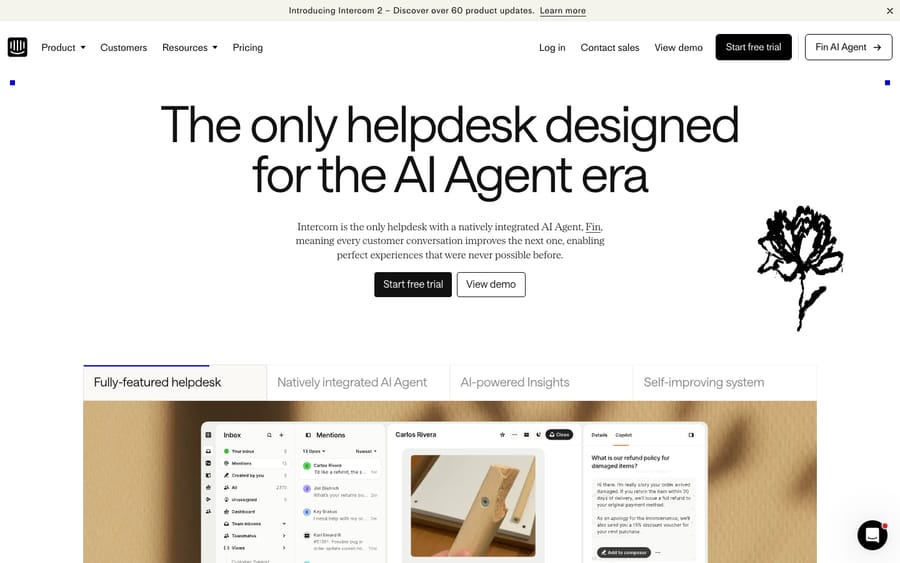
Intercom's agent workspace is called the Inbox, and it works as a shared inbox where teammates see, claim, route and resolve customer conversations from one queue. Team inboxes hold group work, four assignment methods hand it out, and a few admin controls sit behind the Expert plan.
Key takeaways
- Intercom's shared inbox is called the Inbox, and it splits into team inboxes owned by a group and personal assignment, which is work owned by one teammate.
- Intercom assigns conversations four ways: Manual claiming, Round Robin, which does not respect assignment limits, Balanced, which routes to the fewest active conversations, and assignment rules or Workflows.
- Automatic away mode and macros scoped to specific teams both require Intercom's Expert plan, which is where growing support teams meet the upgrade pressure.
- Intercom sends browser and in-app notifications immediately, push and desktop notifications after 10 seconds, and email after 3 minutes, while mentions always go out immediately.
- Intercom handles auto-close as a Workflow template rather than a setting, nudging an inactive customer after a default 3 days before snoozing, messaging and closing.

Yes, Intercom has a shared inbox: its agent workspace is called the Inbox, where teammates work customer conversations from one queue, organized into team inboxes and assigned in four ways (Manual, Round Robin, Balanced, or assignment rules). Two of its admin controls, automatic away mode and team-scoped macros, need the Expert plan, and the Fin AI agent answers ahead of the human queue. We checked every path, label and plan gate below against Intercom's own help center, most recently on September 24, 2026, and linked the article each one comes from. For the wider platform picture, start with what Intercom is; for the support-team angle, see Intercom for customer support.
| Inbox piece | What it does |
|---|---|
| Team inboxes | Shared queues owned by a group, such as Billing or VIP |
| Assignment | Manual, Round Robin, Balanced, or assignment rules/Workflows |
| Automatic away mode | Flips an inactive teammate to Away, workspace-wide; needs the Expert plan |
| Macros | One-click reply plus actions; scoping to specific teams needs the Expert plan |
| Auto-close | A Workflow you build from a template, with a default 3-day wait |
| Notifications | Browser immediately, push and desktop after 10 seconds, email after 3 minutes |
| Merge | Links duplicate conversations rather than combining them; cannot be undone |
Update (September 2026): Salesforce completed its acquisition of Fin, the company formerly known as Intercom, on September 10, 2026. The definitive agreement, announced June 15, 2026, put the price at approximately $3.6 billion; Salesforce says Fin will keep serving its existing customers. The rename from Intercom to Fin happened earlier and separately, on May 12, 2026; Intercom remains the name of the help desk. The Inbox keeps working exactly as described here, but its roadmap and packaging now sit inside Salesforce, which is worth weighing in any long-term commitment.
A quick terminology note. "Shared inbox" and "team inbox" are how people describe Intercom, not separate products you switch on. Intercom's official name for the workspace is the Inbox. Within it, team inboxes are real, named objects you create, while "shared inbox" is the general idea of a queue several people work together.
Which channels feed the Intercom Inbox?
The Inbox is the destination for every customer message, regardless of where it started. Intercom pulls conversations in from several sources:
- The Messenger, the chat widget on your website or inside your app. It is Intercom's signature channel and where most real-time conversations begin.
- Email. Customers emailing your support address land as conversations, not in a separate mailbox.
- Other channels. WhatsApp, SMS, phone, social, and Slack-connected conversations route into the same Inbox so agents work one queue instead of many tabs.
- Fin handoffs. When the Fin AI agent answers first and then escalates, the conversation arrives with its full history attached.
The point of a shared inbox is that all of this converges. An agent does not need to know whether a question came in by chat or email. It is a conversation in a queue, with the customer's record and context attached.
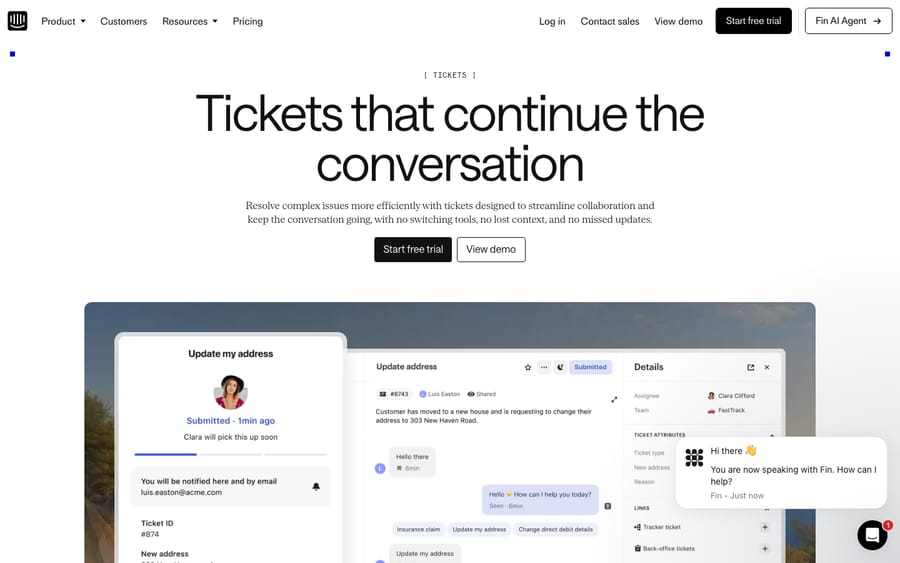
What is the difference between a team inbox and a personal inbox?
Intercom gives the Inbox two scopes, and understanding the split is the key to using it well.
Personal (individual) assignment is your own work. When a conversation is assigned to you, it appears in your "Mine" view. It is still visible to the wider team, because Intercom is a shared workspace and not a set of private mailboxes, but you own the reply.
Team inboxes are the shared queues. A team inbox belongs to a group rather than a person: you assign a conversation to the "Billing" team or "VIP support" team instead of to one teammate. Every team you create gets its own inbox, so members can manage everything assigned to that group, and conversations do not sit unowned when the one person who handles them is out.
In practice most teams run a hierarchy. Conversations land in a team inbox first, sorted by channel, topic, region, or customer tier, then get assigned to an individual, either automatically or when an agent claims one. This keeps unowned work visible at the team level while giving each conversation a clear human owner.
How does Intercom assign conversations?
Assignment is where a shared inbox either runs smoothly or descends into chaos. Intercom supports four approaches, and you can mix them across different team inboxes.
| Method | How it works | Best for |
|---|---|---|
| Manual | Conversations are not auto-assigned; teammates assign to themselves or others | Small teams who prefer to "claim" work |
| Round robin | Distributes new conversations sequentially and evenly to active teammates in the inbox | Even load when everyone handles similar work |
| Balanced | Routes each conversation to the teammate with the fewest active conversations | Keeping the busiest agents from drowning |
| Assignment rules / Workflows | Auto-assign to a team or teammate based on criteria you set | Routing by topic, language, plan, or value |
A few details that matter in real operations:
- Round robin assigns to active teammates in sequence and skips anyone set to "Away," picking back up where it left off. Per Intercom's docs, round robin does not respect a teammate's assignment limit: it keeps distributing in order regardless of how loaded someone is. If even load matters more than strict rotation, Balanced is the safer pick.
- Assignment rules, which run as assignment Workflows, are how you route by meaning. Send billing keywords to the finance team, Spanish speakers to a Spanish inbox, or high-MRR accounts to a VIP team. Criteria can include user attributes, the page a customer is on, keywords in the first message, or custom data like account value.
- Assignment limits and workload management cap how many conversations a teammate can hold at once, so a single agent is not handed fifty open chats. This is the guardrail that makes auto-assignment safe to leave on.
What stops when a teammate goes Away?
Every assignment method above reads one thing first, the teammate's inbox status. Intercom gives each teammate three states, set from the Active and Away buttons in the Inbox itself, with a Reassign replies toggle underneath (Intercom docs):
- Active. Available, receiving new work.
- Away. New work stops arriving. Balanced assignment always skips an away teammate, with no override. Round robin skips them too, unless a team enables "Assign conversations to teammates even if they're away or away & reassigning replies" on that team's settings.
- Away & reassigning replies. As above, plus conversations already assigned to that teammate get reassigned when the customer replies. This is the end-of-shift setting, not the coffee-break one.
The trap is that people forget to flip back. Intercom's answer is automatic away mode, at Settings > Inbox > Assignments > General, where you set an inactivity threshold that flips a teammate to "Change teammate's status to away" or "Change teammate's status to away & reassigning" on your behalf (Intercom docs). Two things to know before you turn it on. It needs the Expert plan and the "Can manage Auto away mode" permission, and it is workspace-wide, so you cannot set a different threshold per team. Intercom counts a closed tab, a minimized window, or a disconnected laptop as inactivity, and the status does not revert on its own when the teammate comes back: they have to set themselves Active again.
On a lower plan the workaround is a shift-start and shift-end habit, plus a manager holding the "Can change status" permission, who can flip a teammate's status from Settings > Workspace > Teammates.
Two behaviours to know before the next section. A manually assigned conversation will not reassign under "away & reassigning" until the customer replies. And back-office tickets cannot be automatically reassigned at all, which Intercom names as a current limitation.
How do snooze and auto-close get conversations out of the queue?
A shared inbox only stays workable if conversations leave it. Intercom gives you three ways out, and teams routinely reach for the wrong one.
Snooze is "not now." It removes a conversation from your open list until a time you pick, either a preset or Custom for a date and time from the calendar. "Snooze until tomorrow" defaults to 9:00 AM in the workspace timezone. Snoozed conversations live under the status dropdown at the top of your inbox list, under Snoozed, and you can sort the inbox by Snooze time to see what is due back.
A snoozed conversation comes back when the timer expires, when a customer or teammate replies, or, the one that surprises people, when an attribute is updated by someone other than the assigned teammate. If your automations write attributes, that alone can un-snooze conversations all day. Admins can narrow what counts under Settings > General, in "Control unsnoozing and reopening" (Intercom docs).
Closing is "done." Reopening happens on a customer reply, and closed conversations are what CSAT and resolution-time reporting run on.
Auto-closing inactive conversations is the one people search for, usually phrased as "close conversations automatically after 7 days," and the honest answer is that Intercom handles it as a Workflow you build rather than a workspace switch you tick. Intercom ships a template for it, "Send a friendly reminder to inactive customers", under Fin AI Agent > Workflows > + New workflow > Create from template, in the Teammate efficiency set. The template runs a sequence rather than a single action: a nudge after the wait period (default 3 days, adjustable), a tag for reporting, a one-day snooze to give the customer a last chance, a closing message, then the close, with a CSAT request attached that you can remove (Intercom docs).
Two things are worth doing differently from the template. Tag the auto-closed conversations, as the template does, and then actually look at that tag: a rising count of auto-closes is a queue that is not being worked, and it will quietly flatter your resolution time. And test the Workflow on one channel before you widen it. Intercom warns that "some workflow steps may not be available on all channels or may behave differently," which in practice bites on WhatsApp and SMS.
The other auto-close, easy to confuse with this one, is for incomplete Workflow conversations, meaning a customer who abandons a bot flow mid-way. That is a separate timer inside the Workflow itself, at each point where the bot waits for input.
How do you merge duplicate conversations?
Duplicates are the standing tax on a shared inbox. The same customer emails, then opens the Messenger, and now two agents are answering the same question.
Intercom can merge them. In the conversation, hit ⌘ / Ctrl K or the three-dot menu, choose Merge into, search for the conversation you want to keep, and confirm after the preview. Cross-channel merging is explicitly supported, so an email conversation can merge into a Messenger one, which is the exact duplicate most teams hit.
What it will not do is the part people assume. The rules, from Intercom's own documentation:
- The message history is not combined. The secondary conversation is closed and linked to the primary with a summary note; both keep their own IDs and stay individually readable. If you expected one clean thread, you will not get it.
- The secondary becomes read-only. You can no longer change its assignee, send messages, or update its ticket attributes, through the UI or the API.
- It cannot be undone.
- Only conversations and Customer tickets merge. Back-office and Tracker tickets do not.
- Conversations with multiple participants cannot be merged at all.
- Channels constrain the pairing. Phone calls merge only into phone calls, and WhatsApp, Facebook, Instagram and Slack merge only within the same channel and the same user or Slack channel.
- Bulk merge is not offered. Multi-select in the Inbox does not include it, which is why it sits on Intercom's public ideas board rather than in the product.
Because a merge is irreversible and can expose one thread's history to the other's participants, it is worth a rule in your team's playbook: merge only when you are certain it is the same person and the same issue.
How do you merge a lead into a user?
Behind duplicate conversations there is usually a duplicate contact. Intercom splits contacts into leads, meaning unidentified people who engaged through the Messenger but never authenticated, and users, who are identified. A lead can merge into a user. A user cannot merge back into a lead.
Most of the time it happens on its own: a logged-out visitor picks up an Intercom cookie, then logs in while that cookie is still there, and the two profiles join. When it does not, you have four routes (Intercom docs):
- From the Inbox. When Intercom detects the duplicate on a conversation, a Merge Lead into User button appears, with a preview before you confirm.
- Edit the lead's email to match the user's. The merge happens the next time that person visits or refreshes.
- CSV import, where a lead row carrying an existing user's email address triggers the merge.
- The REST API. Post to the contacts merge endpoint with
{ "from": "<lead id>", "into": "<user id>" }. The lead is deleted and the updated user is returned.
Know what survives. Lead attributes transfer only where the user profile has no value for that field, so the user's data wins every collision and the lead's version is discarded silently. Conversations all come across. Events come across as first occurred, last occurred, and a count, but the event metadata is dropped. If that metadata matters to you, export it before you merge.
If you want an email address alone to trigger automatic merging, that is a security setting: you enable "Merging of unverified Leads into Users", and it requires "Secure the Messenger with JSON Web Tokens (JWTs)" to be on first. That prerequisite is the point rather than an obstacle. Without identity verification, anyone who typed a known email address into your Messenger would inherit that person's profile.
How do views organize the queue?
A busy shared inbox needs more than one big list. Intercom's views let you define a set of filters (channel, priority, tag, team, SLA status, and more) and see every matching conversation in one place. You might keep a view for "urgent + unassigned," another for your direct reports, and another for a specific product area.
The crucial thing to understand: views do not reassign anything. A view is a lens, not a queue change. A conversation that shows up in your "VIP" view is still assigned to whichever team or teammate owns it, and the view just surfaces it. This is what lets a manager watch urgent work across the whole operation without disturbing who is actually responsible for each thread.
How do teammates collaborate on a conversation?
The reason teams move off a forwarded-email setup is collaboration, and this is where a shared inbox earns its keep.
- Internal notes let teammates discuss a conversation privately, on the same thread, without the customer seeing.
- @mentions notify a specific teammate, or an entire team, and pull them to the conversation. Because teams are real objects, you can
@-mention a whole group at once. - Looping in teammates or teams brings additional people into a conversation for a specialist or back-office hand-off, while keeping everything on one record.
The unifying idea is one customer record. Whoever touches the conversation, whether that is the first agent, the escalation owner, or a looped-in specialist, sees the same history, so context is never lost in a hand-off.
How do Intercom notifications work, and where do they fall short?
Notifications are the part of the Inbox that generates the most complaints, and it is worth being precise about why.
Each teammate controls their own, at Settings > Personal > Notifications. There are four delivery channels, and they do not arrive together: browser and in-app notifications are sent immediately, push and desktop carry a 10-second delay, and email waits 3 minutes. The events you can switch on are new conversations and tickets, customer replies, an assignment to you by a teammate or a Workflow, a snoozed conversation reopening, and side-conversation activity. Mentions are the exception to the delays, going out immediately by email, push, and desktop (Intercom docs).
Now the limits, because they explain the frustration:
- Notifications cannot be paused. The only controls are on and off. No snooze, no quiet hours.
- You cannot follow a single conversation. Intercom says it is "currently not possible to follow conversations or personalize your notifications to only specific conversations."
- You cannot filter by team or conversation type. A teammate on three teams gets everything from all three.
- Desktop notifications need an open Intercom browser tab, and are disabled in Incognito windows.
So the honest shape of it: Intercom's teammate notifications are per-person and coarse. If what you actually want is an alert when a VIP account writes in, or when a conversation breaches SLA, the built-in notification settings are the wrong tool. Build it as a Workflow with a Slack step or an outbound webhook, where you control the condition. The same goes for on-call escalation. A Workflow that fires on an unanswered urgent conversation beats hoping someone sees a desktop toast.
How do SLAs and macros work in the Inbox?
Two more Inbox features turn a shared queue into a managed support operation.
SLAs let you set targets such as first-response and resolution times, prioritize urgent or VIP conversations, and track whether the team is hitting its commitments. SLA status can drive views and Workflows, so breaching conversations bubble to the top automatically.
Macros, formerly called "saved replies," are the productivity multiplier. A macro can insert a pre-written response and bundle a set of actions, all applied in one click. Intercom markets macros as improving Inbox efficiency by "up to 43%"; treat that as a vendor figure rather than a guarantee, but the underlying win of turning a repetitive multi-step reply into one keystroke is real.
How do you create and scope a macro?
Macros are managed at Settings > Inbox > Macros, with + New macro. You can also create one straight from the composer with ⌘/Ctrl K. A macro has four parts (Intercom docs):
- Macro title. Intercom's own guidance is blunt about this: it "is the number one way your team will search for, share and use macros." Name it the way an agent would search for it, not the way you would file it.
- Macro content. Optional, and can carry help center articles, images, GIFs, emoji, or attachments.
- Usage type. Whether the macro is for starting conversations, replying, or adding notes.
- Availability. Everyone, specific teams, or Myself only.
The actions a macro can bundle: assign to a team inbox or a teammate, add tags, snooze, close or re-open, change priority, set a ticket's custom state, and call a data connector, which is an API action. That last one is what turns a macro from a text snippet into a small piece of automation. A "refund issued" macro can post the refund, tag it, and close the conversation in one click.
The plan gate to know: scoping a macro to specific teams requires the Expert plan on the Advanced tier. On lower plans a macro is either workspace-wide or personal, which is why growing teams end up with a shared list nobody can find anything in. The workaround is a naming convention plus folders, created with New folder on the same settings page, though a macro can only live in one folder at a time.
The incentive is worth naming, because this is the second plan gate in this guide and it follows a pattern. Automatic away mode and team-scoped macros are both administration features, and both sit on Expert. Neither is expensive to build; both become necessary at roughly the same headcount. That is the upsell a scaling support team walks into, and it is worth pricing into any Intercom decision before the team doubles rather than after.
Why a macro isn't showing up
Almost always, one of three things:
- Usage type mismatch. A macro set to "replying" will not appear in the note composer, and the reverse holds too. This is the most common cause and the least obvious, because the macro plainly exists in Settings.
- Scope. If it is scoped to a team you are not on, or it is another teammate's personal macro, you will not see it. In Settings you can switch between Shared macros (everyone- and team-visible) and Shared and personal macros (everything in the workspace, including other teammates' personal ones) to check what actually exists.
- Search, not browse. Macros surface in the composer by name. If the title does not contain the word the agent typed, it will not appear, which loops back to point 1 of the previous section.
Can you export Intercom macros?
Intercom's settings page offers no export control. Its own staff answer on the community forum is that "you'd need to manually create this spreadsheet, as there's not yet a way to export these into a CSV file" (community thread). Teams who need a full inventory, for an audit, a migration, or to hand the text to an AI agent as knowledge, usually read the internal JSON the settings page loads and convert it. That is an undocumented route, so treat it as a one-off extract rather than something to build a process on, and re-check it before you depend on it.
Where does Fin AI fit ahead of the human inbox?
Modern Intercom is built so the Fin AI agent answers first and the human Inbox handles what is left. Fin sits in front of the shared inbox across channels including chat and email, attempts to resolve the question autonomously, and only then routes a human.
Fin is designed to escalate and hand off when that is the right call: when a customer asks for a human, when it detects strong frustration, when the conversation is stuck in a loop, or when Fin is not confident. Because Fin and your team work from the same customer record, an escalated conversation arrives in the relevant team inbox with its full history, so the agent picks up mid-context rather than starting cold. Handover rules decide which team unresolved conversations land in.
The practical effect is that the volume your humans see is whatever Fin could not, or should not, close on its own. Your team inboxes increasingly hold the harder, higher-context conversations, which is an argument for routing rules and SLAs that prioritize them.
How do you set up an Intercom shared inbox?
The exact clicks shift as Intercom updates its UI, but the shape of the setup is stable:
- Create your team inboxes. Go to Settings > Inbox > Team inboxes, choose New team inbox, and name it after how you actually divide work, by channel, topic, region, or customer tier.
- Add teammates to each team inbox so the right people see the right queue.
- Choose an assignment method per inbox, either Manual, Round Robin, or Balanced, based on whether you want agents to claim work or have it distributed.
- Write assignment rules / Workflows to route incoming conversations to the correct team by attribute, keyword, language, or account value.
- Set assignment limits / workload management so no one is overloaded.
- Agree what away mode means on your team, and on Expert set automatic away mode at Settings > Inbox > Assignments > General so a closed laptop does not keep collecting conversations.
- Build views for the slices you monitor: urgent, unassigned, breaching SLA, your team.
- Create macros for your most common replies and action bundles, and put them in folders before you have fifty.
- Configure SLAs and tie them to priority and views.
- Build an auto-close Workflow for conversations the customer abandons, and tag what it closes.
- Decide Fin's role and handover rules: what it resolves, when it escalates, and which team gets unresolved conversations.
What habits keep a shared inbox healthy?
- Route into team inboxes first, then to people. Topic and tier-based team inboxes keep work visible and prevent conversations from going dark when one person is out.
- Prefer Balanced over Round Robin if fairness matters. Round robin ignores assignment limits; Balanced actively levels load.
- Use views, not new inboxes, for monitoring. A "breaching SLA" view beats spinning up another queue you have to staff.
- Invest in macros early. A handful of good action-bundling macros pays back fast on repetitive volume.
- Snooze with a real date. A snooze is a promise to come back, and picking "tomorrow" because it is the top option is how conversations return in a pile at 9am.
- Alert through Workflows, not personal notification settings. The per-teammate settings cannot filter, so anything conditional belongs in a Workflow.
- Keep Fin's knowledge current. Everything Fin resolves before the human inbox depends on the quality of your help content.
- Review assignment regularly. As volume and team shape change, rules that were right six months ago quietly start misrouting.
What are the limits of Intercom's shared inbox?
No tool is perfect, and a shared inbox has real trade-offs worth naming:
- Round robin does not respect assignment limits. It is genuinely sequential, so a less-active agent can still get piled on. Reach for Balanced if that bites.
- Merging is shallow and final. It links two threads instead of combining them, it cannot be undone, and bulk merge is not available, so duplicate-heavy inboxes stay manual work.
- Notifications are coarse. No pause, no per-conversation following, no team filtering. Anything selective has to be built as a Workflow.
- Auto-close is a Workflow you build, not a setting you tick.
- Views can multiply into clutter. It is easy to create a dozen views nobody maintains. Prune them.
- Assignment rules grow complex. Layered Workflows can become hard to debug. When a conversation lands in the wrong place, the cause is often a rule interaction rather than a single setting.
- The good controls are plan-gated. Automatic away mode and team-scoped macros both sit on Expert, which is where a growing team feels the upgrade pressure.
- Cost scales with how you use it. The Inbox and help desk are part of every Intercom seat, and Fin is billed per outcome, so heavier AI deflection carries a usage cost. We cover the model in what Intercom is; confirm current numbers on Intercom's pricing page before budgeting.
Who this suits: Intercom's Inbox is for teams whose support is conversational, Messenger-led, and happy to let an AI agent answer first. It is the wrong fit if your operation is heavily structured ticketing with deep custom fields and forms, where parts of it will feel light. If that mismatch is why you are reading this, how to migrate from Intercom covers the routes out.
Where does an AI agent layer fit?
Plenty of teams already run a help desk they like and just want stronger autonomous resolution sitting in front of the human inbox, the same pattern Fin embodies inside Intercom. That is the category Macha works in: an AI agent layer that runs on top of an existing help desk, reading the customer's real question, drawing on your connected knowledge and conversation history, resolving in-thread, and escalating to a human with full context when it is not confident.
Two honest caveats, because this is a guide and not an ad. Macha connects to Zendesk, Freshdesk, Gorgias, Front, HubSpot or Intercom, and it is a layer on your help desk rather than a replacement for one, so if Intercom is your platform, Fin is the built-in version of this idea and Macha is the alternative that bills per ticket instead of per outcome, from $299 a month for up to 750 tickets with setup and monitoring by the Macha team included. And like any AI agent, Macha is only as good as the knowledge you connect it to. If you already run one of those desks and most of your inbox is repetitive questions your help center could answer, there is $50 of free usage to try it with, no credit card.
Frequently asked questions
Does Intercom have a shared inbox? Yes. Intercom's agent workspace is called the Inbox, and it works as a shared inbox: multiple teammates see, route, and resolve customer conversations from one place. You organize it with team inboxes (shared queues for a group) and personal assignment for individual ownership.
What is the difference between a team inbox and a personal inbox in Intercom? A team inbox belongs to a group, so you assign a conversation to a whole team and every member can see and manage it. Personal assignment ("Mine") is work assigned to you specifically. Most teams route into a team inbox first, then assign to an individual from there.
How does Intercom assign conversations? Four ways: Manual (teammates claim work), Round Robin (even sequential distribution to active teammates), Balanced (to whoever has the fewest active conversations), and Assignment Rules/Workflows (auto-route by attribute, keyword, language, or account value). Assignment limits and workload management cap how much any one person holds.
How do I close Intercom conversations automatically after a few days? You build it as a Workflow rather than switching on a workspace setting. Intercom ships a template, "Send a friendly reminder to inactive customers," at Fin AI Agent > Workflows > + New workflow > Create from template under Teammate efficiency. It nudges the customer after a wait period of 3 days by default, tags the conversation, snoozes for a day, sends a closing message, then closes. Test it on one channel before enabling the rest.
What does away mode do in Intercom? Setting yourself Away stops new conversations being assigned to you: always under Balanced assignment, and under Round Robin unless the team has enabled "Assign conversations to teammates even if they're away or away & reassigning replies." Away & reassigning replies also reassigns your existing conversations when a customer replies. On the Expert plan, automatic away mode at Settings > Inbox > Assignments > General flips the status for you after a set period of inactivity, workspace-wide.
Can you merge conversations in Intercom? Yes, with ⌘/Ctrl K or the three-dot menu, then Merge into. But merging links the two threads instead of combining their messages: the secondary conversation is closed, becomes read-only, and keeps its own ID. It cannot be undone, multi-participant conversations cannot be merged, Back-office and Tracker tickets are excluded, and bulk merge is not offered.
How do I merge a lead and a user in Intercom? Four routes: click Merge Lead into User when Intercom flags the duplicate in the Inbox; change the lead's email to match the user's; import a CSV where the lead row carries the user's email; or call the REST API contacts merge endpoint with the lead as from and the user as into. Lead attributes only transfer where the user has no value for that field, and event metadata is not carried across.
Why can't I see a macro in Intercom? Usually the macro's usage type does not match where you are typing, because a macro set for replying will not appear in the note composer. Otherwise it is scoped to a team you are not on, or it is another teammate's personal macro. In Settings > Inbox > Macros, switch between Shared macros and Shared and personal macros to see what exists.
What are macros in the Intercom inbox? Macros, formerly "saved replies," insert a pre-written response and can bundle actions: assign, tag, snooze, close or re-open, change priority, set a ticket's custom state, or call a data connector, all applied in one click. They can be scoped to the whole workspace, a team, or just you, though team scoping requires the Expert plan on the Advanced tier.
Can I get a Slack alert when something specific happens in Intercom? Not from the per-teammate notification settings, which cannot filter by team, conversation type, or a single conversation, and cannot be paused. Build the condition as a Workflow instead, with a Slack step or a webhook, which is also the right way to handle SLA breaches and VIP escalations.
So is Intercom's Inbox a good shared inbox?
Yes, for conversational, Messenger-led teams. Intercom's Inbox is a full-featured shared inbox. Conversations from the Messenger, email, and every connected channel converge into one workspace, team inboxes keep group work visible while personal assignment gives each thread an owner, and four assignment methods plus rules, limits, views, macros, and SLAs let you run it like a real support operation. The parts that trip teams up are the ones that are not settings: auto-close is a Workflow you build, merging links threads instead of combining them, and conditional alerting belongs in a Workflow rather than in anyone's notification preferences. The modern twist is that Fin AI answers ahead of the human inbox, so your team increasingly handles the harder, escalated conversations with full context preserved. Set up team inboxes by how you actually divide work, prefer Balanced assignment when fairness matters, agree what away mode means before you automate it, and keep your Fin knowledge current, and the Intercom Inbox becomes a genuinely well-managed shared queue.
Sources:
- Manage teammate inbox status, Intercom Help
- Automatic away mode, Intercom Help
- Snooze a conversation, Intercom Help
- Auto-close inactive conversations, Intercom Help
- Merging conversations and tickets, Intercom Help
- Merge lead and user profiles, Intercom Help
- Creating and managing macros, Intercom Help
- How teammates get notifications, Intercom Help
- Can macros be exported into a CSV file?, Intercom Community
- Salesforce completes acquisition of Fin, Salesforce newsroom
Verified against Intercom's official help documentation and product pages, September 20, 2026; plan gates and notification timings re-checked September 24, 2026. Intercom revises Inbox features and terminology periodically, so confirm current behavior in your own workspace before relying on specifics.
Add AI agents to your Intercom
Macha reads the conversation, drafts the reply and takes the action, inside the Intercom you already run.