





 Shopify
 Stripe
 Slack
Slack Notion
 Google Workspace
 Confluence

How Do Freshdesk Agent Roles and Ticket Scopes Work? (2026)


Every Freshdesk agent has a role, which sets what they can do, and a ticket scope, which sets which tickets they can see. Custom roles need the Pro or Enterprise plan, and occasional agents pay per day pass instead of holding a full-time seat.
Key takeaways
- Freshdesk sets two independent controls on every agent: a role that decides what the agent can do and a ticket scope that decides which tickets they can see.
- Freshdesk custom roles, created under Admin, Team, Roles, are available only on the Pro and Enterprise plans, so Growth accounts work with the default roles.
- Freshdesk ticket scope has three levels: All tickets, Tickets in a group, and Assigned tickets, which limits an agent to tickets assigned to them, tagged on, or co-owned.
- Freshdesk occasional agents need no licence and use one day pass per login day, priced at $2 on Growth, $7 on Pro and $12 on Enterprise.
- When a Freshdesk agent holds more than one role, the highest privileges across those roles apply, so stacking a restrictive role never narrows a permissive one.

In Freshdesk, an agent's role sets what they can do (reply, edit articles, change admin settings) and their ticket scope sets which tickets they can see: all tickets, tickets in their group, or only tickets assigned to them. You set both on every agent, independently; custom roles need the Pro or Enterprise plan, and occasional agents pay per day pass ($2 on Growth, $7 on Pro, $12 on Enterprise) instead of holding a seat (Freshdesk documentation, checked 24 September 2026).
| Setting | Controls | Options | Freshdesk plan |
|---|---|---|---|
| Role | What the agent can do | Default roles, or custom roles | Defaults on all plans; custom roles on Pro and Enterprise |
| Ticket scope | Which tickets the agent can see | All tickets, Tickets in a group, Assigned tickets | Advanced ticket scope on Growth, Pro and Enterprise |
| Agent type | How the seat is paid for | Full-time (licensed seat) or Occasional (day pass) | Occasional agents on Growth, Pro and Enterprise |
What is the difference between a role and a ticket scope?
A role and a scope answer different questions, and Freshworks says so plainly. Per the Understanding ticket scope and agent role documentation, "Ticket scope controls what users can see, while roles control what users can do within the tickets."
So an agent role determines the actions a person can perform: replying to tickets, adding private notes, forwarding conversations, editing solution articles, managing automations, accessing billing. It says nothing about which tickets those actions apply to.
Ticket scope determines visibility: the set of tickets an agent can see and work in at all. Because the two are set separately, a "reply and resolve" role paired with an "assigned tickets only" scope produces a tightly boxed frontline agent, while the same role paired with global scope produces someone who can pick up anything.
Should you add a full-time or an occasional agent?
Before you reach roles, Freshdesk asks what kind of seat an agent occupies. When you add a teammate under Admin → Agents → New Agent, you pick Full time or Occasional in the Agent type dropdown. The question is whether this person logs in every day or only a few times a month.
- A full-time agent holds a licensed, paid seat. It's the right choice for anyone working the queue daily.
- An occasional agent is for people Freshworks describes as logging in "a few times monthly, such as the CEO or your field staff." Occasional agents don't need a user licence, and you can add as many as you like. Each day they log into the portal uses one day pass, valid until 23:59 that day. Replying from an email notification doesn't use a pass.
Per Understanding full-time vs occasional agents, a day pass costs $2 on Growth, $7 on Pro and $12 on Enterprise ($5, $10 and $15 on the Omnichannel versions), bought under Admin → Account → Day Passes. The arithmetic: on Pro, a manager who logs in on four days a month costs $28 in passes that month and nothing in a month they stay out.
The add or edit support agents guide covers the rest of the New Agent form: email, photo, time zone, portal language, signature, groups, API key access, and the Roles and Scope selectors below. It's worth reading alongside our walkthrough on how to manage agents in Freshdesk.
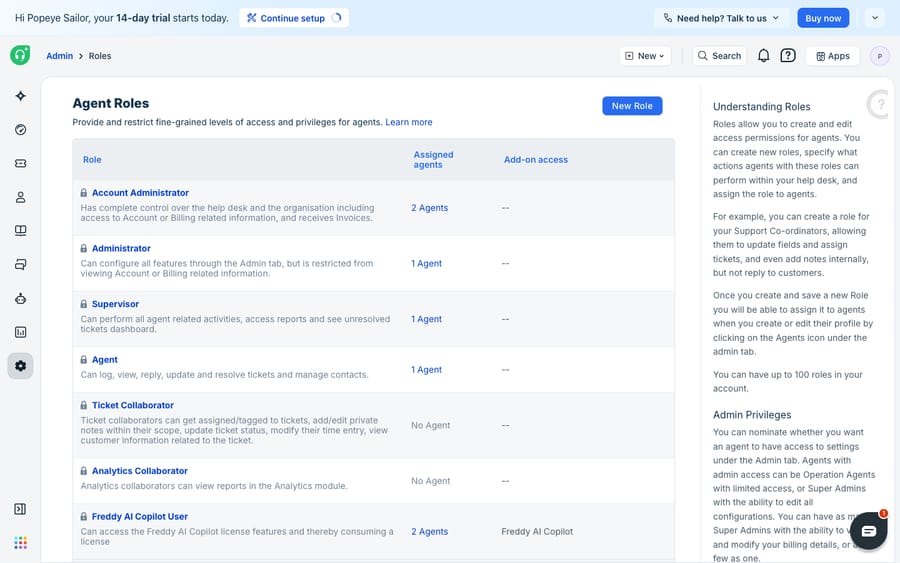
What default roles does Freshdesk include?
Freshdesk ships with built-in roles, so most teams on Growth never need their own (and can't create them: custom roles start on Pro). Per the Manage agent roles and permissions documentation, the default roles are:
- Agent: can view, respond to, assign, and update tickets. The everyday frontline role.
- Supervisor: can manage tickets, generate reports, and configure automatic ticket assignment.
- Administrator: can access and configure all settings under the Admin tab, but not billing.
- Account Administrator: full account access, including billing and account management. Give this to as few people as possible.
- Freddy AI Copilot User: can use Freddy AI Copilot features, which need a purchased licence.
- Ticket Collaborator: can be looped into tickets to add private notes and update status within their scope, without a full agent seat.
- Analytics Collaborator: can view reports in the Analytics module and nothing else.
Default roles can't be edited or removed. And one rule trips people up: if you assign multiple roles to one agent, "the highest privileges allowed across these roles will apply." Stacking a restrictive role on top of a permissive one does not sandbox the agent. The permissive one still applies.
How do you create a custom role in Freshdesk?
When the defaults don't fit (a "content editor" who manages the knowledge base but can't touch tickets, or a billing clerk who sees financial settings but not conversations) you create a custom role. Custom roles are available on the Pro and Enterprise plans (and the legacy Estate and Forest plans), not on Growth.
Per the creating a custom role guide, the flow is:
- Go to Admin → Team → Roles and click New Role.
- Enter a name and description.
- Choose the agent type the role applies to.
- Tick the permissions across the available groups.
- Save, then apply the role to agents.
The permission groups include Tickets, Scenario Automation, Solutions (knowledge base articles), Forums, Customers (contacts and companies), Field Service, Analytics, Administration, General (tags, out-of-office), Freddy Copilot & Insights, and Custom Objects. Administration has three tiers: no admin access, Operational admin (managing agents and automations), and Super admin (full configuration access). That lets you hand someone day-to-day admin without giving away billing and account settings.
What are the three ticket scopes?
Scope is simpler: three levels, from widest to narrowest.
- All tickets (global). The agent can view and edit every ticket across the helpdesk. Right for supervisors, senior agents, and anyone who picks up work from anywhere.
- Tickets in a group. The agent can view tickets assigned to their group(s), plus any tickets directly assigned to them. This is the workhorse setting for team-based support: Billing sees Billing, Technical sees Technical.
- Assigned tickets (restricted). The agent can only see tickets directly assigned to them, tickets where they're tagged, or where they hold secondary ownership. The tightest box, good for contractors, trainees, or outsourced tiers who should never browse the wider queue.
For more nuance, Advanced ticket scope lets an admin set, per group, whether a user gets full edit access or view-only access, so an agent can watch a neighbouring team's tickets without being able to change them. Freshworks documents this in Advanced ticket scope; it's available on the Growth, Pro and Enterprise plans.
Which role and scope should each person get?
The two-axis model pays off when you combine the settings deliberately. Here's how common team members typically map (custom-role rows need Pro or Enterprise):
| Person | Role | Scope | Full-time / Occasional |
|---|---|---|---|
| Frontline agent | Agent | Tickets in a group | Full-time |
| Trainee / contractor | Agent | Assigned tickets | Full-time or Occasional |
| Team lead | Supervisor | All tickets | Full-time |
| KB writer | Custom (Solutions only) | Assigned tickets | Occasional |
| Ops admin | Custom (Operational admin) | All tickets | Full-time |
| Account owner | Account Administrator | All tickets | Full-time |
| Escalation SME | Agent | Tickets in a group | Occasional |
The pattern to copy isn't the exact rows. It's the habit of asking both questions for every hire: what should they be able to do, and which tickets should they be able to see.
What can't roles and scopes do?
Freshdesk's role-and-scope model is well designed: two clean axes, sensible defaults, custom roles when you need them, and a permission stack that's easy to reason about.
But roles and scopes are static guardrails. They decide who is allowed to act, not whether the work gets done or how quickly. A perfectly scoped frontline agent still has to read every ticket, understand the problem, and write the answer by hand. Permissions don't shorten the queue; they fence it.
The model also can't route a ticket to the right person by understanding its content, because assignment and scope are about groups and ownership, not intent. And it can't draft a reply, look up an order status, or resolve a repetitive question; a role only ever gates a human's actions.
That's the seam where an AI agent layer fits, and it's worth weighing the build-versus-buy tradeoff before reaching for one. The broader category of AI agents for customer service exists to do the reasoning-heavy work that access control can't. Macha is one such layer: it runs on top of the Freshdesk you already use as a native connector and doesn't replace your help desk, your agents, or your roles and scopes. You connect it with your Freshdesk subdomain and API key, and it works the same tickets your permissions govern: drafting or posting grounded replies so the frontline queue moves faster, triaging by intent so tickets land with the right group, and looking up order or account status through a custom tool that turns a REST API into something the agent can call. We walk through the setup in how to automate Freshdesk with AI. Macha bills per ticket, one conversation charged once however many messages it takes, not per resolution; plans start at $299 a month for up to 750 tickets (see pricing).
The division of labour: keep Freshdesk's roles and scopes as the source of truth for who may do what, and put an agent on top for the part permissions can't do, clearing the work so your agents spend their time on tickets that need a human.
FAQ
What's the difference between an agent role and ticket scope in Freshdesk? A role controls what an agent can do (reply, add notes, manage automations, access admin settings), while ticket scope controls which tickets they can see. They're set independently for each agent, so you can pair a permissive role with a narrow scope, or the reverse.
What are the three ticket scopes? All tickets (view and edit everything), Tickets in a group (their group's tickets plus anything assigned to them), and Assigned tickets (only tickets directly assigned to, tagged on, or secondary-owned by that agent).
What's the difference between a full-time and occasional agent? A full-time agent holds a licensed seat for someone working the queue daily. An occasional agent needs no licence and uses a day pass each day they log into the portal: $2 on Growth, $7 on Pro and $12 on Enterprise.
Can I create custom roles on the Freshdesk Growth plan? No. Custom roles are available on Pro and Enterprise (and the legacy Estate and Forest plans). Growth accounts use the default roles, though Advanced ticket scope is available from Growth upwards.
How do I create a custom role in Freshdesk? Go to Admin → Team → Roles, click New Role, give it a name and description, choose the agent type, tick the permissions (Tickets, Solutions, Analytics, Administration, and more), and save. If an agent has multiple roles, the highest privilege across them applies.
Can I add AI without changing my roles and scopes? Yes. An AI agent layer like Macha connects to Freshdesk as a native connector and works within your existing tickets; it doesn't replace or loosen your roles and scopes. It helps clear the queue by drafting or sending grounded replies and triaging by intent, while Freshdesk stays the system of record for who is allowed to do what.
Ready to help your team move faster without touching a single permission? Start a free trial of Macha and connect it to your Freshdesk in minutes.






