





 Shopify
 Stripe
 Slack
Slack Notion
 Google Workspace
 Confluence

How Do You Add, Deactivate and Manage Agents in Freshdesk? (2026)


Adding a Freshdesk agent takes one form under Admin, Team, Agents, but the seat type you pick decides the bill: a full-time license or a day pass per login. When someone leaves, deactivating them frees the license and keeps their tickets, while deleting wipes their history.
Key takeaways
- Freshdesk agents are added under Admin → Team → Agents → New agent, where you set full-time or occasional, then a role, a scope and groups.
- A Freshdesk full-time agent costs $19, $55 or $89 per month on Growth, Pro and Enterprise billed annually, while day passes cost $2, $7 or $12.
- A Freshdesk day pass lasts until 23:59 on the day of a portal login, every plan includes 3 free passes, and replying from an email notification spends none.
- Deactivating a Freshdesk agent frees their license and keeps their tickets and articles, while deleting also frees the license but wipes their assignments permanently.
- Freshdesk no longer lists a free plan on its pricing page; a Free program covers up to 2 agents for 6 months, and new accounts get a 14-day Enterprise trial.

To add an agent in Freshdesk, go to Admin → Team → Agents → New agent, enter their email, pick Full time or Occasional, and assign a role, scope and group; when someone leaves, deactivate them rather than delete them, which frees their license and keeps their ticket history. Seat type is what drives the bill: a full-time agent costs $19, $55 or $89 a month on the Growth, Pro and Enterprise plans (billed annually), while an occasional agent spends a day pass only on days they log into the portal.
| Task | Where in Freshdesk | Billing effect |
|---|---|---|
| Add a full-time agent | Admin → Team → Agents → New agent | One paid license: $19 Growth, $55 Pro, $89 Enterprise per agent/month, billed annually |
| Add an occasional agent | Same form, Agent type: Occasional | One day pass per portal login day: $2 Growth, $7 Pro, $12 Enterprise; 3 free passes per plan |
| Deactivate a leaver | Admin → Team → Agents → More → Deactivate | License freed; tickets and articles kept |
| Delete an agent | Admin → Team → Agents → More → Delete | License freed; assignments wiped from tickets and articles |
| Buy day passes | Admin → Account → Day Passes | Shows the last 90 days of pass usage |
Prices are from the Freshdesk pricing page as of September 2026.
What decides how much a Freshdesk agent costs?
Two levers move the invoice. The first is agent type. A full-time agent is a core team member who logs in daily and needs a paid user license, billed per agent per month. An occasional agent (a CEO, a manager who dips in a few times a month, seasonal field staff) doesn't take a permanent seat. Instead they consume a day pass each time they log into the portal.
The second lever is support agent vs collaborator, but for the add-agent flow you'll almost always be creating a support agent: someone who works tickets directly. Per Freshworks' Understanding Full-time vs Occasional Agents documentation, a day pass is valid until the end of the day (23:59) and does not roll over to the next calendar date. Every Freshdesk plan comes with 3 free day passes. The part people miss: a day pass is not consumed when an occasional agent simply replies to a ticket notification from their email inbox. It's only spent when they log into the portal. Freshworks' own examples put pass prices between $2 on Growth and $15 on Enterprise Omnichannel, depending on plan and currency.
How do I add and invite a new agent?
Adding an agent sends them an invitation by email; nothing is live until they accept and set a password.
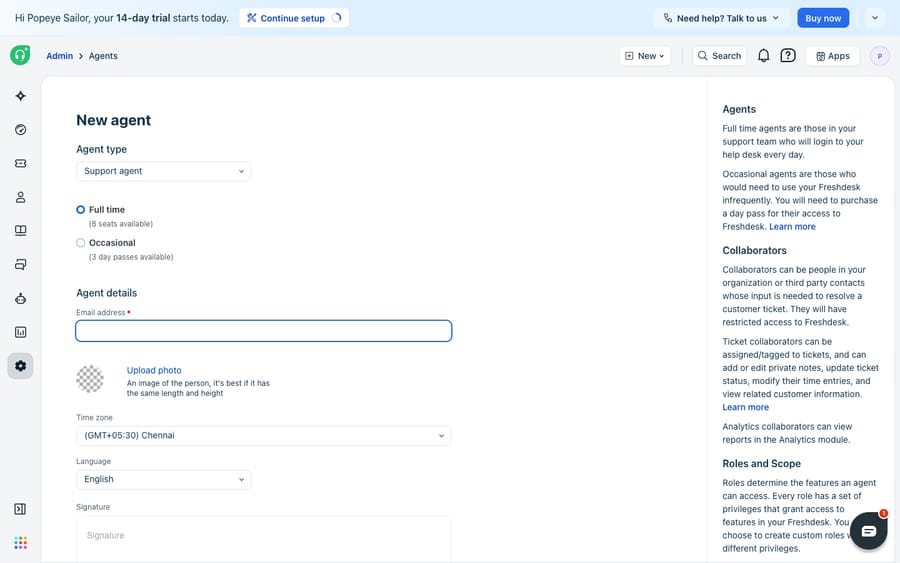
- Click New Agent in the top bar, or go to Admin → Team → Agents and choose New agent. Freshworks documents the full flow in Add, edit, or delete support agents.
- Under Agent type, select Support agent, then choose Full time or Occasional.
- Enter the agent's email address, which is where the invite goes. Optionally set their time zone, language, signature, and photo.
- Assign a Role (covered below), a Scope, and any Groups.
- Save. The agent receives an activation email and appears in your agent list once they accept.
How do role, scope and group work together?
Adding the person is the easy part. What they can see and do comes down to three settings, and they interact in ways that trip people up.
Role controls the permissions: what actions an agent can take. Freshdesk ships default roles like Agent, Supervisor, and Administrator, and you can build custom roles with granular privileges. (We break the defaults down in Freshdesk agent roles and scopes explained.)
Scope controls the visibility: which tickets an agent can access at all. You get three levels:
- All tickets: the agent can access every ticket in the help desk.
- Tickets in a group: the agent only sees tickets assigned to the groups they belong to.
- Assigned tickets: the agent only sees tickets assigned directly to them.
Groups control membership and routing: which team an agent belongs to for assignment and reporting. If you're using the "Tickets in a group" scope, group membership is what actually grants an agent access to that queue. Groups are worth setting up deliberately; we cover the model in Freshdesk groups explained.
The common mistake is treating these as one dial. A "Supervisor" role with an "Assigned tickets" scope still can't see the team's backlog. The role gives them power, but the scope hides the tickets. Set both intentionally.
Should I deactivate or delete an agent who leaves?
Deactivate, in almost every case. Per Freshworks' Deactivate or Delete Support Agents guide, the two options do very different things.
To do either, go to Admin → Team → Agents, click the More icon next to the agent, and choose Deactivate or Delete.
Deactivate stops the agent logging in while retaining their tickets, articles, and other contributions. The agent stays as a contact and can be reactivated later. An agent license is freed up for a new full-time agent. Their open and pending tickets move to the unassigned queue; resolved and closed tickets stay attached to their name. The seat comes back and your reporting history stays intact.
Delete also frees the license, but it wipes their assignment from tickets, articles, and other contributions permanently. The person remains a contact record until you delete that too. Use this rarely, since you lose the audit trail.
There's a billing consequence worth flagging: before you reduce your license count, deactivate or delete enough agents to fit the new limit before the billing date. Freshworks' guide is blunt that otherwise you will be charged for all the agents still configured in your account. The seat doesn't free itself; you have to free it.
Should an agent get a full-time or occasional seat?
Here's a quick decision table for the seat choice, since it's the one that drives cost.
| Situation | Best seat type | Why |
|---|---|---|
| Daily front-line support rep | Full time | Logs in every day; a license is cheaper than daily passes |
| Manager who reviews a few tickets weekly | Occasional | Handful of logins/month; day passes cost less than a full seat |
| CEO or exec who checks in monthly | Occasional | Rarely logs in; may reply by email and spend no pass at all |
| Seasonal or overflow staff | Occasional | Short stints; deactivate the seat when the season ends |
| Someone who only ever replies via email | Occasional | Email replies don't consume a day pass |
The break-even is simple arithmetic. On Pro, a full-time seat is $55 a month and a day pass is $7, so an occasional agent who logs in on 8 or more days a month costs more than a full seat. To buy more day passes, go to Admin → Account → Day Passes, where you can also review usage history for the last 90 days. To add full-time seats or change plans, that's Admin → Account → Plans and Billing. Note that Freshdesk no longer lists a free plan on its pricing page: new accounts get a 14-day trial of Enterprise, and a separate Free program covers up to 2 agents for 6 months.
Where do Freshdesk's agent controls stop, and where does an AI layer fit?
Freshdesk's agent management does what it promises: it provisions humans, scopes their access, and reconciles seats against your bill. But every one of these controls is about which human handles a ticket. None of them reduce the number of tickets a human has to handle. If your queue is growing, the native answer is to add seats, and seats cost money linearly.
A few edges are plan-gated. Agent shifts and the out-of-office scheduler, useful for occasional and part-time staff, are listed on Pro and Enterprise only, as we cover in Freshdesk agent shifts and availability explained. Check the plan comparison before promising a manager a custom role, since advanced permission controls vary by tier. And occasional agents still can't be scheduled around the day pass in any granular way: a pass is spent the moment they log in, however little work they do that day.
This is where an AI agent layer changes the math. The broader category of AI agents for customer service exists to absorb repetitive, high-volume tickets before they need a human seat, which is a different question from "who do I assign this to," and one worth weighing against the build-versus-buy tradeoff. Macha is one such layer: it runs on top of the Freshdesk you already use as a native connector and does not replace Freshdesk, your agents, or your seat management. You connect Macha to Freshdesk with your subdomain and API key, and it works the same tickets your human agents do: drafting or posting grounded replies, triaging by intent, and looking up order or account status through a custom tool that turns a REST API into something the agent can call. (Macha's connector is for Freshdesk specifically, not Freshchat, Freshservice, or Freshcaller. It bills per ticket, one conversation charged once however many messages it takes, starting at $299 a month for up to 750 tickets with setup included; see the pricing page.)
The clean division of labour: keep Freshdesk as the system of record for who your human agents are and what they can access, and let an AI layer handle the ticket volume that would otherwise force you to keep buying seats.
FAQ
How do I add an agent in Freshdesk? Click New Agent in the top bar (or go to Admin → Team → Agents → New agent), choose the agent type, enter their email address, assign a role, scope, and group, then save. The agent receives an activation email and becomes active once they accept and set a password.
What's the difference between a full-time and an occasional agent? A full-time agent logs in daily and needs a paid license, billed per agent per month. An occasional agent logs in only a few days a month and consumes a day pass each time they access the portal. A pass is valid until 23:59 and doesn't carry over. Every plan includes 3 free day passes, and no pass is spent if the occasional agent only replies via email notification.
Should I deactivate or delete an agent when they leave? Deactivate in almost every case. Deactivating retains their tickets, articles, and contributions, keeps them as a contact you can reactivate later, and frees up a license. Deleting permanently wipes their assignments from tickets and articles, so use it only when you don't need the history.
Does deactivating an agent free up a seat for billing? Yes. Deactivating frees the full-time license for a new agent. If you are reducing your license count, deactivate or delete enough agents to fit the new limit before the billing date, or Freshdesk charges for every agent still configured.
Does Freshdesk have a free plan for agents? Not on the current pricing page. Freshdesk offers a 14-day trial of the Enterprise plan, and a separate Free program covers up to 2 agents for 6 months. Paid seats start at $19 per agent per month on Growth, billed annually.
Can I add AI to Freshdesk without adding more agent seats? Yes. An AI agent layer like Macha connects to Freshdesk as a native connector and works the same tickets your human agents do, drafting grounded replies and triaging by intent, so it can absorb repetitive volume without you provisioning another full-time seat. It runs on top of Freshdesk; it doesn't replace it.
Ready to handle more tickets without buying more seats? Start a free trial of Macha and connect it to your Freshdesk in minutes.






