





 Shopify
 Stripe
 Slack
Slack Notion
 Google Workspace
 Confluence

How Do Freshdesk Groups Work? Business Hours, SLAs and Routing (2026)


A Freshdesk group, created under Admin, Team, Groups, sets which agents own a ticket, which business-hours calendar its SLA runs on, and how it gets assigned. Groups exist on every plan, but round robin and load-balanced routing start on Pro.
Key takeaways
- A Freshdesk group, created under Admin, Team, Groups, controls four settings: agent membership, business hours, the ticket-assignment method, and escalation for unassigned tickets.
- An agent can belong to several Freshdesk groups at once, such as Billing, Tier 2 Escalations and a VIP group, and sees tickets from all of them.
- Freshdesk business hours are assigned per group, so moving a ticket between groups can change which calendar its business-hours SLA clock counts against.
- Freshdesk round robin and load-balanced assignment start on Pro at $55 per agent a month billed annually, while the pricing page lists skill-based assignment only on Enterprise at $89.
- Freshdesk SLA policies can be scoped to agent groups on Pro and Enterprise, and the first policy whose conditions match a ticket is the one that applies.

A Freshdesk group is a set of agents, created under Admin → Team → Groups, that owns tickets and carries four settings: its members, its business hours, its ticket-assignment method and its escalation rule for unassigned tickets. Groups exist on every plan, but automatic routing (round robin and load-balanced assignment) starts on Pro at $55 per agent a month billed annually, and skill-based assignment is listed only on Enterprise at $89.
| Group setting | What it decides | Plan (Freshdesk pricing page, September 24, 2026) |
|---|---|---|
| Membership | Which agents see the group's tickets | All plans |
| Business hours | The calendar the group's SLA clock runs on | Group-specific hours: Pro and Enterprise |
| Assignment method | Manual, round robin, load-balanced or skill-based | Manual: all plans; automatic: Pro and above |
| Escalation | Who gets emailed when a ticket sits unassigned | All plans |
Is there a difference between a group and a team?
Not really. People say "team" in conversation and "group" in the product, but Freshdesk has no separate "team" object. The organizational unit is the group, and you'll find it under Admin → Team → Groups: the menu is called "Team," and the things inside it are groups. Per Freshworks' Organizing Agents into Groups documentation, a group is a set of agents you manage together so ticket assignment, shared settings and reporting happen at the team level.
One detail trips people up: an agent can belong to more than one group. Your senior agent can sit in Billing, Tier 2 Escalations and a VIP group at once, and Freshdesk will show them the tickets from all three. Freshworks' own wording is that groups ensure "each agent sees only the tickets that matter to them," which makes groups a lens, not a wall.
What does a Freshdesk group control?
A group is small on the surface and load-bearing underneath. Each one holds four things that matter:
- Membership: which agents are in the group, plus a name and description.
- Business hours: the working calendar the group runs on.
- A ticket-assignment method: manual, or one of the automatic routing options.
- Escalation preferences: an automated email when a ticket stays unassigned past a set time, and, on Pro and above, reassignment preferences for idle agents.
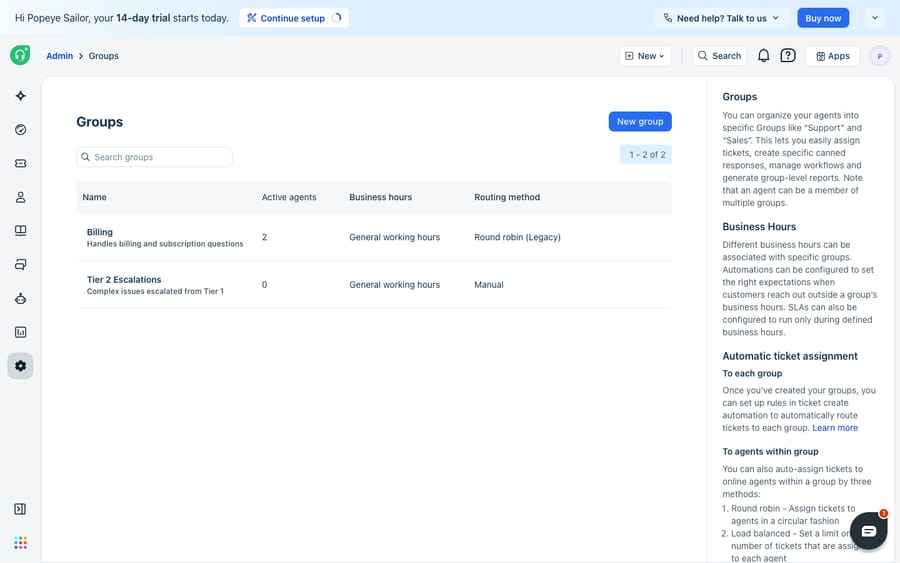
That short list is why groups touch almost every other configuration in Freshdesk. The next two sections cover the two that surprise people most.
Why do business hours per group change your SLAs?
Here's the fact that reorganizes how you think about groups: business hours in Freshdesk are assigned per group, and a business-hours calendar can't apply to a ticket unless that ticket is mapped to a group. Each group can carry its own schedule, say an EU group on 9–5 CET, a North America group on 9–5 ET and an Asia group on its own hours, so the clock a ticket runs against depends on which group owns it. Freshworks documents this coupling in What are business hours and calendar hours?, and we go deeper in Freshdesk business hours explained. One plan caveat: the pricing page lists "Business hours - global, multiple, group specific" under Pro and Enterprise, so a Growth account doesn't get a separate calendar per group.
Because SLA timers can run on business hours, there's a direct consequence: move a ticket from the Billing group to the Tier 2 group and its SLA clock may start counting against a different calendar. A first-response target of "2 business hours" means something different at 4pm depending on which group's hours apply. So groups aren't just an inbox filter; they're an input to your service levels. If SLAs breach or pause at odd moments, check the group-to-business-hours mapping first.
Can SLA policies and automations be scoped to a group?
Yes, and that's the second job groups do.
SLA policies can be scoped to specific groups. Multiple SLA policies are a Pro and Enterprise feature, and in a policy's conditions you can restrict it to selected agent groups, as Freshworks explains in Configuring multiple SLA policies. The classic example: your Finance group processes refunds and needs tighter targets than the general queue, so it gets its own policy. Policy order matters: the first policy whose conditions match a ticket is the one that applies, so put group-specific policies above the catch-all default.
Automations can route by group. Ticket-assignment rules, dispatchers and other workflow automations read a ticket's properties and drop it into the right group, for instance "if subject contains invoice, set group to Billing." That's how tickets reach the correct team before any human touches them, and it's the foundation routing is built on. We cover the wider workflow story in how to automate Freshdesk with AI.
Which routing method should a group use?
Once a ticket is in a group, how does it reach an individual agent? That's the group's ticket-assignment (routing) method, and it's the decision most teams underthink.
- Manual: nobody is auto-assigned. A supervisor or the agents pick tickets up. Fine for a small, disciplined team or a tier-2 bench where a human should triage first.
- Round robin: tickets go to online agents in the group in circular order, so by the end of the day everyone has handled roughly the same number. (Setup walkthrough: how to set up round robin in Freshdesk.)
- Load-based (intelligent): looks at each agent's current workload and capacity instead of pure rotation, so faster resolvers pull more and nobody gets buried. It optimizes for resolution speed rather than equal counts.
- Skill-based: tickets route to agents whose skills (language, product) match the ticket, considering capacity.
Freshworks' two sources don't quite agree on plans. The automatic ticket assignment article lists round robin, load-based and skill-based routing (delivered through Omniroute) as applicable to Pro and Enterprise, for both Freshdesk and Freshdesk Omni. The pricing page puts "Round robin, and load balanced assignment" on Pro and Enterprise but lists "Skill-based ticket assignment" only on Enterprise. If skill-based routing is the reason you're upgrading, confirm with Freshworks before buying Pro. Either way, Growth accounts are left with manual assignment or legacy round robin. Here's the decision in short:
| Routing method | Best when | Plan |
|---|---|---|
| Manual | Small team, or triage-before-assign bench | All plans |
| Round robin | You want fair, even distribution | Pro / Enterprise |
| Load-based (intelligent) | You want fastest resolution, not equal counts | Pro / Enterprise |
| Skill-based | Tickets need specific language/product expertise | Enterprise on the pricing page (Pro per the support article) |
For a fuller tour of assignment end to end, see Freshdesk ticket assignment explained.
What can't Freshdesk groups do?
Groups are solid infrastructure. They're deterministic, they scope business hours and SLAs cleanly, and Omniroute's routing is fair and configurable. But be clear about what a group does and doesn't do.
A group gets a ticket to the right team; it doesn't answer the ticket. Round robin can hand an invoice question to an available billing agent in seconds, and then that agent still has to read the ticket, look up the account and write the reply. The routing is fast; the work behind it is as slow as it ever was.
Routing also depends on correct upstream classification. Automations assign to a group based on keywords and fields, so a mislabeled ticket lands in the wrong group, runs against the wrong business hours and inherits the wrong SLA, without anyone noticing. And the better routing (load-based, skill-based) is plan-gated, so smaller teams on Growth at $19 per agent a month are often stuck with manual or legacy round robin.
That gap is where an AI agent layer fits, and it's worth understanding the category of AI agents for customer service before reaching for one. Macha is one such layer: it runs on top of the Freshdesk you already use as a native connector, and it doesn't replace Freshdesk, your groups or your routing. You connect Macha to Freshdesk with your subdomain and API key, and it works the same tickets your groups already own: drafting or posting grounded first replies when a ticket arrives in a group, triaging by intent so the ticket reaches the correct group in the first place, and looking up an order or account through a custom tool that turns a REST API into something the agent can call. (Macha's connector is for Freshdesk specifically, not Freshchat, Freshservice or Freshcaller. Macha bills per ticket, one conversation charged once however many messages it takes, never per resolution, starting at $299 a month for up to 750 tickets.)
The clean division of labor: keep Freshdesk groups as the source of truth for which team owns a ticket, on which clock, under which SLA, and layer an agent on top for the part groups can't do: reading and answering the ticket fast enough that the routing pays off.
FAQ
Where do I manage groups in Freshdesk? Go to Admin → Team → Groups and click New Group. From there you can add agents, assign business hours, choose a ticket-assignment (routing) method and set escalation preferences for unassigned or idle tickets.
What's the difference between a group and a team in Freshdesk? There isn't a formal one. Freshdesk's organizational unit is the group; the admin menu is called "Team," but the objects inside it are groups. People use the two words interchangeably.
Can an agent be in more than one group? Yes. An agent can belong to multiple groups at once and will see tickets from all of them, which makes senior agents easy to place across Billing, Tier 2 and VIP queues.
Are business hours set per group? Yes. Business hours are assigned at the group level, and a business-hours calendar can't apply to a ticket unless that ticket is mapped to a group. Group-specific calendars (e.g. EU, North America, Asia) are listed on Pro and Enterprise, and they change how business-hours SLAs are calculated.
Which group routing methods are plan-gated? Manual assignment is available on all plans. Round robin and load-based routing need Pro or Enterprise. Skill-based routing is listed only on Enterprise on the pricing page, while Freshworks' support article lists it for Pro too, so confirm against your own plan.
How much do the Freshdesk plans with automatic routing cost? On the pricing page checked September 24, 2026, Pro is $55 per agent a month and Enterprise is $89, billed annually; Growth is $19 and doesn't include automatic group routing.
Ready to turn a well-routed queue into answered tickets? Start a free trial of Macha and connect it to your Freshdesk in minutes.






