





 Shopify
 Stripe
 Slack
Slack Notion
 Google Workspace
 Confluence

How Do You Set Up Round-Robin Assignment in Freshdesk? (2026)


Round-robin in Freshdesk hands each new ticket in a group to the online agent who has gone longest without one, and you switch it on per group under Advanced Automatic Routing. It needs the Pro or Enterprise plan, and it sits next to load-based and skill-based routing, which suit different queues.
Key takeaways
- Freshdesk round-robin is enabled per group under Admin → Groups → Group Properties → Advanced Automatic Routing, then Round robin and Save.
- Freshdesk round-robin and load-based assignment need the Pro plan at $55 per agent per month billed annually or Enterprise at $89; Growth does not include them.
- Freshworks' pricing page lists skill-based ticket assignment on Enterprise only, while its OmniRoute help article groups all three routing methods under Pro and Enterprise.
- Freshdesk's OmniRoute engine only assigns tickets to online agents below their capacity limit, and only tickets with an active SLA timer count towards workload.
- Freshdesk round-robin optimizes for an equal ticket count per agent, while load-based routing sends tickets to whoever has the most spare capacity.

To turn on round-robin in Freshdesk, go to Admin → Groups, edit the group, open Group Properties, select Advanced Automatic Routing, choose Round robin and save. It needs the Pro plan ($55 per agent/month billed annually) or Enterprise ($89), and it is set per group, not globally.
| Method | Plans (Freshdesk pricing page) | Assigns to | Best for |
|---|---|---|---|
| Round robin | Pro, Enterprise | The online agent who has gone longest without a ticket | Small teams, similar simple queries |
| Load-based | Pro, Enterprise | The agent with the most spare capacity | Larger, high-volume teams that need speed |
| Skill-based | Enterprise | An available agent whose defined skills match the ticket | Multilingual queues, specialist products, escalations |
What does automatic ticket assignment actually do?
Automatic ticket assignment takes the manual "who's going to pick this up?" step out of your queue. When a new ticket lands in a group, or gets reassigned into one, Freshdesk checks that group's settings and, if automatic routing is switched on, picks an agent for you rather than leaving the ticket unassigned.
All of Freshdesk's automatic assignment runs on one engine, OmniRoute (labelled Advanced Automatic Routing in the group settings UI). Whichever method you choose, OmniRoute applies the same two checks before it hands anyone a ticket. First, availability: only agents who are online are considered, so someone set to unavailable or offline is skipped. Second, capacity: OmniRoute checks how many tickets an agent is already carrying, and an agent at their maximum is passed over. Those two rules are why auto-assignment feels fair: a ticket won't be dumped on someone who's logged off or already underwater.
How do I enable round-robin in Group Properties?
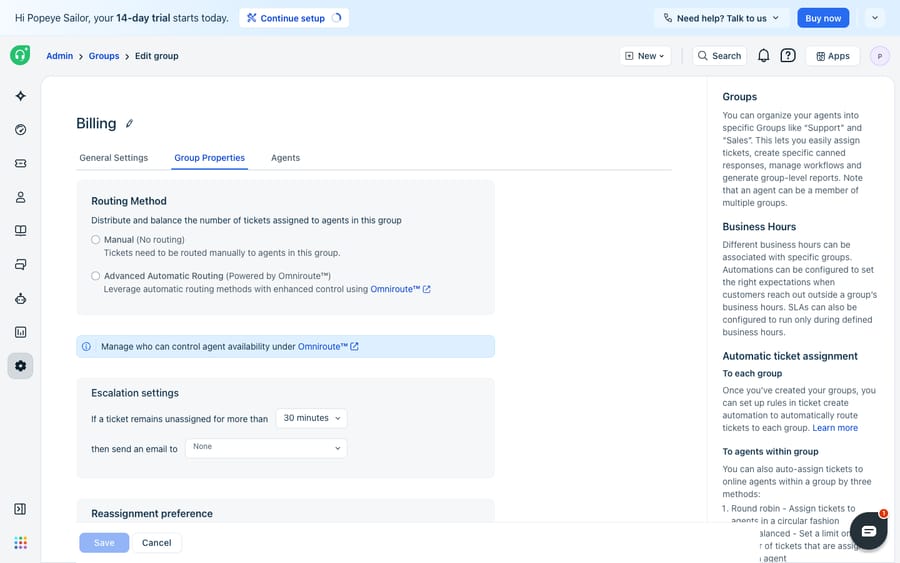
Round-robin is configured per group, not globally, so your billing team and your technical-escalations team can route differently. Per Freshworks' Configure Round-Robin Ticket Routing documentation, here's the path:
- Log in as an admin and go to Admin → Groups.
- Click the edit icon next to the group you want to route automatically (for example, your Billing or Support group).
- Switch to the Group Properties tab.
- Under the automatic assignment setting, select Advanced Automatic Routing.
- Choose Round robin as the routing method.
- Save.
From that point, every new ticket that enters the group goes to the next available agent in circular order. Freshworks describes the ordering as routing to "the agent who has gone the longest without receiving one," so over time each agent's count evens out.
Which plan do you need? Freshworks' help article lists round-robin on Freshdesk Pro and Enterprise and Freshdesk Omni Pro and Enterprise. The Growth plan ($19 per agent/month billed annually) doesn't include it. For skill-based assignment the sources disagree: the pricing page lists "Skill-based ticket assignment" under Enterprise only, while the OmniRoute help article groups all three methods under Pro and Enterprise. Treat Enterprise as the safe assumption for skills. If your group settings don't show Advanced Automatic Routing at all, that's almost always a plan issue rather than a permissions one.
How do availability and capacity settings change who gets tickets?
Turning round-robin on is only half the job. The distribution is only as good as the availability and capacity signals feeding it, and those live in Assignment Preferences and the OmniRoute settings.
- Availability is driven by each agent's online/offline status. If your agents don't actively set themselves available, tickets can bunch onto whoever happens to be marked online, so agree a team habit around setting availability at the start of a shift.
- Capacity is the maximum number of tickets an agent can hold before OmniRoute skips them. Set this to something realistic for your queue; set it too high and round-robin will keep feeding an already-buried agent.
- Freshworks notes that only tickets with an active SLA timer count towards an agent's workload, and you can exclude certain ticket statuses from the capacity count in Assignment Preferences (for example, tickets waiting on the customer), so an agent isn't blocked from new work by tickets that aren't theirs to move.
Get these two dials right and round-robin behaves; leave them at defaults and you may see uneven distribution and wonder why.
Should I use round-robin, load-based or skill-based routing?
Round-robin is one of three methods under the same Advanced Automatic Routing setting, and they optimise for different things. Per Freshworks' Automatic Ticket Assignment using OmniRoute documentation:
| Method | How it assigns | Optimises for | Best for |
|---|---|---|---|
| Round robin | Circular order among available agents | Equal ticket count per agent | Small teams; transactional, similar-complexity queries |
| Load-based | Agent with the lowest current load / spare capacity | Speed of response and resolution | Larger teams with higher volume that need quick turnaround |
| Skill-based | Agents whose skills match the ticket (e.g. language, product) and who have capacity | Right agent, not just any agent | Multilingual support, specialist product lines, technical escalations |
The mental model: round-robin is fairest by headcount, load-based is fastest, and skill-based is most accurate. Round-robin treats every ticket as interchangeable, which is right for a queue of similar, simple requests and wrong if half your tickets need a French speaker or a database specialist. Load-based shines when volume is high and you'd rather a fast-clearing agent get more than have tickets sit behind a slow one. Skill-based is the most setup-heavy, since you have to define skills and attach them to agents first, so reach for it only when the type of ticket determines who should handle it.
All three live in the same place (Group Properties → Advanced Automatic Routing), so switching between them is a dropdown change, not a migration. Start with round-robin, and move to load-based or skill-based when your queue's shape demands it.
What can't Freshdesk auto-assignment do, and where does an AI layer help?
Freshdesk's automatic assignment is deterministic and does what it says: it distributes ownership. Auto-assignment answers "who owns this ticket?" It says nothing about "what does this ticket need?" Round-robin will hand a password reset and a thorny billing dispute to the same agent in the same rotation, because to the algorithm they're identical units of work.
The other gap is that assignment happens before anyone understands the ticket. Round-robin and load-based routing don't read the message; they count. Skill-based routing gets closer by matching declared skills, but it still relies on those skills being set up and on the ticket carrying the right metadata (language, product) to match against. And once the ticket is assigned, a human still has to read it, look up whatever it references, and write the reply. Distribution is fast; the actual work is not.
This is where an AI agent layer fits, and it's worth understanding the build-versus-buy tradeoff before reaching for one. The broader category of AI agents for customer service exists to do the reasoning that assignment logic can't: reading the ticket, understanding intent, and drafting a real response. Macha is one such layer that runs on top of the Freshdesk you already use as a native connector. It does not replace Freshdesk, its groups, or its routing. You connect Macha to Freshdesk with your subdomain and API key, and it works the same tickets your groups already assign: understanding a ticket by intent, drafting or posting a grounded reply, and looking up order or account status through a custom tool that turns a REST API into something the agent can call. Freshdesk keeps deciding who owns a ticket, and the AI layer helps with what the ticket needs, which pairs with the workflows in how to automate Freshdesk with AI. (Macha's connector is for Freshdesk specifically, not Freshchat, Freshservice, or Freshcaller. Macha bills per ticket, from $299 a month for up to 750 tickets, one conversation charged once however many messages it takes, never per resolution.)
Used together, the split is tidy: round-robin (or load-based, or skill-based) makes sure every ticket has an owner the moment it arrives, and an agent layer makes sure that owner isn't starting from zero.
FAQ
Where do I enable round-robin in Freshdesk? Go to Admin → Groups, click the edit icon next to the group, open the Group Properties tab, select Advanced Automatic Routing, and choose Round robin, then Save. It's configured per group, so each group can route differently.
Which plans include automatic ticket assignment? Round-robin and load-based assignment are on Freshdesk Pro and Enterprise (and Freshdesk Omni Pro and Enterprise), not Growth. The pricing page lists skill-based assignment on Enterprise only, although one Freshworks help article groups it with Pro. If you don't see the option, it's usually a plan limitation.
What's the difference between round-robin and load-based routing? Round-robin distributes tickets in a circular order so each agent gets an equal count. Load-based routing assigns to the agent with the most spare capacity, optimising for speed of response rather than an even headcount. Both skip agents who are offline or at maximum capacity.
Does round-robin assign tickets to offline agents? No. All three methods run on OmniRoute, which only considers online agents and skips anyone already at their maximum ticket capacity, so keeping agent availability accurate is essential for even distribution.
Can I add AI to Freshdesk assignment without replacing Freshdesk? Yes. An AI agent layer like Macha connects to Freshdesk as a native connector and works on top of your existing groups and routing without replacing them. Freshdesk keeps deciding who owns each ticket, while the AI layer helps understand and draft the reply the assigned agent would otherwise write from scratch.
Ready to help your agents start from an answer instead of a blank ticket? Start a free trial of Macha and connect it to your Freshdesk in minutes.






