





 Shopify
 Stripe
 Slack
Slack Notion
 Google Workspace
 Confluence

How Do Freshdesk Agent Shifts, Statuses and Out-of-Office Work? (2026)


Freshdesk assigns new tickets only to agents marked Available, and Agent Shifts and the out-of-office scheduler switch that status on a schedule. Custom statuses, shifts and the availability dashboard need the Pro or Enterprise plan.
Key takeaways
- Freshdesk automatic routing assigns new tickets only to agents marked Available, and the Unavailable status splits into Away for breaks and Busy for meetings or training.
- Custom agent statuses are set under Admin, Teams, Agent Status on Freshdesk Pro or Enterprise, and a custom status cannot be renamed once saved.
- Freshdesk's pricing page lists agent shifts and the out-of-office scheduler on Pro at $55 and Enterprise at $89 per agent per month, not on Growth at $19.
- Freshdesk shifts cannot span midnight, so Freshworks' own example sets a 9:00 PM to 5:00 AM GMT shift as 1:00 PM to 9:00 PM PST.

Freshdesk decides who gets a ticket from three layers: every agent is either Available or Unavailable (split into Away and Busy), automatic routing assigns new tickets only to Available agents, and Agent Shifts plus the out-of-office scheduler flip that status on a schedule. On Freshdesk's pricing page (checked 24 September 2026), shifts, the out-of-office scheduler and the availability dashboard come with Pro ($55 per agent per month, billed annually) and Enterprise ($89), not Growth ($19).
| Availability feature | Where to configure it | Plans |
|---|---|---|
| Default statuses (Available, Unavailable: Away or Busy) | Built in | All plans |
| Custom agent statuses | Admin → Teams → Agent Status | Pro, Enterprise |
| Round robin and load-balanced assignment | Automatic ticket assignment settings | Pro, Enterprise |
| Skill-based routing | Automatic ticket assignment settings | Enterprise |
| Agent shifts and out-of-office scheduler | Admin → Team → Agent Shifts | Pro, Enterprise |
| Agent availability dashboard | Dashboards | Pro, Enterprise |
What are the default agent statuses in Freshdesk?
At its simplest, every agent in Freshdesk is in one of two states. Per Freshworks' Configure Agent Status and Availability documentation, the two defaults are Available (online and ready to receive tickets) and Unavailable (offline, not receiving new tickets). That binary is what automatic routing reads before it hands a ticket to anyone.
The Unavailable state isn't a single bucket, though; it splits into two categories that describe why someone is off:
- Away covers non-work absence: lunch, a coffee break, stepping out. The agent is simply not at their desk.
- Busy covers work-related unavailability: a meeting, training, focused escalation review. The agent is at their desk but heads-down on something other than new tickets.
That distinction matters more than it looks, because it lets a manager glance at the availability view and tell the difference between "the whole afternoon shift is in a training session" and "half the team is at lunch at the same time."
How do you create custom agent statuses in Freshdesk?
Two states are rarely enough for a real team. Freshdesk lets you create custom agent statuses so the availability picture reflects how your team actually works. You configure them under Admin → Teams → Agent Status.
To add one:
- Go to Admin → Teams → Agent Status and click New agent status.
- Choose the type: Available or Unavailable.
- Enter a name (for example, "Email Escalation Review") and pick a matching icon.
- If it's Available, associate it with one or more queues (the ticketing sources it should receive work from). If it's Unavailable, choose the offline category: Away or Busy.
- Click Save.
One thing worth flagging before you start naming things: per the same Freshworks doc, you cannot rename a custom agent status once it's saved. So agree on wording first: a status called "Lunch" is stuck as "Lunch." Custom statuses are also plan-gated: they require Freshdesk Pro or Enterprise, so teams on Growth are limited to the two defaults. (Freshdesk's pricing page no longer lists a free plan; new sign-ups get a 14-day Enterprise trial.)
How does agent availability drive ticket assignment?
Statuses would be cosmetic if nothing read them. The link is automatic routing (Omniroute / Advanced Automatic Routing). When it's enabled, new tickets are assigned only to agents whose status is Available. An Unavailable agent is simply skipped, whether they're Away at lunch or Busy in a meeting. That's the whole point of the status system: it's the filter that keeps work off people who can't act on it. On the current pricing page, basic ticket dispatch comes with every plan, round robin and load-balanced assignment need Pro or Enterprise, and skill-based routing is Enterprise only.
On Freshdesk Omni, availability gets more granular through queue mapping. An Available status can be tied to a specific queue: an Email Queue (email and portal), a Messaging Queue (WhatsApp, Facebook), or a Fallback Queue for anything unmatched. That way you can have an agent who's "Available → Email Queue" but not taking messaging conversations. Availability stops being one switch and becomes channel-aware.
If you let agents set their own status from the profile dropdown (an Omniroute setting admins control), remember the flip side: a full queue with everyone marked Unavailable will quietly park new tickets, because routing has no one to hand them to. Availability and your working calendar are tightly coupled here, the same way business hours decide when your SLA clock is even running.
How do Freshdesk Agent Shifts work, and which plan has them?
Setting status by hand works until you're running support across time zones. Agent Shifts automates the whole thing: an agent's availability flips on and off according to a schedule, so the night team goes Available at the start of their shift and the day team goes Unavailable when theirs ends, with no one toggling a dropdown.
Per Freshworks' Managing Shifts with Freshdesk guide, you configure shifts under Admin → Team → Agent Shifts. Creating one means giving the shift a name, selecting a time zone, defining the active days and times, and adding the people who work it via the Agent List.
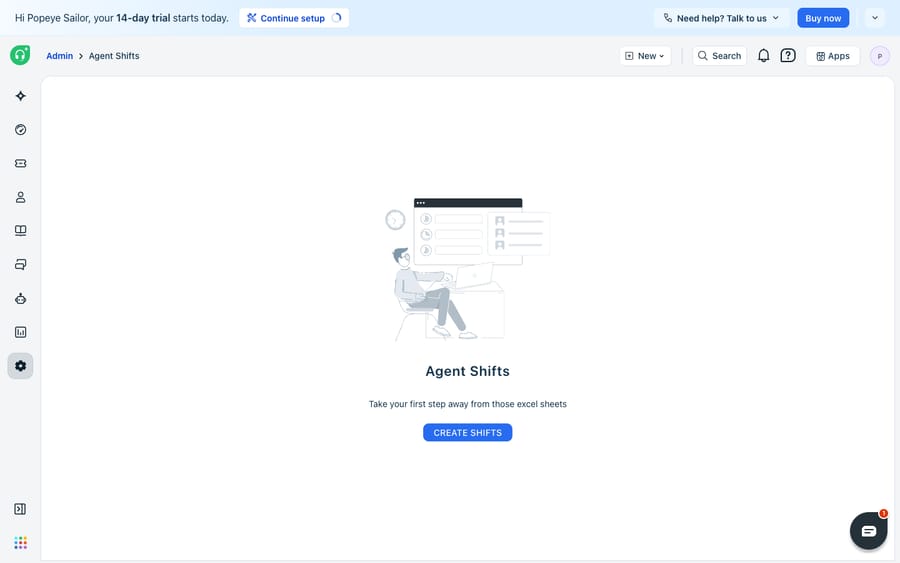
The screenshot above is the Agent Shifts setup landing: the empty, pre-configuration state you hit before any shift exists, with a single Create Shifts button. Plan gating is where sources disagree. Freshdesk's pricing page lists "Agent shifts and out of office scheduler" on Pro and Enterprise (checked 24 September 2026), while the older help article still names the legacy Forest plan and the Enterprise tier of Freshdesk Omni. Growth accounts don't get the module and manage availability through statuses instead. Confirm against your own plan before you build a schedule around it.
There's also one configuration quirk to know: a shift cannot span midnight. A 9 PM to 5 AM GMT overnight shift has to be expressed as same-day hours in a different time zone. Freshworks' own example converts it to 1:00 PM to 9:00 PM PST. And if you want agents to manage their own shifts, that's granted through the Operational Admin role rather than opened up by default.
What happens to tickets when a Freshdesk agent is out of office?
Shifts handle the recurring schedule; out-of-office handles the exceptions: leave, sickness, a day off. This is where availability becomes a customer-facing behaviour rather than an internal flag. According to Freshworks' agent shifts overview, when a customer replies to an agent who's away, Freshdesk works out whether they're temporarily unavailable or on a longer break, can automatically notify the customer, and can re-route the ticket to an agent who is available.
You can also reinforce this with automation rules: check whether an assignee is out of office when a customer responds and reassign the ticket, or block agents from being assigned tickets while they're marked out of office in the first place. The result is that a reply to someone on a two-week holiday doesn't sit unanswered in a personal queue; it moves to someone who can actually pick it up.
To watch all of this in real time, Freshdesk provides the Agent Availability Dashboard for a live snapshot of who's on and off, with the Agent Performance Report covering the historical trend. The pricing page lists the availability dashboard on Pro and Enterprise only.
What can't Freshdesk availability routing do, and where does an AI layer fit?
Freshdesk's availability system is well-built and does exactly one job cleanly: it decides who should get a ticket based on who is online. But there are real edges. The most obvious is coverage. If it's 3 AM and nobody is scheduled, availability routing has an honest answer, which is "no one," and the ticket simply waits. Availability can route around an absent agent; it can't conjure a present one. The out-of-office re-routing is smart, but it re-routes to another human who has to be available.
The second edge is that availability governs assignment, not answering. Even when routing picks the perfect Available agent, that agent still has to read the ticket, understand it, and write the reply. Availability doesn't shorten the response; it just decides whose queue the response is owed from. And the more granular features that make availability useful (custom statuses, shifts, round robin, the availability dashboard) are plan-gated to Pro and Enterprise, so Growth teams get the two-status version and manage the rest manually.
This is the seam where an AI agent layer helps, and it's worth thinking through the build-versus-buy tradeoff before reaching for one. The broader category of AI agents for customer service exists to cover the gaps a scheduling system structurally can't: the empty overnight window, the answer no available agent has time to write. Macha is one such layer: it runs on top of the Freshdesk you already use through a native connector, and it does not replace your help desk, your statuses, or your shifts. You connect Macha to Freshdesk with your subdomain and API key, and it reads and writes the same tickets your availability rules already route: drafting or posting grounded first replies so a customer gets an answer even when the queue is between shifts, triaging by intent, and looking up order or account status through a custom tool that turns a REST API into something an agent can call. You can wire it into your existing Freshdesk automation so it acts inside the workflows you've already built. (Macha's connector is for Freshdesk specifically, not Freshchat, Freshservice, or Freshcaller. Macha bills per ticket: one conversation, charged once however many messages it takes, never per resolution. Plans start at $299 a month for 750 tickets, with setup and monitoring by the Macha team included; see the pricing breakdown.)
The clean division of labour: let Freshdesk's statuses and shifts stay the source of truth for who's available and when, and layer an agent on top for the moments availability can't cover: the hours no one is scheduled, and the answer the available agent doesn't have bandwidth to write. If you want the timers on those tickets to behave predictably too, pair this with well-configured SLA policies.
FAQ
What are the default agent statuses in Freshdesk? Every agent is either Available (online, receiving tickets) or Unavailable (offline, not receiving new tickets). The Unavailable state further splits into Away (non-work absence like lunch or a break) and Busy (work-related, like a meeting or training).
Where do I configure agent status and shifts? Custom agent statuses live under Admin → Teams → Agent Status, and agent shifts live under Admin → Team → Agent Shifts. Note that custom statuses require Freshdesk Pro or Enterprise, and Freshdesk's pricing page lists Agent Shifts and the out-of-office scheduler on Pro and Enterprise. Growth accounts don't get either.
How does agent availability affect ticket assignment? When automatic routing (Omniroute) is enabled, new tickets are assigned only to Available agents; anyone marked Unavailable is skipped. On Freshdesk Omni, Available statuses can be mapped to specific queues (email, messaging, fallback), so availability can be channel-specific.
What happens when an agent is out of office? Freshdesk can detect that an assigned agent is away, automatically notify the customer, and re-route the ticket to an available agent. You can reinforce this with automation rules that reassign tickets or prevent out-of-office agents from being assigned new ones.
Can I add AI coverage without replacing Freshdesk's availability rules? Yes. An AI agent layer like Macha connects to Freshdesk as a native connector and runs on top of your existing statuses and shifts; it doesn't replace them. It helps cover the gaps availability can't, such as the overnight window when no agent is scheduled, by drafting or sending grounded replies while Freshdesk stays the system of record for who's available.
Can a Freshdesk shift run past midnight? No. Freshdesk rejects shift timings that start one day and end the next, such as 9 PM to 5 AM. The workaround is to express the shift in a time zone where it falls within one day; Freshworks' example sets 9:00 PM to 5:00 AM GMT as 1:00 PM to 9:00 PM PST.
Want to cover the hours your shift schedule can't? Start a free trial of Macha and connect it to your Freshdesk; the trial includes $50 of free usage with no credit card.






