





 Shopify
 Stripe
 Slack
Slack Notion
 Google Workspace
 Confluence

How Do You Set Up SLA Policies in Freshdesk? Targets, Reminders and Escalations (2026)


Freshdesk SLA policies set first response, every response and resolution targets for each of four priorities, timed on business hours or a 24x7 calendar. Reminders, escalations and any policy beyond the default need the Pro plan, and the order of your policies decides which one a ticket gets.
Key takeaways
- SLA policies in Freshdesk are set under Admin, Workflows, SLA Policies, where Urgent, High, Medium and Low each get first response, every response and resolution targets.
- Freshdesk's minimum SLA target is 5 minutes for response and resolution, while Freshdesk Omni allows targets as low as 30 seconds in 15-second increments.
- Freshdesk SLA reminders, escalations and multiple policies are available from the Pro plan onward, and reminders fire from 5 minutes to 4 hours before a deadline.
- Freshdesk escalations can be timed separately for first response, next response and resolution violations, from immediately (5 minutes) to 1 month after the breach.
- Freshdesk applies the first SLA policy in the list whose conditions match a new ticket, so VIP and urgent-only policies belong at the top.

You set up SLA policies in Freshdesk under Admin → Workflows → SLA Policies, where each of the four priorities (Urgent, High, Medium, Low) gets its own first response, every response and resolution target, timed on business hours or a 24×7 calendar. Reminders and escalations, and any policy beyond the default, need the Pro plan or above. The rest is order, conditions and notifications, which is where most setups go wrong.
| Setting | Where it lives | Plan (Freshworks docs, checked 24 Sept 2026) |
|---|---|---|
| Default SLA policy (targets per priority) | Admin → Workflows → SLA Policies | Growth, Pro, Enterprise |
| Every response target | Same table, per priority | Growth, Pro, Enterprise (accounts created after December 2025) |
| Multiple policies with conditions | New SLA policy | Pro and above, up to 1000 policies |
| Reminders (5 minutes to 4 hours ahead) | Inside the policy | Pro and above |
| Escalations (immediately to 1 month after a breach) | Inside the policy + Email Notifications | Pro and above |
| Minimum target | n/a | 5 minutes on Freshdesk; 30 seconds on Freshdesk Omni |
What does a Freshdesk SLA policy actually control?
A Service Level Agreement policy in Freshdesk is a set of time targets attached to tickets that match certain conditions. Each policy governs three clocks. The first response time measures how long a customer waits for an agent's first reply. The every response time measures how fast agents answer each later customer message in the same ticket. The resolution time measures the whole ticket, from creation to resolved.
You set each target separately for the four priorities, Urgent, High, Medium and Low, in days, hours and minutes, so an urgent outage gets a tighter clock than a low-priority feature question. You also decide whether the timer counts Business hours (the working calendar you've defined) or Calendar hours (a flat 24×7). That one choice decides whether a ticket that lands at 6pm on a Friday is already burning time or paused until Monday morning, which is why business hours and SLAs are so tightly coupled. We go deeper on that in Freshdesk business hours explained.
How do you set SLA targets in Freshdesk?
Everything lives in one place. Per Freshworks' Understanding SLA Policies article (last modified 20 August 2026), you configure policies under Admin → Workflows → SLA Policies.
- Go to Admin → Workflows → SLA Policies. Every Freshdesk account has one default SLA policy that applies to every ticket unless a more specific one matches. Freshdesk Omni accounts come with two.
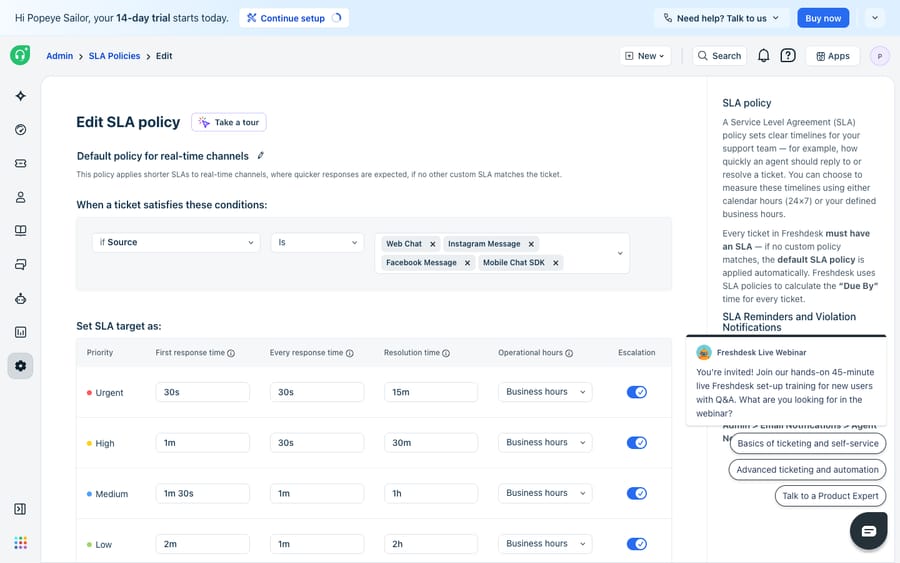
- Open the default policy (or click New SLA policy on Pro and above) and find the Set target as table.
- For each priority row, Urgent, High, Medium and Low, enter a First response time, an Every response time and a Resolution time.
- For each row, choose Business hours or Calendar hours (24×7). Urgent rows are usually 24×7; lower priorities usually follow business hours.
- Save.
The floor for a target on Freshdesk is 5 minutes for both response and resolution, across all priorities. Freshdesk Omni goes as low as 30 seconds in 15-second increments, because it carries web chat and messaging where customers expect faster replies. If you're modelling a very tight response promise, check which product you're on before you promise it.
How do you apply different SLAs to different customers?
The default policy is a fine start, but most teams want different promises for different customers. On Pro and above you can create multiple SLA policies (Freshworks caps it at 1000) and scope each one with conditions: company (customers on a priority-support plan, say), group, product, source, ticket type, or a contact or company segment such as VIP. Conditions combine with AND or OR, and on Enterprise you can also match on custom dropdown, dependent and checkbox fields.
Order is the part people miss. For a new ticket, the first policy in the list whose conditions match is the one that applies. Freshdesk stops at the first match. So put your most specific, highest-stakes policies (VIP companies, urgent-only rules) at the top and leave the catch-all default at the bottom. Get the order wrong and a broad policy near the top will swallow tickets that should have hit a stricter one below it.
How do SLA reminders work in Freshdesk?
A target you only hear about after it's blown isn't much of a target. From the Pro plan onward, Freshdesk can nudge agents as a deadline approaches. Inside the policy, under Remind agents when the SLA due time approaches, you set reminders for the first response and resolution targets, choose who gets them (the assigned agent, plus any other users you pick) and set how far ahead they fire: anywhere from 5 minutes to 4 hours before the deadline. Next response reminders are toggled separately under Email Notifications.
A sensible pattern:
- First-response reminder to the assigned agent, 15 minutes before the deadline.
- Resolution reminder to the assigned agent and their group, 1 hour before the deadline.
- Keep reminders sparing. One or two well-placed nudges beat a wall of alerts everyone learns to ignore.
What happens when a Freshdesk SLA is missed?
Reminders are the warning; escalations are what happens when the deadline passes anyway. Also available from Pro onward, escalations go out when a target is violated. Under Send escalation when SLA is violated you:
- Pick the recipients: the assigned agent, a manager, a team lead, or several of them.
- Set when the escalation fires, separately for first response, next response and resolution violations, anywhere from immediately (5 minutes) to 1 month after the breach.
Escalations arrive as emails or desktop notifications. You switch the emails on under Admin → Email Notifications → Agent Notifications, where First response SLA Violation, Next Response SLA Violation and Resolution time SLA Violation live, and placeholders let you drop ticket details into the email. Desktop alerts are under the bell icon → Settings → Desktop notifications.
What should P1 and P2 targets look like?
Here's how a mid-sized support team might translate its promises into a policy. Think of P1 as an Urgent, service-affecting incident and P2 as a High-priority problem that hurts but isn't on fire.
| Setting | P1 (Urgent) | P2 (High) |
|---|---|---|
| First response time | 30 minutes | 2 hours |
| Resolution time | 4 hours | 1 business day |
| Clock | Calendar (24×7) | Business hours |
| First-response reminder | 10 min before, to agent | 30 min before, to agent |
| Resolution reminder | 1 hr before, to agent + group | 2 hr before, to agent |
| Response escalation | Team lead, immediately | Team lead, after 30 min |
| Resolution escalation | Team lead + manager + director, immediately | Team lead + manager, after 1 hr |
Copy the shape, not the exact numbers: tighter clocks, 24×7 timing and a wider recipient list for the incident that can't wait; business-hours timing and fewer people paged for the one that can.
What can't Freshdesk SLA policies do?
Freshdesk's SLA engine is good at what it does. It's deterministic and transparent: it always knows how much time is left and who to email when it runs out. But an SLA policy measures time. It doesn't produce the reply that stops the clock. It can tell you a first-response deadline is 10 minutes away; it can't read the ticket, work out the customer's problem and draft the answer. Every escalation still lands on a human who has to do the reading and writing.
It also enforces the priority you assigned, not the priority a ticket deserves. If intake mislabels an urgent outage as Medium, the clock applies the laxer target. And when the question is "what's the status of order #4471?", the policy can't fetch that from your systems. It counts down while an agent goes and looks.
That's the seam where an AI agent layer fits, and it's worth being clear about the build-versus-buy tradeoff before you reach for one. The broader category of AI agents for customer service exists to do the reading-and-writing work an SLA timer can't. Macha is one such layer: it runs on top of the Freshdesk you already use as a native connector and doesn't replace your help desk or its SLA policies. You connect Macha to Freshdesk with your subdomain and API key, and it reads and writes the same tickets your SLAs already time: drafting or posting grounded first replies (so the first-response clock is beaten with a real answer, not a placeholder), triaging by intent so priority is right before the timer starts, and looking up order or account status through a custom tool that turns a REST API into something the agent can call. (Macha's connector is for Freshdesk specifically, not Freshchat, Freshservice or Freshcaller. Macha bills per ticket, from $299 a month for up to 750 tickets: one conversation is charged once however many messages it takes, never per resolution.)
The clean division of labor: keep Freshdesk's SLA policies as the record of what's promised and what's overdue, and put an agent on top for the part the clock can't do, which is answering fast enough to keep the promise. If your timers fire at surprising moments before you even get this far, the usual culprits are business hours and status configuration, which we untangle in why your Freshdesk SLA isn't calculating correctly.
FAQ
Where do I set up SLA policies in Freshdesk? Go to Admin → Workflows → SLA Policies. Every account has a default SLA policy that applies to all tickets; on Pro and above you can create additional policies scoped by conditions like company, group, product, source, type or segment.
What targets can an SLA policy enforce? A first response time, an every response time and a resolution time, each set separately for the four priorities (Urgent, High, Medium, Low) and each calculated on either your business hours or a flat 24×7 calendar.
Are SLA reminders and escalations available on every plan? No. Freshworks' documentation lists reminders, escalations and multiple SLA policies as available from the Pro plan onward, on both Freshdesk and Freshdesk Omni. Reminders fire from 5 minutes to 4 hours before a deadline; escalations fire from immediately (5 minutes) to 1 month after a breach.
Who can a Freshdesk SLA escalation go to? The assigned agent and any managers or team leads you pick, with separate timing for first response, next response and resolution violations. Freshworks' current article doesn't list a fixed number of escalation levels, so build your ladder from the recipients and timings you set.
What is the shortest SLA target Freshdesk allows? Five minutes on Freshdesk, for both response and resolution. Freshdesk Omni allows 30 seconds, set in 15-second steps, because it covers live chat and messaging.
Can I add AI to Freshdesk SLAs without replacing Freshdesk? Yes. An AI agent layer like Macha connects to Freshdesk as a native connector and runs on top of your existing help desk and its SLA policies. It helps meet the targets by drafting or sending grounded first replies and triaging tickets by intent, while Freshdesk stays the system of record for what's promised and what's overdue.
Want your agents to beat the clock instead of watching it? Start a free trial of Macha and connect it to your Freshdesk in minutes.






