





 Shopify
 Stripe
 Slack
Slack Notion
 Google Workspace
 Confluence

Why Is My Freshdesk SLA Not Calculating Correctly? 6 Causes and Fixes (2026)


A Freshdesk SLA timer that looks wrong is usually doing what it was configured to do, most often counting business hours instead of real elapsed time. The rest of the time it is a group calendar, a priority change, a day-based target, policy order or a reminder setting, and each has a fix.
Key takeaways
- A Freshdesk SLA timer that looks wrong is usually counting business hours, so a ticket arriving at 6 PM on Friday with a one-hour target is due an hour into Monday.
- In business-hours mode a Freshdesk ticket inherits the business hours of its assigned group, and falls back to the default business hours when no group is set.
- Freshworks is redefining a 1-day SLA target as 24 business hours in a phased 2026 release, so admins should convert day-based targets to hours before it arrives.
- When several Freshdesk SLA policies match, the first one in the ordered list applies, and multiple policies are available only on the Pro and Enterprise plans.
- On Freshdesk Pro and above, SLA reminders can be set from 5 minutes to 4 hours before a breach, and escalations from 5 minutes to 1 month after one.
A Freshdesk SLA timer that looks wrong is almost always counting business hours, not calendar hours: a ticket that lands at 6 PM on Friday with a one-hour first-response target isn't due until an hour into Monday. The other usual causes are the group's business-hours calendar, a priority change after creation, day-based targets, policy order, and reminder timing. Each one has a specific fix.
| Symptom | Most likely cause | Fix |
|---|---|---|
| Due-by is later than the target | Policy runs on business hours, so nights, weekends and holidays don't count | Check the calculation mode in Admin → Workflows → SLA Policies |
| Two identical tickets have different due-by times | Each ticket inherits its assigned group's business hours | Check the group's calendar, timezone and holidays in Admin → Team → Business hours |
| Ticket breaches the moment priority changes | The new target is applied to a ticket that is already old | Set priority at intake; test the behaviour on a sandbox ticket |
| A "1 day" target will stretch across several days | Freshworks is redefining 1 business day as 24 business hours in a phased 2026 release | Convert day-based targets to hours now |
| The wrong targets apply | The first matching policy in the list wins | Reorder policies, specific ones on top (Pro and Enterprise) |
| Reminders or escalations arrive at odd times | They follow the business-hours due-by, and emails have their own toggles | Check Admin → Email notifications → Agent Notifications |
What is the Freshdesk SLA timer actually counting?
A Freshdesk SLA is a target attached to a priority (Urgent, High, Medium or Low). Each policy sets separate targets for first response time, resolution time and, on higher tiers, every response time. The targets live under Admin → Workflows → SLA Policies, and each policy is calculated in one of two modes. That choice is where most confusion starts.
- Calendar hours (24×7): the clock runs continuously through nights, weekends and holidays. A one-hour first-response target means sixty real minutes whenever the ticket lands.
- Business hours: the clock only runs during your configured working hours. A ticket that arrives at 6 PM on Friday with a one-hour target isn't due until an hour into Monday morning.
If your policy uses business hours and you read the timer as elapsed time, every ticket will look wrong. The timer is pausing overnight and on weekends as designed. Freshworks documents both modes in Understanding SLA Policies, and this mismatch is the most common reason a timer seems broken.
Which business-hours calendar is the ticket using?
This catches experienced admins too. In business-hours mode a ticket doesn't use one global calendar. It inherits the business hours of the group it's assigned to. If the ticket has no group, it falls back to your default business hours. Freshworks says so in What are business hours and calendar hours?: a ticket assigned to a group "automatically inherits that group's business hours," and with no group it "defaults to the business hours."
So a ticket assigned to your EMEA group is timed against EMEA working hours, and the same ticket routed to a 24/7 group is timed differently. If two identical tickets show different due-by times, look at the group assignment before the SLA policy.
To check and fix:
- Open the ticket and note its assigned group.
- Go to Admin → Team → Business hours and open the calendar attached to that group.
- Confirm the working days, hours and timezone match what you expect.
- Check the holidays. Holidays are excluded from business-hours calculations, so a target that spans one legitimately extends. Freshdesk creates every holiday as a recurring annual holiday, so last year's one-off date will repeat unless you remove it.
One mis-set timezone on one group's calendar will make every ticket in that queue look off by hours.
Why does a ticket breach the moment its priority changes?
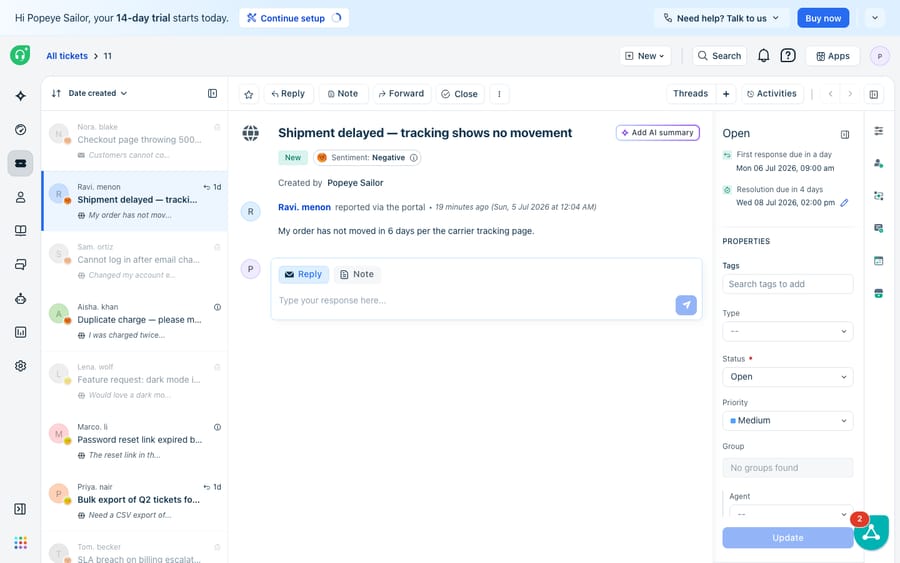
When you change a ticket's priority or reassign it to a different group, Freshdesk applies the new policy targets to the ticket. What Freshworks' public SLA articles don't spell out is which moment the new target is measured from. Admins commonly report that it is measured from the ticket's original created time, not from the change, and that matches the "instant breach" people see.
Play that out. A Low-priority ticket arrives Monday at 9 AM with a 24-hour resolution target. On Tuesday at 3 PM an agent bumps it to Urgent, whose target is 4 hours. If the 4-hour target counts from Monday 9 AM, it is already long past, and the ticket flips to breached as soon as the priority changes. Nothing is broken; the timer is anchored to creation.
Because the documentation is silent, confirm it on your own account: create a test ticket, wait past the Urgent target, change the priority and watch the due-by. Then treat it as a process problem:
- Set priority correctly at intake so you're not re-triaging into a breach later. A good routing decision up front is worth more than any timer tweak.
- Tell the team that a priority bump can breach an old ticket at once, so it doesn't get reported as a bug.
- If you need timers that restart on reassignment, Freshdesk's native SLA engine won't do it on its own. Plan for that requirement rather than fighting the timer.
If you're building policies from scratch, our walkthrough on how to set up SLA policies in Freshdesk covers the full setup.
Is "1 day" about to mean 24 business hours?
Yes, if your policies run on business hours. Freshworks is changing how day-based SLAs are calculated: today "1 day" means the working hours in one business day (8 or 9 hours for most teams), and after the change "1 Business day refers to 24 Business hours." With an 8-hour business day, a 1-day target will then accumulate across three working days before it is due, roughly triple what most admins meant.
As of 24 September 2026 the Freshdesk article Upcoming changes to day-based SLAs in Business hours says the update "is scheduled for phased release in 2026," so some accounts may see it before others. The fix is the same either way, and Freshworks recommends it: convert day-based targets to hours before the rollout reaches you. If you meant "resolve within one 8-hour working day," set 8 hours, not 1 day. Auditing your policies now removes a whole class of "why is this due three days out?" tickets later.
Which SLA policy wins when several match?
You can have several SLA policies, each with its own conditions (company, group, ticket type, source), but only one applies to a given ticket. Freshworks' rule: "the SLA policy with matching conditions that appears first in the list will be applied." A specific policy sitting below a broad catch-all never fires, because the broad one matched first.
To fix a ticket that's using the "wrong" targets:
- Go to Admin → Workflows → SLA Policies and read the list top to bottom.
- Find the first policy whose conditions match the ticket.
- If that's not the one you intended, reorder: drag the specific policy above the broad one. Freshworks recommends putting urgent and VIP policies at the top and generic ones at the bottom.
Multiple SLA policies are a Pro and Enterprise feature. The Freshdesk pricing page lists them on Pro ($55 per agent a month, billed annually) and Enterprise ($89), not on Growth ($19). With a single default policy this ambiguity can't happen, but you lose the flexibility too.
Why do SLA reminders and escalations fire at odd times?
Sometimes the timer is right and the notifications feel wrong: a reminder lands when you didn't expect it, or an escalation email never arrives. On Pro and above, reminders can be set from 5 minutes to 4 hours before a breach, and escalations from immediately (5 minutes) up to 1 month after one. A reminder measures against the same business-hours due-by you checked above, so an overnight pause shifts the reminder too. Escalation emails are controlled separately under Admin → Email notifications → Agent Notifications; if agents aren't getting them, check that toggle before the SLA policy.
Can AI help you meet SLA targets, not just measure them?
Freshdesk's SLA engine is good at what it does. Once you understand business hours, group calendars and policy order, it is precise and predictable, and for most teams the native feature is all the SLA machinery they need. The calculations aren't wrong; they're easy to misread.
What the SLA engine can't do is hit the target. A timer is a scoreboard, not a player. It can tell you a first response is due in fifteen minutes; it can't read the ticket, work out the intent and draft the reply. It can't pull an order status from your backend to resolve a shipping question before the resolution clock runs out. That gap between measuring the deadline and meeting it is where an AI agent layer earns its place, and it's worth being clear about the build-versus-buy tradeoff before you commit to either.
Macha runs on top of the Freshdesk you already use. It is not a help desk replacement, and it doesn't touch your SLA policies or business hours. You connect Macha to Freshdesk with your subdomain and API key, and it works the same tickets your SLAs govern: drafting or posting first replies grounded in your help center, triaging by intent rather than keyword, and looking up account or order data through a custom tool that turns any REST API into something the agent can call. The category of AI agents for customer service exists to do the reasoning-heavy work that keeps first-response and resolution timers green. Macha bills per ticket, one conversation charged once however many steps the agent takes, on one plan priced by volume: $299 a month for up to 750 tickets, rising to $3,999 for up to 10,000 (see pricing). The Freshdesk connector page covers exactly what it reads and writes.
FAQ
Why is my Freshdesk SLA timer showing a longer due-by time than my target? Almost always because the policy is set to business hours, not calendar hours. In business-hours mode the clock pauses overnight, on weekends and on holidays, so a 4-hour target spreads across your working schedule rather than real elapsed time. Check the policy's mode under Admin → Workflows → SLA Policies, and confirm which group's business-hours calendar the ticket inherited.
Why did my ticket breach SLA the moment I changed its priority? Changing priority applies the new priority's target to a ticket that may already be old. Admins commonly report the new target is measured from the ticket's original created time, so bumping a two-day-old ticket to Urgent can put it past due at once. Freshworks' SLA articles don't document the anchor, so test it on a sandbox ticket and set priority correctly at intake.
Why will "1 day" in my SLA behave differently? Freshworks is redefining day-based SLAs in business hours so that 1 business day means 24 business hours, in a phased release during 2026. With an 8-hour business day, a 1-day target will span three working days. Convert day-based targets to explicit hours before the change reaches your account.
Which SLA policy applies when I have several? The first policy in the ordered list whose conditions match the ticket wins. If a specific policy sits below a broad catch-all, the broad one fires first and the specific one never applies. Put the most specific policies at the top. Multiple SLA policies are available on the Pro and Enterprise plans.
Can AI help me actually meet SLA targets, not just measure them? Yes, though not by changing the timer. An AI agent layer like Macha connects to Freshdesk as a native connector (Freshdesk specifically, not Freshchat, Freshservice or Freshcaller) and drafts and posts first replies, triages by intent and resolves lookups from your systems, which keeps first-response and resolution clocks from slipping. It runs on top of your existing help desk and leaves your SLA configuration untouched.
Ready to keep your Freshdesk SLAs green instead of just watching them tick? Start a free trial and connect Macha to your Freshdesk in minutes.






