Shopify
 Stripe
 Slack
Slack Notion
 Google Workspace
 Confluence

Can't Log Into Front? Fixes for Passwords, SSO and the iPhone Edge Error (2026)


Most Front login failures come down to which of three sign-in methods your account uses: Google or Microsoft OAuth, a Front email and password, or company SSO. Below is the ordered checklist, from the wrong-method mistake to the iPhone Edge error and a team-wide SAML lockout.
Key takeaways
- Front login failures usually trace back to which sign-in method an account uses: Google or Microsoft OAuth, a Front email and password, or company SSO.
- Front's Forgot password? link only resets a Front-native password; Google, Microsoft OAuth and SSO accounts must reset the password at Google, Microsoft or the identity provider.
- Front SSO is available on the Professional plan at $65 a seat billed annually or Enterprise at $105, and Front says it provides no backup login URL if SAML breaks.
- On Front's iPhone app, Outlook sign-in can trigger 'You can't get there from here, you must use Microsoft Edge', and signing in with email and password is the reported workaround.
- If a bad SAML rollout locks out an entire Front team, Okta's setup guide for Front says to email [email protected] to have SAML turned off.

If you can't log into Front, first work out which sign-in method your account uses: Google or Microsoft OAuth, a Front email and password, or company SSO. Front's Forgot password? link only resets a Front-native password, so most "my password is correct but Front rejects it" cases are an OAuth or SSO account being treated like a password account. If your company turned on SAML SSO (a Professional plan feature at $65 a seat billed annually, or Enterprise), a broken config can lock out everyone, and Front offers no backup login URL.
Which symptom points to which cause?
| Symptom | Most likely cause | Where to look |
|---|---|---|
| Password rejected on email/password login | Wrong method (you actually use OAuth/SSO), or need a reset | Steps 1–2 |
| "You can't get there from here… use Microsoft Edge" on iPhone | Outlook sign-in hitting a Microsoft Conditional Access policy in the mobile app | Step 3 |
| SSO button loops back or 403s | Misconfigured SAML (subdomain / IdP) | Step 4 |
| Login page loads but won't submit | Browser cache / extension, or Front itself is down | Steps 5–6 |
| Whole team locked out after an SSO change | SAML enabled with no backup URL | Step 4 |
How do you sign in to Front?
Front's guide to ways to create and sign into your account lists three routes: Google or Microsoft OAuth, a Front email and password, and single sign-on (SSO). OAuth reuses your existing Google or Microsoft account; email/password is a credential you set just for Front; and SSO is, in Front's words, "a sign-in method set up by the company to standardize the login for all tools the company uses," configured by your IT admin, not by you. Company admins can also enforce Google or Microsoft login for everyone.
That distinction decides every fix below. A password reset that works for one method does nothing for another, and an SSO account has no Front password to reset at all.
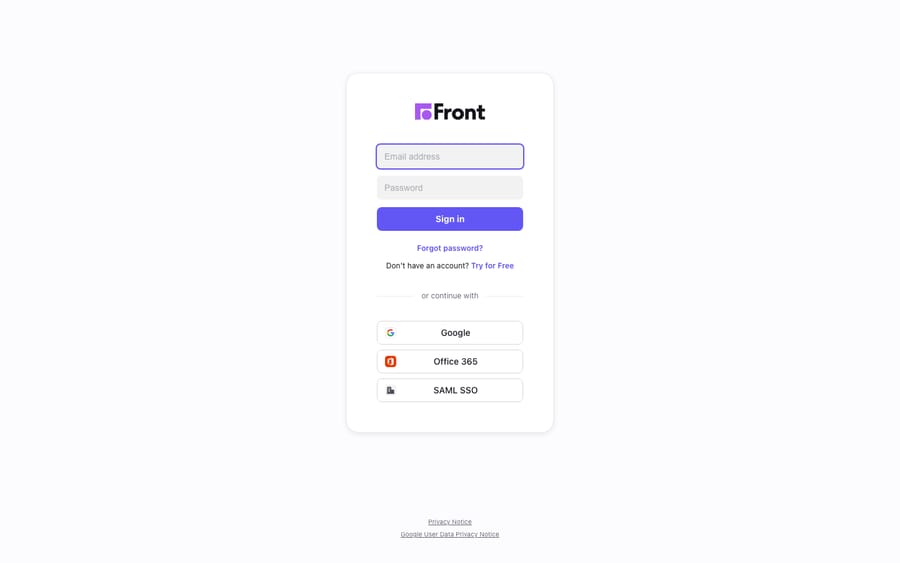
1. Are you using the wrong sign-in method?
This is the most common cause. Someone types an email and password on the Front login screen, gets rejected, and assumes the account is broken, when the account was created with Google or Microsoft OAuth and has no Front-native password. The reverse happens too: an account made with email/password won't respond to "Sign in with Google" unless that Google identity matches.
Fix: Notice which control you're using. If your organization runs on Google Workspace or Microsoft 365, try Sign in with Google or Sign in with Office 365 before typing a password. If you set a Front password, use the email/password fields. When in doubt, ask whoever invited you to Front which method your seat was set up with; for a shared inbox, that's usually the workspace admin.
2. How do you reset your Front password?
If you use a Front email and password, the reset is simple. Per Front's sign-in documentation, click Forgot password? on the login screen and enter the email linked to your account, and Front sends a reset email.
That only works for Front-native passwords. Front is explicit about the other cases:
- Google or Microsoft OAuth: "Reset your password directly in Google or Microsoft." Front never held that password, so its reset link won't help.
- SSO: "Reset your password directly in your SSO provider, or contact your company's IT team." Your credential lives in Okta, Entra ID, Google or whatever identity provider your company uses, not in Front.
Fix: Match the reset to the identity. Resetting a Google password when your account is really SSO (or the other way round) is the quiet time sink here.
3. Why does the Front iPhone app say "You must use Microsoft Edge"?
It's a documented mobile issue. On the Front iOS app, teammates who sign in with Microsoft Outlook / Office 365 can hit an error right after authenticating. As reported on Front's community, the message is: "You can't get there from here. You must use Microsoft Edge to access this resource." In the community thread on this issue, the reporter had no trouble in the Front Desktop App; only the mobile app failed.
The Edge demand typically comes from a Microsoft Conditional Access policy that restricts the resource to a specific browser, and the mobile app's in-app sign-in trips it.
Fix: You have two realistic options, and neither is "install Edge and hope":
- Sign in with email/password on the mobile app instead of the Outlook button. That's the workaround the reporter found, and it sidesteps the Conditional Access redirect.
- Escalate to your IT admin and Front support. In the thread, a Front senior support specialist asked the reporter to contact the Support Team from the email on the account rather than chase the Edge message. If your company enforces Conditional Access, your admin may need to adjust the policy for the Front mobile app.
4. Why does SSO fail, loop, or lock out the whole team?
When SAML is misconfigured, nobody gets in. SSO problems carry the highest stakes because they hit every teammate at once. Front's own single sign-on article says SSO is available on the Professional plan or above, works with any SAML-based identity provider (with setup guides for Microsoft Entra ID, Okta, Google, SAASPASS and OneLogin), and then states the part that hurts: "We do not provide a backup log-in URL where users can sign-in using their normal username and password."
The Okta SAML setup guide for Front adds two details:
- Enabling SAML affects all users. Per the guide, "users will not be able to sign-in through their regular log-in page." Once SAML is on, the email/password page is no longer the door.
- The Subdomain value is the usual culprit. The guide warns that a wrong subdomain in Okta's General tab "will prevent you from authenticating via SAML to Front."
On the flow itself: SP-initiated SAML starts at Front (you go to Front, Front sends you to your IdP to authenticate, then back). IdP-initiated SAML starts at your identity provider (you click the Front tile in Okta or your Google apps launcher and land in Front). If SP-initiated login loops but the IdP tile works, look at Front's SP settings or the ACS URL; if the IdP tile itself errors, look at the IdP app.
Fix (admin only): An individual agent can't fix this. It lives in your identity provider and in Front's company Security settings, where admins can also switch SSO off if they can still get in. Have your IT admin re-verify the subdomain, the SAML certificate and the ACS/sign-in URLs. If a bad rollout has locked everyone out, Front's SSO article says to contact Front, and the Okta guide gives the address: email [email protected] to have SAML turned off.
5. What if the login page loads but won't let you in?
Suspect browser state, not credentials. If the sign-in page appears but hangs, rejects a known-good password, or spins after you click a button, the cause is often a stale session, a cached SSO cookie or a blocking extension.
Fix: Work through these in order:
- Hard-refresh the page (Cmd/Ctrl + Shift + R).
- Open Front in a private / incognito window. It bypasses cached cookies and is the fastest way to tell a browser problem from an account problem.
- Disable extensions (ad-blockers, privacy tools, password managers autofilling the wrong identity) and retry.
- Try a different browser. Incognito plus a second browser together tell you whether it's your session or Front.
- Confirm the URL is your real Front workspace URL and not a stale bookmark to an old subdomain.
6. Is Front down?
Rule out an outage before you tear apart your own setup. If several teammates can't sign in at the same moment and nothing changed on your end, the problem may be on Front's side.
Fix: Check Front's status first. Our guide to whether Front is down walks through the status page and the fastest ways to confirm an outage. If it's a platform incident, you wait it out; if the status page is green, go back to steps 1–5.
Can an AI agent cut the support work behind login tickets?
A fair share of login trouble isn't really about login. A customer emails "I can't sign in," a teammate opens Front to triage it, and the loop assumes a human at the keyboard for work that's usually routine: reset guidance, "which method do I use," account lookups. The broader category of AI agents for customer service exists to take that routine tier off the queue.
Macha is one such layer. It runs on top of the Front you already use through the Macha–Front connector; it doesn't replace Front, your SSO or your shared inboxes. When a customer writes in with a routine question, Macha's agent reads the conversation in your shared inbox, works out intent, and can look up real account or order state through a custom tool that turns your REST API into something the agent can call, then drafts or sends a grounded reply. Macha bills per ticket: one conversation, charged once however many messages it takes, never per resolution, so the vendor earns nothing extra by stretching a thread. It won't fix a broken SAML config (that's still your IT admin's job), but it does shrink the manual work behind your inbox. Macha fits teams on Zendesk, Freshdesk, Gorgias, Front, HubSpot or Intercom who want the agent working inside existing conversations. If you're still wiring up channels, connecting Gmail to Front is a good companion once your logins are stable.
FAQ
Why does Front reject my password even though it's correct? Usually because your account doesn't use a Front password at all. It was created with Google or Microsoft OAuth, or with SSO. Try Sign in with Google or Sign in with Office 365 instead of typing a password, and if you use SSO, sign in through your company's identity provider.
How do I reset my Front password? It depends on your sign-in method. For a Front email/password, click Forgot password? on the login screen and enter your email. For Google or Microsoft OAuth, reset the password in Google or Microsoft. For SSO, reset it in your identity provider or ask your IT team; Front never holds that credential.
Why does the Front iPhone app say "You must use Microsoft Edge"? It's a reported mobile-app issue when signing in with Outlook / Office 365, typically caused by a Microsoft Conditional Access policy that restricts the resource to Edge. The Front Desktop App wasn't affected in the reported case. The workaround is to sign in with email/password on mobile; if your company enforces Conditional Access, your IT admin and Front support may need to adjust the policy.
Our whole team got locked out after turning on SSO. What happened? Enabling SAML affects all users and removes the regular email/password login page, and Front says it does not provide a backup login URL. A wrong Subdomain or certificate value in your identity provider can lock everyone out. Your admin should re-verify the SAML config; if nobody can get in, contact Front support ([email protected], per Okta's Front guide) to have SAML turned off.
What's the difference between SP-initiated and IdP-initiated SSO? SP-initiated login starts at Front, which redirects you to your identity provider to authenticate and back. IdP-initiated login starts at your provider: you click the Front tile in Okta or Google and land in Front. If the IdP tile works but starting at Front loops, the issue is usually in Front's SP/SAML settings.
Which Front plans include SSO? Front's SSO article says SSO is available on the Professional plan or above. Front's pricing page lists Professional at $65 a seat per month and Enterprise at $105, both billed annually; Starter ($25) doesn't include SSO.
Want fewer of your teammates' hours spent on routine tickets? Start a free trial of Macha and connect it to your Front shared inbox.