Shopify
 Stripe
 Slack
Slack Notion
 Google Workspace
 Confluence

How Do You Connect Gmail or Google Workspace to Front? OAuth Setup and Sync Limits


You connect Gmail or Google Workspace to Front by adding a Google channel with OAuth, which can import your 50,000 most recent messages and turn labels into tags. Only new messages, sent messages and spam marking sync both ways, so read status, archiving, tags, trash and snooze stay in whichever app you used.
Key takeaways
- Gmail connects to Front through Settings, Inboxes, Channels, Connect channel, Google, then Gmail Account, with an OAuth sign-in that grants Front full read and write access.
- Front can import the 50,000 most recent Gmail messages, newest to oldest, and says the import may take up to 72 hours to finish.
- Only three things sync both ways between Gmail and Front: new messages received, messages sent, and spam marked or unmarked.
- An email sent directly from Gmail after connecting syncs into Front as archived, so teammates working the Front Inbox may never see the reply.
- A Google Workspace admin who hits admin_policy_enforced can add Front as a Trusted app by OAuth Client ID 754490832836 under Security, API controls.

To connect Gmail or Google Workspace to Front, go to Settings → Inboxes → Channels → Connect channel, choose Google and then Gmail Account, sign in with Google to grant OAuth access, pick whether to import your 50,000 most recent messages and labels, and attach the channel to a shared or individual inbox. It takes a few minutes. The part that trips teams up is the sync afterwards: only new messages, sent messages and spam marking cross between Gmail and Front, while read status, archiving, tags, trash and snooze stay put.
| Native Google (OAuth) | SMTP forwarding | |
|---|---|---|
| Direction | Two-way (with the limits below) | One-way in, by redirecting mail to Front |
| Send as your address | Yes, through Google | Yes, but you configure custom SMTP or SPF/DKIM records |
| History import | Up to 50K messages | None; new mail only |
| Gmail labels → Front tags | Yes, at import | No |
| Best for | Real shared/individual inboxes | Addresses you can't OAuth, or non-Google providers |
Should you connect Gmail to Front with OAuth or forwarding?
Front gives you two ways to get Gmail into an inbox, and they aren't equal. The native Google connection uses OAuth: you authorize Front against your Google account once, and Front reads and sends on your behalf with a proper two-way link. The forwarding (SMTP) approach redirects incoming mail from the mailbox into a Front address. Front's guide to adding a generic SMTP forwarding inbox says to use a redirect rather than a rule that forwards a new copy, and outbound replies need either custom SMTP settings or SPF/DKIM records before they can go out as your address. There's no history import and no shared state with the source mailbox.
For any real support, sales or ops team on Google, the native OAuth connection is the right call. Forwarding is a fallback for addresses you genuinely can't OAuth (some locked-down aliases or distribution addresses) and for providers other than Gmail and Office 365. If you want the wider picture of how Front models email alongside SMS, chat and social, Front channels explained covers the channel model this fits into.
How do you connect Gmail to Front with OAuth, step by step?
Per Front's guide to adding a Gmail account (edited 18 July 2025), the native flow lives in your workspace or personal settings. Front says the feature is on all plans; on the latest Starter plan, email must be set as your company's channel type. Here's the full path:
- Click the gear icon and open workspace settings (for a shared inbox) or personal settings (for an individual one).
- Click Inboxes and create the shared or individual inbox this channel will feed.
- Click Channels, then Connect channel. Choose Google, then Gmail Account, and click Continue. (Google Groups and Gmail aliases have their own flows in the same menu.)
- Click Sign in with Google and authenticate. Front requires full Read and Write access: the consent screen reads "Read, compose, send, and permanently delete all your email in Gmail," plus two calendar permissions. Click Allow.
- On the Import page, choose whether to import historical conversations and whether to import labels.
- Select the inbox the channel routes to, click Continue, and optionally open the channel to adjust its settings.
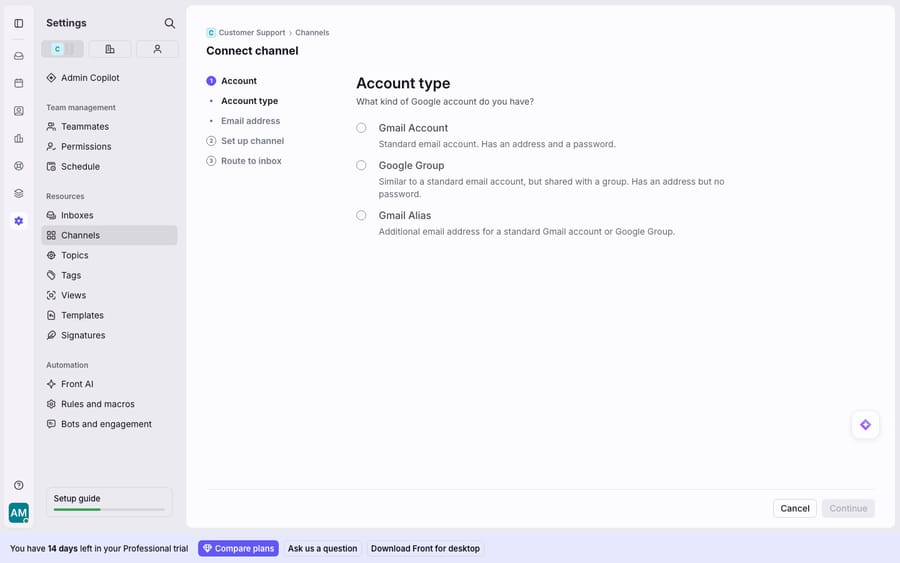
Two things to know before you click Allow. First, those permissions look alarming, but Front says it "actually does not have access to and will not permanently delete your emails in Gmail. Front is only able to permanently delete from our own servers." The scope is standard for an OAuth mail client. Second, if you get an admin_policy_enforced error, your Google Workspace admin has restricted third-party access, and the fix is on the admin side, below.
One prep step is worth doing first. Front suggests creating a unique Gmail label on the historical conversations that still need action before you connect. After import, a shared inbox archives everything by default, so you search for that label's tag and unarchive just those conversations.
How do you fix admin_policy_enforced on Google Workspace?
If you're on Google Workspace (not a personal Gmail), an admin may need to trust Front before the OAuth handoff completes. In the Google Admin Console, go to Security → API controls → Manage third-party app access. Front documents two options: remove restrictions on all Google Services, or the cleaner route, add Front as a Trusted app. For the second, under Configured apps click Add app, choose OAuth App Name or Client ID, search for OAuth Client ID 754490832836, select your organization, then choose "Trusted: App can request access to all Google data." After that the admin_policy_enforced block clears and teammates can connect their Google channels.
This is also the moment to decide which accounts become Front channels. A collaborative shared inbox (support@, sales@, orders@) is the classic Front pattern; Front shared inbox explained covers why that model beats forwarding a group address into personal Gmail.
How does the Gmail and Front two-way sync actually work?
When you connect a Gmail inbox natively, Front optionally imports your 50,000 most recent messages, newest to oldest, and the import "may take up to 72 hours to finish," per Front's Gmail history import and sync documentation. If you import labels, they convert to Front tags (private in an individual inbox, shared in a shared one), and threading defaults to Gmail threading.
But "two-way sync" is narrower than it sounds. Only three things sync both ways: new messages received, messages sent, and spam marked or unmarked. Everything else you do in the Gmail web UI stays in Gmail. That's deliberate. Once the channel is live, Front treats conversation state (read, assigned, archived, snoozed) as its own, because a shared inbox has a workflow that a single Gmail account can't represent.
Which Gmail actions don't sync to Front?
Front's sync documentation names five actions that do not sync between Gmail and Front, and ends the list with "etc.", so treat it as the minimum. Do any of these in one system and the other won't reflect it:
- Read / unread status: marking a message read in Gmail won't mark it read in Front, and vice versa.
- Archived / unarchived status: archiving in one place leaves it untouched in the other.
- Tag / label changes: labels you add in Gmail after connecting don't flow to Front tags (only the initial import converts them).
- Trash actions: deleting in Gmail doesn't delete in Front.
- Snooze actions: snoozing is a per-system state and doesn't cross over.
One more gotcha follows from this. If you send an email from Gmail directly after connecting, Front says "it will sync into your Front inbox as archived," so that reply won't surface as a new item in Front's Inbox. Your teammates may never see it. That's the most common cause of "why did we double-reply?"
Should you keep working the account in Gmail after connecting?
Put the sync limits together and the rule is simple: pick one place to work each conversation, and make it Front. If half your team triages in the Gmail web app and the other half in Front, read, archive, snooze and label states drift apart within a day, because none of them sync. Someone in Gmail archives a handled thread; in Front it still looks open and gets picked up again.
Front's docs don't ban parallel access, but the mechanics make the case. Once a Gmail address is a Front channel, treat Gmail as the plumbing and Front as the workspace. Close the Gmail tab for that mailbox. Keep direct-in-Gmail sending for the rare case, and know it lands archived. If you're deciding which accounts and tools to route through Front, best Front integrations is a useful map.
What doesn't a Gmail connection do, and where does an AI agent fit?
The native Google connection does its job well: real OAuth, send-as-your-address, a large history import and a dependable inbound flow. For getting email into a collaborative inbox, it's what you want, and it's why Front works as a home for team email rather than a forwarding hack.
The limits are worth naming. The two-way part is selective: at least five common actions don't cross over, and direct Gmail sends land archived, so discipline matters. Calendar and some settings still live in Google. And a synced inbox is still routing: it gets the email to the right shared inbox, but it doesn't read the customer's question or answer it.
That seam is where an AI agent layer fits, as reasoning on top of Front rather than a replacement. The broader category of AI agents for customer service exists for exactly this. Macha is one such layer: it runs on top of the Front you already use through the live Macha–Front connector and never replaces your Gmail channel, your inboxes or your workflow. Your native connection keeps getting the right email into the right shared inbox with history and tags intact. Then Macha's agent reads that email, works out intent, and drafts or sends a grounded reply, pulling a real order, shipment or account status through a custom tool that turns your REST API into something the agent can call. For the mechanics, connecting Front to Macha to route conversations to AI walks through it. Macha bills per ticket, from $299 a month for up to 750 tickets: one conversation is charged once however many messages it takes, never per resolution.
FAQ
How do I connect Gmail to Front? In Settings, open Inboxes, then Channels → Connect channel. Choose Google, pick Gmail Account, and click Sign in with Google to authorize via OAuth. Grant the Read and Write access Front requests, choose whether to import history and labels, then pick the inbox the channel routes to.
Does Front have two-way sync with Gmail? Partially. Only new messages received, messages sent, and spam marked or unmarked sync both ways. Read/unread status, archived status, tag changes, trash and snooze actions do not sync between Gmail and Front, per Front's documentation.
How many emails does Front import from Gmail? Up to your 50,000 most recent messages, imported newest to oldest. Front says the import can take up to 72 hours.
Why does my Gmail-sent email not show in Front's Inbox? Front documents that emails you send from outside Front after connecting sync into Front as archived, so they won't appear as new in your Inbox. Send from Front to keep the shared inbox accurate.
I get an admin_policy_enforced error connecting Google Workspace. How do I fix it? A Workspace admin must trust Front. In the Google Admin Console, under Security → API controls → Manage third-party app access, add Front as a Trusted app using OAuth Client ID 754490832836 and select "Trusted: App can request access to all Google data," or remove restrictions on Google Services.
Can I add AI to my Front Gmail inbox without replacing Front? Yes. An AI agent layer like Macha connects to Front as a live connector on top of your existing Gmail channel and inboxes. Your native connection keeps syncing email; the agent reads each conversation, works out intent, and drafts or sends a grounded reply.
Want a synced Gmail inbox that also answers? Start a free trial of Macha and connect it to your Front in minutes.