





 Shopify
 Stripe
 Slack
Slack Notion
 Google Workspace
 Confluence

What Are the Gorgias User Roles and Permissions? Roles, Teams and Seats (2026)


Gorgias gives every user one of five stacking roles, from view-only Observer to Admin, plus one Account Owner, and new users start on Basic. Teams decide which tickets each group works, and the bill follows ticket volume rather than seats.
Key takeaways
- Gorgias assigns each user one of five stacking roles, Observer, Lite, Basic, Lead and Admin, plus a single Account Owner who cannot be deleted or have the role changed.
- Gorgias gives invited and auto-join users the Basic role by default, and an email invitation stays active for seven days before an admin has to resend it.
- Gorgias does not charge per seat: Starter allows 3 user seats, Basic, Pro and Advanced allow 500, and monthly billing runs from $10 for 50 tickets to $900 for 5,000.
- Gorgias AI Agent is billed per automated interaction at $1.00 on Starter, $0.90 on Basic and Pro and $0.85 on Advanced, and a fully AI-resolved ticket can also incur a ticket fee.
- Gorgias Teams are named groups of users that Rules can auto-assign tickets to, and Views and analytics can be scoped to one team, which suits multi-brand accounts.

Gorgias gives each user one of five roles (Observer, Lite, Basic, Lead and Admin), plus a single Account Owner, and new users land on Basic by default. Seats are not billed separately: Starter allows 3 user seats and Basic, Pro and Advanced allow 500, while the bill follows monthly ticket volume (Gorgias pricing, checked 24 September 2026).
| Role | What it adds | Typical user |
|---|---|---|
| Observer | View tickets and customers, leave internal notes | Analyst, auditor |
| Lite | Reply to customers and update tickets | Seasonal or overflow agent |
| Basic (default) | Third-party actions such as Shopify refunds and cancellations | Core support agent |
| Lead | Macros, rules, SLAs, views and tags | Team lead, QA |
| Admin | Billing, users, integrations, account settings | Ops lead, owner |
| Account Owner | Admin access; cannot be deleted or have the role changed | Whoever created the helpdesk |
Where do you add and manage users in Gorgias?
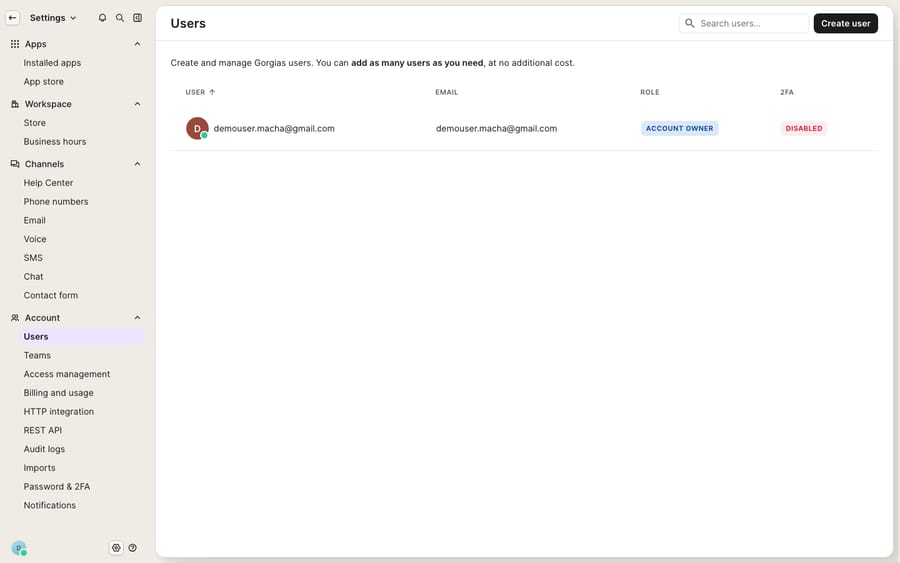
Everything to do with people is in one place. Per Gorgias' Users documentation, you manage the roster under Settings → Account → Users (the Settings icon sits bottom left), where a table lists each user, their email, their role, and their 2FA status, with a Create user button to invite the next one.
Adding someone works one of two ways. You can send an email invitation to the address they'll sign in with. The invite stays live for seven days, and if it lapses an admin has to resend it. Or you can turn on auto-join, which lets anyone with an approved email domain create an account without an invite, either at yourcompany.gorgias.com/signup or through Google, Outlook or custom SSO (Add your team to Gorgias). One detail matters here: auto-join users get the Basic role, and invited users do too unless you pick another role on the invite. If you enable domain auto-join, decide first whether Basic is the access you want to hand anyone at your company who signs up.
What can each Gorgias role do?
Gorgias controls access through roles, and a user's role decides exactly what they can touch. Per the User permissions documentation, there are five roles plus the Account Owner, and they stack: each one includes everything below it plus a bit more.
- Observer: view-only. Can read tickets, customers, and message history, and can leave internal notes and attachments, but cannot reply to customers or modify tickets. Good for auditors, analysts, or a manager who only needs visibility.
- Lite: everything Observer can do, plus customer communication: reply to customers, merge tickets, change statuses, and set priorities. What Lite can't do is trigger third-party actions, so no issuing a Shopify refund from the ticket.
- Basic: Lite plus integration actions. This is the everyday frontline agent: they can perform third-party actions like refunds, cancellations, or order edits directly from the ticket. Basic is the default for both invited and auto-join users.
- Lead: Basic plus workflow authorship. Leads can create and manage macros, rules, SLAs, views, and tags, the automation and routing layer. Gorgias calls it the highest non-admin role, built for senior agents and supervisors running day-to-day ops, and it stops short of billing and user management.
- Admin: full access, including account settings, billing, user management and integration management. Only admins can view the user list, invite people, change roles, or delete users.
- Account Owner: the person who created the helpdesk. Permissions are identical to Admin, but there is one Account Owner per account, and that user cannot be deleted or have their role changed.
Which role should a new hire get?
Not sure which role a given hire should get? Map the job to the least access that lets them do it.
| Who they are | Right role | Why not higher |
|---|---|---|
| Analyst / auditor / read-only manager | Observer | No reason to reply or edit |
| Overflow or seasonal agent (replies only) | Lite | Shouldn't issue refunds unsupervised |
| Core support agent (WISMO, returns, order edits) | Basic | Doesn't need to author rules or macros |
| Senior agent / team lead / QA | Lead | Keep billing and user list off-limits |
| Ops / owner / person who pays the bill | Admin | Top of the ladder |
The principle to copy is least privilege: give the smallest role that gets the job done, and promote when someone actually needs the extra reach. It's far easier to bump a Lite agent up to Basic than to walk back a workspace where three people accidentally have Admin.
How do Teams decide who works which tickets?
Roles decide what a user can do; Teams decide which tickets they work on. Per Gorgias' Teams documentation, a team is a named group of users that makes sure "the right tickets are going to the right group of people", which Gorgias calls "especially useful in multi-brand accounts" where you want returns going to one group and wholesale going to another.
You create one under Settings → Users & Teams → Teams → Create Team, where you pick an emoji, give it a name and description, and add the members. From there, teams do three useful things:
- Assignment and routing. Rules can auto-assign matching tickets to a specific team, and Views can be scoped so a group only sees its own queue. A "subscriptions" team can own every ticket tagged subscription-related without touching the WISMO pile.
- Multi-brand separation. If you run two Shopify stores through one Gorgias account, teams keep each brand's tickets in front of the right agents.
- Analytics. Reporting can slice performance by team, so you can compare the returns squad against the pre-sales squad without exporting anything.
Teams pair naturally with macros and rules: role sets the trust level, the team sets the queue, and rules move the work into it automatically.
Does Gorgias charge per user seat?
No. This surprises teams coming from a per-agent help desk: Gorgias does not charge per seat. Per Gorgias' pricing page, each plan includes a fixed number of user seats, and whether you have 5 agents or 50, the subscription cost is the same. What you pay for is ticket volume. On monthly billing, Starter is $10 for 50 tickets, Basic $60 for 300, Pro $360 for 2,000 and Advanced $900 for 5,000, with a $0.40 fee per extra ticket on Starter and Basic and $0.36 on Pro and Advanced. Annual billing lowers Basic, Pro and Advanced to $50, $300 and $750 a month; Starter is monthly only.
Two caveats worth stating honestly:
- The entry-level Starter plan caps you at 3 user seats. Headcount-free scaling really begins on Basic and above, which allow up to 500 user seats.
- AI Agent is the exception to the "no per-action billing" rule. Gorgias bills it per automated interaction: $1.00 on Starter, $0.90 on Basic and Pro, and $0.85 on Advanced, per the pricing page's comparison table. And per Gorgias' billing documentation, "an automation fee and a ticket fee may apply to the same ticket only when the ticket is entirely resolved by AI Agent." So a full AI resolution adds cost on two axes at once. We break the whole model down in Gorgias pricing explained.
The practical upshot: because seats cost nothing extra up to the plan cap, there's no billing reason to be stingy about adding observers or leads. The lever that moves your bill is ticket volume, which is exactly where an AI layer changes the math.
Where do Gorgias permissions stop?
Gorgias' users-and-teams model is clean and does its job well: five clear roles plus an owner, least-privilege control, team-based routing, and billing that doesn't punish you for headcount. But it's worth being clear-eyed about what it doesn't do.
The roles are fixed, not custom. You get the ladder as-is. You can't build a bespoke role that, say, allows refunds but blocks ticket deletion, or grants macro editing without SLA editing. If your real-world permission needs fall between two rungs, you round to the nearest one, usually granting a little more access than you'd like.
Permissions gate humans, not outcomes. A role decides whether an agent can issue a refund; it does nothing to make that refund happen faster, or to handle the 200 identical "where's my order?" tickets before an agent ever opens them. And several of the actions a Basic agent performs (the Shopify refund, the order lookup, the subscription change) depend on integrations being connected; the permission is there, but the work is still fully manual.
Seats are free, but people aren't. The billing model rewards adding agents, yet every ticket those agents work is still a human writing a reply. When volume spikes, "add more seats" is cheap on paper and expensive in practice.
This is the seam where an AI agent layer fits. To be clear, that's a layer on top of the Gorgias you already run, not a replacement for it. The broader category of AI agents for customer service exists to do the reasoning-heavy, repetitive work that roles and teams route but can't perform. Macha connects to Gorgias through a live native connector (see the Macha ↔ Gorgias integration): it reads and writes the same tickets your roles and teams already govern, drafting or posting grounded replies to WISMO, returns, and subscription questions, and looking up order or account status through a custom tool that turns a REST API into something the agent can call.
The important contrast with Gorgias' own AI Agent is the billing shape. Gorgias' automation is billed per automated interaction, and a full AI resolution can also count as a ticket. Macha bills per ticket: one conversation, charged once however many drafts, lookups and replies it takes. Plans start at $299 a month for up to 750 tickets, with setup and monitoring by the Macha team included, so so the cost tracks the volume you handle. There are no seats to buy for the AI either; you can see the model on the pricing page. Keep Gorgias as your system of record for people, roles, and routing, and layer an agent on top for the volume no amount of seat-shuffling will absorb.
FAQ
Where do I add and manage users in Gorgias? Go to Settings → Account → Users. You'll see a table of every user with their email, role, and 2FA status, plus a Create user button to send an email invitation (valid for seven days). New users get the Basic role unless you choose another.
What are the Gorgias user roles? Five roles plus an owner, from least to most access: Observer (view + internal notes), Lite (reply and update tickets), Basic (adds third-party integration actions like refunds; the default role), Lead (adds macros, rules, SLAs, views, and tags), Admin (billing, users, integrations, account settings), and Account Owner (same as Admin, one per account, can't be deleted or have the role changed).
Does Gorgias charge per user seat? No. Every plan includes a set number of seats (3 on Starter, 500 on Basic, Pro and Advanced), and you're billed on ticket volume, not headcount. Gorgias' AI Agent is billed separately per automated interaction ($0.85 to $1.00 depending on plan), and a ticket AI Agent resolves entirely can also incur a ticket fee.
What do Teams do in Gorgias? A Team is a named group of users, created under Settings → Users & Teams → Teams. Teams scope assignment: Rules can auto-assign tickets to a team and Views can be limited to one group's queue, which is especially useful for multi-brand accounts. Reporting can also break performance down by team.
Can I add AI to Gorgias without replacing it or buying more seats? Yes. Macha connects to Gorgias through a live native connector and runs on top of your existing help desk, roles, and teams rather than replacing them. It helps handle volume by drafting or sending grounded replies and looking up order status, and it bills per ticket (one conversation, charged once) rather than per resolution.
Ready to cover more tickets without adding seats? Start a free trial of Macha and connect it to your Gorgias in minutes.






