





 Shopify
 Stripe
 Slack
Slack Notion
 Google Workspace
 Confluence

How Does Front Search Work? Operators, Filters and Trash/Spam Scopes (2026)


Front search is fast and deep, but most of its power sits behind operators you have to know to type. Keyword search covers comments by default, while trashed and spam conversations stay hidden until you scope them back in.
Key takeaways
- Front keyword search covers every field of a conversation, including internal comments, and the in:comments operator narrows results to matches inside comments only.
- Front leaves the Trash and Spam folders out of keyword search results unless the query includes is:trashed or is:spam.
- Front operators stack for AND logic, so tag:vip is:open assignee:priya finds open, VIP-tagged conversations assigned to one teammate.
- Front prefix search with an asterisk, such as soph*, does not work with field modifiers, so body:soph* and subject:soph* return nothing.
- Front Autopilot is an add-on on every plan starting at $0.05 per conversation, while Front documents no saved-search feature.

Front search works by typing keywords into the search pop-up, which searches every field of a conversation, and narrowing the results with colon operators such as from:, tag:, is:open or in:comments. The one default that catches people out is that the Trash and Spam folders are left out of keyword searches until you add is:trashed or is:spam.
| You want to | Type |
|---|---|
| Find an exact phrase | "weekly team update" |
| Exclude a word | meeting -budget |
| Match a prefix | soph* (not with body: or subject:) |
| Search only internal comments | in:comments double-charged |
| Search attachment text | in:attachments invoice (emails only) |
| Include trashed or spam | is:trashed or is:spam |
| Stack filters | tag:vip is:open assignee:priya |
How does search work in Front?
Open search by clicking the search icon at the top of your Front inbox. As Front's guide to searching in Front explains, typing words directly into the search pop-up "will search all parameters for the matching term," or you can narrow things with filters. Type your keywords and Front shows suggestions in a dropdown; press Enter to see the full result list, with the most relevant results first and chronological results below.
There are three ways to build a query, and they layer on top of each other:
- Plain keywords. Type
refundand Front matches the term across the conversation's fields. Results match your exact term, with stemming:runalso finds "running" and "ran," butPetewon't find "Peter." - Operators. Type a colon-prefixed operator like
from:,tag:oris:opento filter precisely. The search pop-up lists popular advanced filters as you type. - The search builder. Click the filter icon in the search pop-up to open a point-and-click builder that exposes every filter without you having to remember the syntax. After any search, a filter bar also appears so you can refine results further with a click.
A dropdown on the right of the pop-up also sets the scope: the inbox you're viewing, everything in your sidebar, or all inboxes. The operators and the builder are the same thing wearing two faces; the builder just writes the operator syntax for you.
Which Front search operators are worth knowing?
Front's operators fall into four families. The Front API search reference and the help center between them document the full set; here are the ones that earn their keep.
Message content: where the text lives
subject:invoice: match the subject line onlybody:invoice: match the message body onlyin:messages: all terms inside one message (not comments or attachments)in:attachments: text inside attached PDF, CSV, XLS, XLSX, DOCX or TXT files (emails only; attachments from channel integrations aren't searchable);not-in:attachmentsexcludes themin:comments: text inside internal comments only
People: who is involved
from:[email protected]: sender onlyto:,cc:,bcc:: the respective recipient fields;recipient:matches any of themwith:acme: a contact involved anywhere in the conversationaccount:Acme Corp: contacts linked to a specific account
Teammates: who on your side touched it
assignee:priya: assigned to a teammateauthor:priya,commenter:priya,mention:priya,participant:priya: authored, commented on, was @-mentioned in, or otherwise participated
Properties: state and metadata
is:open,is:archived,is:snoozed,is:assigned,is:unassigned,is:unread,is:unreplied: conversation statusticket_status:Open,ticket_status:Waiting,ticket_status:Resolved: ticket status, if you use Front's ticketingis:spam,is:trashed: the two scopes everyone forgets (below)tag:vip: a tag; multi-word tags use underscores, e.g.tag:everything_is_awesomehas:attachment,has:reminder,has:no-tags: presence filterscustom_field:"Jira Keys=TP-250": a conversation custom field valuebefore:2026-06-01,after:2026-05-01,during:2026-05: date scoping (YYYY-MM-DD, or YYYY-MM for a month); before and after include the date itself
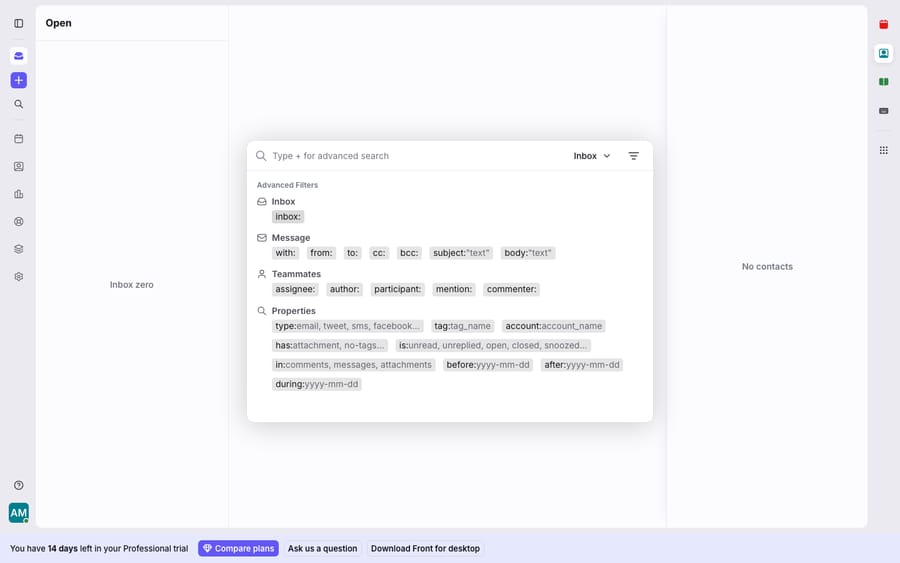
You stack operators for AND logic: tag:vip is:open assignee:priya returns open, VIP-tagged conversations assigned to Priya. That composability is where Front search stops being a text box and starts being a query language.
Does Front search internal comments, trash and spam?
Comments: yes, by default. Front's help center says a plain keyword search covers all parameters, and it lists comments among the fields it weighs when ranking the top results, alongside recipient, subject and body. What in:comments does is narrow: in:comments double-charged returns only conversations where the match sits inside an internal comment. That's useful on a collaborative shared inbox where a lot of the real decisions live in comments and mentions, and a plain search for a common word buries them under customer emails. Pair it with commenter:priya to find what one teammate wrote.
Trash and spam: no. Per Front's help center, "The Trash and Spam folders are not automatically included when you search for keywords." A conversation someone trashed, or that Front flagged as spam, won't appear in normal results. To reach it you scope it back in with is:trashed or is:spam. The classic case: a customer swears they emailed you, the message got auto-filed as spam, and your agent's search comes up empty because spam was never in the search to begin with.
How do exact phrases, exclusions and wildcards work?
- Exact phrases go in quotation marks:
"weekly team update"matches that phrase in order, not the three words scattered apart. - Exclusions use a leading dash:
meeting -budgetfinds conversations about "meeting" but not "budget." You can exclude senders (-from:[email protected]) and tags too. Front doesn't support excluding a quoted phrase, a query made only of negations (is:archived -budgetreturns nothing), or a negated prefix. - Prefix wildcards use an asterisk:
soph*matches "Sophia" or "Sophie." One caveat: prefix search does not combine with field modifiers, sobody:soph*orsubject:soph*return nothing.
Can you save a search in Front?
Not as a documented feature. Front's search help article doesn't describe saving a query, and a Front community thread asking for it has a Front staff reply calling saved searches "definitely on our radar." Two things come close. The search builder remembers your settings when you close it, until you run another search from the pop-up. And Views give you a persistent filtered list, though users in that thread point out Views have fewer filters than search. For a triage lens you run daily, such as is:open is:unreplied tag:vip, keep the query in a pinned note or snippet and paste it.
Where does Front search stop, and where does an AI agent pick up?
Front's search is fast, operator-rich and precise once you know the syntax. For finding things, it's hard to fault. But notice what it is and isn't.
Search matches terms, not meaning. Stemming helps, but refund still won't match "I was double-charged and want my money back," which is the same intent without the keyword. It can locate the conversation, but it can't read it, reason about it, or answer it. Search is a retrieval tool, not a resolution tool. A few adjacent capabilities are plan- or add-on-gated: Front's reporting on team performance, CSAT and SLAs goes from Basic on Starter ($25 a seat a month) to Advanced on Professional ($65) to custom reports on Enterprise ($105), and Front's Autopilot AI agent is an add-on on every plan, "starting at $0.05 /conversation" (front.com/pricing, 24 September 2026). Front's pricing tiers lay out what unlocks where, and Front analytics explained covers the reporting side.
This is where an AI agent layer fits: not to replace search, but to do the reasoning work retrieval can't. The category of AI agents for customer service exists for the part a string match can't do. Macha is one such layer. It runs on top of the Front you already use through the live Macha–Front connector, and it doesn't replace Front, your inboxes, your rules or your search. Search keeps pinpointing conversations by sender, tag, date or phrase. Macha's agent reads the conversation, works out the intent rather than the keywords, and drafts or sends a grounded reply, pulling a real order or account status through a custom tool that turns your REST API into something the agent can call. Connecting Front to Macha to route conversations to AI walks through the mechanics. Macha bills per ticket, starting at $299 a month for 750 tickets: one conversation, charged once however many searches and replies it takes, never per resolution, so the bill doesn't hang on an outcome definition you don't control.
FAQ
Does Front search my internal comments? Yes. Front's help center says a plain keyword search covers all parameters and ranks matches in comments alongside subject and body. Add in:comments when you want only comment matches, for example in:comments escalation.
Why don't trashed or spam conversations show up in search? Front excludes the Trash and Spam folders from keyword searches. Add is:trashed or is:spam to your query to include them. This is why a customer's email that got auto-filed as spam can look "missing" until you scope spam back in.
How do I search for an exact phrase in Front? Wrap it in quotation marks: "order confirmation" matches that exact phrase rather than the words individually. Combine it with operators, such as "order confirmation" is:open, for tighter results.
Can I save a search in Front? Front doesn't document a saved-search feature; staff have called it "on our radar" in the community forum. The search builder remembers your last settings, and Views give you a persistent filtered list with fewer filters than search.
Can I add AI to Front search without replacing Front? Yes. An AI agent layer like Macha connects to Front as a live connector and runs on top of your existing inboxes and search. Search keeps finding conversations; the agent reads the found conversation, understands intent, and drafts or sends a grounded reply.
Can Front search inside attachments? Yes, for emails. in:attachments searches the text of PDF, CSV, XLS, XLSX, DOCX and TXT files; attachments from channel integrations aren't searchable.
Ready to turn "found the conversation" into "answered it"? Start a free trial of Macha ($50 of usage, no credit card) and connect it to your Front in minutes.






