





 Shopify
 Stripe
 Slack
Slack Notion
 Google Workspace
 Confluence

How Do Freshdesk CSAT Surveys Work? Setup, Point Scales and Reports (2026)


Freshdesk CSAT surveys go out when a ticket is resolved or closed, and the score is the share of responses in the positive bucket. What you can configure depends on whether your account runs the current CSAT module or legacy CSAT.
Key takeaways
- Freshdesk CSAT surveys are built under Admin, Workflows, Customer Satisfaction, and the CSAT score is the percentage of responses that land in the positive bucket.
- The current Freshdesk CSAT module supports rating scales of up to 10 points and lets admins define which scores count as negative, neutral and positive.
- Legacy Freshdesk CSAT offers 2-, 3-, 5- or 7-point scales with 3 as the default, and allows up to 10 surveys with only one active at a time.
- Freshdesk can send CSAT surveys on ticket resolution over Email, Web Chat, WhatsApp, Instagram and Facebook Messenger, and survey frequency capping is available only on the Enterprise plan.
- Freshdesk CSAT results appear in Analytics under Customer Satisfaction Survey Results, split by agent and group and correlated with response time, resolution time and reopens.

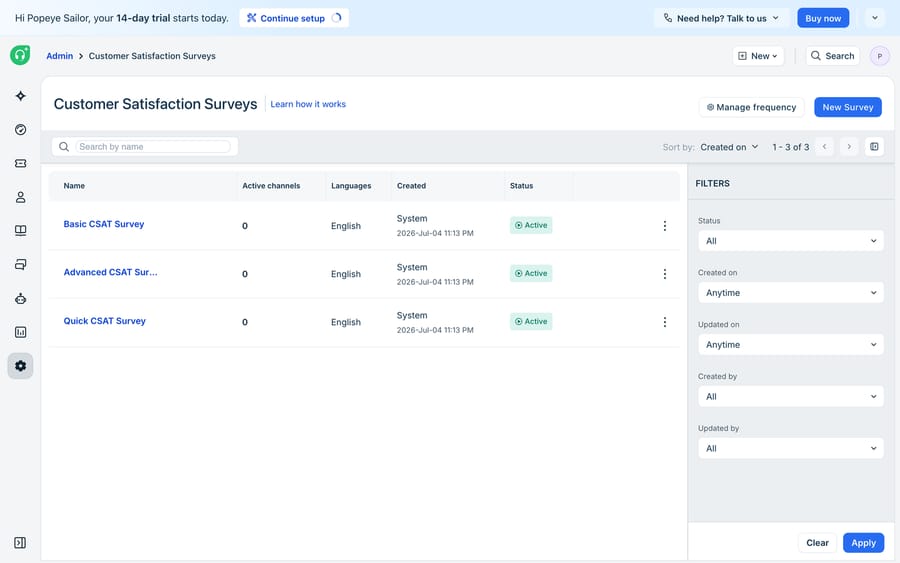
A Freshdesk CSAT survey is built under Admin → Workflows → Customer Satisfaction → New Survey, sent when a ticket is resolved or closed (or by automation, or attached by hand), and scored as the percentage of responses that land in the positive bucket. How much you can customize depends on which module your account runs: the current CSAT module offers scales of up to 10 points, skip logic and templates, while accounts still on legacy CSAT choose a 2-, 3-, 5- or 7-point scale and can have only one active survey at a time.
| Current CSAT module | Legacy CSAT (older accounts) | |
|---|---|---|
| Point scale | Up to 10 points; you define which scores count as negative, neutral and positive | 2, 3, 5 or 7 points; 3 is the default |
| Rating visuals | Smileys, stars, text boxes or a numbered scale | Text choices you can edit |
| Follow-up questions | Multichoice, rating, yes/no, short or long text, with skip logic | Up to 10 extra questions, all on the same point scale |
| Surveys | Draft, Active and Paused statuses; pre-built templates (4 or 11, depending on signup date) | Up to 10 surveys, only one active at a time |
| Channels | Email, Web Chat, WhatsApp, Instagram, Facebook Messenger | Email with the resolve/close notification, on agent replies, or when the agent ticks a box |
| Frequency capping | Enterprise plan only | Not documented |
What does a Freshdesk CSAT survey measure?
CSAT (customer satisfaction) is a transactional metric. Unlike NPS, which asks how someone feels about your brand overall, a CSAT survey fires at the end of a specific support interaction and asks the customer to rate that experience. Freshdesk's survey engine is built around a primary question ("How satisfied were you with your experience?") answered on a rating scale, with optional follow-up questions and a free-text box for comments.
The score itself is a percentage. As Freshworks documents in its Customer Satisfaction Survey report, Freshdesk buckets every response into positive, neutral or negative, and the headline CSAT rating is the percentage of responses that landed in the positive bucket. On a 7-point scale the split is three positive gradients, one neutral and three negative; on a 5-point scale it's 2-1-2. The scale you pick directly shapes how forgiving or harsh your score reads.
Which rating types and point scales can you use?
Freshdesk gives you two independent choices: what the rating looks like, and how many steps it has. The options differ between the two modules.
In the current CSAT module, documented in Freshworks' setup guide, the rating visuals are smiley faces, stars, text boxes or a numbered scale, and you can choose a scale of up to 10 points. Advanced customization lets you change the score range and decide which scores count as negative, neutral and positive, so you control what feeds the headline number. Follow-up questions can be a different type from the main rating.
In the legacy module, per Freshworks' legacy survey documentation, you pick 2, 3, 5 or 7 points, with 3 as the default:
- 2-point (Yes, No): highest completion rate, least nuance.
- 3-point (Agree, Undecided, Disagree), the default: a reasonable balance.
- 5-point (Poor to Very Good): the classic Likert range.
- 7-point (Very Poor to Exceptional): finest granularity; best when you have the volume to make small gradients meaningful.
One legacy constraint worth knowing: you can add up to 10 extra questions, but they must all use the same point scale and the same choices. And once a customer has answered, the point scale locks.
How do you build a CSAT survey in Freshdesk?
In the current module, everything lives under one admin path (Freshworks documents slightly different screens for accounts that signed up before and after December 2025):
- Go to Admin → Workflows → Customer Satisfaction and click New Survey, or start from a pre-built template (Freshworks lists 4 for newer accounts and 11 for older ones).
- Name the survey and edit the primary question.
- In the right panel, pick a rating visual and a scale range, and use Advanced customization to set the negative, neutral and positive bands.
- Optionally add follow-up questions (multichoice, rating, yes/no, short text or long text), set skip logic, and turn on the Resolution question to ask whether the issue was actually solved.
- Click Publish. A survey is only Active once published; drafts are invisible to customers, and a Paused survey sends nothing.
- Go to the Collect Responses tab to choose channels, triggers and frequency (see below). An active survey collects nothing until it's linked to a channel, an automation or made available to agents.
Which channels send a survey, and when does it go out?
On the Collect Responses tab there are three ways to send:
- Send on Ticket Resolution: the survey goes out automatically when a ticket is resolved or closed, on the channels you pick: Email, Web Chat, WhatsApp, Instagram or Facebook Messenger. Each channel has its own settings. For email, you open the support address under Email Servers and toggle on Send Survey.
- Send via Automation: ticket automation rules send the survey on specific conditions, such as high-priority tickets only, either on the channel the ticket came in on or by email.
- Send Manually: agents attach the survey to a ticket reply, with an expiry you set in hours or days.
In the current module you can also insert a survey into email notification templates under Admin → Email notification → Requester Notifications: "Agent adds comments to tickets", "Agent solves the ticket" or "Agent closes the ticket". If you rely on that route, the survey only reaches the customer when that notification is switched on. On legacy CSAT the rule is stricter: a survey set to go out on resolve or close is sent inside the "Agent solves the ticket" or "Agent closes the ticket" notification under Admin → Workflows → Email Notifications → Requester Notifications, so with that notification off nobody gets a survey. Two more behaviours to know: by default a contact can answer a survey only once, and once they respond from any channel, their other open requests for the same survey are marked complete.
What are the plan gates and account limits?
Survey frequency capping is the control that stops your best customers being surveyed on every ticket: "send one survey every n requests per day/week/month" per contact. Freshworks lists it as available only on the Enterprise plan ($89 per agent per month billed annually on the Freshdesk pricing page). When a contact hits the limit, you choose whether the message goes out without the survey or isn't sent at all.
On legacy CSAT, an account can create up to 10 satisfaction surveys, but only one can be active at any given time, so CSAT is effectively one survey per account with nine on the bench. The current module's documentation doesn't state that limit; it describes surveys tied to channels, automations and manual sends.
| Capability | Availability |
|---|---|
| Create surveys and pick a point scale | All plans |
| Follow-up question types | All plans |
| Surveys per account (legacy) | Up to 10, one active at a time |
| Email + social/chat channels | Depends on the channels enabled on your plan |
| Survey frequency capping | Enterprise only |
Because gating shifts over time, and Freshdesk Omni packages channels differently again, confirm the exact tier against your own account before you promise a stakeholder a feature.
Where do Freshdesk CSAT scores show up?
Once responses come in, the numbers live in Analytics → Curated Reports → Customer Satisfaction Survey Results. The report is more than a single headline figure: it shows the positive / neutral / negative distribution, compares satisfaction by agent and by group, and correlates scores against response time, resolution time, ticket reopens and the number of back-and-forth interactions. Freshworks notes that tickets with 2-4 interactions draw the most positive ratings. A "Show tabular data" drilldown lets you read the individual tickets and the free-text comments behind any rating, which is where the actionable feedback usually hides. Individual responses also show up on the ticket itself, so an agent can see what a customer said about a conversation they handled.
What can't Freshdesk CSAT do, and where does an AI layer help?
Freshdesk CSAT is a solid, native feedback loop, and for most teams it's all the survey tooling they need. But it measures satisfaction; it doesn't change it. By the time a customer rates a two-day, three-reopen ticket a 2 out of 5, the damage is done. The score is a diagnosis, not a treatment.
There are sharper edges, too. On legacy accounts only one survey can be active at a time, so you can't easily run different questions for different segments. CSAT response rates are low on every help desk, which means small volumes and noisy averages. Frequency capping is Enterprise-gated, so on lower tiers a prolific customer can get surveyed on every ticket. And the report tells you that satisfaction dipped for a group last week; it can't tell you why, or read 300 comments to find the pattern for you.
That "why", and the work of preventing low scores in the first place, is where an AI agent layer fits. The category of AI agents for customer service exists to do the reasoning-heavy work a survey can't, and it's worth understanding the build-versus-buy tradeoff before you reach for one. Macha is one such layer: it runs on top of the Freshdesk you already use as a native connector (and on Zendesk, Freshdesk, Gorgias, Front, HubSpot or Intercom), and it does not replace your help desk or its CSAT module. You connect Macha to Freshdesk with your subdomain and API key, and it works the same tickets your survey is about to rate: drafting grounded first replies (often reusing the same approved snippets behind your canned responses), resolving routine questions faster, and looking up order or account status through a custom tool so the customer gets a real answer instead of a stall. Faster, more accurate resolutions are what move the number the survey reports.
There's a read side, too: because Macha can automate work across Freshdesk with AI, the same connector that resolves tickets can help triage and summarise the free-text comments a survey collects, turning a wall of one-line gripes into themes a team lead can act on. (Macha's connector is for Freshdesk specifically, not Freshchat, Freshservice or Freshcaller.) Billing is per ticket: one conversation, charged once however many messages it takes, from $299/month for up to 750 tickets with setup and monitoring by the Macha team included. See the pricing breakdown.
A clean division of labour: keep Freshdesk CSAT as the source of truth for how satisfied customers are, and layer an agent on top for the part a survey can't do: improving the experience before the rating, and making sense of the comments after it.
FAQ
Where do I set up CSAT surveys in Freshdesk? Go to Admin → Workflows → Customer Satisfaction and click New Survey (or pick a template). Build the question and rating, click Publish, then configure channels and triggers on the Collect Responses tab. A published survey collects nothing until it's linked to a channel, an automation or manual sending.
What point scales does Freshdesk CSAT support? In the current CSAT module you can choose a scale of up to 10 points and define the negative, neutral and positive bands yourself. Legacy CSAT offers 2-, 3-, 5- or 7-point scales with 3 as the default, and extra questions must share the primary question's scale.
When does a CSAT survey actually get sent? Most commonly when a ticket is resolved or closed, via Send on Ticket Resolution on Email, Web Chat, WhatsApp, Instagram or Facebook Messenger. You can also send surveys through automation rules, attach them manually to a reply, or insert them into requester notification emails such as "Agent solves the ticket", which then must be switched on.
How many surveys can I run at once? On legacy CSAT, an account can create up to 10 surveys but only one can be active at a time. The current module doesn't document that cap. Survey frequency capping (limiting how often the same contact is surveyed) is available only on the Enterprise plan.
Where do CSAT scores show up? In Analytics → Curated Reports → Customer Satisfaction Survey Results, which shows the positive/neutral/negative split, agent and group comparisons, correlations with response and resolution time, and a tabular drilldown into individual tickets and comments. The CSAT score itself is the percentage of responses in the positive bucket.
Can I add AI to Freshdesk CSAT without replacing Freshdesk? Yes. An AI agent layer like Macha connects to Freshdesk as a native connector and runs on top of your existing help desk and CSAT module. It helps improve the score by drafting grounded replies and resolving tickets faster, and can help summarise survey comments, while Freshdesk stays the system of record for satisfaction.
Ready to move the CSAT number, not just measure it? Start a free trial of Macha with $50 of free usage and no credit card, and connect it to your Freshdesk.






