





 Shopify
 Stripe
 Slack
Slack Notion
 Google Workspace
 Confluence

How Does Front's Knowledge Base Work? Setup, Publishing and Plan Limits (2026)


Front's knowledge base is the help center article library built into Front, available on all current plans, with one knowledge base per help center. Agents insert its articles into replies, customers find them on the portal, and AI tools use them as grounding.
Key takeaways
- Front's knowledge base is turned on under Help center, Settings, Features, and each help center holds exactly one knowledge base on all current Front plans.
- A Front knowledge base article can carry up to 10 file attachments of 20 MB each, plus video embeds from YouTube, Vimeo, Google Drive and Loom.
- Each Front article can take up to 5 keywords, set in the right-hand panel, to rank higher in the knowledge base's own search.
- Front articles move through Draft, Published and Published with pending changes, so edits to a live article stay private until you republish.
- Showing Front's knowledge base inside the Front Chat widget requires the latest Professional plan or above, while the knowledge base itself is on all current plans.

Front's knowledge base is the article library inside Front's Help center: you switch it on under Help center > Settings > Features, get one knowledge base per help center, and publish each article through three statuses (Draft, Published, and Published with pending changes). It is available on all current Front plans, but showing it inside the Front Chat widget needs the latest Professional plan or above.
| Question | Answer (Front help center docs, September 2026) |
|---|---|
| Knowledge bases per help center | 1 (create more help centers for separate audiences) |
| Plan availability | All current plans; some legacy plans must upgrade |
| Article attachments | Up to 10 files, 20 MB each |
| Keywords per article | Up to 5 |
| Article statuses | Draft, Published, Published with pending changes |
| Languages | Each language is its own portal, published independently |
| KB inside Front Chat | Latest Professional plan or above |
How do you turn on Front's knowledge base?
Front's knowledge base is part of the broader Help center, and you enable it before you can write a single article. Per Front's getting started guide, you select Help center from the navigation menu, pick the help center you want, click Settings, enable the Knowledge base toggle in the Features section, and click Save. A Knowledge base section then appears in the left navigation, ready for content.
A useful structural fact worth knowing early: you get one knowledge base per help center. If you need genuinely separate knowledge bases — say, one for customers and one for partners, or one per brand — you create additional help centers rather than splitting a single KB. Front notes that the knowledge base is available on all current plans, though teams on older legacy plans may need to upgrade to reach it.
How is a Front article structured?
Inside the knowledge base, content is organized in a shallow, predictable hierarchy that mirrors how visitors actually browse.
Categories and sections are the two grouping layers. Categories are the top-level buckets a visitor sees on the portal home; sections subdivide a category into related clusters of articles. On top of those, Front supports resource links — external link cards you can pin to the portal to point visitors at things that live outside the KB. That is the whole shape: categories hold sections, sections hold articles, and resource links round out the landing experience.
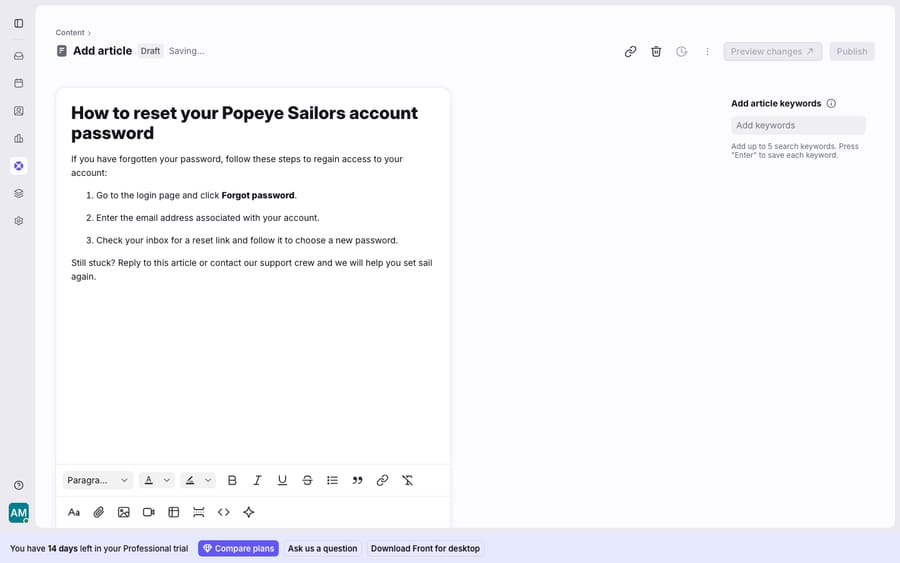
The article itself is where most of the work happens. You add one under the Content tab via Add article, and Front's guide to adding and editing articles documents a full rich-text editor. Every change auto-saves as you type, so there's no explicit "save" step. The toolbar covers headers, text color and highlighting, bold/italic/underline/strikethrough, bulleted and numbered lists with indentation, quote blocks, hyperlinks, file attachments (up to 10 files, 20 MB each), inline images and GIFs, video embeds from YouTube, Vimeo, Google Drive, and Loom, tables, horizontal rules, and code blocks. There's also AI Compose, which can draft an article from a prompt, refine an existing draft, or translate one.
One small optimization lever sits in the right-hand panel: you can add up to 5 keywords per article to make it rank higher in your knowledge base's own search. It's a low-effort win most teams forget.
How does publishing work in Front's knowledge base?
Front gives every article one of three statuses, and the transitions between them are the publishing model in miniature.
Draft is the default. A drafted article is visible only to admins and editors inside the admin portal — never to the public. When you're ready to check your work, Preview changes renders the article exactly as it will appear on the live help center. Click Publish and Front makes it visible on the public site, confirming with a green success message. If you later edit a live article, it enters the third status, Published with pending changes: the public keeps seeing the current published version while your edits wait in a separate draft until you republish. Unpublish reverses the whole thing — it reverts a live article back to a draft and removes it from the site, while keeping it accessible in the admin portal.
Two supporting features make this safe at scale. Front keeps version history with timestamps, authors, and highlighted differences between versions, so you can see who changed what and roll back. And you can set scheduled review notifications to remind a teammate to revisit an article before it goes stale — the quiet discipline that separates a maintained KB from an abandoned one.
Does Front support a multilingual knowledge base?
If you support customers across languages, Front treats each one as a first-class help center rather than a machine-translated afterthought. Per Front's multilingual documentation, each enabled language gets its own visitor portal, with its own articles, categories, and sections. In the Content view you switch languages from a dropdown to see at a glance what's already translated and what still needs work.
Crucially, translations are published independently. In the article editor you toggle to a different enabled language and either start a draft from scratch or translate the existing article with AI; that language's draft can then be previewed, published, and unpublished on its own schedule, separate from every other language. Front is explicit that translating is optional — some articles only matter in one market — so you're never forced to maintain parity you don't need. Enabling languages in the first place requires Front company admin or help center admin permissions; once enabled, any help center admin or content editor can manage the translations.
How does the knowledge base feed self-service and AI answers?
A knowledge base earns its keep in two directions: it deflects tickets before they reach a human, and it helps humans (and now AI) answer the ones that do.
On the agent-facing side, the KB is wired into the workspace. Per Front's guide to using your knowledge base with Front, an agent can click the Knowledge base icon in the composer — or type the /article quick action — to search, view, and insert an article straight into a reply, no copy-paste, no tab-switching. A sidebar plugin lets them browse KB content inside the inbox, toggling between multiple knowledge bases from a dropdown.
On the customer-facing side, the public portal is the self-service front door, and the same content can surface inside Front Chat: the chat widget can display your knowledge base so a visitor finds an answer before opening a conversation. Worth flagging honestly — displaying the KB in the chat widget requires the latest Professional plan or above, so this particular self-service path is plan-gated. The widget setting also has to be switched on in the Front Chat channel, and the knowledge base has to be public and published.
And this is the seam that matters most in 2026: your published articles are the grounding source for AI answers. Whether it's Front's own AI features or an agent layer on top, the quality of an AI reply is capped by the quality and coverage of the KB behind it. A knowledge base is no longer just a static help site — it's the training corpus your automation reasons over.
Where does Front's knowledge base stop, and where does an AI layer fit?
Front's knowledge base is a genuinely capable, native help center, and for authoring, structuring, translating, and self-service it does the job well. But it's worth naming where it stops.
First, it's structurally static. An article is the same fixed text for everyone who reads it. It can explain how to reset a password in general; it cannot look at this customer's account, see that their reset email bounced, and tell them what to do next. Second, the richest self-service path is plan-gated — surfacing the KB inside Front Chat needs the latest Professional tier, and Front's pricing tiers lay out exactly what unlocks where. Third, publishing a great article and answering with it are different jobs: the KB can host the answer, but a customer still has to find it, read it, and apply it to their specific situation — which is exactly the friction self-service leaks at.
This is where an AI agent layer fits — not to replace your help center, but to do the reasoning-heavy part a static article structurally can't. The broader category of AI agents for customer service exists precisely for the work a fixed doc can't do. Macha is one such layer: it runs on top of the Front you already use through the live Macha–Front connector — it does not replace Front, your shared inboxes, or your knowledge base. You keep authoring and publishing articles in Front. Then Macha grounds its agent in that same content, reads an incoming conversation for intent rather than keywords, and drafts or sends a reply that cites your docs — while pulling the customer-specific facts a static article never could, through a custom tool that turns your REST API into something the agent can call. If you want the mechanics, connecting Front to Macha to route conversations to AI walks through it, and Macha bills per ticket — one conversation, charged once however many messages it takes — never per resolution. Plans start at $299 a month for up to 750 tickets, so the bill tracks the volume you handle rather than an outcome definition you don't control.
The clean division of labour: let Front's knowledge base be the authoritative, versioned source of truth, and layer an agent on top that reads it, personalizes it, and delivers it in the flow of a real conversation. For how the KB fits the wider workspace, see Front shared inbox explained and how Front rules route the conversations your articles then answer.
FAQ
How do I create a knowledge base in Front? Select Help center from the navigation menu, choose your help center, click Settings, enable the Knowledge base toggle in the Features section, and click Save. A Knowledge base section appears in the left navigation. You get one knowledge base per help center; to run separate KBs, create additional help centers.
How do I publish an article in Front? Add an article under the Content tab via Add article. It auto-saves as a Draft (admin-only). Use Preview changes to check appearance, then Publish to make it live. Editing a live article creates a "Published with pending changes" state until you republish, and Unpublish reverts it back to a draft.
Does Front support a multilingual knowledge base? Yes. Each enabled language is treated as its own help center portal with its own articles, categories, and sections, published and unpublished independently. You can translate from scratch or with AI, and translating any given article is optional. Enabling languages requires company admin or help center admin permissions.
How many keywords can I add to a Front article? Up to 5 keywords per article, set in the right-hand panel, to improve ranking in your knowledge base's own search.
Can I add AI to Front's knowledge base without replacing Front? Yes. An AI agent layer like Macha connects to Front as a live connector and grounds itself in your published articles — it doesn't replace your help center or inboxes. You keep authoring in Front; the agent reads a conversation, retrieves the relevant article, personalizes the answer with customer-specific data, and drafts or sends the reply.
Which Front plan do I need to show the knowledge base in Front Chat? The latest Professional plan or above. The knowledge base itself is available on all current plans, but surfacing it inside the chat widget is plan-gated.
Ready to turn "published article" into "actually answered"? Start a free trial of Macha and connect it to your Front in minutes.






