





 Shopify
 Stripe
 Slack
Slack Notion
 Google Workspace
 Confluence

How Do Freshdesk Portal Themes Work? Plans, Liquid and Templates (2026)


Freshdesk portal themes control the colors, fonts and page layouts of your customer help center, managed under Admin → Portals → Appearance with Marina as the default theme. Customizing them, with or without code, requires the Pro or Enterprise plan.
Key takeaways
- Freshdesk portal themes are managed under Admin, Portals, Appearance, and new portals start on the Marina theme applied by default.
- Freshdesk portal customization, both no-code colors and fonts and the HTML, CSS and Liquid code editor, is available only on the Pro ($55) and Enterprise ($89) plans billed annually.
- The Freshdesk Growth plan at $19 per agent per month includes a customer portal and knowledge base but no portal customization.
- The Freshdesk advanced theme editor exposes 17 editable pages grouped into four sections: General, Solutions, Discussions and Tickets.
- Freshdesk's Pro plan allows up to 5 products with separate branded portals, while Enterprise allows unlimited products, each themed independently.

Freshdesk portal themes live under Admin → Portals → edit → Appearance, where every new portal starts on the Marina theme, and both no-code branding (colors, fonts) and the HTML, CSS and Liquid code editor are available only on the Pro ($55/agent/month billed annually) and Enterprise ($89) plans. Growth ($19) includes a customer portal and knowledge base but not portal customization, according to Freshworks' plan tables (checked September 2026).
| Plan (billed annually) | Portal customization | Code editor (HTML/CSS/Liquid) | Products with their own portal |
|---|---|---|---|
| Growth, $19/agent/month | No (stock portal) | No | Not listed |
| Pro, $55/agent/month | Yes: logo, colors, fonts | Yes | Up to 5 |
| Enterprise, $89/agent/month | Yes | Yes | Unlimited |
Where do Freshdesk portal themes live?
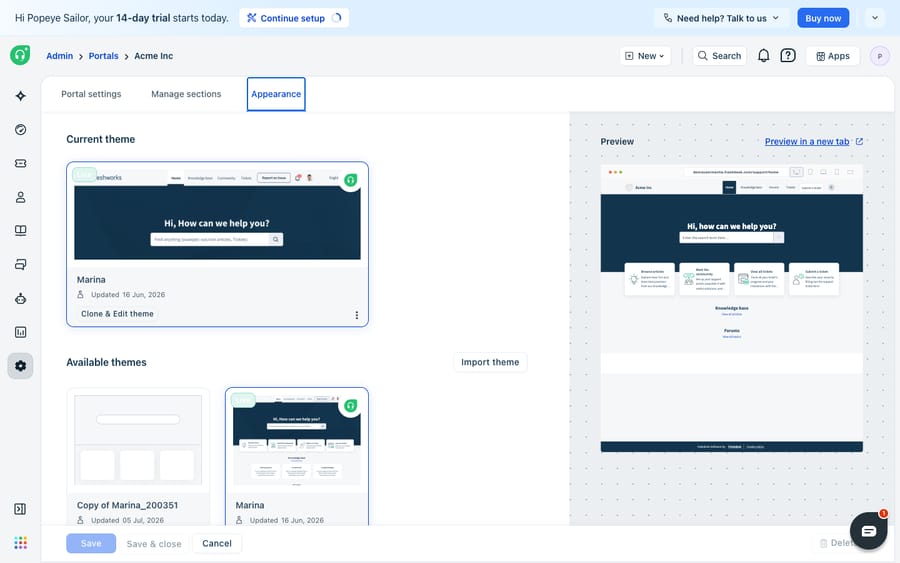
Everything starts in one place. Per Freshworks' Customize portal appearance (themes) documentation, you manage themes under Admin → Portals, where you click edit next to a portal and switch to the Appearance tab.
When you first sign up, your portal ships with the Marina theme applied by default. The Appearance tab shows your current live theme, an Available themes gallery of other theme cards you can switch to, and an Import theme button for bringing in a theme from outside Freshdesk. Alongside the gallery is a live preview so you can see roughly what you're about to ship before you commit to it.
The gallery is the "templates" people usually mean when they search for Freshdesk portal templates: a set of pre-built starting points you can adopt as-is, or clone and modify. You don't have to design from a blank page.
What is the difference between basic and advanced customization?
Freshdesk splits portal theming into two tiers, and knowing which one you need saves a lot of time.
Basic customization is the no-code path. Inside a theme you can adjust the colors (primary color, body elements, header and footer) and the fonts through a visual palette, with no HTML or CSS involved. For most teams that just want the portal to match their brand palette and logo, this is the whole job.
Advanced customization is the code path. Freshdesk exposes an in-built code editor where you work directly with HTML, CSS, and Liquid to restructure the layout of individual pages and sections. This is how you'd move a search bar, restyle article cards, inject a custom header, or add tracking markup.
Both tiers are gated to the same plans. Freshworks' advanced portal customization guide and the themes article both mark Pro and Enterprise (plus the legacy Estate and Forest plans) as supported, with Growth crossed out. The pricing page matches: "Portal customization" (adding your logo and brand colors) is ticked for Pro and Enterprise only. Freshdesk has no free plan on its pricing page; new signups get a 14-day trial of Enterprise, so you can try theming before you pick a plan.
How do you clone, edit, import and publish a theme?
Themes in Freshdesk behave a bit like branches in version control: you don't edit the live one directly, you work on a copy. Here's the typical flow:
- Open Admin → Portals, click edit on your portal, and go to the Appearance tab.
- To modify the theme that's currently live, click Clone & Edit theme. This makes a working copy so your live portal stays untouched while you experiment. For a theme in the gallery that isn't live, you'll see Edit theme instead.
- Make your changes: colors and fonts in the basic editor, or HTML/CSS/Liquid in the code editor.
- Click Preview in a new tab to check the result, and use the device toggles at the top to see it on desktop, tablet, and mobile.
- When it looks right, Save and then Publish to push it live. If you need to walk back, Reset returns you to the last saved state.
Beyond that, a three-dot menu on each theme card gives you View on portal, Download, Rename, Clone, and Delete theme. Downloading exports the theme (Freshdesk emails it as a .zip), which is how you back up a theme, hand it to a developer, or move it between environments. Import theme accepts that same .zip, so you can build or buy a theme externally, import it, and apply it to your portal.
How does the Liquid templating layer work?
If you go into advanced customization, you're really working with two things: styling (CSS) and structure (Liquid templates). Liquid is the templating language Freshdesk uses to render dynamic content. It's the same language Shopify created and many other platforms use, so if you've touched it before, it'll feel familiar.
The most important concept is the Layout, which Freshworks calls the most important part of a theme. Your layout wraps every page and must include three placeholders:
{{ header }}: replaced by your header code.{{ footer }}: replaced by your footer code.{{ content_for_layout }}: replaced by the specific content of whichever page is rendering. Do not remove this placeholder; without it, page content has nowhere to render.
Freshdesk also gives you drop-in snippets for the interactive bits you don't want to hand-build, like {% snippet login_form %}, {% snippet signup_form %}, {% snippet agent_login %}, {% snippet new_topic_form %}, and {% snippet new_ticket_form %}. You place the snippet tag and Freshdesk renders the working form.
The code editor exposes 17 editable pages grouped into four sections, so you can restyle each surface independently:
| Section | Pages you can edit |
|---|---|
| General | Portal home, Login page, New user signup, Search results |
| Solutions | Solutions home, Article list, Article view, Solution Category Home |
| Discussions | Discussions home, Discussion category home, Topic list, My topics, Topic view, New topic |
| Tickets | New ticket, Ticket list, Ticket details |
That granularity is the real power of the advanced editor: you can leave most of a theme alone and rework just the Solutions article view, or just the new-ticket form, without touching everything else.
Can each product have its own themed portal?
Yes. If you support more than one product or brand, you don't need multiple Freshdesk accounts. Per Freshworks' multiple-products documentation, you can spin up a separate branded portal per product, each with its own URL, its own theme, and its own knowledge base, and you can choose which solution and forum categories each portal shows so it only displays content relevant to that product.
The plan gating matters here. On the current Pro plan you can create up to 5 products, and on Enterprise you get unlimited products; the legacy Estate plan also supports multiple products. So a company with three product lines can give each one a distinct portal (different logo, different palette, different help center), all administered from a single Freshdesk instance. The agent side stays unified: agents see tickets from every product unless you separate them with automation rules. And each portal is themed independently, so a consistent brand system across five portals is real, repeatable work.
Where do Freshdesk themes stop, and where does an AI layer pick up?
Freshdesk's theming is capable. The gallery gives you a running start, basic customization covers most branding needs without a developer, and the Liquid code editor gives front-end teams real control over 17 pages. For shaping how the portal looks, this is a solid, well-documented system.
But be clear about what a theme is and isn't. A theme controls presentation, not answers. A well-branded help center still depends on the underlying solution articles being complete and findable; if the content is thin, no amount of CSS fixes the deflection rate. Customization of any kind is also Pro-and-Enterprise-gated, so Growth teams keep the stock portal. And Liquid editing is a maintenance commitment: custom themes can drift or break when Freshdesk updates the platform, and every one of your multi-product portals has to be maintained separately.
Most importantly, the portal's job is to reduce tickets, but it does nothing for the ones that still come through. That's the seam where an AI agent layer fits, and it's worth weighing the build-versus-buy tradeoff honestly before you reach for one. The broader category of AI agents for customer service exists to do the reasoning a static help center can't: understanding a messy question, pulling the right answer, and replying.
Macha is one such layer, and it stays in its lane: it runs on top of the Freshdesk you already use as a native connector. It does not replace your help desk, your portal, or your themes. You connect Macha to Freshdesk with your subdomain and API key, and it reads the same knowledge base your portal publishes to draft or post grounded replies on the tickets that get submitted anyway. It can look up an order or account status through a custom tool that turns a REST API into something the agent can call, and it triages incoming tickets by intent, the kind of work covered in how to automate Freshdesk with AI. (Macha's connector is for Freshdesk specifically, not Freshchat, Freshservice, or Freshcaller. Macha bills per ticket, from $299 a month for 750 tickets: one conversation, charged once however many messages it takes, never per resolution.)
The clean division of labour: use Freshdesk themes to make the portal look like your brand and organize self-service well, and layer an agent on top for the part a theme can't do: answering the tickets your portal still funnels through. If you're also tuning when those tickets get worked, business hours and SLA timing are the next lever, which we cover in Freshdesk business hours explained.
FAQ
Where do I customize my Freshdesk portal theme? Go to Admin → Portals, click edit next to a portal, and open the Appearance tab. There you'll find your current live theme (Marina by default), an Available themes gallery, an Import theme option, and a live preview.
What's the difference between basic and advanced portal customization? Basic customization is no-code: you change colors and fonts through a visual palette. Advanced customization opens an in-built code editor for HTML, CSS, and Liquid so you can restructure page layouts. Freshworks lists both on the Pro and Enterprise plans, not Growth.
Which Freshdesk plan do I need to customize the portal? Pro ($55/agent/month billed annually) or Enterprise ($89). Growth ($19) includes a customer portal and knowledge base, but portal customization is ticked only for Pro and Enterprise on the Freshdesk pricing page.
What is Liquid in Freshdesk themes? Liquid is the templating language Freshdesk uses to render dynamic portal content. In advanced customization your Layout must include the {{ header }}, {{ footer }}, and {{ content_for_layout }} placeholders, and you can drop in ready-made snippets like {% snippet login_form %} and {% snippet new_ticket_form %}.
Can I have a different portal theme for each product? Yes. Freshdesk supports multiple branded portals: a separate portal, URL, theme, and knowledge base per product. The current Pro plan allows up to 5 products and Enterprise allows unlimited; the legacy Estate plan also supports them. Each portal is themed independently.
Can I add AI to my Freshdesk portal without replacing Freshdesk? Yes. An AI agent layer like Macha connects to Freshdesk as a native connector and runs on top of your existing portal and themes; it doesn't replace them. It reads your published knowledge base to draft grounded replies to the tickets your portal collects, while Freshdesk stays the system of record for your help center and its theming.
Ready to back a branded portal with fast, grounded answers? Start a free trial of Macha and connect it to your Freshdesk in minutes.






