Shopify
 Stripe
 Slack
Slack Notion
 Google Workspace
 Confluence

Freshdesk Ticket System Explained (The Complete Overview)


Most guides pull the Freshdesk ticket system apart into pieces — a page on views here, a page on statuses there — but agents never experience it that way. In real life it's one connected surface: a workspace that lists your tickets, views and filters that carve that list into something manageable, a properties pane that carries the metadata, and a lifecycle that moves each ticket from Open to Closed. This overview walks the whole system top to bottom, showing how the parts fit together so you can see where a ticket goes from the moment it lands to the moment it's done, and where the native tooling stops short of doing the actual work.

The Tickets workspace: your single source of truth
Everything starts on the Tickets tab. It's the home screen of Freshdesk for any agent, and its job is deceptively simple: give you an overview of every ticket in the account and let you narrow that overview down until you're looking at exactly the work in front of you. Per Freshworks' Understand the Ticket List View documentation, the workspace is built from four moving parts that all point at the same underlying list of tickets — the views selector, the layout switcher, the sort control, and the Filters panel.
Before you touch any of them, it's worth naming what a "ticket" actually is here. A ticket is a single customer conversation plus all the metadata Freshdesk attaches to it — a status, a priority, a requester, an assigned agent and group, a type, a source, tags, and any custom fields your admin has added. The workspace lists those tickets; the properties pane (more on that below) is where you read and change the metadata. Hold that distinction and the rest of the system clicks into place.
Layouts and sorting: how the same list gets displayed
The list can be shown three ways, and the choice is purely about how much you want to see at a glance:
- Card — the default layout, designed to surface only the most important fields per ticket in a scannable stack.
- Table — a spreadsheet-style grid where Contact and Subject are fixed columns and you customize the rest, good for triage at volume.
- Inbox — a mailbox-style experience for agents who think in email.
On top of the layout you get a sort control (by created date, priority, due-by, and so on) and a page-size selector that shows 30, 50, or 100 tickets per page once you cross 30. None of this changes which tickets you see — that's the filters' job — only how they're arranged.
Views: saved filters that shape the queue
A view is the single most important organising concept in the whole system, because it's how a shared inbox stops being chaos. A view is nothing more than a saved set of filters with a name. Freshdesk groups them into folders you reach from the Ticket Views selector:
- Default — pre-built views everyone gets, like My Open and Pending Tickets and Urgent and High-Priority Tickets.
- Personal — views you build and keep to yourself.
- Shared — views published to All agents so the whole team works from the same cut of the queue.
- Favourites — up to five views you pin for one-click access.
There are also Trash, Spam, and Archive folders for tickets that have left the active queue. To create your own view you apply filters (below), then hit Save view or Save view as, name it, and set its visibility to Just me (Personal) or All agents (Shared). One honest caveat up front: creating custom views requires the Growth plan or higher — on the entry tier you're limited to the defaults.
Filters: carving the list down to the work in front of you
If views are the saved cuts, filters are the knife. The Filters panel lives on the right edge of the Tickets tab, and it's where the whole system earns its keep. Freshworks documents a genuinely wide filter set: you can slice by Agents and Groups (who owns the work), by core ticket properties — Priority, Source, Type, Status — by any custom dropdown and dependent fields your admin created, and by Contacts and Companies so you can pull every ticket from one customer. There's a full row of date range filters too — Created, Closed at, Resolved at, and Resolution due by — which is how you answer questions like "what did we close in the past hour?" And on plans that include it, there's a Sentiment filter driven by Freshdesk's AI-predicted read of how the customer feels.
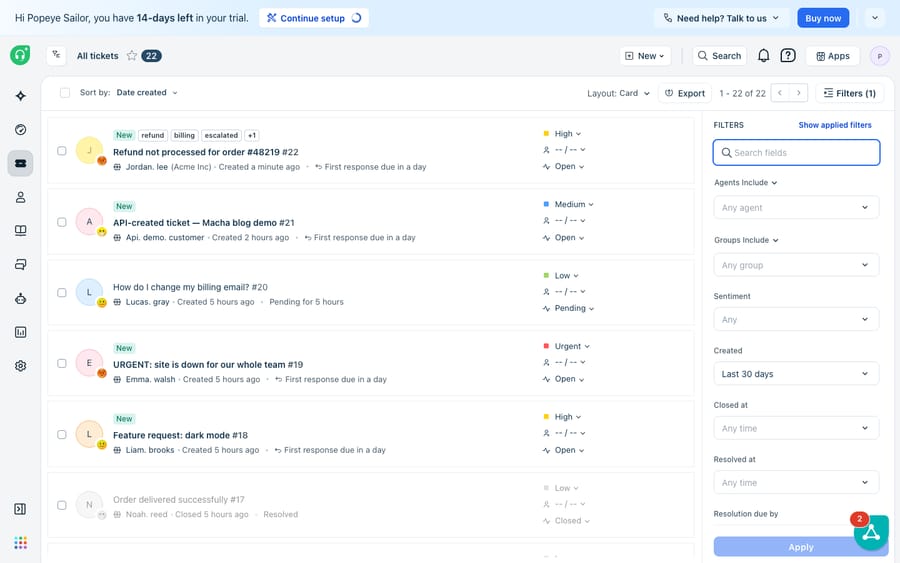
The neat part is how views and filters compose. Open a Default view and the Filters panel shows only the filters that view already applies (so New and my open tickets surfaces just Status and Agents), and you layer more on top from there. Once you've got a cut you like, save it as a view and it's reusable forever. That loop — filter, save, share — is the engine that keeps a multi-agent queue sane.
The properties pane: metadata you can act on
Click into any ticket and you land in the ticket details view, where the right-hand properties pane carries everything the workspace was filtering on. Per Freshworks' Understand the Ticket Details View documentation, this pane is where an agent reads and modifies Status, Priority (Low, Medium, High, Urgent), the assigned Group and Agent, Tags, any custom fields, and the live SLA timers counting down first-response and resolution deadlines. To the left of it sits the conversation area — the full chronological history of customer replies, agent responses, and internal notes, sortable oldest-or-newest-first.
This is the moment the two halves of the system meet. Whatever you change in the properties pane immediately changes how the ticket behaves back in the workspace: bump priority to Urgent and it climbs your Urgent and High-Priority view; reassign the group and it drops out of your filter and into someone else's. The pane isn't a separate feature — it's the write side of the same data the list view reads.
The lifecycle: Open → Pending → Resolved → Closed
Tying the whole thing together is the status lifecycle, because status is the one property that describes where a ticket is in its journey. Freshdesk ships four default statuses, and a ticket holds exactly one at a time:
- Open — needs an agent's attention; every new ticket starts here.
- Pending — paused while you wait on the customer or a third party. Critically, Pending halts the SLA timers, which is why it exists.
- Resolved — the agent believes the issue is fixed.
- Closed — the customer has accepted the resolution and the ticket is done.
Admins can add custom statuses through Ticket Fields for stages in between (say, Waiting on Engineering), each with its own SLA-timer behaviour. For a deeper walk through each state and when to use it, see Freshdesk ticket statuses explained. The point for this overview is that status is the thread running through everything above: it's a filter in the workspace, a field in the properties pane, and the spine of the lifecycle all at once.
The honest limits — and where an AI layer picks up
Give Freshdesk its due: as a system of record, the ticketing engine is excellent. It's fast, transparent, and reliable — it always knows every ticket's status, who owns it, and how much SLA time is left, and the views-and-filters model is a genuinely good way to keep a busy queue navigable. Nothing here needs replacing.
But notice the shape of what the system does and doesn't do. Everything above is about organising and displaying work — sorting, filtering, tagging, tracking state. None of it does the work. A view can surface your ten most urgent tickets in a second; it can't read them, understand what each customer actually wants, and draft the reply that moves them from Open to Resolved. The properties pane can hold a priority, but it can't decide the correct priority from the content of the message — if intake mislabels an outage as Low, the whole system faithfully files it in the wrong view. And when a ticket boils down to "where's my order?", no filter or status can fetch that answer from your other systems; an agent still has to go and look.
There's also a plan-gating reality to be honest about: custom views need Growth or higher, and richer signals like Sentiment and some automation depend on your tier. So the native system's reach is real but bounded — it manages the queue, it doesn't clear it.
This is the seam where an AI agent layer fits. The broader category of AI agents for customer service exists precisely to do the reasoning-heavy part a ticket list can't. Macha is one such layer: it runs on top of the Freshdesk you already use as a native connector — it is not a help desk of its own and it does not replace your Tickets workspace, views, or statuses. You connect Macha to Freshdesk with your subdomain and API key, and it reads and writes the very same tickets your views already list. It can draft or post grounded replies so tickets actually move through the lifecycle, triage by intent so priority and group land correctly before an agent ever opens the ticket, and look up order or account status through a custom tool that turns one of your REST APIs into something the agent can call. If you want the mechanics of wiring automation into this workflow, how to automate Freshdesk with AI and the deeper dive on Freshdesk automations explained both pick up where this overview ends. (Macha's connector is for Freshdesk specifically — not Freshchat, Freshservice, or Freshcaller. And credits are consumed per AI action, not per resolution — see the pricing breakdown.)
The clean division of labour: keep Freshdesk's ticket system as the source of truth for what exists, who owns it, and where it is in its journey, and layer an agent on top for the part the workspace can't do — actually reading and answering fast enough to keep the queue moving.
FAQ
What is the Freshdesk ticket system? It's the connected set of surfaces Freshdesk uses to manage support requests: the Tickets workspace that lists every ticket, the views and filters that organise that list, the properties pane where agents read and change metadata like status and priority, and the Open-to-Closed lifecycle that tracks each ticket's journey. They're separate features that behave as one system because they all read and write the same underlying tickets.
What's the difference between a view and a filter in Freshdesk? A filter narrows the ticket list in the moment — by agent, group, priority, status, date range, and more. A view is a saved, named set of filters you can reuse and share. Freshdesk groups views into Default, Personal, Shared, and Favourites folders; creating your own custom views requires the Growth plan or higher.
What ticket properties can I filter and edit? The core ticket properties are Status, Priority (Low, Medium, High, Urgent), Source, Type, the assigned Group and Agent, and Tags, plus any custom fields your admin adds. You filter on them from the Filters panel in the workspace and edit them from the properties pane inside a ticket — both act on the same data.
What are the Freshdesk ticket statuses? The four defaults are Open (needs attention), Pending (paused, which halts SLA timers), Resolved (fixed per the agent), and Closed (accepted per the customer). Admins can add custom statuses via Ticket Fields, and each ticket holds exactly one status at a time.
Can I add AI to my Freshdesk ticket system without replacing it? Yes. An AI agent layer like Macha connects to Freshdesk as a native connector and runs on top of your existing workspace, views, and statuses — it doesn't replace them. It reads and writes the same tickets to draft grounded replies and triage by intent, while Freshdesk stays the system of record for what exists and where it is.
Ready to help tickets move through the lifecycle instead of just tracking them? Start a free trial of Macha and connect it to your Freshdesk in minutes.
Add AI agents to your Freshdesk
Macha reads the ticket, drafts the reply and takes the action, inside the Freshdesk you already run.