





 Shopify
 Stripe
 Slack
Slack Notion
 Google Workspace
 Confluence

Freshdesk Closed vs Resolved: What's the Difference, and Why Do Replies Reopen or Fork?


Resolved means a Freshdesk agent thinks the issue is fixed and is waiting for the customer to disagree, while Closed means the conversation is finished. Whether a customer's reply reopens the old ticket or creates a new one is decided by the channel's threading interval, not by which of the two statuses the ticket was in.
Key takeaways
- Freshdesk's Resolved status (API code 4) waits for customer confirmation, while Closed (code 5) marks a finished conversation; Open is 2 and Pending is 3.
- Freshdesk's threading interval decides whether a reply reopens a ticket or creates a new one; at 48 hours, a reply on day two reopens and day three forks.
- Assigning a Freshdesk AI Agent to a channel locks the threading interval at 0 minutes, so every follow-up message becomes a new ticket.
- Freddy AI Agent sessions start with a one-time allowance of 500 per account, then cost $49 per 100 sessions on the Freshdesk pricing page.
- Freshdesk custom ticket statuses need the Growth plan or higher, and each one carries its own SLA timer setting and customer-facing label.

In Freshdesk, Resolved (API status 4) means an agent thinks the issue is fixed and is waiting for the customer to disagree, while Closed (status 5) means the conversation is finished; whether a later reply reopens either one or creates a new ticket is decided by the channel's threading interval, not by the status. The working setup: use Resolved as your "done, awaiting confirmation" state, let an automation move tickets from Resolved to Closed after a few days, and set the threading interval to match how long you're willing to keep a finished conversation reopenable.
What are the four default Freshdesk statuses and their API codes?
Every Freshdesk account ships with the same four statuses, and none of them can be deleted:
| Status | API code | What it means | Who the ball is with |
|---|---|---|---|
| Open | 2 | New, or an agent needs to act | You |
| Pending | 3 | Agent replied, waiting on the customer or a third party | Them |
| Resolved | 4 | Agent believes it's solved, awaiting confirmation | Nobody, provisionally |
| Closed | 5 | Finished | Nobody |
Those integers are what the API sends and receives, so "status": 4 in a payload means Resolved. Anyone scripting status changes works in numbers, and the full set is in how to use the Freshdesk API.
What is the difference between Closed and Resolved?
The design intent is a two-stage ending. Resolved parks the ticket while leaving the door open, so the customer gets a chance to say "still broken" without anyone filing a new request. Closed is the state you move to once nobody expects further conversation.
That distinction matters for three things beyond tidiness:
- Reporting. "Resolved this week" and "Closed this week" are different numbers, and a team that never closes anything will report a growing Resolved pile that looks like a backlog.
- Reopen behavior. A reply to a Resolved ticket is the normal case Freshworks documents and expects. A reply to something long finished is the case that forks.
- SLA. Resolution SLA stops when the ticket reaches a status whose SLA timer is off, and both Resolved and Closed normally have it off.
What Closed is not is a lock. Freshworks' own threading documentation describes a resolved ticket as "closed but not forgotten," which tells you the product treats the end of a conversation as a window rather than a door. How long that window stays open is a setting, and it's the next section.
The community thread simply titled "closed vs resolved" has drawn roughly 6,200 views, more than any other admin thread in the Freshworks forum. Two replies. It is the most-asked, least-answered question about this product.
Why does one reply reopen a ticket and another create a new one?
This is the mechanism behind the two next-most-read threads in the forum: "When a ticket is closed and the customer responds, then the ticket is not reopened" at about 4,400 views, and "New ticket creation on old closed ticket" at about 2,000. They're the same problem described from opposite sides, and neither is a bug.
Freshworks' Understand Threading Logic article, modified 1 December 2025, gives the rule: a reply that arrives within the threading interval reopens the same ticket, and a reply that arrives after it creates a new one. Admins set that interval in minutes, hours or days, per channel. Freshworks' own example: at 48 hours, a reply on day two reopens, and a reply on day three forks.
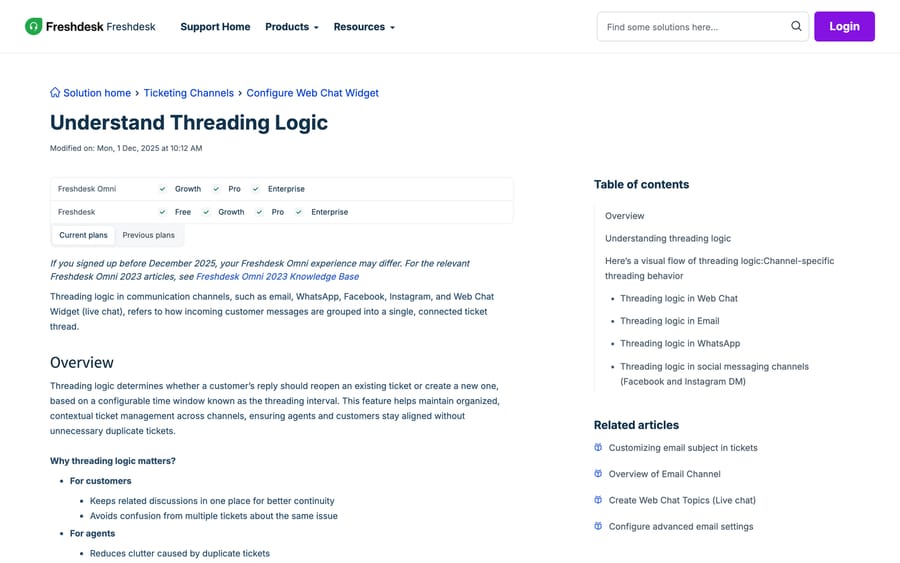
Email has a second condition on top of the interval. Freshdesk threads email by identifier: if the reply carries matching Message-ID or In-Reply-To headers, it attaches to the existing ticket. If the customer forwards the thread or composes a fresh email to your support address, the identifiers don't match and a new ticket is created even inside the window. That's why a customer who says "I replied to your email" sometimes has a new ticket number and sometimes doesn't, and it is not something you can configure away.
Where the interval lives, by channel:
- Web Chat: Admin Settings > Channels > Web Chat > Web Chat Topic, Configure next to the topic, then Threading interval, then Publish.
- WhatsApp: Admin Settings > Channels > WhatsApp, Configure next to the number, then Threading interval, then Save.
- Facebook and Instagram DM: Admin Settings > Channels > the channel, Configure next to the page, then Message Settings, then Threading interval, then Save.
One gotcha with real consequences. The same article states that if you have assigned AI Agents to channels, the threading logic cannot be configured at the individual channel or Web Chat topic level any more, and it defaults to 0 minutes. A zero-minute interval means every follow-up message becomes a new ticket. If you turned on Freddy's AI Agent on a channel and your ticket count jumped while your reopen count went to nothing, that's the reason, and it's worth checking before anyone concludes the bot is generating volume.
It's also worth naming the incentive quietly sitting under that default. Freddy's AI Agent is metered in sessions: the first 500 are a one-time allowance per account, then $49 per 100 sessions on the Freshdesk pricing page. An email session is a 72-hour window, and a 0-minute threading interval turns one customer's three follow-ups into three tickets rather than one reopen. We have no evidence the default was chosen for that reason, and Freshworks documents it plainly. But it does mean the setting that inflates your session count is the one you get without asking, so check it rather than assume it.
How do you add a custom status, and when does the SLA timer stop?
The four defaults describe a conversation. They don't describe your process. Stages like "waiting on engineering", "queued for callback" or "pending a code fix" need custom statuses, which Freshworks' ticket-fields article limits to the Growth plan or higher (Growth is $19 an agent a month billed annually). The pricing page no longer lists a Free plan; Freshworks runs a separate Free program for up to 2 agents for 6 months.
The admin path has moved. Freshworks' current article on SLA behavior points at Admin > Workflows > Ticket fields > Status. Older guides, ours included, say Admin > Ticket Fields; that's the same field in the previous navigation. From there you add a choice and give it:
- an agent-facing label and a separate customer-facing label, so agents can see "Escalated, Tier 3" while the portal shows "With our specialist team";
- an SLA timer setting, on or off.
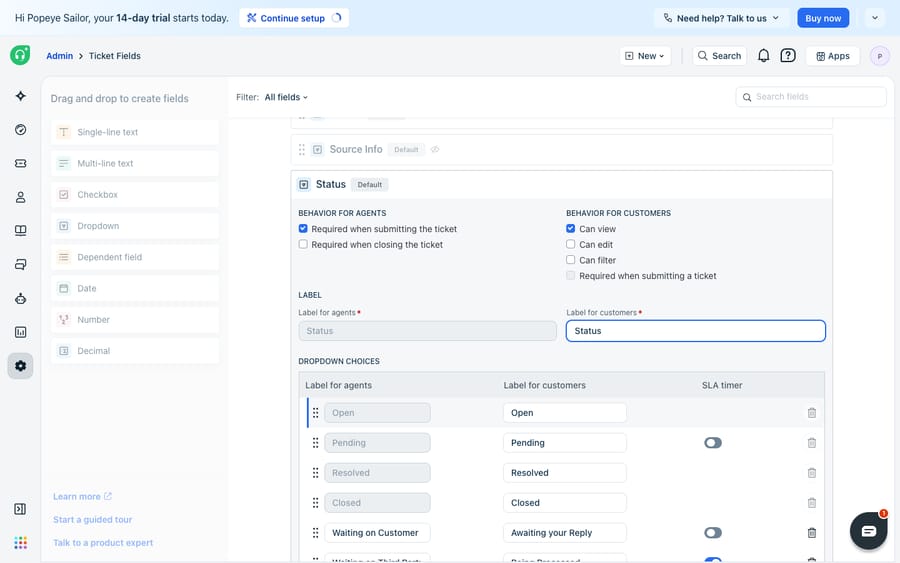
The SLA toggle is the part that changes numbers rather than labels. Per Freshworks' What are the cases in which the SLA would not run on tickets?, the timer stops in three situations:
- The ticket is in an SLA OFF status, which you check under Admin > Workflows > Ticket fields > Status.
- The time falls outside the business hours configured for that group, under Admin > Team > Groups.
- Nothing counts as a first response except an agent's reply or public note. Automated emails from notifications or automation rules do not count, which is how a team with a prompt auto-acknowledgement still shows first-response breaches.
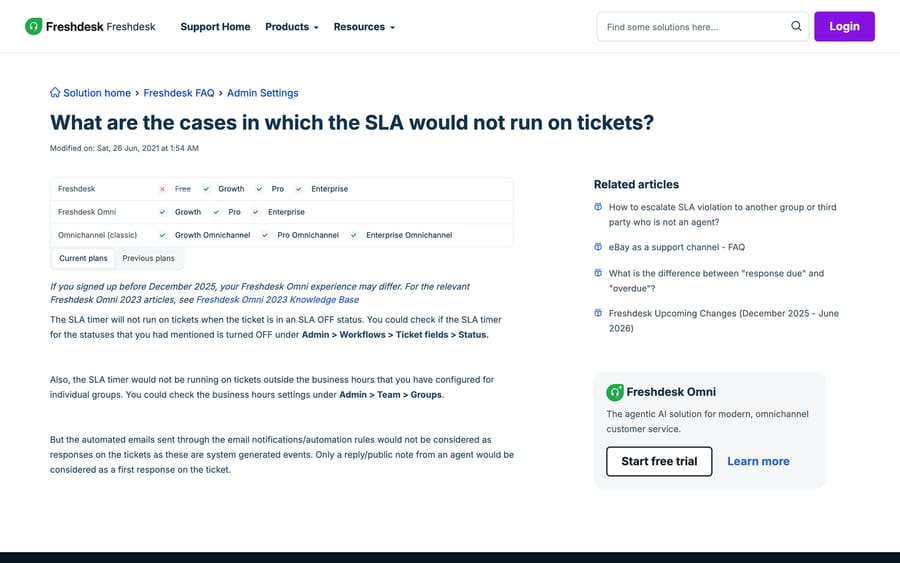
A ticket sitting in a status with the timer off is flagged On Hold on the dashboard. On Hold isn't a status of its own; it's a derived label meaning the clock is frozen here. SLA policies themselves need a paid plan, Growth or above. Our reference is Freshdesk SLA policies explained.
Why is a custom status missing from an automation?
Custom statuses appear in the ticket dropdown as soon as you save them. Whether they appear everywhere else is the recurring complaint. The forum's custom-status cluster runs to 15 threads and about 6,000 views, and it concentrates on two shapes:
- Time-triggered rules and custom statuses. "Time Trigger rules for custom statuses" ran to 13 replies. Freshdesk's time-triggered automations key off how long a ticket has been in a state, and a custom status with the SLA timer off behaves differently from one with it on when a rule asks "hours since status changed".
- Setting a status on a schedule. "Set Status as Open on Specific Date/Time", at about 1,850 views, is the request to wake a ticket up at a chosen moment. The workable pattern is a time-triggered automation plus a date custom field, or an external scheduler calling the API.
Two practical rules. First, create the status before you write the rule, then reopen the rule builder, because a dropdown cached mid-session won't show a status added after it loaded. Second, if a custom status is genuinely absent from an automation's action list, check the plan: automation rule types themselves are plan-gated, and the status is rarely the thing that's missing. Freshdesk automations explained has the rule-set breakdown, and Freshdesk automation rule order explained covers which rule wins when two fire.
Which status lifecycle keeps Freshdesk reports accurate?
Put the pieces together and a queue that reports honestly looks like this:
- Ticket is created as Open. SLA timers start.
- Agent replies and sets Pending. The clock stops, because you shouldn't eat a breach for time the customer is spending.
- Customer replies. The ticket returns to Open and the clock restarts.
- Agent answers and sets Resolved. The clock stops again.
- An automation moves Resolved to Closed after a fixed window, sized to match your threading interval so the two don't contradict each other.
- A reply inside the threading interval reopens the ticket. A reply after it opens a new one, correctly.
Step 5 is the one most teams skip, and it's why their Resolved column grows forever. Step 6 is the one they misconfigure: a 30-day threading interval with a 3-day auto-close means customers keep reviving tickets your reports counted as finished a month ago.
How we researched this
We checked every path, plan gate and rule in this post against Freshworks' own current support articles in a browser on 20 September 2026, and re-checked the threading article, the ticket-fields article and the pricing page on 24 September 2026, and we captured the two documentation screenshots in that session. The Status field screenshot is carried over from the previous version of this page. Community view counts come from our own crawl of community.freshworks.com, where the closed-resolved-reopen cluster holds 16 threads and about 16,600 views and the custom-status cluster holds 15 threads and about 6,000. We don't run a Freshdesk account, so nothing here was clicked through in a live instance. One thing we could not verify: whether Freshdesk caps the number of custom statuses, which none of the articles we reached states, so this post gives no number.
Where does an AI agent layer fit?
Status is a state marker. It records a decision; it doesn't make one. A ticket becomes Resolved because a person clicked it or a rule matched a field, and nothing in the native product reads the conversation and concludes that the customer is still unhappy or that the answer landed.
That reading is the job an AI agent layer does. Macha runs on top of the Freshdesk you already have: you connect it with your subdomain and API key, and it drafts replies grounded in your help center, adds internal notes, and sets status, priority and tags based on what the customer actually wrote rather than on a keyword match. It doesn't replace Freshdesk, its automations or its SLA engine, and it isn't a help desk. The connector is for Freshdesk specifically, not Freshchat, Freshservice or Freshcaller.
It suits teams whose Resolved pile keeps reopening for the same handful of reasons, because that's a reading problem rather than a configuration one. It's the wrong fit if your reopens are genuinely varied, since there's no pattern for it to learn. Pricing is one plan priced on monthly ticket volume, from $299/month for 750 tickets, about $0.40 per ticket at every tier, with setup and monitoring by the Macha team, included on every plan. A ticket is one thread between Macha and one person, charged once no matter how many messages it takes, so a reopened thread doesn't get charged twice. The trial is $50 of free usage (about 125 tickets), no credit card, no time limit. See Macha on Freshdesk and the pricing page.
Frequently asked questions
What's the difference between Resolved and Closed in Freshdesk? Resolved means an agent believes the issue is fixed and is waiting for the customer to confirm or push back. Closed means the conversation is finished. Both normally have the SLA timer off. In the API, Resolved is status code 4 and Closed is 5.
Should I use Resolved or Closed? Use Resolved as the working end state your agents set, and let an automation move tickets from Resolved to Closed after a fixed window. Teams that close directly lose the confirmation step; teams that never close report a Resolved pile that reads like a backlog.
Why doesn't my closed ticket reopen when the customer replies? Because the reply arrived after the threading interval, which is the configurable window that decides reopen-versus-new-ticket. On email there's a second condition: the reply has to carry matching Message-ID or In-Reply-To headers, so a forwarded thread or a freshly composed email forks even inside the window.
Why did a customer reply create a brand new ticket? Same mechanism, seen from the other side. Either the threading interval had expired, or the email's identifiers didn't match. If it happens on every reply on a channel, check whether an AI Agent is assigned to that channel: Freshworks states that this forces the threading interval to 0 minutes.
Where do I set the threading interval in Freshdesk? Per channel, under Admin Settings > Channels. Web Chat is under the Web Chat Topic's Configure screen, WhatsApp under the number's Configure screen, and Facebook and Instagram under Message Settings on the page's Configure screen. You can set it in minutes, hours or days.
How do I create a custom ticket status in Freshdesk? Admin > Workflows > Ticket fields > Status, then add a choice. Give it an agent-facing label, a customer-facing label, and an SLA timer setting. Custom statuses need the Growth plan or higher; accounts below that keep the four defaults. Older guides call the path Admin > Ticket Fields, which was the previous navigation.
Does the SLA timer run on a Pending ticket? Not if Pending is configured as an SLA OFF status, which is the default intent. Freshworks lists three cases where the timer stops: an SLA OFF status, time outside the group's business hours, and the absence of an agent reply, since automated notification emails don't count as a first response.
What are the Freshdesk ticket status codes? Open is 2, Pending is 3, Resolved is 4 and Closed is 5. Custom statuses get their own numeric IDs, which you read from the Status ticket field through the API rather than assuming a sequence.
Sources:
- Understand Threading Logic (Freshworks support, modified 1 Dec 2025)
- What are the cases in which the SLA would not run on tickets? (Freshworks support)
- Will the reopening of a Resolved ticket count against Average Resolution time?
- Freshdesk plans and pricing
- Community: closed vs resolved
- Community: when a ticket is closed and the customer responds, the ticket is not reopened
- Community: New ticket creation on old closed ticket
- Community: Time Trigger rules for custom statuses
- Community: Set Status as Open on Specific Date/Time






