





 Shopify
 Stripe
 Slack
Slack Notion
 Google Workspace
 Confluence

How Do You Set Up Front Chat? Live Chat Widget Setup Guide (2026)


Front Chat is Front's live chat widget, and every chat it takes lands in the same shared inbox as your email, with the same assignment, tags and rules. You set it up as a channel on an inbox, paste one snippet into your site, and choose whether anonymous visitors can start a chat.
Key takeaways
- Front Chat is set up as a channel under Settings, Inboxes, Channels, Connect channel, then installed by pasting a two-tag script before the closing body tag of your page.
- Front Chat is available on all three Front plans, Starter at $25, Professional at $65 and Enterprise at $105 a seat per month, with Starter using it as the designated channel type.
- Customizing the "Powered by Front" line in Front Chat needs Professional or above, while "Name for display", which shows a team name instead of agent names, is Enterprise only.
- Front Chat visitors can share attachments up to 25 MB, and anonymous visitors get an auto-generated placeholder name like "Purple panda" instead of a real contact record.
- Front Chat's "Hide chat widget outside of online hours" setting hides the widget but does not close a chat a visitor already has open, so Front recommends offline auto-responses.

You set up Front Chat by connecting it as a channel on an inbox (Settings → your workspace → Inboxes → Channels → Connect channel → Front Chat), then pasting a two-tag script before the closing </body> tag on your site. Front Chat is on all three Front plans (Starter at $25, Professional at $65 and Enterprise at $105 a seat per month), but two branding options are plan-gated.
| Setup step | Where it happens | Plan note |
|---|---|---|
| Create the chat channel | Settings → Inboxes → Channels → Connect channel → Front Chat | All plans; on the latest Starter plan Front Chat must be your designated channel type |
| Pick color, chatbot and verification | Channel setup screens | All plans |
| Install the widget | Installation tab snippet, or a Front knowledge base | All plans |
| Customize the "Powered by Front" line | Channel settings | Professional and above |
| Show a team name instead of agent names | "Name for display" setting | Enterprise only |
What is Front Chat?
Front Chat is a chat widget you host on your own website that routes every message into a dedicated Front Chat inbox. Per Front's guide to setting up a Front Chat inbox, the widget "opens up to your site's visitors so they can get real-time help from you and your team," and Front then lets you manage those conversations alongside every other channel. It works on any website, on Electron web and desktop apps, and on mobile webpages.
The important framing: chat is just another channel feeding your Front shared inbox. A visitor typing in the widget produces the same object a customer emailing you does: a conversation that can be assigned, snoozed, tagged, commented on internally, and acted on by rules. That single-inbox model is the whole point of Front, and chat inherits all of it.
How do you create the Front Chat inbox?
You create Front Chat as a channel on a new or existing inbox. The path is Settings (the gear icon) → select your workspace → Inboxes → Create inbox (or open an existing one) → Channels → Connect channel → Front Chat. During setup Front asks you to name the channel, choose the inbox it routes to, and decide a few things:
- Theme color. The accent color visitors see on the widget.
- Chatbot or automation. Whether to attach a chatbot flow or use the default.
- Verification. A toggle to only accept messages from verified users, or to allow anonymous visitors.
That last toggle is the one decision worth thinking about before you ship. It determines whether anyone browsing your site can open a chat, or whether the widget only accepts messages from users you've authenticated.
Point chats at a shared inbox rather than a personal one unless one person genuinely owns every chat. A shared inbox is what lets the whole team see, claim and answer without stepping on each other.
Front also asks where the widget lives, and there are two targets: external websites, which is the copy-paste snippet covered below, or a Front knowledge base, which attaches the widget to a Front-hosted help center with no code at all. Most teams run it on their marketing site or app and switch it on in the knowledge base too.
How do you customize the widget's appearance?
Front Chat is styled from the channel's settings and previewed live as you edit. Beyond the theme color, you can adjust the header greeting, logo, and placement so the widget matches your brand. Front's Using Front Chat documentation notes that visitors can send and receive plain-text messages, click full URLs, and share attachments up to 25 MB, with typing indicators and "seen" indicators shown in the widget.
The screenshot below is the customize step in action: the theme-color picker on the left, a live preview of the branded widget on the right, including the visitor-facing monitoring-consent line.
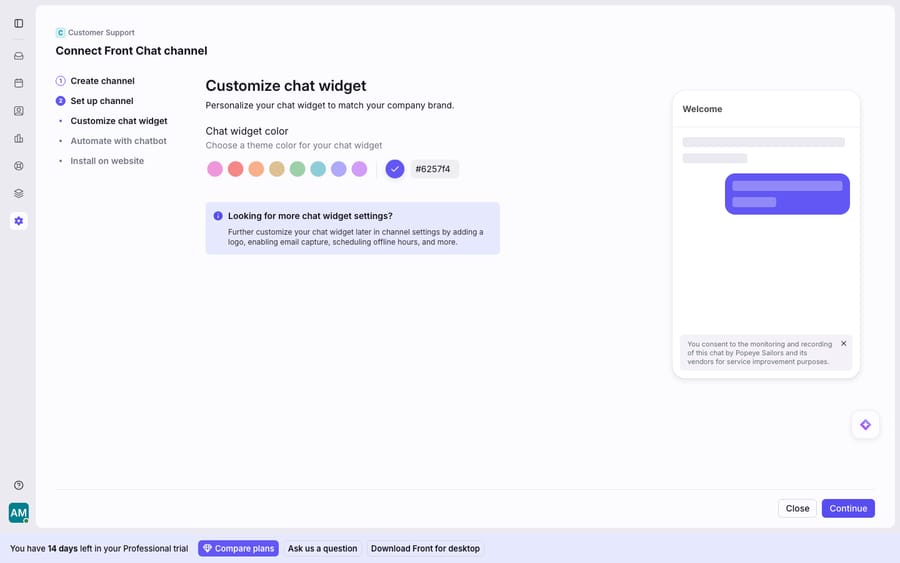
Two things worth noting from that preview. First, the consent notice names the company (here, the test workspace "Popeye Sailors"), so the widget surfaces who is on the other end. Second, the setup isn't one screen: Customize chat widget is followed by Automate with chatbot and Install on website, so appearance, automation, and deployment are deliberately separate steps.
How do you install Front Chat on your website?
Installation is a copy-paste script tag. Open the Front Chat channel's Installation tab, copy the widget code snippet, and paste it before the closing </body> tag on your page. Nothing reaches your Front Chat inbox until that snippet is live. Two tags: one loads Front's bundle, one initializes the widget with your channel's chatId.
<script src="https://chat-assets.frontapp.com/v1/chat.bundle.js"></script>
<script>
  window.FrontChat('init', {chatId: 'YOUR_CHAT_ID', useDefaultLauncher: true});
</script>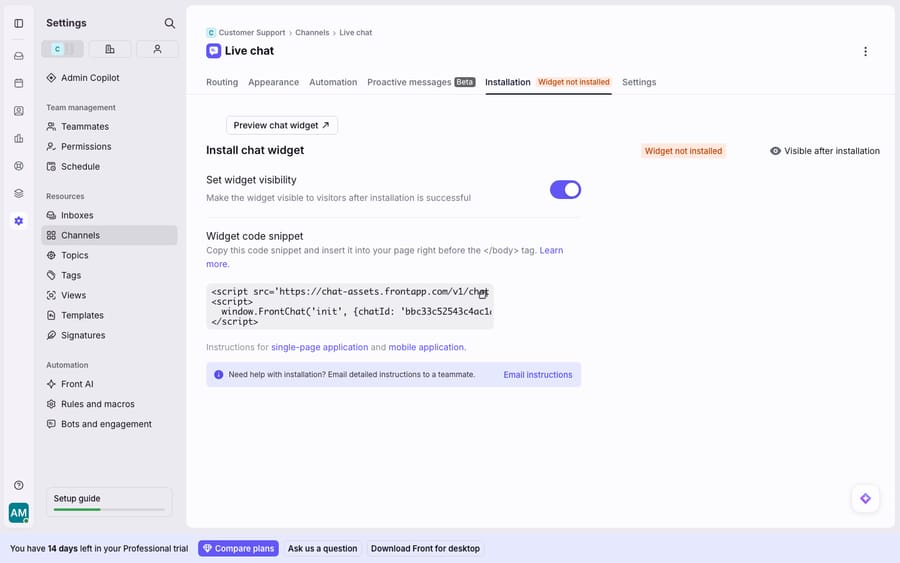
useDefaultLauncher: true renders Front's built-in bubble in the corner. Set it to false and trigger the widget from your own "Chat with us" button instead.
The chatId is not a secret
This one comes up in every install review. The chatId is a public front-end embed identifier, a random alphanumeric string that has to ship in your page source for the widget to load at all, which is exactly why the Installation tab hands it to you ready to copy and why Front's own install guide prints it in plain text. It is not an API key. Treat it like the account number a script tag needs, not a credential to rotate.
Single-page apps and mobile
For anything more dynamic than a static page, the raw snippet will not re-initialize cleanly as a visitor navigates between views.
- Single-page apps (React, Vue and the like): use the official
front-chat-sdkpackage instead of the raw script. It exposesinitialize,showandshutdownso the widget mounts and unmounts correctly across route changes. - Native apps: Front publishes iOS and Android SDKs through its developer docs, so mobile conversations land in the same inbox.
- Logged-in users: identify them automatically by email or user ID using a verification secret and a computed user hash, so the visitor arrives already matched to a known contact.
Should you allow anonymous visitors or only verified users?
Who the person is, and how much you trust that, is the core targeting decision in Front Chat. There are two modes:
Anonymous visitors can chat without identifying themselves. Front assigns them an auto-generated placeholder name, with the docs using examples like "Purple panda", so the conversation still has a handle even when you know nothing about who's typing. Good for top-of-funnel sales and general questions; weaker for anything account-specific.
Verified users are authenticated by your site before the chat opens, using the verification secret and user-hash flow above. When a verified user (or any visitor who provides their email) starts a chat, Front matches them against your contacts and CRM integrations (Salesforce, HubSpot, Pipedrive and Zoho), so the agent sees who they are and their history without asking. That's the difference between "Purple panda has a question" and "your enterprise customer Dana from Acme has a question."
What happens when your team is offline?
You can hide the widget when nobody's around, with one important caveat. Front lets you enable "Hide chat widget outside of online hours" so visitors don't start a chat you can't answer. But per Front's documentation, this setting "hides the widget from view" and does not turn off chat if a customer already has the widget open, so Front recommends configuring auto-responses for offline hours rather than relying on hiding alone.
Four other channel toggles are worth setting while you are in there, per Front's Using Front Chat guide:
- Prompt visitors to optionally provide their email address, so a dropped chat can continue over email instead of vanishing when the tab closes.
- Display knowledge base in the chat widget, which offers self-serve articles before a visitor types anything.
- End and refresh chats automatically, which clears stale sessions.
- Play notification sound for new messages, on the visitor's side.
On the automation side, the Automation tab is where you configure the chatbot: welcome messages, triage of incoming inquiries, collecting customer information, an email-collection banner, and AI knowledge sources. You can also add CSAT to chat with the {{survey}} variable, which prompts the visitor to leave a 5-star rating at the end of a conversation.
How does a chat become a Front conversation?
Once the snippet is live, the flow is immediate. A visitor opens the widget and sends a message; it appears instantly in Front as a conversation in your Front Chat inbox. From there it behaves like any other Front conversation: you can assign it, comment internally to a teammate, tag it, and run Front rules against it to auto-route or auto-tag based on content. Front even uses a distinct notification sound for chat so agents can tell a live visitor apart from an email that can wait.
If the visitor is verified or supplies an email, the conversation is stitched to their contact record and CRM history. If they're anonymous, it opens under a placeholder name and can be enriched later. Either way, chat is not a silo, it's the same object model as the rest of your inbox, which is exactly why Front Chat is worth using over a disconnected third-party bubble.
How do you route and assign chats with rules?
This is the payoff of chat living inside Front: chat conversations run through the same rules engine as email and SMS. A chat appears instantly as a conversation, and from there a rule can tag it, route it and assign it with no human triage. Five patterns worth building on day one:
| Goal | Rule pattern |
|---|---|
| Send product chats to the right team | Route on the visitor's URL, so /pricing goes to Sales and /billing goes to Billing |
| Spread the load | Assign incoming chats to a teammate group with round robin |
| Continue over email | Assign the email follow-up to the teammate who replied to the chat |
| Segment known customers | If the chatbot collects contact details, route, tag or assign on those custom fields |
| Cover the night shift | On an inbound chat outside online hours, auto-reply with a template |
URL-based routing is the one teams underuse. Front knows which page the visitor opened the widget on, so a rule can quietly put billing-page chats in front of Billing and pricing-page chats in front of Sales without anyone reading them first. If the chatbot collects an email or an account ID before handing over, the rules get sharper again: they can match the visitor to an existing contact and assign to that account's owner.
The limit is worth naming now rather than later. A rule matches a pattern, not a meaning. It reads the URL, a keyword or a field, never the question.
Where does Front Chat stop, and where does an AI layer fit?
Front Chat is a genuinely good native widget: it's on all plans (on the latest Starter plan, as your one designated channel type), installs in one paste, and lands in the inbox your team already lives in. Credit where it's due. But it's worth being clear about the edges.
Branding and display polish are plan-gated. Per Front's Using Front Chat guide, customizing the "Powered by Front" line needs Professional or above ($65 a seat per month), and the "Name for display" option (showing a team name instead of the individual agent's name) is Enterprise only ($105 a seat per month). Name the incentive: the free-tier badge on your widget is marketing Front gets from your traffic, which is why removing it is the upsell rather than a checkbox. On Starter, the widget carries Front's branding, and below Enterprise it shows agent names as-is. Front's pricing tiers lay out exactly what unlocks where.
The chatbot triages; it doesn't reason. The native Automation tab handles welcome messages, keyword triage and information collection well, but that is routing and collecting, not answering. It can ask for an email and hand off to a human. It can't read "I was double-charged on order #4821 and need it refunded", look up that order, and resolve it in the chat. Rules have the same ceiling for the same reason: they match a URL or a field, not a meaning.
Chat reporting depth is plan-gated too. Richer chat analytics and custom reporting sit on higher tiers, so a small team's view of chat volume and response time is thinner than the dashboard screenshots suggest.
That reasoning-heavy part is the seam where an AI agent layer fits, on top of the Front Chat you already run rather than instead of it. The broader category of AI agents for customer service exists precisely for the work a keyword triage can't do. Macha is one such layer: it connects to the Front you already use through the live Macha and Front connector and does not replace Front, your inboxes, or your widget. A chat lands in the Front Chat inbox as it always has; then the agent reads it, works out intent rather than keywords, pulls a real order or account status through a custom tool that turns your REST Front API or backend into something it can call, and drafts or sends a grounded reply while the visitor is still on the page. For the mechanics, connecting Front to Macha to route conversations to AI walks through the setup.
It bills per ticket: one thread with one person is one charge however many replies it takes, from $299 a month for 750 tickets on published pricing, with setup and monitoring by our team included and $50 of free usage to start. It suits teams whose widget produces enough repeat questions to be worth answering automatically. If your chat volume is a handful a day, the native chatbot and a good rule set are the right amount of machinery.
The clean division of labor: let Front Chat be the front door, meaning the widget, the branding and the shared-inbox home, let rules be the deterministic dispatcher, and layer an agent on top for the part a pattern match can't do, which is reading the visitor's question and answering it well.
FAQ
Where do I set up Front Chat? Go to Settings (gear icon) → your workspace → Inboxes → Create inbox (or open an existing inbox) → Channels → Connect channel → Front Chat. During setup you pick a theme color, an optional chatbot, and whether to accept only verified users or allow anonymous visitors.
How do I install the Front Chat widget on my website? Open the channel's Installation tab, copy the widget code snippet, and paste it before the closing </body> tag on your page. It loads Front's chat.bundle.js and initializes with your chatId. For single-page apps use the front-chat-sdk package, and for mobile embed it in a webview.
What's the difference between verified and anonymous visitors? Anonymous visitors can chat without identifying themselves and get an auto-generated placeholder name (like "Purple panda"). Verified users are authenticated by your site via a verification secret and user hash, so Front matches them to your contacts and CRM (Salesforce, HubSpot, Pipedrive, Zoho) automatically.
What happens to Front Chat when my team is offline? You can enable "Hide chat widget outside of online hours," but Front notes this only hides the widget and does not close a chat a visitor already has open. Front recommends setting up auto-responses for offline hours instead of relying on hiding alone.
Is the chatId in the Front Chat snippet a secret? No. The chatId is a public front-end embed identifier, a random alphanumeric string that has to ship in your page's HTML for the widget to load at all. Front's own install guide prints it in plain text. It is not an API key and it does not need rotating.
How do I install Front Chat on a React or single-page app? Use the official front-chat-sdk package rather than the raw snippet. It exposes initialize, show and shutdown, so the widget mounts and unmounts cleanly as visitors move between views. For native apps, Front publishes iOS and Android SDKs through its developer docs.
Do Front Chat conversations work with rules like email does? Yes. A chat becomes a Front conversation and runs through the same rules engine. You can route on the visitor's URL, assign with round robin, tag on chatbot-collected fields, auto-reply outside online hours, and assign the email follow-up to whoever answered the chat.
Can I add AI to Front Chat without replacing Front? Yes. An AI agent layer like Macha connects to Front as a live connector and runs on top of your existing Front Chat inbox, and it doesn't replace the widget or your inboxes. The chat lands in Front as usual; the agent then reads it, pulls real data through your own tools, and drafts or sends a grounded reply.
Which Front plan do I need to change the Front Chat branding? Customizing the "Powered by Front" line needs Professional ($65 a seat per month) or above, and showing a team name instead of agent names through "Name for display" needs Enterprise ($105 a seat per month). The widget itself works on every plan.
Sources: Setting up a Front Chat inbox · Using Front Chat · front-chat-sdk · Front chat developer docs
We checked every path, toggle, plan gate and price above against Front's own help center and pricing page on September 24, 2026. Front revises its settings layout periodically, so confirm the labels in your own workspace.






