





 Shopify
 Stripe
 Slack
Slack Notion
 Google Workspace
 Confluence

What Are Freshdesk Ticket Type, Priority, Status and Source? The Four Fields Explained


Freshdesk categorizes every ticket with four built-in fields: Type, which you define yourself, Priority with four fixed SLA-tied values, Status with four mandatory values, and Source with 13 default choices set automatically by the channel. Each behaves differently, and Freshdesk's automation rules read and write all four.
Key takeaways
- Freshdesk categorizes tickets with four built-in fields, Type, Priority, Status and Source, managed under Admin, Workflows, Ticket Fields.
- Freshdesk's Type field ships with no default values, so each team defines its own short list, such as Billing, Bug, Feature Request and Question.
- Freshdesk Priority has exactly four hard-coded values, Low, Medium, High and Urgent, because the field is tied directly to SLA Policies.
- Freshdesk Status keeps four mandatory values, Open, Pending, Resolved and Closed, and custom statuses need the Growth plan, which costs $19 an agent a month annually.
- Freshdesk fills the Source field automatically from the arrival channel, using 13 default choices that cannot be edited or deleted, only rearranged.

Freshdesk sorts every ticket with four built-in fields: Type (a list you define, empty by default), Priority (four fixed values, Low, Medium, High and Urgent, tied to SLAs), Status (four mandatory values plus custom ones on Growth and above) and Source (13 default channel choices, filled in automatically). Agents, automation rules and, where you allow it, customers set the first two; Freshdesk stamps Source itself.
What are the four categorization fields in Freshdesk?
Freshdesk ships with a standard set of default ticket fields — Requester, Subject, Type, Source, Status, Priority, Group, Agent, Product, Description, and Company — that you manage under Admin → Workflows → Ticket Fields, per Freshworks' Understand and Customize Ticket Fields documentation. Four of them do the categorization work:
| Field | What it captures | Who sets it | Editable values? |
|---|---|---|---|
| Type | The nature of the request (billing, bug, question) | Agent, automation, or customer | Yes — you define your own |
| Priority | How urgent the ticket is | Agent, automation, or customer | No — four fixed values |
| Status | Where the ticket is in its lifecycle | Agent or automation | Four fixed, plus custom on higher plans |
| Source | The channel the ticket arrived on | Set automatically | 13 fixed choices, plus custom sources |
Each field behaves differently under the hood, so they are worth taking one at a time.
What goes in the Freshdesk Type field?
Type is the one categorization field Freshdesk leaves entirely up to you. There are no default Type values out of the box — you create the list that fits your business. A SaaS company might use Billing, Bug, Feature Request, and Question; a retailer might use Order Issue, Return, Shipping, and Product Question. The docs give Billing, Error, and Feature Request as illustrative examples, but nothing is imposed on you.
Type is deliberately lightweight. It answers "what kind of request is this?" in one word, which makes it the natural pivot for reporting ("how many bugs did we get last month?") and for routing ("send all Billing tickets to the finance group"). Because you own the list, keep it short and unambiguous — five to eight types is usually plenty. Overlapping or vague types ("Other", "General") are where categorization quietly falls apart, because agents stop trusting the field and leave it blank.
You can also let customers pick a Type when they submit a ticket. Under Admin → Workflows → Ticket Fields, open the field and tick Can view (the customer sees it on the form) and Can edit (the customer can set a value). Freshworks' older guide on how customers can change the priority and type of a ticket still calls this option "Display to the customer". That can help intake, but customer-selected Type is a hint, not a source of truth — people mislabel their own tickets constantly, which is a limitation we'll return to.
Can you change Freshdesk priority levels?
Priority has exactly four values — Low, Medium, High, and Urgent — and unlike Type, you cannot change them. Freshworks hard-codes these because Priority is tied directly to SLA Policies: your SLA targets ("respond to Urgent within 1 hour, resolve High within 8 hours") reference these levels by name, so letting admins rename or add to them would break the SLA engine. If you genuinely need a fifth tier, Freshworks suggests creating a custom field and run your automations against that instead — but you lose the native SLA linkage when you do.
Priority can be set three ways: manually by an agent, automatically by an automation rule, or — if you allow it — by the customer at submission. In practice most teams default new tickets to Low or Medium and let automations or agents escalate from there, because a customer's sense of "Urgent" rarely matches yours.
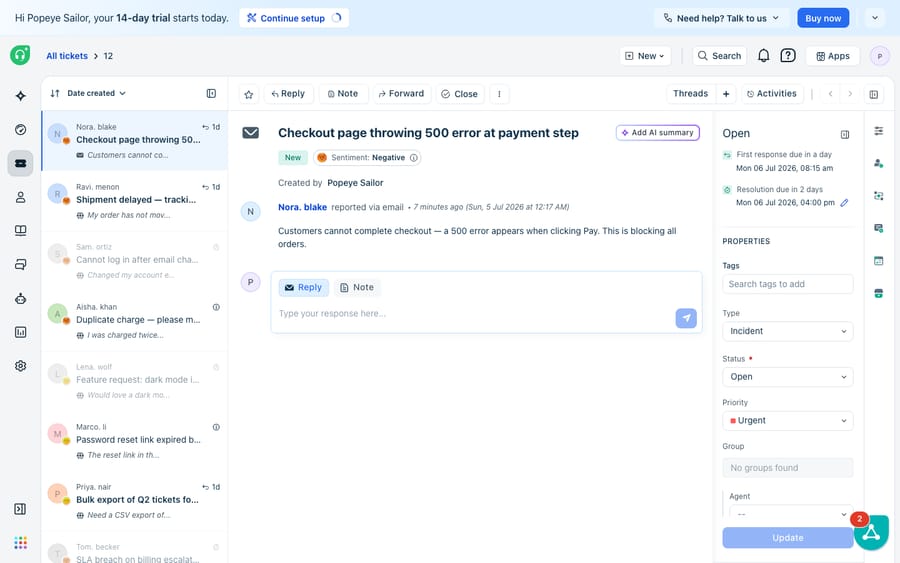
The properties panel above shows Type, Status, and Priority sitting together on a single ticket — the everyday view an agent works from. Note that Source isn't a dropdown in this panel; it's conveyed by the "reported via email" line at the top of the ticket, which is exactly the behavior we'll unpack next.
Which ticket statuses does Freshdesk include?
Status tracks where a ticket sits in its journey, and it comes with four mandatory values — Open, Pending, Resolved, and Closed — that cannot be deleted. Open means it's live and needs attention; Pending means you're waiting on the customer or a third party; Resolved means you believe it's done; Closed means it's finalized. On the Growth plan and above (from $19 an agent a month, billed annually) you can add custom statuses (for example, "Waiting on Engineering") to model your own workflow, but the four defaults always remain.
Status is the field automations lean on most heavily for housekeeping — reopening Resolved tickets when a customer replies, auto-closing Resolved tickets after a set number of days, and so on. It's less a "categorization" than a "state machine," but it lives in the same panel and gets set by the same mix of agents and rules.
How does Freshdesk set the Source field?
Source is the field you almost never touch, because Freshdesk fills it in for you. When a ticket is created, Freshdesk stamps it with the channel it arrived on — email, the support portal, phone, chat, a feedback widget, and so on. Per the ticket fields documentation, Source has 13 default choices that cannot be edited or deleted (though they can be rearranged), and it is automatically populated based on the channel used to create the ticket. You can also add your own custom sources, such as a "walk-in customer" choice, and Freshworks recommends giving each custom source its own SLA policy.
This is the important nuance the ticket screen can hide: Source usually isn't a dropdown you pick from in the properties panel the way Type or Priority is. On an email ticket it shows up as a "reported via email" line near the top of the conversation — the ticket knows it came in by email without anyone selecting anything. Because Source is set at creation and reflects a real, trustworthy signal (the channel), it's one of the most reliable fields to build automations on: "route all phone-sourced tickets to the callback group" will fire correctly every time, because the channel is a fact, not a guess.
How do Freshdesk automations use these four fields?
This is where categorization pays off. Freshdesk's automation rules that run on ticket creation and its rules that run on ticket updates both read and write these fields. Every rule is an if-this-then-that statement, and Type, Priority, Status, and Source are among the most common conditions and actions. A few concrete examples:
- Condition on Source, action on Group. If Source is Phone → set Group to Callbacks. Reliable because Source is machine-set.
- Condition on subject keywords, action on Type. If subject contains "invoice" or "refund" → set Type to Billing. This backfills the field customers leave blank.
- Condition on Type, action on Priority. If Type is Bug AND description contains "down" or "outage" → set Priority to Urgent.
- Condition on Status, action on Status. If Status is Resolved AND customer replies → set Status to Open (a classic reopen rule).
For the full picture of how Freshdesk's rule engine is structured — the Dispatch'r, Observer, and Supervisor rule types and when each one fires — see our companion guide, Freshdesk automations explained. The short version: these four fields are the levers, and automations are what pull them.
Where does rule-based categorization break down?
Freshdesk's categorization is clean, fast, and dependable for what it is. But it has a hard ceiling, and it's worth naming honestly. Every automation that touches these fields is deterministic keyword-and-field matching. A rule can see that a subject contains "refund," but it cannot understand that "I was charged twice and want my money back" means a billing refund when the word "refund" never appears. Type, in particular, is only as good as whoever set it — and customers mislabel their own tickets constantly, while busy agents skip the field entirely. That leaves a long tail of tickets that are either uncategorized or wrongly categorized, and no keyword rule can reliably fix them because the signal it needs is meaning, not a matching string.
This is exactly the seam where an AI layer helps — and it's worth being clear-eyed about the build-versus-buy tradeoff, which we cover in building an AI agent from scratch vs. using a platform. The broader category of AI agents for customer service exists precisely to handle the reasoning-heavy work that rules can't. Macha is one such layer: it runs on top of the Freshdesk you already use as a native connector — it doesn't replace your help desk, it extends it. Macha runs on Zendesk, Freshdesk, Gorgias, Front, HubSpot or Intercom. Once connected to Freshdesk, it reads the same tickets your rules touch, then acts on their meaning: classifying a ticket by intent rather than keyword, setting the right Type and Priority, drafting a first reply grounded in your help center, or looking up an order's status through a custom tool that turns any REST API into something the agent can call. (Macha bills per ticket, one conversation charged once however many steps it takes, not per resolution. The plan starts at $299 a month for up to 750 tickets, with setup and monitoring by the Macha team included.)
The sensible division of labor: keep Freshdesk's native fields and rules for what they're great at — Source-based routing, SLA timers tied to Priority, and Status housekeeping — and layer an agent on top for the judgment calls, where reading the ticket beats matching a word in it.
FAQ
What are the default ticket types in Freshdesk? There are none — Freshdesk ships the Type field empty and lets you define your own list under Admin → Workflows → Ticket Fields. Common choices are Billing, Bug, Feature Request, and Question, but you own the list and can add or remove types to fit your business.
Can I change Freshdesk's priority levels? No. Priority has four hard-coded values — Low, Medium, High, and Urgent — because it's tied directly to SLA Policies. If you need more tiers, the documented workaround is to create a custom dropdown field and run automations against that, though you lose the native SLA linkage.
Which Freshdesk plan do custom statuses and custom fields need? The Growth plan or higher, per Freshworks' ticket fields documentation. Growth is $19 an agent a month on annual billing. Dynamic sections, which show extra fields based on a dropdown choice, need Pro.
How is the Source field set on a Freshdesk ticket? Automatically. Freshdesk stamps each ticket with the channel it arrived on (email, portal, phone, chat, and so on) at creation time. Source has 13 default choices that can't be edited or deleted (only rearranged), and you can add custom sources such as "walk-in customer".
Can customers set the type and priority of their own tickets? Yes, if you turn on the "Can view" and "Can edit" properties for those fields under Admin → Workflows → Ticket Fields. Bear in mind customer-selected values are hints, not ground truth — people frequently mislabel their own tickets, so many teams correct Type and Priority with automations or agents after intake.
Can I add AI classification without replacing Freshdesk? Yes. An AI agent layer like Macha connects to Freshdesk as a native connector and runs on top of your existing help desk. It sets Type, Priority, and status based on what the customer actually meant rather than keyword matches, grounded in your knowledge base. See Macha's pricing and the Freshdesk connector for details, or start a free trial.






