





 Shopify
 Stripe
 Slack
Slack Notion
 Google Workspace
 Confluence

How Does Freshdesk Time Tracking Work? Billable Hours and Timesheets (2026)


Freshdesk records time through the Time Logs widget on each ticket or an automatic Average Handling Time stopwatch, and a Billable checkbox on every entry decides how it is reported. The Time Sheet Summary report then totals those hours by customer, agent, group, ticket and date.
Key takeaways
- Freshdesk tracks time through the Time Logs widget on Growth, Pro and Enterprise plans, and through an automatic Average Handling Time stopwatch on Pro and above.
- When Average Handling Time is switched on in Freshdesk, agents cannot start or stop timers in the Time Logs widget, though manual entry of unaccounted time still works.
- Each Freshdesk time entry carries its own Billable checkbox, so one ticket can hold a 30-minute billable resolution and a 10-minute non-billable internal review.
- The Time Sheet Summary report splits logged time by Charge Type, Date, Ticket, Agent, Group and Customer, and can be emailed as a PDF or viewed as tabular data.
- Freshdesk time tracking starts on the Growth plan at $19 per agent per month billed annually, since the pricing page no longer lists a free plan.

Freshdesk tracks time in two ways: agents log it by hand or with a timer in the Time Logs widget on each ticket (Growth, Pro and Enterprise plans), or Freshdesk runs an automatic Average Handling Time stopwatch (Pro and above). Each entry can be marked Billable, and the Time Sheet Summary report in Analytics adds it up by customer, agent, group, ticket and date for invoicing.
| Plan (billed annually) | Price per agent/month | Time Logs + Time Sheet Summary | Automatic AHT |
|---|---|---|---|
| Growth | $19 | Yes | No |
| Pro | $55 | Yes | Yes |
| Enterprise | $89 | Yes | Yes |
Prices from the Freshdesk pricing page, checked 24 September 2026. The page no longer lists a free plan; Freshworks' docs exclude Free from time tracking in any case.
What is the difference between manual and automatic time tracking?
Freshdesk gives you two fundamentally different ways to record time, and it helps to understand both before you decide which your team should lean on.
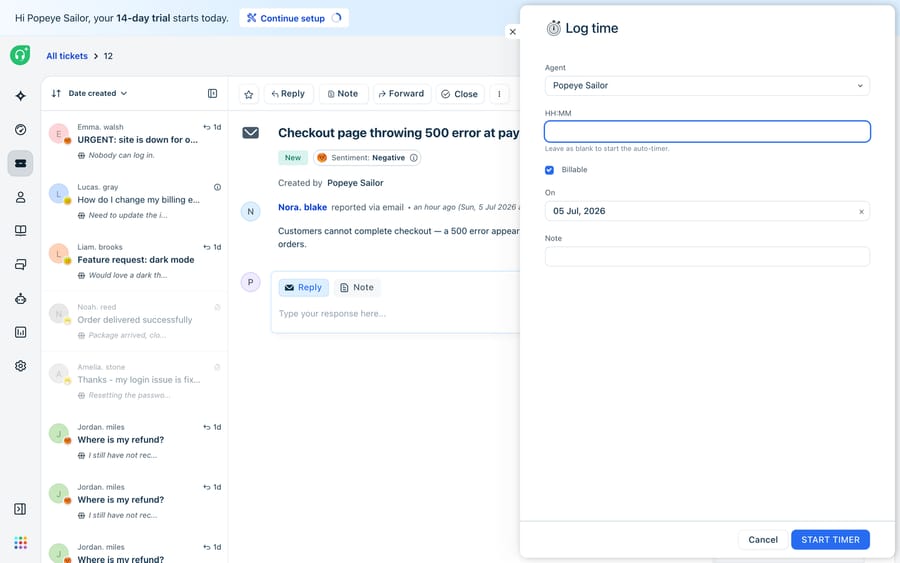
Manual logging is the Time Logs feature. An agent opens a ticket, clicks Log Time in the Time Logs widget (it sits in the apps pane on the right of the ticket), and either types the duration or starts a live timer. This is the flexible option: agents control exactly what gets logged, can add a note explaining the work, and can mark the entry billable or not. It's also the one that depends on a human remembering to press the button.
Automatic tracking is Average Handling Time (AHT), a stopwatch Freshdesk runs for you. Per Freshworks' Keeping track of time spent documentation, AHT "automatically starts when you visit an assigned ticket, stops each time you move away from the ticket, and continues whenever you revisit the ticket." No button, no memory required — but also less control, because it measures attention on the ticket rather than deliberate work. One important gotcha: when AHT is switched on, agents "cannot start or stop timers in the Time Logs widget," though manual entry of unaccounted time still works.
How do you log time manually on a Freshdesk ticket?
Manual logging is the workhorse for most teams. Here's the exact flow.
- Open the ticket and find the Time Logs widget in the right-hand apps pane.
- Click Log Time.
- In the HH:MM field, either type the duration (e.g.
00:45) or, if you're logging for today, leave it blank to start a timer from zero. - Set the On date. Note that the HH:MM field is mandatory for past dates; you can only start a live timer for the current day.
- Add an optional Note describing the work.
- Check the Billable box if this time should appear as billable in your reports.
- Click Save.
Once an entry exists, you can Start, Stop, Edit, or Delete it. And Freshdesk keeps you honest across tickets: it automatically stops a running timer the moment you start one on a different ticket, so you can't accidentally double-bill two tickets at once.
How do you mark time as billable?
The single most consequential control in the whole feature is the small Billable checkbox. It doesn't change how time is tracked; it changes how time is categorised. Every entry you mark billable rolls up into the billable column of your timesheet; everything left unchecked lands in non-billable. That's the split an agency uses to separate client-chargeable work from internal admin, QA, or training time on the same ticket.
Two habits make this reliable. First, decide a default as a team — most agencies treat customer-facing resolution time as billable and internal notes-to-self as non-billable — and write it down so agents aren't guessing per ticket. Second, remember that the toggle is per entry, not per ticket: a single ticket can carry both a 30-minute billable resolution and a 10-minute non-billable internal review, and your report will show both correctly.
Where do you find and export a Freshdesk timesheet?
Logging time is only half the job; the payoff is the report. Freshdesk's built-in timesheet lives in Analytics as the Time Sheet Summary curated report. It takes every time entry your team has logged and splits it by the dimensions that matter for billing and workload analysis.
Per Freshworks' Time Sheet Summary Report documentation, the report breaks time down by:
| Dimension | What it answers |
|---|---|
| Charge Type | Billable vs non-billable — the split your invoices need |
| Date | How hours trend across a period |
| Ticket | Time spent on any individual ticket (with a drill-down link) |
| Agent | Who is spending time where |
| Group | Which team or department the hours belong to |
| Customer | Total time per client — the row an agency invoices from |
To get the data out, use the Export PDF option (Freshdesk emails the report to your mailbox), or open the Show Tabular Data accordion to see the underlying raw rows and export the figures for a spreadsheet or invoicing tool. You can also customise which columns appear via the gear button before you export. The report shows the notes agents added when they logged time, and Freshdesk integrates with FreshBooks and Harvest if you invoice from one of those.
Which Freshdesk plans include time tracking?
Time tracking isn't on every Freshdesk tier, so confirm your plan before you build a billing workflow on it.
- The Time Logs manual feature is available on Growth ($19), Pro ($55) and Enterprise ($89), per agent per month billed annually. Freshworks' docs exclude the Free plan, and the pricing page now offers a 14-day trial of Enterprise instead of a free tier.
- Automatic AHT tracking is gated further, to Pro plans and above.
- The Time Sheet Summary analytics report is likewise available on Growth, Pro and Enterprise (not Free), including Freshdesk Omni, while the custom group-by drill-down is limited to the legacy Estate tier and above.
Plan names and gating shift over time, so treat these as a guide and verify against your own account's feature list. Freshworks documents the full setup in Keeping track of time spent.
When do you need a third-party time-tracking app?
Freshdesk's native tracking is deliberately lightweight. If your team needs GPS-stamped field entries, idle detection, screenshots, or a proper billing engine, the Freshworks Marketplace and integrations from tools like Clockify, TMetric, Everhour, and Timely can bolt richer time tracking onto your tickets — usually syncing entries back so they still appear in Freshdesk. These are worth a look if the native billable/non-billable split isn't granular enough for how you invoice, but for most support teams the built-in feature is enough to see where the hours go.
What can't Freshdesk time tracking do?
Freshdesk's time tracking is a solid, no-nonsense ledger. It records minutes accurately, categorises them by billable status, and reports them cleanly. Credit where it's due: for a feature that ships at no extra cost on the $19 Growth plan, it covers the essentials well.
But be clear about what it is — a measurement tool, not a productivity one. It tells you an agent spent 45 minutes on a ticket; it does nothing to make that 45 minutes shorter. It can't read the ticket, understand the customer's problem, or draft the reply. AHT's automatic stopwatch also measures presence rather than effort — time spent staring at a ticket while hunting for an answer counts exactly the same as time spent writing a brilliant one. And the manual timer leans entirely on agents remembering to press the button, which is precisely the discipline that slips on the busiest days when the data matters most.
This is the seam where an AI agent layer changes the shape of the problem, and it's worth weighing the build-versus-buy tradeoff before you reach for one. The whole point of AI agents for customer service is to compress the minutes your timesheet counts by doing the reasoning-heavy work up front. Macha is one such layer: it runs on top of the Freshdesk you already use as a native connector. It does not replace your help desk, its time tracking, or its reports. You connect Macha to Freshdesk with your subdomain and API key, and it reads and writes the same tickets your timesheet tracks: drafting grounded replies so an agent spends two minutes reviewing instead of twenty writing, deflecting the repetitive questions that eat billable hours for no margin, and looking up order or account status through a custom tool that turns a REST API into something the agent can call. If you want to see the mechanics of that, how to automate Freshdesk with AI walks through it, and pairing it with sharp canned responses keeps the human replies fast too. (Macha's connector is for Freshdesk specifically, not Freshchat, Freshservice or Freshcaller. It bills per ticket, one conversation charged once however many messages it takes, from $299 a month for up to 750 tickets, with setup and monitoring by the Macha team included; see the pricing breakdown.)
The clean division of labour: keep Freshdesk's time logs and Time Sheet Summary as the source of truth for how long work took and what's billable, and layer an agent on top to shrink the "how long" — so the hours you track are spent resolving, not searching.
FAQ
Where do I log time on a Freshdesk ticket? Open the ticket and find the Time Logs widget in the right-hand apps pane, then click Log Time. Enter the duration in the HH:MM field (or leave it blank on the current date to start a live timer), set the date, add an optional note, tick Billable if relevant, and Save.
What's the difference between the manual timer and automatic tracking? The manual Time Logs timer is one an agent starts and stops deliberately, with full control over notes and billable status. Average Handling Time (AHT) is automatic — it starts when an agent opens an assigned ticket, pauses when they leave, and resumes when they return. When AHT is enabled you can't also use the Time Logs timer, though manual entry still works.
How do I mark time as billable? Check the Billable box on the time entry when you log it. That single toggle decides whether the entry rolls into the billable or non-billable column of your Time Sheet Summary report. It's set per entry, so one ticket can carry both billable and non-billable time.
How do I export a Freshdesk timesheet? Open the Time Sheet Summary report in Analytics. Use Export PDF to have it emailed to you, or open the Show Tabular Data accordion to see and export the raw rows split by Charge Type, Date, Ticket, Agent, Group, and Customer.
Which Freshdesk plans include time tracking? The manual Time Logs feature and the Time Sheet Summary report are available on Growth, Pro and Enterprise, from $19 per agent per month billed annually (not the Free plan). Automatic AHT tracking is gated to Pro and above. Plan gating changes over time, so verify against your own account.
Want the hours your timesheet tracks to turn into resolved tickets instead of just measured effort? Start a free trial of Macha and connect it to your Freshdesk in minutes.






