





 Shopify
 Stripe
 Slack
Slack Notion
 Google Workspace
 Confluence

How Do SLAs and Business Hours Work in Gorgias? (2026)


Gorgias SLA policies time the first response and the resolution on every matching ticket, with goals from 1 minute to 14 days on all Helpdesk plans. The timer can pause outside business hours, and breaches show up afterwards in the SLA report, not as a live alert.
Key takeaways
- Gorgias SLA policies time a First Response Time and a Resolution Time on each matching ticket, with each goal set anywhere from 1 minute to 14 days.
- A Gorgias SLA policy can be scoped to channels plus up to five tags and five ticket fields, and when a ticket matches two policies only the one listed first applies.
- Voice SLAs in Gorgias can't be combined with other channels and use percentage targets, such as 80% of calls picked up within 2 minutes.
- Gorgias counts a ticket as achieved only when every goal in its policy is met, so a fast first reply followed by a late close is still a breach.
- The Gorgias SLA report shows an achievement rate and a count of tickets with breached SLAs after the fact, and Gorgias rates 95% to 100% achievement as excellent.
A Gorgias SLA policy times two things on every matching ticket, the first response and the resolution, with each goal set anywhere from 1 minute to 14 days, and it's available on all Gorgias Helpdesk plans. You scope each policy to channels (plus up to five tags and five ticket fields), choose whether the timer pauses outside business hours, and read the results in the SLA report under Analytics.
| Setting | What Gorgias allows | Watch out for |
|---|---|---|
| Goals per policy | First response time and/or resolution time | A ticket only counts as achieved if every goal in its policy is met |
| Goal range | 1 minute to 14 days, entered in seconds, minutes, hours or days | Editing a policy doesn't change past tickets or reports |
| Scope | One or more channels, plus up to five tags and five ticket fields | If a ticket matches two policies, only the one higher in the list applies |
| Voice | Percentage targets, e.g. 80% of calls picked up within 2 minutes | Can't be combined with other channels; no tag or field conditions |
| Business hours | Toggle to pause the timer outside business hours | Off means the clock runs 24x7 |
| Who can edit | Account owner, admins and leads | All roles can view the SLA report |
What does a Gorgias SLA actually measure?
A Service Level Agreement policy in Gorgias attaches time goals to the tickets that match its conditions. Per the Gorgias SLA policies documentation, each policy can govern two clocks:
- First Response Time: the gap between a customer's message and your agent's first reply. This is the number shoppers feel most, and the one most teams promise against.
- Resolution Time: the time from the first inbound message to the ticket being closed.
You can set either goal anywhere from 1 minute to 14 days, entered in seconds, minutes, hours, or days. The range is wide on purpose: a live chat about a stuck checkout deserves a two-minute promise, while a complex return dispute can reasonably carry a two-day resolution goal. If you're still deciding whether Gorgias is the right home for this in the first place, our what is Gorgias primer covers the wider platform.
One detail changes how you read the results. A ticket counts as achieved only when every goal in its policy is met. If a policy has both goals and the agent replies in time but the ticket closes late, the ticket is breached. And a ticket that got its first reply on time but is still open is treated as pending, so it stays out of the achievement rate until it closes.
How do you set up an SLA in Gorgias?
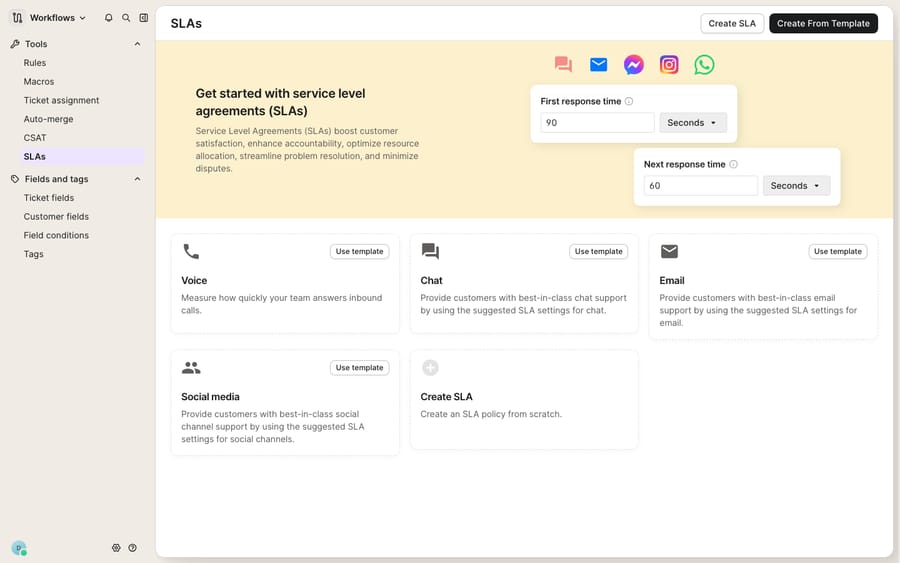
Everything lives in one place. Following Gorgias' set SLA policies guide, you configure policies here:
- Open the dropdown menu in the top-left corner of the helpdesk and select Workflows, then under Tools choose SLAs.
- Click Create SLA and give the policy a descriptive name (e.g. "Chat: first reply 5 min").
- Select the channel(s) the policy applies to. You can pick several if they share a promise.
- Toggle on First Response time and Resolution time and enter each goal.
- Optionally open Conditions to narrow scope, with up to five tags and five ticket fields, so a policy only applies to, say, tickets tagged
vipor tickets where Priority is High. - Make sure Enable SLA is toggled on, then click Save Changes.
SLAs are available on all Helpdesk plans, and only the account owner, admins, and leads can set them, so a front-line agent won't accidentally rewrite your promises.
Order matters once you have more than one policy. Gorgias applies policies in the order they're listed on the SLAs page, and if a ticket matches two, only the first one counts. Drag condition-based policies (the VIP one, for instance) above the broad channel-only ones, or the broad policy will swallow those tickets. Tags can also move a ticket between policies: until the first reply goes out, a tag or field change can switch which policy times the first response, though the timer still counts from ticket creation and doesn't reset.
Should each channel get its own SLA?
Usually, yes. Gorgias lets you pick channels per policy because customer expectations differ so much between them. A shopper in Chat expects an answer in seconds; the same shopper emailing about a warranty is happy to wait hours. So most teams build separate policies:
- Email: the classic first-response and resolution goals, usually the most forgiving.
- Chat: much tighter first-response windows, because a live visitor is watching for the typing indicator. Gorgias Chat is its own product surface; if you haven't set it up, our Gorgias Chat explained walkthrough covers it.
- Social media: comments and DMs, where public visibility raises the stakes on a slow reply.
- Voice: the outlier. Voice SLAs can't be combined with other channels, don't support tag or field conditions, and use a percentage target instead of a per-ticket clock, for example "80% of calls are picked up within 2 minutes." Voice is a Gorgias add-on, so this only applies if you've turned it on.
Don't force one universal SLA. Model each channel's promise honestly and let Gorgias run several policies side by side.
How do business hours pause the SLA timer?
Inside each policy there's a toggle, "Pause SLA timer outside of business hours", and it changes how your achievement rate reads.
With it on, timers on open tickets pause outside your business hours and resume at the next start of business hours, and a ticket created while you're closed doesn't start its clock until you open. A ticket that lands at 6pm on Friday doesn't burn its first-response budget over the weekend. With it off, the clock runs 24x7, which is what you want for a channel you really do staff around the clock.
Getting this wrong is the most common reason a Gorgias SLA seems to be "calculating wrong." If your achievement rate looks mysteriously bad, check first whether business hours are defined and whether the pause toggle matches how you actually staff that channel.
How do SLA breaches show up in Gorgias?
Gorgias reports SLA performance in the SLA report (Analytics, then Support Performance, then SLAs), documented in the Gorgias SLA report reference. It has a Tickets tab and, if you use Voice SLAs, a Calls tab. The headline cards are the Achievement rate (the percentage of tickets that met their policy) and Tickets with breached SLAs (the number that missed at least one goal), plus a trend chart of achieved against breached volume. Click either number to drill down to the tickets behind it, filter by date, SLA policy or other dimensions such as channel, team, or agent, and save filters for a weekly review. All roles can view the report; only admins and leads can download the tickets.
Gorgias also gives rough benchmarks for achievement rates: 95% to 100% is excellent, 90% to 95% good, and 85% to 90% acceptable.
Notice the report's shape, though: it's historical analytics. It tells you, after the fact, which tickets breached and which policy they missed. Gorgias' SLA documentation doesn't describe an alert that pings an agent "this ticket breaches in 5 minutes, answer it now." The feature is good at measuring and scoring the promise; the in-the-moment intervention, and the reply that actually stops the clock, is left to your team.
What can't an SLA clock do on its own?
An SLA timer does three things it fundamentally can't:
- It can't write the answer. It counts down while an agent reads the ticket and types.
- It can't fix mis-triage. If a WISMO ticket lands in the wrong channel or without the right tag, the wrong policy (or none) applies.
- It can't fetch context. When the question is "where's order #4471?", the clock ticks while someone opens Shopify and looks. For steering tickets to the right policy in the first place, most teams lean on Gorgias rules and Gorgias macros, but those follow fixed conditions rather than reading the message.
How does an AI layer help you meet Gorgias SLAs?
This is the gap an AI agent layer fills, not by replacing Gorgias' SLA engine but by handling the part the clock can't. See our guide to AI agents for customer service.
Macha is one such layer. It runs on top of the Gorgias you already use through a native connector. It isn't a helpdesk replacement and doesn't touch your SLA policies, which stay your source of truth for what's promised and what's overdue. Once connected, Macha reads and writes the same tickets your SLAs already time. It can draft or post a grounded first reply so the first-response clock is beaten with a real answer, triage by intent so the right tags (and so the right policy) are on the ticket early, and look up order or subscription status through a custom tool that turns your REST APIs into something the agent can call. A WISMO ticket gets answered with the actual tracking number instead of a holding message. Our Macha–Gorgias integration overview covers how the connection is wired.
On cost: Gorgias bills its own AI Agent per automated interaction ($1.00 on Starter, $0.90 on Basic and Pro, $0.85 on Advanced, per its pricing page), and each automated interaction also counts as a helpdesk ticket. Macha's pricing is one plan priced by ticket volume, from $299 a month for up to 750 tickets, billed per ticket rather than per message, with setup and monitoring by the Macha team included. If you're comparing the two, our Gorgias pricing explained and Gorgias AI Agent explained posts go deeper.
The clean split: keep Gorgias' SLAs as the scoreboard for what's promised and what's overdue, and put an agent on top for the part the clock can't do, which is answering fast enough to keep the promise.
FAQ
Where do I set up SLAs in Gorgias? Open the dropdown menu in the top-left corner, choose Workflows, then under Tools select SLAs. Click Create SLA, name it, pick the channel, set your First Response and Resolution goals, and toggle Enable SLA on. Only the account owner, admins, and leads can set SLA policies.
What SLA targets can Gorgias enforce? Two per policy: a First Response Time and a Resolution Time, or just one of them. Each can be set from 1 minute to 14 days, in seconds, minutes, hours, or days, and scoped with up to five tags and five ticket fields.
Do Gorgias SLAs work per channel? Yes. You build policies for Email, Chat, and Social media, each with its own goals, or share one policy across several channels. Voice is the exception: it can't be combined with other channels and uses percentage targets like "80% of calls picked up within 2 minutes."
What happens if a ticket matches two SLA policies? Only one policy applies to each ticket: the one listed first on the SLAs page. Put policies with tag or field conditions above broad channel-only policies so the specific promise wins.
How do SLA breaches show up in Gorgias? Through the SLA report, which shows an Achievement rate card and a Tickets with breached SLAs card, with a drill-down to every ticket behind each number. It's historical reporting, not an alert that a specific ticket is about to breach.
Can I add AI to Gorgias SLAs without replacing Gorgias? Yes. An AI agent layer like Macha connects to Gorgias as a native connector and runs on top of your existing helpdesk and its SLA policies without replacing them. It helps meet the goals by drafting or sending grounded first replies and triaging by intent, while Gorgias stays the system of record for what's promised and what's overdue.
Want your agents to beat the clock instead of just watching it? Start a free trial of Macha and connect it to your Gorgias.






