





 Shopify
 Stripe
 Slack
Slack Notion
 Google Workspace
 Confluence

How Do Front Sequences Work? Limits, Setup and Stop-on-Reply (2026)


A Front sequence sends a personalized email campaign of up to 10 stages to as many as 200 recipients, with follow-ups that stop automatically when someone replies. It needs the Professional plan or above and an email sending channel, and each send from a shared address counts as a new conversation in analytics.
Key takeaways
- A Front sequence can have 1 to 10 stages, labelled A through J, sent to up to 200 recipients, with each later stage going out as a reply on the same thread.
- Front spaces sequence sends 7.5 seconds apart on Gmail and Office 365 channels and 1 second on other channels, so a full 200-recipient stage takes roughly 25 minutes.
- Front sequences are available only on the Professional plan and above, and need an email channel: an individual inbox for personal sequences or a shared inbox for workspace sequences.
- A genuine reply to any Front sequence stage stops later stages for that recipient, but automatic replies such as Out of office do not stop the sequence.
- Sending a Front sequence from a shared address counts each outbound message toward that inbox's New conversations metric, which can distort inbound volume reporting.
A Front sequence is a staged outbound email campaign: 1 to 10 stages sent to up to 200 recipients, where each follow-up goes out as a reply on the same thread and stops automatically for anyone who writes back. Sequences are on Front's Professional plan and above, and they only send from an email channel.
| Setting | Limit or rule |
|---|---|
| Stages | 1 to 10, labelled A to J |
| Recipients | Up to 200 per sequence |
| Send spacing | 7.5 seconds on Gmail and Office 365; 1 second on other channels |
| Stop rule | A genuine reply stops later stages; auto-replies don't |
| Personalization | Up to 20 custom variables per CSV |
| Plan | Professional and above |
| Channel | Email only; no SMS or chat |
What is a Front sequence?
Per Front's Understanding sequences guide, a sequence lets you "automate outreach and communications to a group of people using a list of email addresses." You draft the emails once, attach a recipient list, and Front handles the sending and the timed follow-ups.
Each sequence is made of stages, between 1 and 10, labelled A through J. Stage A is the first email; every later stage is sent as a reply on the same thread, which is what you want for a follow-up ("Just bumping this up…"). The subject line stays the same, with "Re:" added after the first stage. You set a date and time for each stage, so the cadence is yours: Stage A now, Stage B in three days, Stage C a week later.
Two uses dominate. Sales and outreach teams use sequences for cold or warm prospecting: an intro, a follow-up, a breakup email. Support and ops teams use them for proactive announcements, renewal nudges, onboarding drip emails, or checking in on a cohort of customers. Anywhere you want to send roughly the same thing to many people with automatic follow-up, a sequence fits.
How do you create a sequence in Front?
Start from Sequences in the Front navigation, choose whether the sequence is Personal (visible only to you) or Workspace (visible to teammates with access), then click Create sequence. That opens the New sequence dialog shown below. Per Front's How to create a new sequence walkthrough, this first dialog captures:
- Name: an internal label for the sequence (recipients never see it).
- From: the email channel the sequence sends from. This field gates everything (more in the limits section).
- Cc / Bcc: optional, copied on every sequence email.
- Sender name: how recipients see the sender's identity.
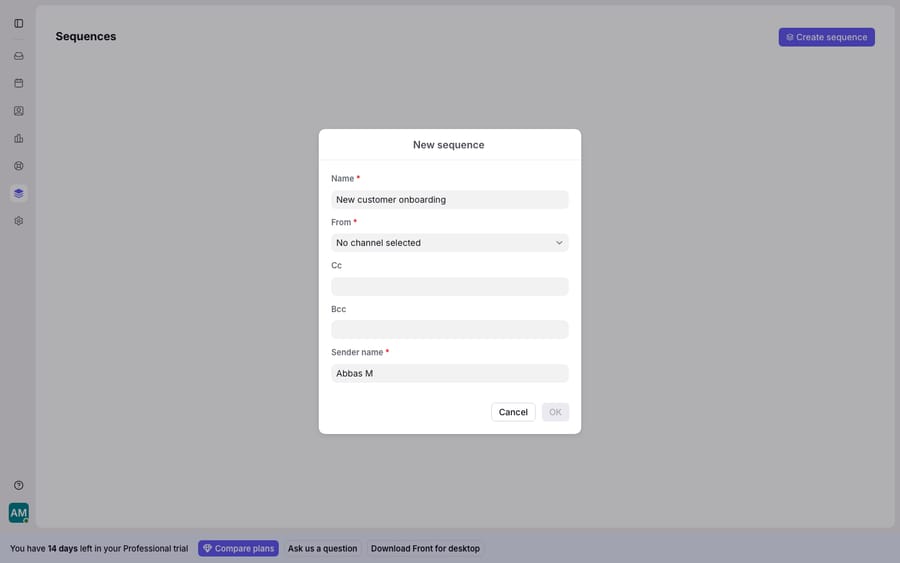
Once you confirm the dialog, Front opens the multi-step editor. There you Add stage for each email, giving each a send date and time, a subject line and the body. You attach recipients by adding them manually, pulling from contact lists, or importing with the Upload .csv file button, where the first column must be labelled email. One constraint to know up front: once a sequence has started you can edit existing stages and recipients, but you can't add new stages.
How does personalization work in Front sequences?
Sequences mail-merge rather than blast. To drop a recipient's name or any other field into the copy, type {{ in a stage's body or subject and Front shows a variable picker. The variables pull from the columns of your uploaded CSV (up to 20 custom variables per file) and from contact fields, so a single Stage A can greet two hundred people by name and reference their company, plan or renewal date.
One documented nuance: when you're pulling data you uploaded via CSV, use the {{sequence…}} variables rather than the {{recipient…}} ones, which pull from a different source. Check your CSV for blank cells before you start, because a missing first name leaves a gap in the greeting.
Does a Front sequence stop when someone replies?
Yes, and that's the behavior that makes a sequence feel intelligent. Front puts it plainly: "If a recipient sends a reply to a sequence stage, subsequent stages will not send out to their email address." The moment a prospect writes back, the follow-ups for that person halt, so nobody gets a "just following up" email after they've already answered.
The caveat, which Front calls out, is that automatic replies don't count. An "Out of office" reply won't stop the sequence, because it isn't real engagement, so a recipient on holiday still gets your Stage B. That's the right default, but it means people can still receive follow-ups while they're away.
What are the limits of Front sequences?
Sequences are a capable native feature, and for staged outbound they're the right tool inside Front. They also have hard edges.
Recipient cap: 200 per sequence. You can upload several CSVs, but if the combined total exceeds 200 you have to trim recipients before Front lets you start. Large lists mean splitting into batches.
Stage cap: 10. Enough for most cadences, but not an open-ended nurture engine.
Deliberate send delays. To stay inside your email provider's rate limits, Front spaces sends out: 7.5 seconds between emails on Gmail and Office 365 channels, 1 second on other channel types. A full 200-recipient stage takes roughly 25 minutes to finish (200 × 7.5 seconds). Fine for outreach, not instant.
The channel requirement, which stops people cold. A personal sequence needs an individual inbox with an email channel; a workspace sequence needs a shared inbox with an email channel. SMS and chat aren't supported. In practice the From picker only lists channels of the right kind, and if the account has no individually connected personal sending channel, the picker returns no results and the dialog won't proceed. (That's the state in the screenshot above: a shared-inbox Gmail alone doesn't populate a personal sequence's From field.)
Plan gating. Sequences are a Professional-plan-and-above feature and aren't on Starter. Front's pricing tiers spell out where the line sits.
Why does a sequence inflate Front's conversation metrics?
This one matters if you report on inbox metrics. When you send a sequence from a shared email address, Front's analytics count each individual outbound message toward that shared inbox's New conversations metric, which then rolls up into Active conversations in the conversations view. Send a 200-person sequence and your "new conversations" number jumps by 200, none of them real inbound support tickets. It's documented in Front's analytics FAQs, and if you don't expect it, it quietly distorts your volume charts. Anyone tracking Front analytics seriously should segment sequence sends out of their inbound reporting.
Who handles the replies a sequence generates?
Sequences are the outbound half of the conversation. They push personalized email out on a schedule and know when to stop, but the instant a recipient replies, the automation is done and a human is back on the hook. Every answer your outreach generates is an inbound message someone has to read, understand and respond to.
AI agents for customer service exist for that reasoning-heavy inbound work. Macha is one such layer: it runs on top of the Front you already use through the live Macha–Front connector, and it doesn't replace Front, your shared inboxes, your rules or your sequences. You keep sending outreach with sequences; Macha's agent reads the replies that come back, works out the intent, and drafts or sends a grounded response, pulling a real order, account or renewal status through a custom tool that turns your REST API into something the agent can call. A sequence knows only "did they reply, yes or no"; an agent can read what they said and handle it. For the mechanics, connecting Front to Macha to route conversations to AI walks through it. Macha bills per ticket, starting at $299 a month for up to 750 tickets: one conversation, charged once however many messages it takes, never per resolution.
The clean division of labor: let Front sequences drive the outbound cadence and stop themselves on reply, and put an agent on the inbound wave those sequences create. For how the pieces fit together, see how Front rules automate the inbound side and how the wider Front shared inbox model holds it all.
FAQ
Where do I create a sequence in Front? Click Sequences in the Front navigation, choose Personal or Workspace visibility, then Create sequence. The New sequence dialog captures a name, the From sending channel, optional Cc/Bcc and a sender name, after which Front opens the editor where you add stages, set send times and write each email.
How many emails and recipients can a sequence have? A sequence can have 1 to 10 stages (labelled A to J) and up to 200 recipients. You can upload multiple CSV files, but if the total exceeds 200 you must trim the list before starting.
Does a Front sequence stop when someone replies? Yes. A genuine reply to any stage stops all later stages for that recipient. Automatic replies like "Out of office" are the exception: they do not stop the sequence, so an absent recipient still receives later stages.
What plan and channel do I need for sequences? Sequences are on the Professional plan and above. A personal sequence needs an individual inbox with an email channel; a workspace sequence needs a shared inbox with an email channel. SMS and chat aren't supported, and if no valid email sending channel is connected, the From picker shows no results and you can't create the sequence.
Why did my New conversations number jump after sending a sequence? When you send from a shared email address, Front counts each outbound sequence message toward that shared inbox's New conversations metric (which rolls into Active conversations). It's expected behavior; segment sequence sends out of your inbound reporting so they don't distort volume charts.
Can I add AI to the replies a sequence generates without replacing Front? Yes. An AI agent layer like Macha connects to Front as a live connector and runs on top of your existing inboxes. Your sequences keep sending outbound and stopping on reply; the agent reads each inbound reply, works out the intent, and drafts or sends a grounded answer.
Want the replies your outreach generates answered? Start a free trial of Macha and connect it to your Front in minutes.






