





 Shopify
 Stripe
 Slack
Slack Notion
 Google Workspace
 Confluence

How to Run an AI Analysis Across Thousands of Support Tickets with Macha Studies


Every support team has a ticket archive that already answers questions like what share of volume is billing, or how urgent the queue really is. Nobody has time to read ten thousand tickets, and tags were never applied consistently enough to trust.
Key takeaways
- Macha Studies runs an AI model across up to 20,000 Zendesk tickets per run, filling typed columns you define and returning a grid, chart report, CSV export or searchable knowledge source.
- In a real 57-ticket Study, 40% of tickets were billing related and none were refund requests, while urgency averaged 2.04 out of 5 with 11% at the top level.
- Macha Studies shows the matching record count, cost per record and total before a run, then asks for a second confirmation before any work starts.
- Test runs in Macha Studies sample 10 to 50 records so a team can check its columns and guidance before paying for the full batch.
- Studies are included on every Macha plan, from $299 a month for 750 tickets, and also run on the $50 free trial.

To run an AI analysis across thousands of support tickets in Macha, you create a Study: point it at up to 20,000 Zendesk tickets per run, define the columns you want filled in, and an AI model reads every ticket and fills the grid. You get a structured spreadsheet (one row per ticket, one column per question), a report with charts, a CSV export, or a knowledge source your agents can search. You see a cost estimate before you commit, and you pay only for what actually ran.
This isn't a demo on toy data. I ran a real Study over 57 tickets, and the results are below. Studies and the Report view are included on every Macha plan and also run on the free trial.
| Step | What you set | Guardrail |
|---|---|---|
| Source and scope | Zendesk search query, date range, fields the AI sees | Estimate uses the exact same query as the run |
| Extract | Typed columns (Yes/No, choice, number, text) plus guidance | Test run on 10 to 50 records first |
| Review | Record count, cost per record, total | Explicit second confirmation before any work starts |
| Run | Streams results into a grid | 20,000-record cap per run; cancel anytime |
What is a Study?
A Study is a saved definition of three things: a source (which records), a scope (which subset), and a schema (the columns the AI fills). Run it, and Macha processes every record in parallel against your chosen model, producing a frozen results grid you can sort, filter, export, or push downstream.
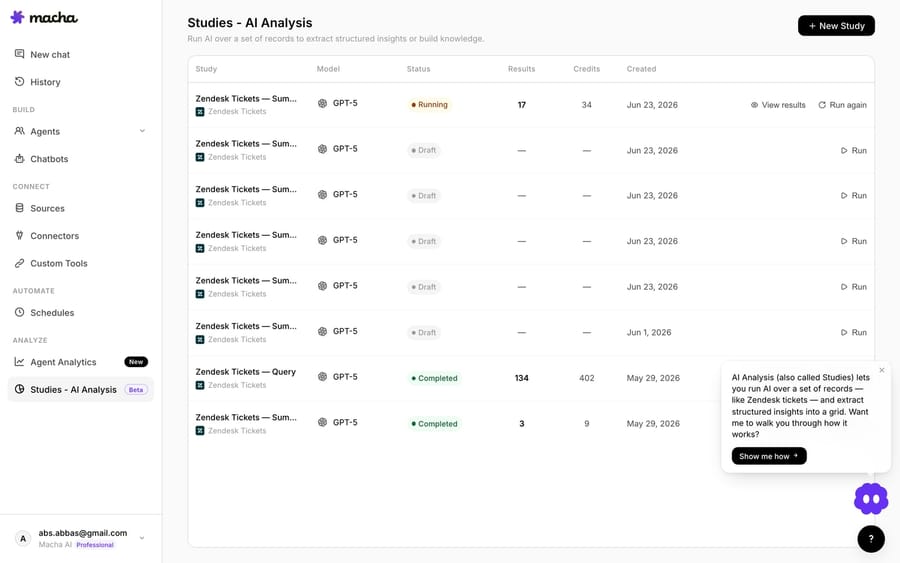
The builder walks four steps — Source → Scope → Extract → Review — and the whole thing is designed so you never kick off an expensive run blind.
1. Source and scope
The first input source is Zendesk Tickets (more record types are coming). You scope it with a Zendesk search query and an optional date range, then choose which fields the AI gets to see — subject, description, status, priority, tags, custom fields, and the full comment thread. Narrowing the fields keeps the model focused (and the cost down): if a question only needs the subject and first message, don't feed it the entire thread.
2. Extract — define your columns
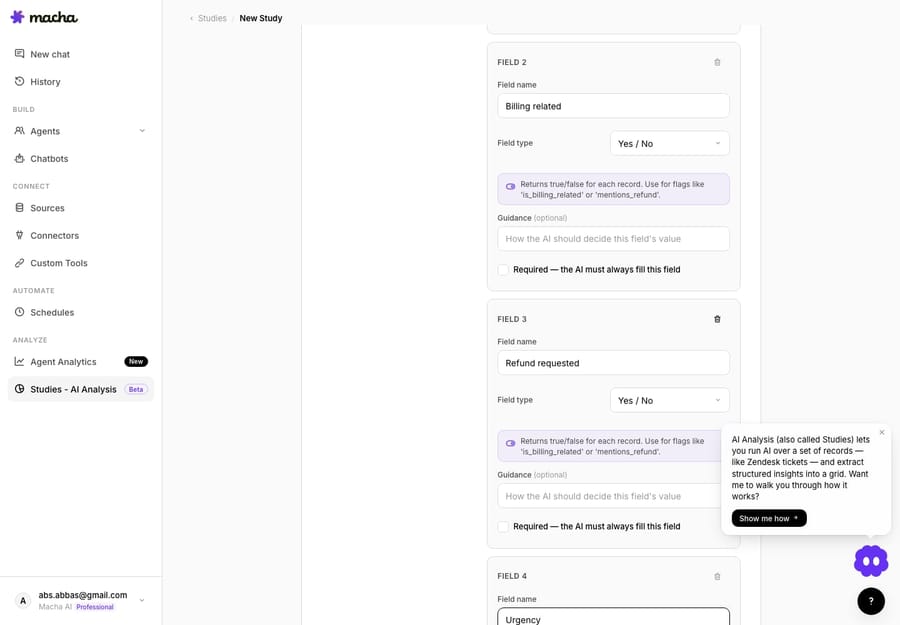
This is the heart of it. Each column you add becomes a question the AI answers for every record, and you pick the answer type that matches the shape of the answer:
- Yes / No for true-false flags (is this billing-related?)
- Single choice / Multiple choice when the model must pick from a fixed list (category: shipping, returns, technical…)
- Number for counts or scores (urgency 1–5)
- Short text / Long text for free-form answers (a one-line summary)
Each column takes optional guidance so the model knows precisely how to decide, and there's an overall instructions box for tone and edge cases. Typed columns are what make the output aggregatable later — a Yes/No becomes a clean bar chart; a Number becomes a histogram.
3. Review: see the cost before you run
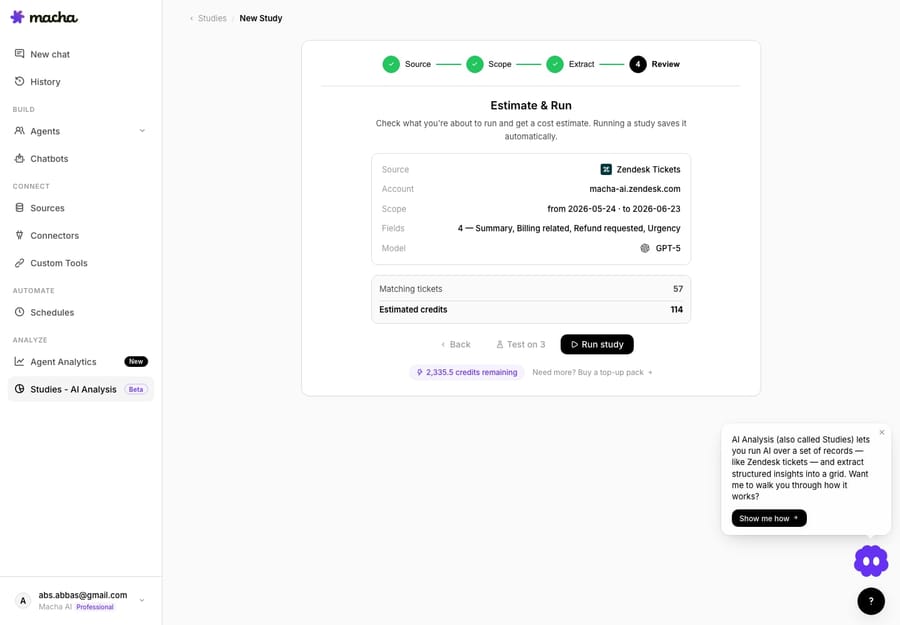
Before anything runs, Studies makes you look at the bill. Click Estimate cost and it shows the exact matching record count, the cost per record, and the total — then clicking Run study opens a second confirmation that re-shows the record count, the estimated cost and the model. Nothing runs until you confirm. (The small "Test on 3" button skips that second step.)
A few guardrails sit around this:
- Test runs let you sample 10–50 records first to validate your schema and guidance before committing to the full batch — test runs are flagged so they don't clutter your history.
- Cancel anytime. The worker finishes the records in flight, then stops. Macha's Studies docs say you are charged per successful record, never up front; errored records and records that never ran cost nothing.
- A hard 20,000-record cap per run keeps costs predictable; for bigger jobs you split by date range.
- Every run keeps a frozen snapshot of the config, schema, and model it used — editing the Study later never rewrites past runs.
What does a real run look like? 57 tickets in about 3 minutes
Here's the worked example. I scoped a Study to the last 30 days of tickets on our test Zendesk and defined four columns — a one-line Summary, two Yes/No flags (Billing related, Refund requested), and a 1–5 Urgency number — on GPT-5. The estimate came back at 57 records, I confirmed, and it streamed results in as it went.
It finished at 57 of 57 processed, 0 errors. You can sort any column, search the loaded rows, and click into any record to see the full ticket behind the AI's answer. But the grid is just the raw material — the Report view is where it pays off.
What does the Report show?
Open the Report from a completed run and Studies aggregates every reportable column into a visual. Yes/No and choice columns become bar charts with counts and percentages; Number columns become histograms with min / mean / median / max. Click any bar to drill into the matching records. Text columns get no chart, because free text can't be counted cleanly.
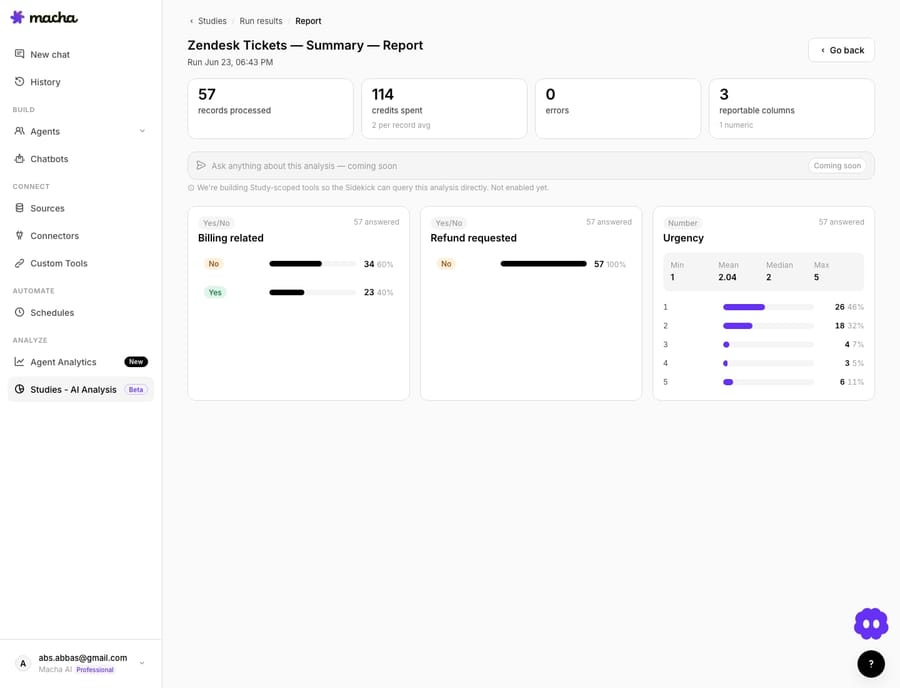
Here's what 57 tickets actually said:
| Column | Result |
|---|---|
| Billing related | No 34 (60%) · Yes 23 (40%) |
| Refund requested | No 57 (100%) · Yes 0 |
| Urgency (1–5) | min 1 · mean 2.04 · median 2 · max 5 — with 46% at level 1 and an 11% tail at level 5 |
That's a real read on a queue in three minutes: billing is a big slice — 40% of this window touched payments, invoices, or charges, which is a strong signal that a billing-capable agent (or a Stripe connection) would earn its keep. Not a single ticket was an outright refund request, so a refund-automation flow would sit idle here. And urgency is low-to-moderate on average (2.04) but carries a real tail — 11% landed at the top of the scale — exactly the tickets you'd want routed fast. Those are decisions — staffing, routing, which agent to build first — that you'd otherwise make on gut feel. (There's also an "Ask anything about this analysis" Sidekick bar on the report, shown as a coming soon preview — study-scoped Q&A is on the way.)
Can agents use the results?
Yes. A completed run can be pushed to a Knowledge Source. Each result row becomes a document, indexed through Macha's existing embeddings pipeline — so the structured insights from your Study become searchable context your agents can use on live tickets. Analyse the past, then let the present agents draw on it. That's the difference between a one-off report and a feedback loop.
When should you use a Study?
Studies is analysis, not automation — it's the counterpart to Macha's live agents. Use it to:
- Quantify your queue before you build agents — what's actually worth automating, and what's rare.
- Backfill clean structure onto years of inconsistently-tagged tickets.
- Measure a change — run the same Study over two date ranges and compare.
- Seed agent knowledge from real resolved tickets.
It's worth being clear about the trade-off: a Study is metered usage like everything else, so a big batch costs real money — the estimate-and-confirm gate exists precisely so that's never a surprise. For most teams the first Study pays for itself the moment it kills one "I think most of our tickets are about X" assumption that turns out to be wrong.
FAQ
What records can a Study run on? Zendesk tickets today, scoped by a search query, date range, and the specific fields you let the AI see. More record sources are on the roadmap.
How much does a Study cost? It's priced per record analysed, and you see the exact total before you confirm. You're billed only for records that successfully process — cancelled and errored rows cost nothing.
Can I try it on a few tickets first? Yes — a Test run samples 10–50 records so you can validate your schema and guidance before the full batch.
What can I do with the results? Sort/filter the grid, view the report charts, export to CSV, or push the run into a Knowledge Source so your agents can search the insights on live tickets.
Which plans include Studies? Every plan, plus the free trial. Macha has one plan priced on monthly ticket volume, from $299 a month for 750 tickets, and Studies and the Report view are on every tier. See the pricing page.
Are Studies included in the free trial? Yes. The trial is $50 of free usage with no credit card, and a Study run draws on that usage like any other work.
How do you run your first Study?
If you've ever wanted a straight answer to "what's actually in our support queue," a Study gives you one in minutes. Connect Zendesk on the $50 free trial (no credit card) to set up your agents, then upgrade to a paid tier to run your first Study. The Studies docs have the full walkthrough.






