





 Shopify
 Stripe
 Slack
Slack Notion
 Google Workspace
 Confluence

How Do You Connect an AI Agent to Zendesk? Every Macha Tool and Trigger (2026)


Most Zendesk AI setups stop at a bot answering FAQs from the Help Center. A Macha agent connected over OAuth can read attachments and custom fields, reply, set the type and route a ticket to a group queue, all inside the Zendesk you already run.
Key takeaways
- Connecting an AI agent to Zendesk in Macha takes an OAuth approval from the Connectors screen, and the connected agents get 17 ticket tools and 8 event triggers.
- Macha's Zendesk connector exposes 8 event triggers, including New Ticket, Customer Reply, Status Changed, and a Custom Webhook trigger for conditions the built-in events do not cover.
- Zendesk bills its native AI agents per automated resolution at the rates on its pricing page: $1.50 committed and $2.00 pay-as-you-go.
- Macha reads JPEG, PNG, GIF and WebP ticket attachments on vision-capable models such as GPT-5.4, the default, while the Groq-hosted GPT OSS models return a not supported message.
- Macha bills per ticket rather than per resolution, starting at $299 a month for 750 tickets, and every plan includes the full Zendesk tool and trigger set.

You connect an AI agent to Zendesk in Macha by opening Connectors, entering your Zendesk subdomain and approving OAuth on Zendesk's consent screen; the connected agents then get 17 ticket tools and 8 event triggers. Macha is an AI agent layer that sits on top of the Zendesk you already run, not a replacement for it. Below: the connect steps, every tool, every trigger, and the loop-safety practices that keep an autonomous agent from doing something dumb at 2 a.m.
| Question | Answer |
|---|---|
| How does it connect? | OAuth by default, API key as a fallback |
| What can the agent do? | 17 tools: 6 read, 9 reply and update, 2 knowledge |
| What wakes it up? | 8 triggers, from New Ticket to a Custom Webhook |
| Can it read images? | Yes, on vision-capable models |
| What does it cost? | Per ticket, from $299 a month for 750 tickets |
If you want the strategic pitch for running AI on Zendesk, that lives on the Macha on Zendesk page, and the broader program of how-tos is on the Macha blog. This is the technical reference.
What is the difference between native Zendesk AI agents and an AI agent layer?
There are two different things people mean by "Zendesk AI agent," and choosing the wrong one wastes a quarter.
Native Zendesk AI agents live inside Zendesk. They're built by Zendesk and configured in Admin Center. Zendesk's pricing page says AI agents are included and billed per automated (verified) resolution, and it lists the rate: $1.50 per resolution committed and $2.00 pay-as-you-go. Its plan table includes 5 automated resolutions per agent a month on Support Team and Suite Team and 10 on Suite Professional (up to 10,000 a year); Zendesk's help center describes that allowance as a monthly dollar amount per seat ($2, $5 or $10 by plan since 18 May 2026, capped at $5,000 a year). They're good at conversational deflection against your Help Center. Their reach ends roughly where Zendesk ends.
An AI-agent layer like Macha sits on top of Zendesk and connects it to the rest of your stack — Shopify, Stripe, Notion, Slack, Google Workspace — then builds agents that read and act on tickets and take actions in those other systems. It bills per ticket — one conversation, charged once however many messages it takes — never per resolution.
Neither is strictly better; they answer different questions. Zendesk itself is a strong, mature product, with a large review base on G2. Independent reviews such as eesel's Zendesk AI agent review make the same point about either path: controlled testing, setup and tuning are where the work is. The rest of this guide is about making that setup concrete.
How do you connect Zendesk to Macha with OAuth?
You connect Zendesk from the Connectors screen. As of April 2026, OAuth is the default — Zendesk approved Macha's global OAuth client, so new connections authenticate in place instead of pasting an API token. API-key auth still exists as a fallback, which is why the connector advertises OAuth / API Key. Here's the click-path end to end.
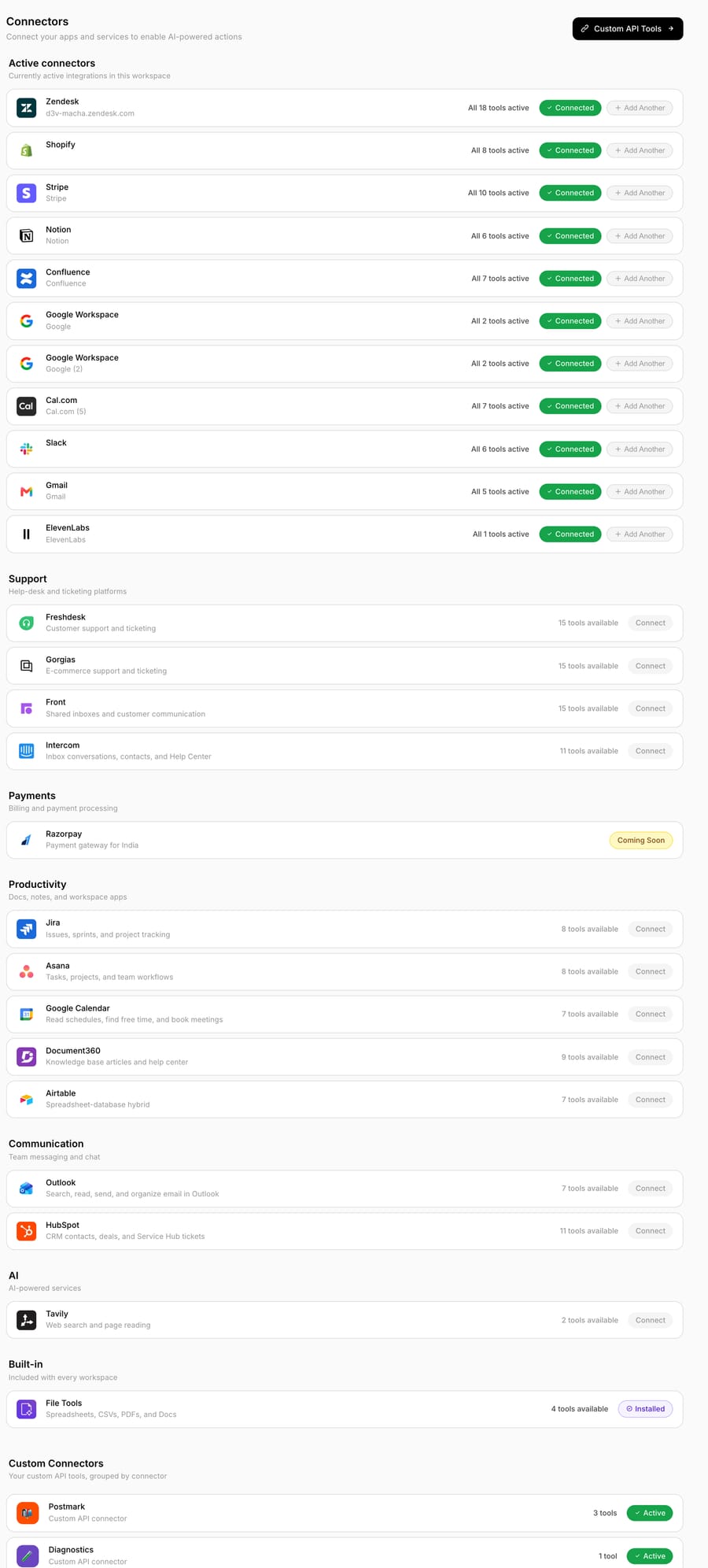
- Open Connectors and pick Zendesk. In the Macha dashboard, go to Connectors, find Zendesk in the support category, and click Connect.
- Enter your Zendesk subdomain. Macha needs the subdomain part of your Zendesk URL — the
acmeinacme.zendesk.com— so it knows which instance to authorize.
- Approve the scopes on Zendesk. Clicking Connect with OAuth redirects you to Zendesk's own consent screen. Sign in as a Zendesk admin if prompted, review the scopes (read/write on tickets, users, and Help Center), and click Allow.
- Land back in Macha, connected. Zendesk redirects you back; the connector flips to Connected and Macha automatically creates a Help Center data source so your articles become a live knowledge base (more below).
- Reconnect, not rebuild, if auth ever breaks. If a token can't refresh, the connector modal shows a Reconnect button that re-authenticates the same connector ID — no tool stripping, no agent breakage, and existing credential fields (webhook IDs, signing secrets) are preserved rather than wiped.
Two things make the OAuth path worth caring about beyond convenience. Token refresh is automatic — Macha refreshes tokens proactively before they expire, with a 401-fallback path and per-subdomain locking so two simultaneous webhooks can't clobber each other's refresh. And one connector powers many agents — you can connect multiple Zendesk instances (each gets its own credentials and name) if you run more than one brand or subdomain. For the canonical version of these steps, see the docs.
Which 17 actions can a Macha agent take in Zendesk?
Once connected, a Zendesk agent can be given any subset of 17 ticket tools. You don't hand an agent all of them — you enable the ones that match its job. A triage agent might get read tools plus type and routing; a frontline resolver gets reads plus public reply and status. Here's the complete set, grouped by what they do.
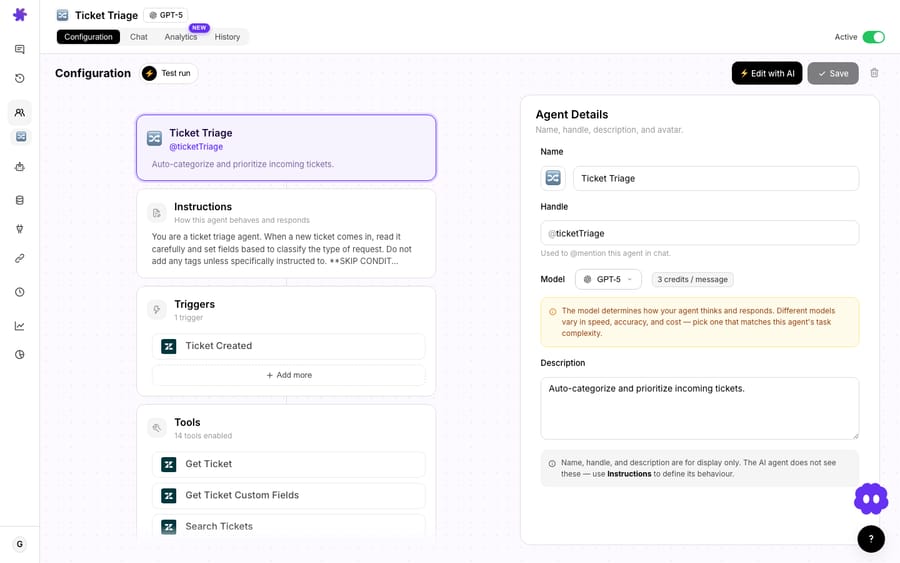
Reading the ticket
| Tool | What it does |
|---|---|
| Get Ticket | Pulls full ticket details — conversation history, tags, brand, requester info. |
| Get Custom Fields | Reads every custom field on the ticket with labels resolved, so the agent sees Bestellnummer: 013724827106 instead of field_1900003089273: 013724827106. |
| Read Attachment | Extracts text from PDF, DOCX, XLSX and CSV files — and analyses image attachments with AI vision (more below). |
| Search Tickets | Searches across all tickets by keyword, status, assignee, or any Zendesk search syntax. |
| Search Users | Finds Zendesk users by name, email, or role. |
| List Groups | Lists every active group, so the agent can resolve a group name to its ID before routing. |
The custom-fields tool is quietly one of the most important. Raw Zendesk field IDs are meaningless to a language model; resolving the label from the field schema is what lets an agent reason about "what's the order number on this ticket?" without you hard-coding IDs into a prompt. (The schema is cached per connector for five minutes, so it isn't re-fetched on every call.)
Replying and updating
| Tool | What it does |
|---|---|
| Add Public Reply | Posts a customer-visible reply. |
| Add Internal Note | Posts a private note visible only to agents. |
| Update Status | Open, pending, hold, solved, or closed. |
| Update Subject | Rewrites the subject line (validated 1–150 characters). |
| Update Priority | Urgent, high, normal, low. |
| Update Type | Problem, incident, question, or task. |
| Update Tags | Adds or removes tags without overwriting the ones already there. |
| Update Fields | Writes custom field values with validation — dropdown options are checked, dates formatted. |
| Assign Ticket | Assigns to a specific agent, a group queue, or both. |
A few of these earned fixes worth knowing about. Update Tags now uses a portable pattern that reliably applies the tag across every Zendesk account configuration — an earlier version could report success while silently failing. Assign Ticket was extended in May 2026 to accept a group as well as (or instead of) a person, which is what makes real queue-based routing possible: a triage agent can drop a ticket straight into "Billing" or "Tier 2" without guessing at a named human. And Update Type is its own dedicated tool precisely so a triage agent can categorise cleanly without reaching into custom fields.
Knowledge
| Tool | What it does |
|---|---|
| Search Articles | Semantic search across your Help Center articles via Macha's knowledge base. |
| Sync Knowledge Base | Auto-syncs Help Center articles into Macha with live webhook updates. |
Connecting Zendesk gives you a Help Center knowledge source for free. When an article changes in Zendesk Guide, the webhook keeps Macha's copy current, so an agent answering "how do I reset my password?" is reading your current article, not a stale snapshot.
Can the AI agent read image attachments?
This is the capability most "AI for Zendesk" tools still don't have, and it shipped for Zendesk in April 2026. When an agent hits an image attachment on a ticket — JPEG, PNG, GIF, or WebP — Macha downloads it, base64-encodes it, and sends it to the model for visual analysis. The agent can describe a screenshot, read the text inside an image, identify a product, or parse a receipt.
That changes what's automatable. "Here's a photo of the damaged item" or "screenshot of the error I'm getting" are tickets that used to require a human just to understand the attachment. Now a resolver agent can read the image and act on it.
Two honest caveats. First, vision only works on vision-capable models, such as GPT-5.4 (the default), GPT-5, GPT-5.4 Mini and Claude Sonnet 4.5. Pick one of the open models hosted on Groq (GPT OSS 120B or GPT OSS 20B) and image reading returns a "not supported" message rather than failing. Second, vision is doing real model work, but it does not change what you pay: the ticket is charged once however many images the agent has to read.
Which triggers let the agent run without you?
Tools are what an agent can do. Triggers are what wakes it up. The Zendesk connector exposes eight event triggers, and this is the difference between "an agent you chat with in the dashboard" and "an agent that quietly works the queue."
| Trigger | Fires when |
|---|---|
| New Ticket | The first customer message lands, before any human replies. |
| Customer Reply | Any customer comment on any ticket. |
| Status Changed | A ticket's status changes (e.g. open → pending). |
| Priority Changed | A ticket's priority is updated. |
| Ticket Assigned | A ticket is assigned to an agent or group. |
| Ticket Closed | A ticket is marked solved or closed. |
| Messaging | A message arrives on WhatsApp, Messenger, Instagram, LINE, Telegram, or web chat. |
| Custom Webhook | Generates a webhook URL you attach to any Zendesk trigger in your own Admin Center — full control over which tickets fire. |
The Custom Webhook trigger is the escape hatch for anything the prebuilt events don't cover. Build a Zendesk Trigger in your Admin Center with whatever conditions you like — a specific brand, a tag, a form — and point it at the Macha webhook URL. Only the tickets that match your conditions will ever reach the agent.
A nice operational detail: toggling an agent off doesn't delete its Zendesk webhooks or Triggers. Macha sets them to inactive on Zendesk's side and flips them back to active when you re-enable the agent — same resource IDs throughout — so any Zendesk Trigger you wired by hand keeps working across pause/resume cycles.

How do you stop an autonomous agent from looping?
An autonomous agent with write access to your ticketing system deserves a few guardrails. Macha builds some in; the rest are configuration discipline. Here's what we'd tell any team turning this on.
1. Use the right trigger, and debounce it. New Ticket fires on the first message before any human touches the ticket — that's where deflection happens. Customer Reply fires on every customer comment, which is powerful and noisy. Every event-driven trigger has a Debounce chip: set a delay in seconds so a customer firing off three quick messages produces one agent run, not three. (Messaging defaults to 15s and Slack DMs to 10s; new event types default to 0, so set it deliberately. As a safeguard, a debounce bucket force-fires after 25 events or 10× the window, capped at 2 minutes, so a malformed source can't hold the agent forever.)
2. Respect the confirmation modals. High-impact tools — Add Public Reply and Update Status — and high-impact triggers — New Ticket and Every Customer Message — show a confirmation modal when you toggle them on, with a severity-themed warning and custom confirm/cancel labels. They're not nags. A public reply is visible to your customer; turning it on is the moment to be sure the agent's instructions are tight.
3. Avoid the agent-replies-to-itself loop. If an agent posts a public reply and a Customer Reply trigger is listening, make sure your agent's own comments can't re-trigger it. The cleanest pattern is a Custom Webhook trigger scoped in Zendesk to exclude tickets the agent is acting on, or a tag the agent sets ("macha-handled") that your trigger conditions check. Loop-safety is mostly about defining which tickets should wake the agent — not letting it react to its own writes.
4. Start in draft, then go autonomous. Give a new agent Add Internal Note before Add Public Reply. Let it post its proposed answer as an internal note for a week, read what it would have said, then promote it to public replies once you trust the output. Same agent, one tool swap.
5. Tag what the agent touches. Update Tags is additive and reliable now — use it. A macha-handled or macha-triaged tag gives you a clean filter in Zendesk to audit exactly what the agent did, and a hook for your own routing rules.
When should you not use an AI agent layer on Zendesk?
Macha is the right tool when you want agents that take actions inside Zendesk — route, update, reply, read attachments, work custom fields — and reach into the rest of your stack. It's worth being honest about where it isn't the move:
- You only want a help-center deflection widget and nothing else. If the entire goal is an FAQ bot on your help center with zero ticket actions and no other systems, Zendesk's own native AI agent may be the simpler path — that's a thin slice of what Macha does, and you'd be paying for capability you won't use.
- You haven't decided what "resolved" means for a workflow. Autonomous agents are great at well-defined jobs. If a ticket type genuinely needs human judgement every time (legal, sensitive escalations, anything regulated), keep it human and use Macha to triage and route it there, not to answer it.
- You want a single per-resolution bill. Zendesk's native AI agents are priced per verified resolution; Macha bills per ticket — one conversation, charged once however many messages it takes. If per-outcome pricing is the hard requirement and you don't need the cross-stack actions, the native product fits that mental model more cleanly. Different model; pick by what you need the agent to touch.
How much does the Macha Zendesk integration cost?
Macha bills per ticket — one conversation, charged once, however many steps the agent takes to finish it — not per resolution and not per seat. Pricing starts at $299 a month for 750 tickets, about $0.40 each, and runs to $3,999 for 10,000 tickets, with custom pricing above that. Setup and monitoring by the Macha team are included. A Zendesk agent that reads a ticket, checks the custom fields, sees an image, and posts a reply is that one ticket whichever model it runs on — so cost tracks the volume you handle, not how much thinking you ask for or how many people are on your team.
The integration itself is included on every plan, and so are the full action set and triggers: every tier carries every feature and unlimited agents, so the tiers differ only in how many tickets a month they cover. You can wire the whole thing up and test it on a real Zendesk during the free trial ($50 of usage, no credit card required) — see pricing for the current numbers and the docs for the step-by-step connect flow.
FAQ
Does Macha replace Zendesk? No. Macha is an AI agent layer that runs on top of Zendesk. Your tickets, your help center, your agents' workspace, your SLAs — all stay in Zendesk. Macha adds AI agents that read and act on those tickets.
How do I connect an AI agent to Zendesk? Open Connectors in Macha, pick Zendesk, enter your subdomain, and click Connect with OAuth. Approve the scopes on Zendesk's consent screen, and you land back in Macha connected — with a Help Center knowledge source created automatically. API-key auth is available as a fallback.
Can the agent see image attachments? Yes. On vision-capable models, Macha downloads JPEG/PNG/GIF/WebP attachments and analyses them: reading screenshots, parsing receipts, identifying products. The Groq-hosted GPT OSS models return a "not supported" message instead.
Can it route tickets to a queue, not just a person? Yes. The Assign Ticket tool accepts a group, an agent, or both, and the List Groups tool lets the agent resolve a group name to its ID first — so a triage agent can drop a ticket straight into "Billing" or "Tier 2."
Can it run automatically on every new ticket? Yes. Use the New Ticket trigger (fires before any human replies) or the Custom Webhook trigger to attach Macha to any Zendesk Trigger you build in your Admin Center. Set a debounce delay to coalesce rapid-fire messages.
How is this priced — per resolution? No. Macha bills per ticket — one conversation, charged once however many messages it takes, whichever model it runs on. That's different from Zendesk's native AI agents, which are billed per automated resolution at $1.50 to $2.00 each, the rates on Zendesk's pricing page. See pricing.
Want the strategic version of this — why run AI agents on Zendesk at all, with a deflection vs. resolution vs. automation breakdown? Read Macha on Zendesk, browse more guides on the blog, or see the rest of the stack on integrations.






