Shopify
 Stripe
 Slack
Slack Notion
 Google Workspace
 Confluence

What's in Macha's Account and Organization Settings? Roles, Default Model, Billing and Deletion (2026)


Macha's Settings page decides who can change your agents, which AI model new agents start on, how usage alerts reach admins, and what happens to your data if you leave. Almost every setting is reversible; account and organization deletion run on a 30-day clock you can cancel.
Key takeaways
- Macha's Settings page has five areas: Profile, Organization, Team, Billing and Privacy, and only account or organization deletion is destructive after a 30-day cancellable window.
- Macha's organization default model sets which model new agents start on, GPT-5.4 unless an admin changes it, and never changes the bill because Macha charges per ticket.
- Macha emails all organization admins when monthly usage reaches 50%, 80% and 90%, once per threshold, and agents pause rather than incur overages when tickets run out.
- Macha's JSON data export strips credentials and embeddings, and chat conversations auto-expire after 45 days of inactivity, so teams needing long-term records should export regularly.
- Macha pricing starts at $299 a month for 750 tickets, about $0.40 a ticket, with unlimited team seats and a $50 trial with no credit card.

Macha's Settings page holds five areas: Profile (display name, fixed login email), Organization (the default AI model new agents inherit), Team (Admin and Member roles), Billing (ticket allowance and usage alerts at 50%, 80% and 90%), and Privacy (JSON data export plus account and organization deletion on a 30-day cancellable schedule). Everything is reversible except those two deletions once the 30 days run out, and the login email, which can't be edited at all.
A quick mental model first: in Macha, account settings are about you (your profile, your privacy, your data), while organization settings are about the workspace (defaults, members, billing) that everyone in it shares. A single login can belong to several organizations, so it helps to keep that distinction straight.
Every setting at a glance: who can change it, and can you undo it
The two columns that matter most are Who can change it (Admin vs any Member) and Reversibility, because the handful of settings that are Permanent or Destructive are the ones worth slowing down for.
| Setting | Who can change it | Reversibility | Notes |
|---|---|---|---|
| Display name | The member (self) | Reversible: edit anytime | Cosmetic; how you appear to teammates |
| Login email | No one | Permanent: fixed at signup | Tied to authentication; can't be edited |
| Default AI model | Admin | Reversible: change anytime | Sets the model new agents start on; no effect on price |
| Invite member | Admin | Reversible: remove anytime | Removing a member never deletes their account |
| Change member role | Admin | Reversible | Admin ⇄ Member, instantly |
| Upgrade plan | Admin | Reversible: downgrade later | Checkout is in-app; takes effect immediately |
| Downgrade plan | Admin | Reversible | Takes effect at end of billing period |
| Download your data | The member (self) | Reversible: read-only export | JSON; no change to your account |
| Delete your account | The member (self) | Destructive: 30-day grace, then permanent | Cancellable within the window |
| Delete organization | Admin only | Destructive: 30-day grace, then permanent | Wipes the workspace for every member |
Read this top to bottom and the pattern is clear: almost everything in Macha is a safe, reversible toggle. Only the bottom two rows are destructive, and even those run on a 30-day clock you can stop.
What can you change in your Macha profile?
Your profile controls how you appear across the platform. There are only two fields, and the difference between them matters.

- Display name: your name as shown to other members of the organization. Change it any time.
- Email: the address you log in with. This one is not editable after account creation, because it's tied to your authentication. If you need to move to a different email, the clean path is to invite the new address as a member, hand off any admin duties, and delete the old account rather than trying to change the login in place.
That second point trips people up, so it's worth saying plainly: pick the email you actually want to keep when you first sign up. It's your identity in Macha, not just a contact field.
What does the organization's default AI model control?
Organization settings apply to all members and agents in the workspace. The headline control here is the one that touches every agent you'll ever build.

The default AI model
The default AI model sets which model new agents are created with. It's a default, not a lock: any individual agent can override it in its own configuration, but getting it right saves you from setting the model by hand on every agent. Macha supports models from OpenAI, Anthropic, and Groq: GPT-5.6 Terra, GPT-5.6 Luna, GPT-5.4, GPT-5 and GPT-5.4 Mini from OpenAI, Claude Sonnet 5 and Claude Sonnet 4.5 from Anthropic, and GPT OSS 120B and 20B served by Groq. New agents start on GPT-5.4 unless you change this setting.
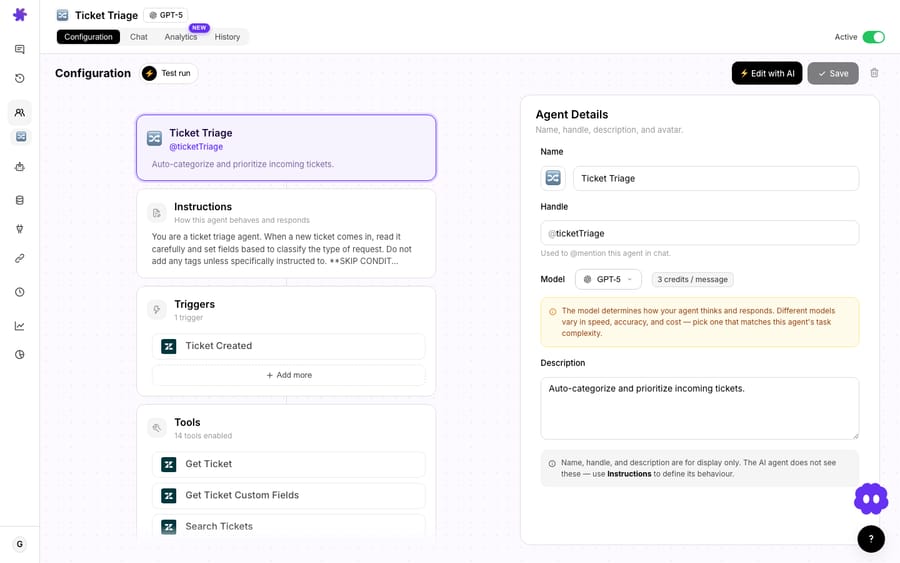
Here's the part that surprises people: this setting has no effect on your bill. Macha bills per ticket (one conversation, charged once however many messages, tool calls or drafts it takes), and the model an agent runs on doesn't change that price. So the org default is purely a quality-and-speed decision, not a cost one.
A sensible default policy: leave the organization default on a strong general model such as GPT-5.4, then move specific agents deliberately. A high-volume triage agent wants speed, so drop it to GPT-5.4 Mini; a complex multi-step resolver wants depth, so give it GPT-5.6 Terra. They cost the same either way, so pick for the job. One capability check: Groq models can't read image attachments, so keep any agent that reads screenshots off them. We go deeper on model-to-task matching in the Macha on Zendesk playbook and the docs.
Team and billing shortcuts
The organization view also surfaces quick links into Team and Billing. Both get their own sections below, and their own pages in the docs.
What can an Admin do that a Member can't?
Macha keeps access control deliberately simple. There are exactly two roles, and the line between them is "can use" versus "can change."
| Admin | Member | |
|---|---|---|
| Use agents & chat | Yes | Yes |
| View agents, connectors, tools | Yes | Yes (read-only) |
| Create / edit / delete agents, connectors, tools, triggers | Yes | No |
| Invite & remove members | Yes | No |
| Manage billing & subscription | Yes | No |
| Access organization settings | Yes | No |
Inviting someone is a three-field action: open the Team section, enter their email, pick a role, send. They get an email, accept, log in, and land in your workspace with exactly the access the role allows. You can change a member's role or remove a member at any time from the same screen. Team seats are unlimited on every plan, so adding people never changes the price.
One reassurance worth knowing: removing a member does not delete their Macha account. They lose access to your organization, but they keep their login and any other organizations they belong to.
Multi-organization support
A single Macha account can belong to multiple organizations, and nothing is shared between them: each org has its own agents, connectors, tools, data, and billing. When you log in you choose which org to work in, and you can switch any time.
This is the feature that makes Macha workable for agencies and consultants: keep each client's workspace fully isolated under one login, with separate billing and zero data bleed between accounts. For the full breakdown of roles and invitations, see the Team docs in the documentation.
How do billing, usage alerts and downgrades work?
Billing is admin-only and lives under Settings. From here you see your current plan, monthly ticket allowance, and usage, and manage the subscription.

A few mechanics that are easy to get wrong if you don't know them:
- Upgrades check out inside Macha. Click upgrade, complete checkout, done. No external redirect to a separate billing portal.
- Downgrades take effect at the end of the current billing period, not immediately, so you don't lose paid-for capacity mid-cycle.
- Downgrading doesn't delete anything. Agents, seats, connectors and features are the same on every tier. The only thing a tier sets is how many tickets it includes each month.
- Usage alerts go to all organization admins by email at 50%, 80%, and 90% of your monthly allowance, once per threshold (no duplicate emails). The 90% alert is the one that means "top up or move up a tier before agents stop."
- There are no overages. When the month's tickets are used up, agents pause until the next billing date. Nothing is charged unless you choose to move up a tier or add a top-up.
- The trial is different. It's a one-time $50 of usage (roughly 125 tickets) with no time limit and no credit card. Studies run on the trial; scheduled triggers stay off until you upgrade.
The live numbers are on the pricing page: $299 a month for 750 tickets, then $599 for 1,500, $1,199 for 3,000, $1,999 for 5,000, $2,999 for 7,500 and $3,999 for 10,000, about $0.40 a ticket at every step, with custom pricing above that. A ticket is one conversation, charged once, however many steps the agent takes to finish it.
How do you export your data or delete your account?
This is the section to read slowly, because two of its actions are destructive and become irreversible after a grace period. Macha's privacy controls are built to serve real data-subject rights, not just to look compliant.

Download your data
Request a full export of your data in JSON: your profile information, conversations, agents, connectors, tools and everything else associated with your account. Credentials, embeddings and other sensitive fields are stripped from the file. This maps to the GDPR Article 20 right to data portability, which entitles a data subject to a copy of their personal data in a "structured, commonly used and machine-readable format" (gdpr-info.eu). JSON qualifies. Export regularly if you need a long-term record: Macha's privacy policy says chat conversations auto-expire after 45 days of inactivity.
Delete your account
If you decide to leave, account deletion runs on a 30-day scheduled process:
- Deletion is scheduled for 30 days out from your request.
- During that window you can cancel and restore the account.
- After 30 days, your account and all associated data are permanently removed.
That grace period sits alongside the GDPR Article 17 right to erasure (the "right to be forgotten"), which requires erasure "without undue delay" (gdpr-info.eu). The one-month response deadline comes from Article 12(3), which gives a controller one month to act on a request. The 30-day window keeps deletion inside that month while leaving you a way back.
If you belong to multiple organizations, deleting your account removes your access to all of them. Transfer any admin responsibilities before you request deletion, otherwise you could leave an org with no admin.
Delete organization
Organization deletion is admins only and follows the same 30-day scheduled, cancellable pattern. When it completes, all organization data is permanently removed (agents, connectors, conversations, documents, triggers, and custom tools) and every member loses access. This is the single most consequential button in the product. Export anything you might want first, and confirm no one else is mid-project in that workspace.
Policies
The privacy panel also links out to how Macha handles data: the Privacy Policy, Terms of Service, Cookie Policy, Data Processing Agreement, and Refund Policy. The DPA in particular is the document your own compliance or procurement team will ask for.
Which settings are hard to undo?
Most settings are forgiving. A few are not:
- Your login email is permanent. Choose it carefully at signup; you can't edit it later.
- The org default model silently sets quality. Change it and every new agent inherits that model until overridden. It won't move your bill, but it will change how answers read and how fast they land.
- Deleting your account ≠ deleting an org's data. If you're the sole admin and you delete your account, the organization can be left stranded. Hand off admin first.
- Org deletion is total and shared. It wipes the workspace for everyone, not just you. It's recoverable for 30 days, then it's gone for good.
- Downgrades are end-of-period, not instant. Plan the timing if you're trying to cut spend before a renewal.
None of these are traps. They're the settings where "undo" either doesn't exist or runs on a clock.
FAQ
Can I change my login email in Macha? No. Your email is tied to authentication and is fixed after account creation. To switch, invite the new email as a member, transfer admin duties, and delete the old account.
What does the default AI model setting actually do? It sets the model new agents are created with, GPT-5.4 unless an admin changes it. Each agent can still override it in its own config. The model doesn't change what you pay, because billing is per ticket, so this default is about the quality and speed new agents start with.
What's the difference between an Admin and a Member? Admins can change everything: agents, connectors, tools, triggers, team, billing, and settings. Members can use agents and chat and view configuration read-only, but can't change anything or touch billing.
What format is the data export, and is it GDPR-compliant? It's a JSON export of your profile, conversations, agents, connectors and tools, with credentials and embeddings stripped. JSON is a machine-readable format of the kind the GDPR Article 20 right to data portability asks for.
Can I recover a deleted account or organization? Yes, within the 30-day grace period. Both account and organization deletion are scheduled 30 days out and can be cancelled in that window. After 30 days, removal is permanent.
Who gets billing and usage alerts? All organization admins, by email, at 50%, 80%, and 90% of your monthly ticket usage, once per threshold.
What should you set up first?
The settings screens are a five-minute job that saves weeks of cleanup: pick the right login email, confirm the default model, invite your team with the correct roles, and know where the privacy controls live before you need them. Start a free trial ($50 of usage, no credit card required), or read the full Account docs for the step-by-step on Team, Billing, and Settings. More walkthroughs like this live on the blog.
Written by Abbas (Customer Support & AI, Macha) · Reviewed by Ankeet Guha (Co-founder & CTO) · Published 2026-06-24 · Last updated 2026-09-24.