





 Shopify
 Stripe
 Slack
Slack Notion
 Google Workspace
 Confluence

How Do You Analyse Thousands of Support Tickets With AI?


AI ticket analysis reads every ticket in a window and answers the same typed questions for each one, so you can count what is really in your queue. In a real 57-ticket run in Macha Studies, 40% of tickets touched billing and none asked for a refund.
Key takeaways
- To analyse thousands of support tickets with AI, scope them with a Zendesk search query, define typed columns, test on 10 to 50 records, then run every ticket.
- In a 57-ticket Macha Studies run, 23 tickets (40%) touched billing and 0 asked for a refund, so a refund-automation flow would have sat idle.
- Ticket urgency on a 1 to 5 scale averaged 2.04 in the Macha Studies run, with 46% of tickets at level 1 and an 11% tail at level 5.
- Macha Studies caps each run at 20,000 records, so an archive larger than that has to be split by date range into several runs.
- Macha Studies run on the $50 free trial and on the paid plan, which starts at $299 a month for 750 tickets.

To analyse thousands of support tickets with AI, scope the tickets with a Zendesk search query and a date range, define typed columns (Yes/No, single choice, Number, short text), test the setup on 10–50 records, then run the model over every ticket and chart the answers. In a real 57-ticket run inside Macha Studies, 23 tickets (40%) touched billing and none asked for a refund.
That is what support ticket analysis at scale means: reading every ticket in a window, not a sample, and turning a messy queue into countable facts. For years the options were expensive manual coding or a separate analytics platform you had to pipe your data into. A model can read and classify thousands of tickets in the time a person reads a hundred, and it applies the same logic to every one.
| Method | Speed | Consistency | Best for |
|---|---|---|---|
| Manual coding | Slow; days for a few thousand tickets | Drifts between people and days | Small, high-judgement samples |
| AI analysis (e.g. Macha Studies) | Minutes; up to 20,000 records per run | One rubric applied to every record | Specific questions about your help desk queue |
| Customer-intelligence platforms | Continuous | One taxonomy across channels | Voice of customer across tickets, reviews, calls and surveys |
The worked example below is a run over 57 tickets in Studies, Macha's batch-analysis tool that sits on top of the help desk you already use, with every result shown.
Why analyse support tickets in bulk?
Manual tagging and dashboards tell you what an agent remembered to label. Bulk analysis tells you what's actually in the queue. The payoff shows up in four places:
- Roadmap and staffing decisions. If 40% of your window touches billing, that's a staffing and tooling signal you can't get from gut feel.
- Backfilling structure. Years of inconsistently-tagged tickets become cleanly categorised in one pass — no agent re-tagging marathon.
- Measuring change. Run the same analysis over two date ranges and compare: did the new help-doc actually cut "how do I reset my password" tickets?
- Feeding automation. Once you know what's common, repetitive, and well-understood, you know what's worth handing to an AI agent — and what's too rare to bother.
That last point matters for how you should think about this. Analysis and automation are two halves of the same loop: you measure the queue to decide what to automate, then measure again to see if it worked.
Should you tag tickets manually or with AI?
There are really only two ways to analyse a queue, and most teams have tried the first.
Manual coding — an analyst reads tickets and tags them against a rubric — is accurate and nuanced, but it doesn't scale and it drifts. Two people tag the same ticket differently; the same person tags differently on a Friday. Reading even a few thousand tickets by hand is a multi-day project nobody has time for.
AI analysis reads the full text — subject, description, the whole conversation — and applies one consistent rubric to every record. The trade-off flips: you gain consistency and speed, and you give up a little of the human judgement on genuinely ambiguous edge cases. The mitigation is good prompt design and a small test run before you commit (more on both below).
There's a third category worth naming so you can rule it in or out: dedicated customer-intelligence platforms (Sentisum, Unwrap, Enterpret and similar) ingest tickets alongside reviews, calls and surveys into one taxonomy. They're powerful if cross-channel voice-of-customer is your job. If your job is "answer a specific question about my helpdesk queue this afternoon," that's a heavier lift than you need. The guide that ranks for this topic, eesel's support-ticket-analysis post, leans on the same standard service metrics — FRT, ART, CSAT, FCR — which are worth tracking continuously but answer a different question than "what's in these tickets."
What should you measure in a ticket analysis?
The mistake is treating "analyse the tickets" as one question. It's many, and the useful ones are specific. Group them like this:
| Question type | Example | Best answer shape |
|---|---|---|
| Classification | Is this billing-related? | Yes/No flag |
| Categorisation | Which bucket: shipping, returns, technical? | Single choice |
| Scoring | How urgent, 1–5? | Number |
| Extraction | One-line summary; the product mentioned | Short text |
| Multi-label | Which features came up? | Multiple choice |
The reason the shape matters is that it determines whether you can aggregate the answer afterwards. A free-text "urgency: pretty high" can't be charted; a 1–5 number can. Decide the shape up front and the report builds itself.
How do you run a ticket analysis in Macha Studies?
Here's the part most guides skip — actually doing it, end to end, with the bill in view. Studies is structured around four steps, Source → Scope → Extract → Review, and it's deliberately built so you never kick off an expensive run blind.
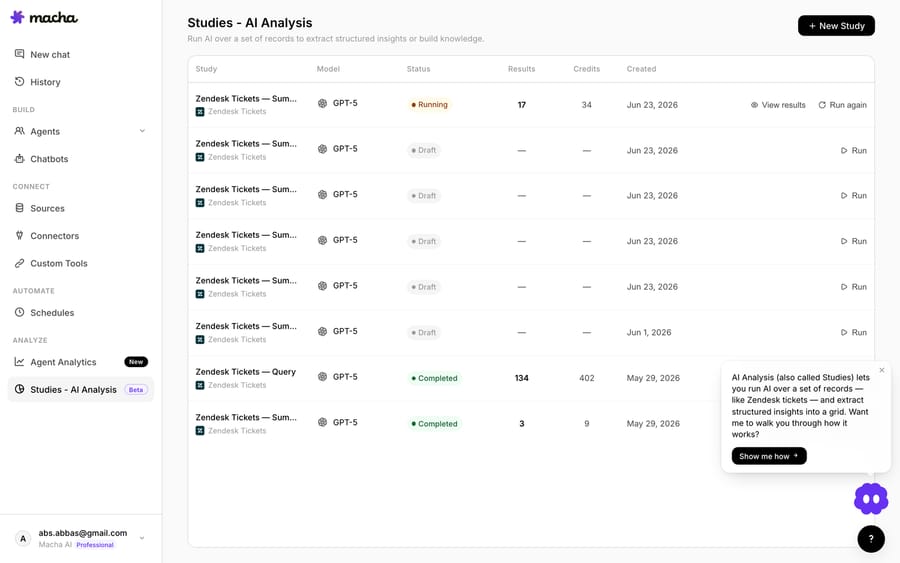
1–2. Source and scope
The first source is Zendesk Tickets (Macha's docs say more record sources are coming). You scope with a Zendesk search query plus an optional date range, then choose which fields the AI gets to see — subject, description, status, priority, tags, custom fields, and the full comment thread. Narrowing the fields keeps the model focused and the cost down: if a question only needs the subject and first message, don't feed it the entire thread.
3. Extract — define your columns
This is the heart of it. Each column you add becomes a question the AI answers for every ticket, and you pick the answer type that matches the shape from the table above — Yes/No, Single/Multiple choice, Number, or Short/Long text. Each column takes optional guidance so the model knows exactly how to decide, plus an overall instructions box for tone and edge cases.
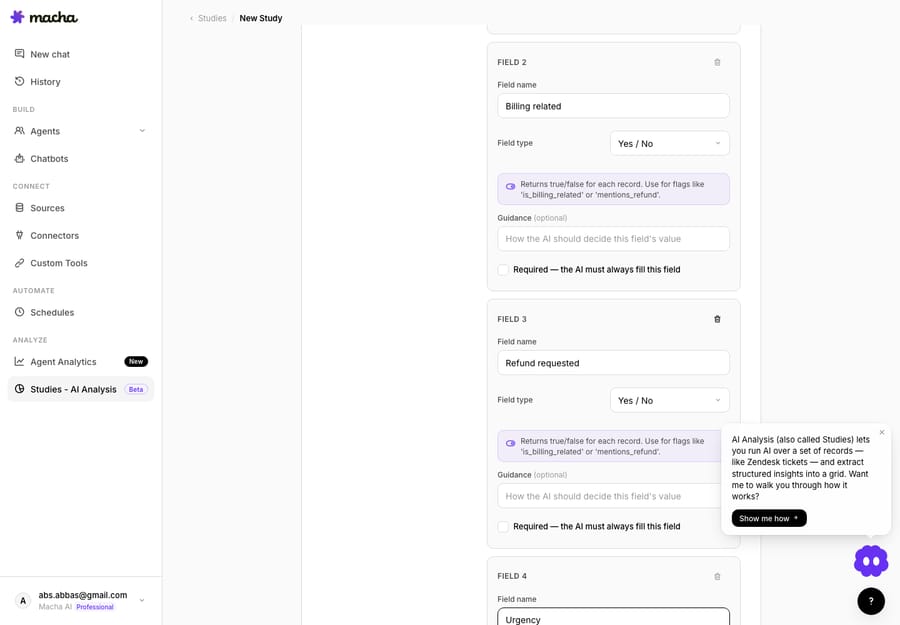
I defined four columns: a one-line Summary (short text), two Yes/No flags — Billing related and Refund requested — and a 1–5 Urgency number.
4. Review — see the cost before you commit
Before anything runs, Studies makes you look at the bill. It shows the exact matching record count, the cost per record and the total, then asks you to confirm explicitly. Nothing runs until you do, and a second confirmation re-shows the record count and the model before work starts.
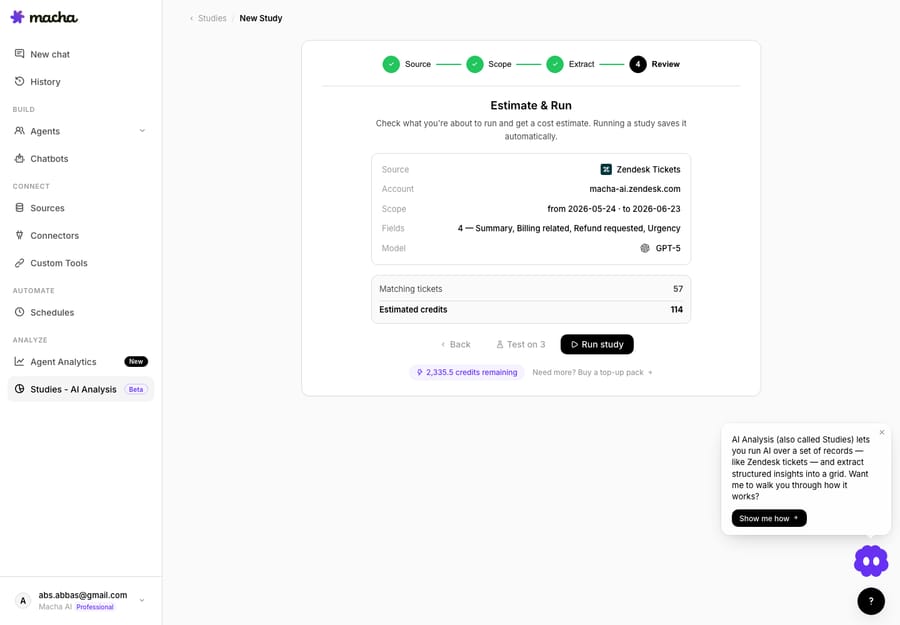
I scoped to the last 30 days on our test Zendesk, on GPT-5. The estimate came back at 57 records, I confirmed, and results streamed in as the model worked. It finished at 57 of 57 processed, 0 errors.
A few guardrails sit around this, and they're the difference between a tool you trust on a big batch and one you don't:
- Test runs sample 10–50 records first so you can validate your schema and guidance before committing — and they're flagged so they don't clutter your history.
- Cancel anytime — cancellation is graceful: the worker finishes the records in flight, then stops. You pay only for records actually processed, never up front.
- A hard 20,000-record cap per run keeps costs predictable; for bigger jobs, split by date range.
- Every run keeps a frozen snapshot of its config, schema and model — editing the Study later never rewrites past runs.
What did the 57-ticket run find?
The grid — one row per ticket, one column per question — is just raw material. The Report view is where bulk analysis earns its name: every reportable column becomes a visual. Yes/No and choice columns become bar charts with counts and percentages; Number columns become histograms with min / mean / median / max. Click any bar to drill into the matching tickets.
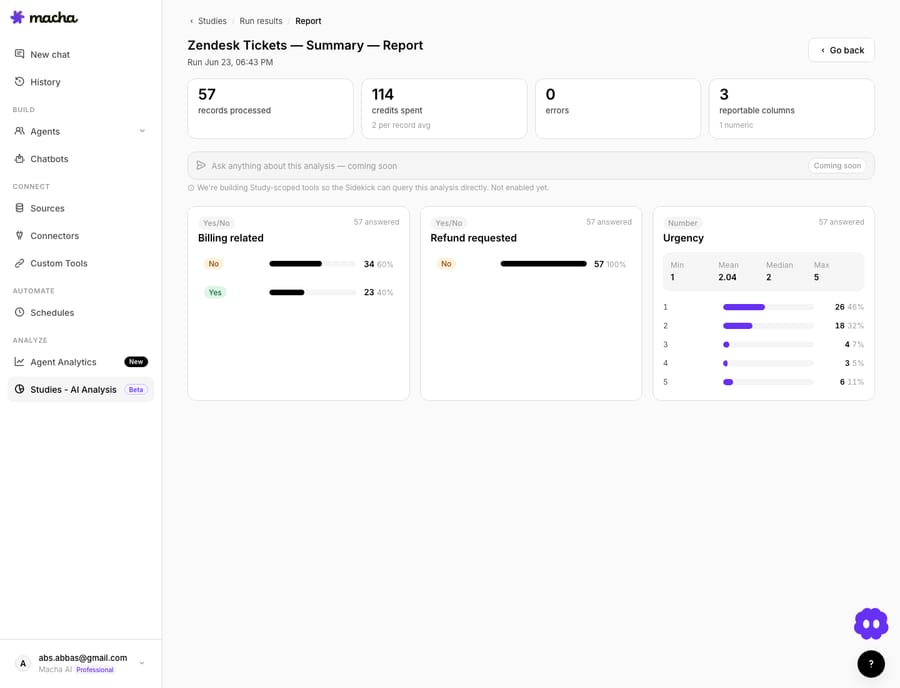
Here's what those 57 tickets actually said:
| Column | Result |
|---|---|
| Billing related | No 34 (60%) · Yes 23 (40%) |
| Refund requested | No 57 (100%) · Yes 0 |
| Urgency (1–5) | min 1 · mean 2.04 · median 2 · max 5 — 46% at level 1, with an 11% tail at level 5 |
That's a real read on a queue in a few minutes. Billing is a big slice — 40% of this window touched payments, invoices or charges, a strong signal that a billing-capable agent (or a Stripe connection) would earn its keep. Not a single ticket was an outright refund request, so a refund-automation flow would sit idle here. And urgency is low-to-moderate on average (2.04) but carries a real tail — 11% landed at the top of the scale, exactly the tickets you'd want routed fast. Those are decisions — staffing, routing, which agent to build first — you'd otherwise make on instinct.
How do analysis results feed your AI agents?
The step that turns a one-off report into a system: a completed run can be pushed to a Knowledge Source. Each result row becomes a document, indexed through Macha's embeddings pipeline — so the structured insights from your analysis become searchable context your agents draw on during live tickets. You analyse the past, then the present agents use what you learned. That's the half of "analysis at scale" that pure dashboards can't do, because Macha is the same layer running your live agents on Zendesk, Freshdesk, Gorgias, Front, HubSpot or Intercom (see Macha on Zendesk), not a separate analytics silo.
When should you not use bulk AI analysis?
Bulk AI analysis is the right tool less often than the hype suggests. Be honest about the edges:
- It costs real money. Big batches add up — the estimate-and-confirm gate exists precisely so it's never a surprise, but run a test sample first and don't analyse fields the question doesn't need.
- Garbage rubric, garbage output. A vague "is this important?" column produces vague answers. The quality ceiling is your guidance, not the model. Spend the five minutes on a tight test run.
- Ambiguous, high-stakes judgement still wants a human. For legal, safety or nuanced tone calls on individual tickets, AI classification is a first pass, not the verdict.
- It's a point-in-time snapshot, not live monitoring. A Study reads the window you scoped; it doesn't watch the queue in real time. For continuous tagging, that's an agent's job, not a Study's.
For most teams the first analysis pays for itself the moment it kills one "I think most of our tickets are about X" assumption that turns out to be wrong.
FAQ
How many tickets can AI realistically analyse at once? A single Studies run handles up to 20,000 records; for larger archives you split by date range and run in passes. The model reads every ticket in scope, not a sample.
Is AI ticket analysis accurate enough to trust? For classification, categorisation and scoring against a clear rubric, yes — the consistency is often better than manual tagging because the same logic applies to every record. Validate with a 10–50 record test run before the full batch, and keep a human in the loop for genuinely ambiguous, high-stakes calls.
What does it cost to analyse tickets this way? You see the exact total before you confirm, and you pay only for records actually processed. Studies run on the free trial and on the paid plan, which starts at $299 a month for 750 tickets; see the pricing page. Macha bills per ticket (one conversation, charged once however many messages it takes), never per resolution.
Are Studies included in the free trial? Yes. The $50 free trial lets you connect a help desk, build agents and run Studies; a Study run draws on that $50 of usage like any other work.
Can I do this without leaving my helpdesk? That's the point. Studies runs on top of the helpdesk you already use. Today the record source is Zendesk tickets: you scope them with a normal Zendesk search query, and the results can flow back as agent knowledge. No separate data pipeline.
Manual tagging vs AI — which should I use? Use a test-validated AI run for anything over a few hundred tickets, where speed and consistency win. Keep manual review for small, high-judgement samples and for spot-checking the AI's edge cases.
How do you get started?
If you've ever wanted a straight answer to "what's actually in our support queue," an analysis at scale gives you one in minutes instead of weeks. Studies run on the $50 free trial as well as the paid plan (from $299 a month for 750 tickets), so start the trial, connect Zendesk and run your first Study on a small date range. The Studies docs have the full walkthrough, and there are more worked examples on the Macha blog.
Written by Abbas (Customer Support & AI, Macha) · Reviewed by Ankeet Guha (Co-founder & CTO) · Published 2026-06-24 · Last updated 2026-09-24.






