





 Shopify
 Stripe
 Slack
Slack Notion
 Google Workspace
 Confluence

How Do You Auto-Set Zendesk Ticket Type with AI? (Problem, Incident, Question, Task)


Zendesk's Type field has four values, Problem, Incident, Question and Task, and each drives real workflow: solving a Problem solves every linked Incident, and a Task carries a due date. On a busy queue almost nobody sets it, so an AI agent that types each new ticket on arrival fills the gap.
Key takeaways
- Macha's Update Ticket Type tool, shipped in the May 2, 2026 release, lets an AI agent set a new Zendesk ticket's type to Problem, Incident, Question or Task on the first customer message.
- Zendesk automations run once every hour and act on at most 1,000 tickets per automation, so a ticket typed by an automation can wait up to an hour.
- Solving a parent Problem ticket in Zendesk sets every linked Incident to solved, a cascade that only the native Type field and problem link can trigger, not a custom dropdown.
- Update Ticket Type sets the type but not the Problem link, so a human still links each Incident to its parent Problem after the agent flags it in an internal note.
- Macha pricing starts at $299 a month for 750 tickets, about $0.40 per ticket, and classifying a ticket's type is not billed separately; setup by the Macha team and a dedicated success manager are included.

To set a Zendesk ticket's type automatically, give an AI agent Macha's Update Ticket Type tool (listed as Update Type in the Zendesk tool picker) and fire it on the New Ticket trigger: the agent reads each new ticket and writes problem, incident, question or task to the native Type field the moment the ticket lands. Macha shipped the tool in its May 2, 2026 release, and no custom field is involved.
The native alternative is weaker. Zendesk automations run once an hour, and both automations and triggers match on keywords and field values, which is the wrong tool for reading what a customer meant. The sections below cover what the four types mean, where native triage falls short, how to build the triage agent, and the sharp edges to know before you switch it on.
| Method | When it runs | How it decides the type | Can it link an Incident to a Problem? |
|---|---|---|---|
| Zendesk trigger | On ticket create or update | Keyword and field conditions | No |
| Zendesk automation | Once an hour, up to 1,000 tickets per automation | Keyword and field conditions | No |
| AI agent with Update Ticket Type | On the first customer message | Reads the ticket's meaning | No, it flags the likely parent in a note |
What do the four Zendesk ticket types mean?
Categorisation is only useful if the categories mean the same thing every time. Zendesk's four types have specific, opinionated definitions, and the problem/incident pairing is the one teams most often get wrong.
| Type | What it's for | Example |
|---|---|---|
| Question | A general inquiry or information request: nothing is broken. | "How do I change my billing email?" |
| Problem | The root cause of an issue that's likely affecting many customers. | "Checkout is failing for all EU customers." |
| Incident | One customer's report of a wider Problem; can be linked to a parent Problem ticket. | "I couldn't check out this morning" (one of fifty reports of the EU outage). |
| Task | An internal to-do with a due date: follow-up work, a scheduled call. | "Call the customer back Friday to confirm the refund." |
The reason the Type field beats a custom dropdown is the Problem ↔ Incident link: solve the parent Problem and all linked Incidents close automatically, so you don't update fifty customers by hand. A custom field can label tickets all day but it can't trigger that cascade: only the native Type field can. That's the whole argument for setting the real field rather than a tag.
Why isn't native Zendesk triage enough?
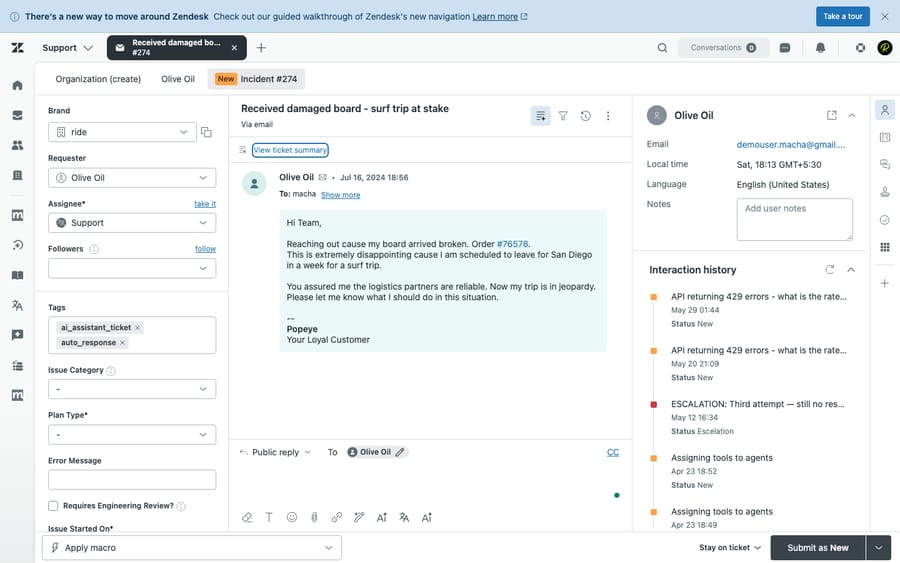
Zendesk gives you two built-in ways to set type automatically: triggers (real-time, fire on create/update) and automations (time-based, run on a schedule). Both are rule engines, and rules have well-known limits when the input is free-form human language:
- Automations run hourly, not instantly. Zendesk's docs say automations run once every hour on all non-closed tickets, and each automation acts on at most 1,000 tickets an hour. A ticket can sit untyped for up to an hour before the rule sweeps it, which defeats the point of routing fast. Triggers do fire in real time, but they share the next limitation.
- They match on keywords, not meaning. "It's down" and "I can no longer reach the dashboard" describe the same incident with zero shared keywords. Rules miss the second one.
- Hard ceilings. Zendesk business rules, automations included, must be smaller than 65 KB and cannot set the
problem_idthat links an Incident to its parent Problem, nor set a Task's due date directly. The most valuable part of the Type field, the Problem/Incident link, is out of reach for a plain automation.
The result is the familiar compromise: a handful of brittle keyword rules that catch the obvious cases and leave the rest untyped. AI changes the input side of that equation: it reads the ticket the way a human triager would and picks the type from intent, not string matches.
What does Macha's Update Ticket Type tool do?
Macha is an AI agent layer on top of Zendesk, not a replacement for it; the same agents run on six help desks: Zendesk, Freshdesk, Gorgias, Front, HubSpot and Intercom. You keep Zendesk; Macha adds agents that read tickets and take real actions through tools. The May 2 release added three of those tools, all aimed at triage:
- Update Ticket Type: sets the ticket's type to problem, incident, question, or task. The headline tool for this post.
- List Groups: a read tool that returns every active Zendesk group, so an agent can resolve a group name to its ID before routing.
- Assign Ticket: now accepts a group, an agent, or both, so you can route a ticket straight to the "Billing" or "Tier 2" queue instead of always picking a named person.
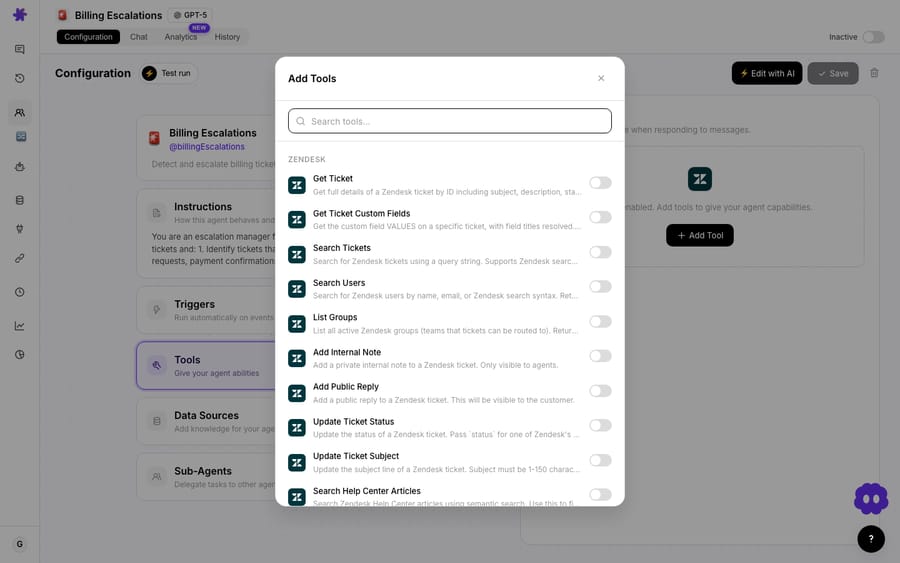
Those three are designed to be used together: read the ticket, decide the type, set it, and route it to the right queue, all in one autonomous pass. You add them to an agent from the Tools picker, alongside the rest of Macha's Zendesk toolset.
How do you build a triage agent that sets the type?
Here's the end-to-end setup. The goal is a single autonomous agent that fires on every new ticket, classifies it, and writes the type back: no human in the loop for the categorisation step.
1. Connect Zendesk and create the agent
Connect Zendesk to Macha via OAuth (or an API token), then create a new agent: call it Ticket Triage. Give it crisp instructions about your taxonomy, because the four types are deliberately broad and your team has conventions Zendesk doesn't know about. For example:
Read each new ticket and set its Type. Use Problem only when the customer describes a systemic failure likely to affect many users. Use Incident for a single user reporting an outage or bug that matches a known Problem. Use Question for how-to and account inquiries where nothing is broken. Use Task for internal follow-ups with a deadline. When unsure between Question and Incident, prefer Question and add an internal note explaining the call.
That last sentence matters: telling the model what to do when it's uncertain is what keeps a triage agent honest.
2. Add the trigger
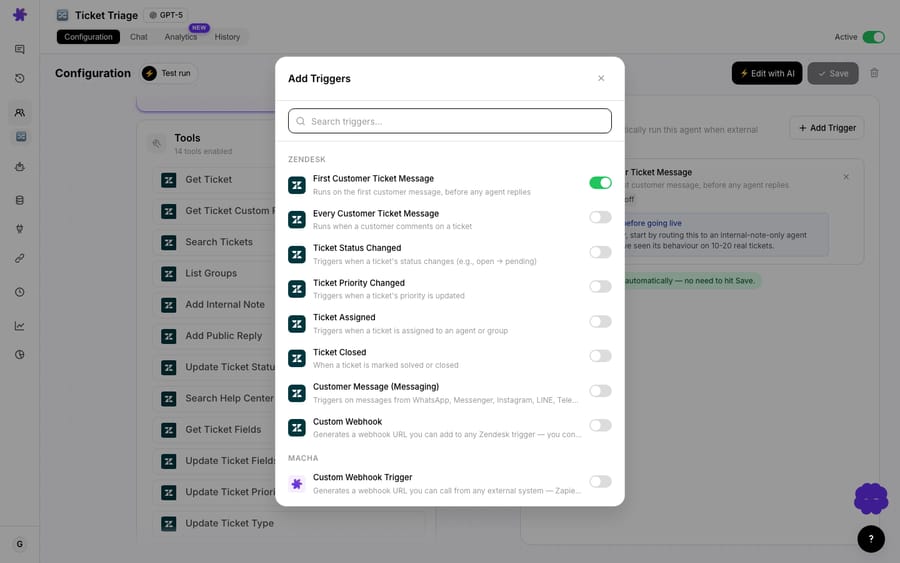
Add the New Ticket trigger. It fires on the first customer message, before any agent replies, so the type is set at the very top of the ticket's life, when routing is most valuable. This is the real-time behaviour native automations can't match: there's no hourly sweep, the agent runs the moment the ticket is created.
3. Add the tools
Give the agent the tools it needs to read and act:
- Get Ticket (and optionally Get Custom Fields) so it can read the subject, description, and any structured context.
- Update Ticket Type: the write tool that sets problem/incident/question/task.
- Optionally Assign Ticket + List Groups to route in the same pass, and Update Tags / Add Internal Note to leave an audit trail of why it chose a type.
A typical run looks like the triage-and-route use case: the agent reads a ticket that says "My account was charged but I never received access to the premium features I paid for," classifies it as an Incident in the Billing area, sets the type, routes it to the Billing queue, and tags it: in seconds, autonomously.
4. Test before you let it run wide
Run the agent against a handful of recent tickets in chat mode first and read its reasoning. Write tools like Update Ticket Type require confirmation in chat, so you can sanity-check the decision before it ever writes to a live ticket. Once the calls look right, enable the trigger and let it run autonomously on new tickets.
What does a full triage run look like?
Type-setting rarely lives alone: it's the first step of a triage pass. Wired with the other two May 2 tools, one agent run can do all of this:
| Step | Tool | What happens |
|---|---|---|
| Read the ticket | Get Ticket | Pulls subject, description, requester, tags |
| Classify | (model reasoning) | "Single user reporting checkout failure → Incident, Billing" |
| Set the type | Update Ticket Type | Type → Incident |
| Resolve the queue | List Groups | Finds the ID for the "Billing" group |
| Route it | Assign Ticket | Assigns to the Billing group queue |
| Leave a trail | Add Internal Note | "Classified as Incident: likely the EU checkout issue. (Macha)" |
That internal note is doing quiet but important work: it makes the AI's decision auditable, so a human can see the reasoning and correct the taxonomy over time.
When should you not lean on AI ticket typing?
Auto-typing is genuinely useful, but it isn't free of trade-offs. Be honest about these before you ship it:
- The Problem/Incident link still needs a human (for now). Update Ticket Type can set a ticket to Incident, but linking that Incident to a specific parent Problem ticket, the
problem_idassociation that drives the auto-close cascade, is a separate, manual Zendesk step. An agent can flag "this looks like Incident of the EU outage" in a note; a human still makes the link. Don't promise the cascade to your team on day one. - Tasks carry a due date the type alone doesn't set. Setting a ticket to Task doesn't populate its Due Date. If your Task workflow depends on dates, the agent should also write that field (via Update Fields) or hand off to a human.
- Broad categories invite drift. With only four values and fuzzy edges, two reasonable agents (or two reasonable humans) will disagree on borderline tickets. Pin down your conventions in the instructions and audit a sample weekly, especially the first fortnight.
- Every ticket it types is a billed ticket. Macha bills per ticket, one conversation, charged once however many steps the agent takes, so typing, tagging and replying on the same ticket is a single charge, and the model the agent runs on doesn't change it. Pick a fast model for triage for the latency, not the price: you rarely need a frontier model to tell a Question from a Task. Plans start at $299 a month for 750 tickets, about $0.40 a ticket, and that includes setup by the Macha team and a dedicated success manager who handles your changes afterwards; see the pricing page for the tiers.
- Don't let it auto-type closed or spam tickets. Scope the trigger (or add a guard in the instructions) so the agent isn't re-typing tickets that don't need it.
For most teams none of these are blockers: they're just the difference between switching it on thoughtfully and switching it on blind.
Where does ticket typing fit in a triage setup?
Setting the type is the smallest, highest-leverage triage action there is: it's one field, it drives downstream routing and reporting, and it's the one humans skip most. Doing it automatically, in real time, on every new ticket is the kind of unglamorous automation that quietly cleans up a queue. Layer in Assign Ticket and List Groups and the same agent becomes a full intake triager, read, classify, route, while your team stays in Zendesk, working the tickets instead of sorting them.
If you want the broader pattern, see triage and route tickets by topic and the Zendesk integration overview for the full action and trigger list.
FAQ
What are the four Zendesk ticket types? Problem, Incident, Question, and Task. Question is a general inquiry; Problem is a root cause affecting many customers; Incident is one customer's report of a Problem (and can be linked to a parent Problem so solving it auto-closes the Incidents); Task is an internal to-do with a due date.
How does Macha set the ticket type automatically? An AI agent with the Update Ticket Type tool fires on Zendesk's New Ticket event, reads the ticket, and writes the type, problem, incident, question, or task, to the native field. No custom fields or hourly automation sweeps involved.
Why not just use a Zendesk automation? Automations run once an hour and match on keywords, so they're slow and miss anything phrased unexpectedly. They also can't set problem_id to link incidents. An AI agent classifies on meaning, in real time, the moment the ticket is created.
Can the agent link an Incident to its parent Problem automatically? Not yet: Update Ticket Type sets the type, but creating the Problem↔Incident link is still a manual Zendesk step. The agent can flag the likely parent in an internal note to make that human step fast.
How much does it cost? Macha bills per ticket, one conversation, charged once, however many steps the agent takes inside it, so classifying a ticket isn't a separate charge, and the model you pick doesn't change the price. Pricing starts at $299 a month for 750 tickets, about $0.40 each, and the price includes setup: the Macha team builds and tests the triage agent for you, and a dedicated success manager handles your changes after go-live. See pricing for plan details.
Which other tools came with this release? The May 2, 2026 release also shipped List Groups (resolve a group name to an ID) and an upgraded Assign Ticket that can route to a group queue, an agent, or both.
How do you try it?
If your Zendesk queue is a wall of untyped tickets, an AI triage agent fixes it on the next ticket in, not the next sprint. Start a free trial with $50 of usage and no credit card, connect Zendesk, add the Update Ticket Type tool to a triage agent, and watch the four types fill themselves in. You don't have to build it yourself: on the trial and every plan, the Macha team writes the agent's instruction from how your team already types tickets, tests it on a sample of your past tickets and runs it in safe mode, with its notes as internal notes, until the types are right. The docs have the full agent-builder walkthrough.
Written by Abbas (Customer Support & AI, Macha) · Reviewed by Ankeet Guha (Co-founder & CTO) · Published 2026-06-24 · Last updated 2026-09-24.
Sources: Working with problem and incident tickets: Zendesk help; About automations and how they work, Zendesk help.






